Tutorials

Learn the Novus apps

Core, step-by-step guidance for the tools — grouped by app and written to stand on its own. Each app has a deeper library inside the product itself; these are the essentials. For the full reference see the documentation, and for the stories behind the builds, the product blog.

App

Topic

61 tutorials

NSS Background Remover

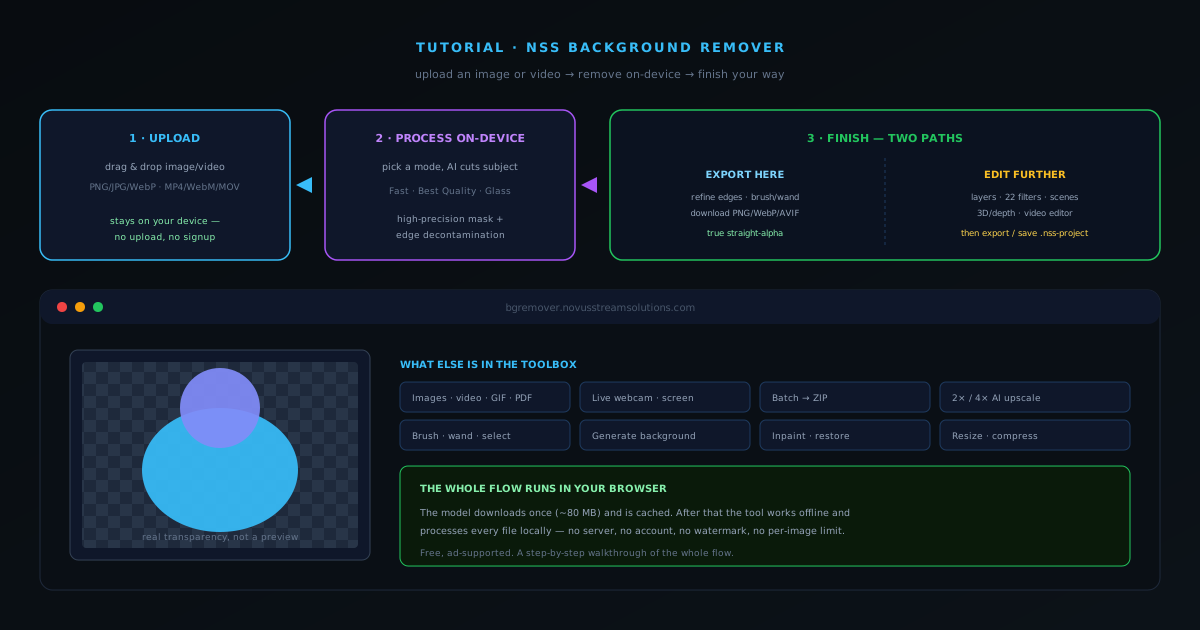
  1. NSS Background Remover tutorial: upload, process on-device, then refine and export or edit further
    Getting started

    How to remove a background from an image or video with NSS Background Remover

    A complete walkthrough of NSS Background Remover: upload an image or video, let the on-device AI cut the subject, then either refine and export right on the tool page or open the full editor for layers, filters, and more.

    7 min · BeginnerStart
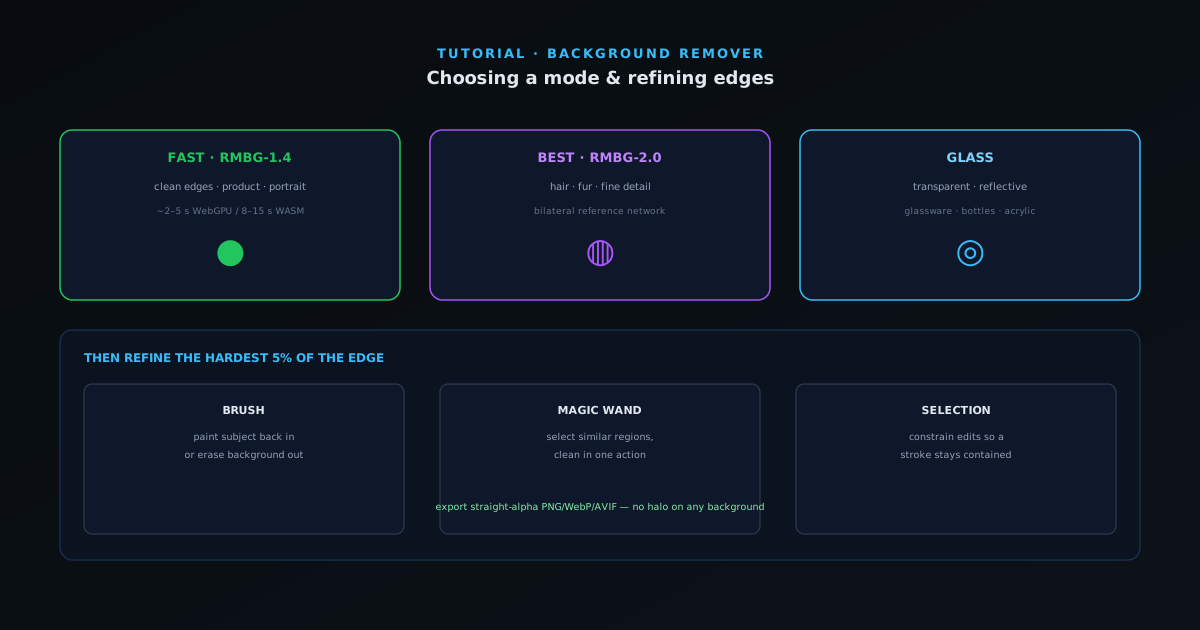
  2. Comparing Fast, Best Quality, and Glass removal modes and refining edges with brush, wand, and selection tools
    Removal & editing

    Choosing the right mode and refining edges in NSS Background Remover

    When to reach for Fast, Best Quality, or Glass — and how to clean up the last few percent with the brush, wand, and selection tools so even hair and transparent material cut cleanly.

    6 min · IntermediateStart
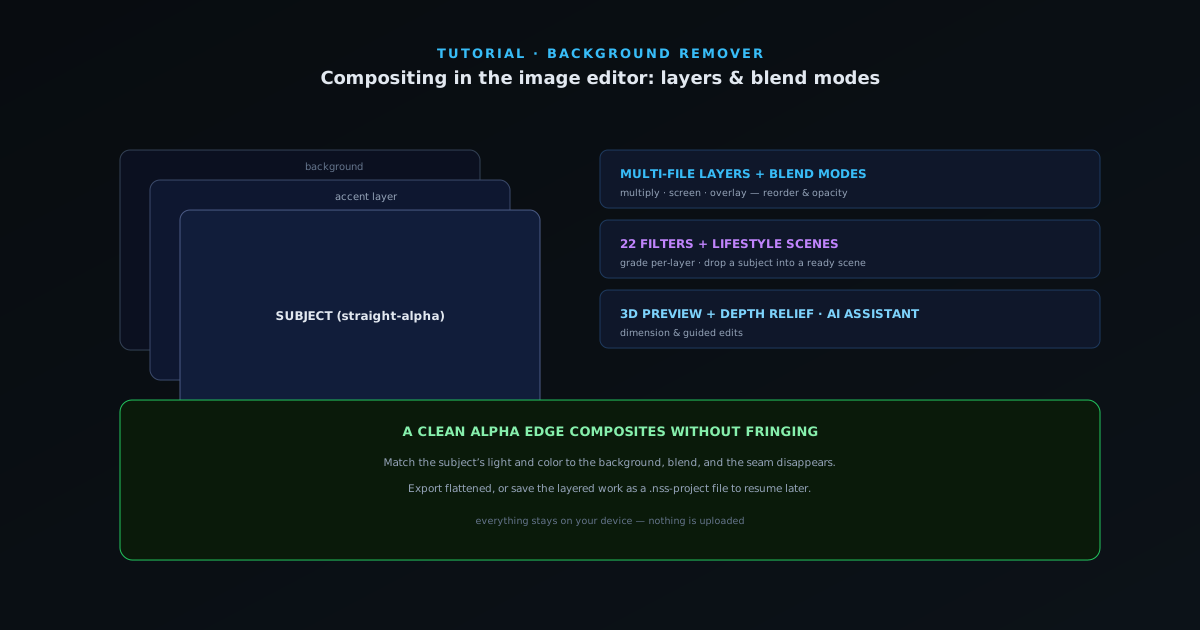
  3. The image editor with multiple layers, blend modes, 22 filters, lifestyle scenes, and 3D depth preview
    Removal & editing

    Compositing with the image editor: layers, blend modes, and filters

    Take a cutout further: stack multiple images as layers with blend modes, apply any of 22 filters, drop a subject into a lifestyle scene, and preview in 3D with depth relief — all in the browser.

    7 min · IntermediateStart
  4. The on-device AI suite: generate background, inpaint, restore, colorize, denoise, and 2x/4x upscale
    AI tools

    Beyond cutouts: the AI suite — generate, inpaint, restore, colorize, upscale

    A tour of the on-device AI tools beyond background removal: generate a new background, inpaint out distractions, restore and colorize old photos, denoise, and upscale 2× or 4× — all without uploading.

    7 min · IntermediateStart
  5. Per-frame video background removal plus GIF, PDF, live webcam and screen-capture surfaces
    Formats & batch

    Removing backgrounds from video, GIFs, and PDFs

    Background removal is not just for stills. Walk through per-frame video removal, the video editor (color grading, text, trim/fade), animated GIFs, per-page PDF removal, and live webcam/screen capture.

    7 min · IntermediateStart
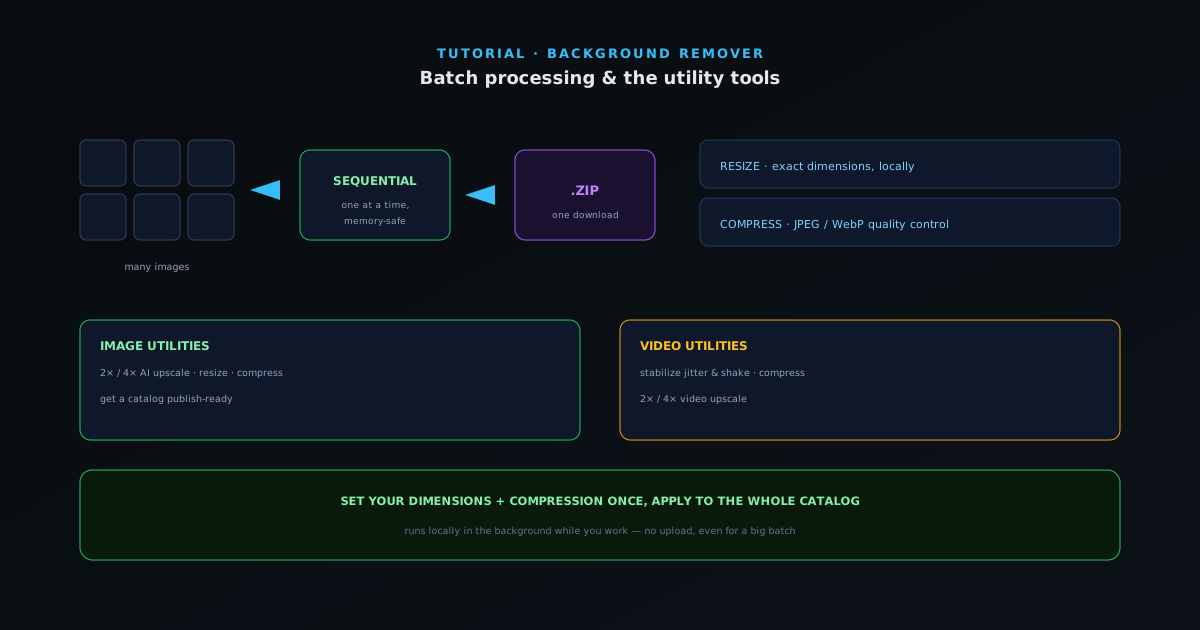
  6. Batch removing many images to a ZIP plus resize, compress, upscale, and stabilize utilities
    Formats & batch

    Batch processing and the utility tools: resize, compress, upscale, stabilize

    Process a whole product catalog at once and download a ZIP, then use the local utility tools — image resize and compress, 2×/4× upscale, and video stabilize/compress — to finish a batch for publishing.

    6 min · IntermediateStart
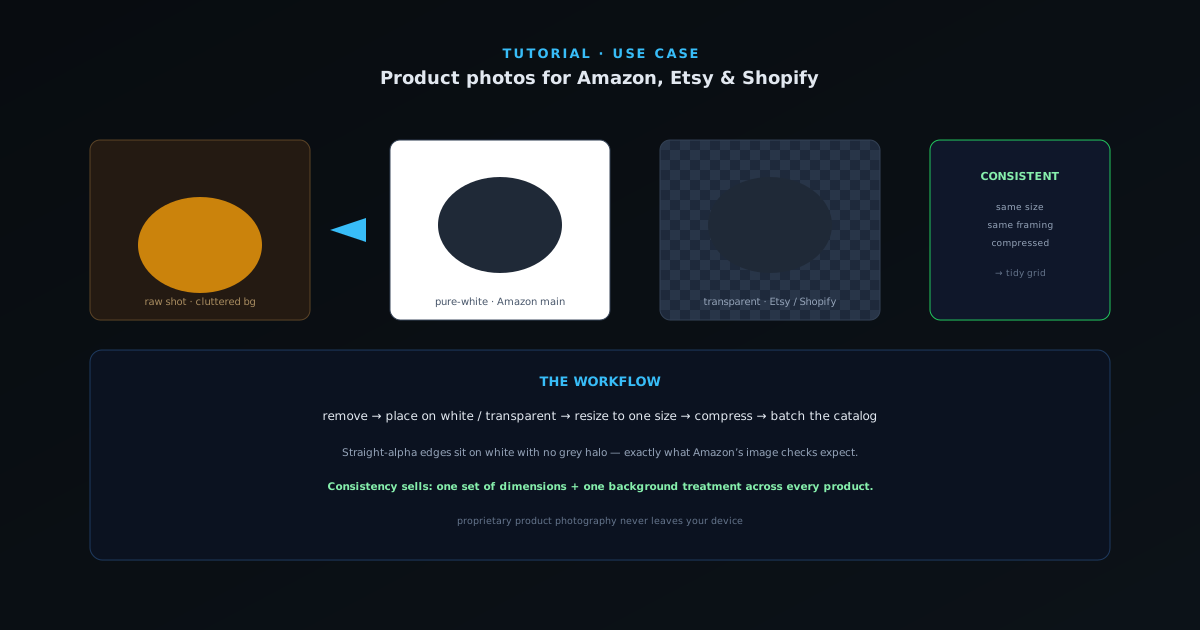
  7. Turning raw product shots into clean marketplace-ready images on white or transparent backgrounds
    Use cases

    Prepping product photos for Amazon, Etsy, and Shopify

    A practical workflow for turning raw product shots into clean, marketplace-ready images: pure-white or transparent backgrounds, consistent sizing, and compressed files — for a whole catalog at once.

    6 min · BeginnerStart
  8. Restoring, colorizing, and upscaling an old damaged photo entirely on-device
    Use cases

    Restoring and colorizing old photos

    Bring an old or damaged family photo back to life — denoise and restore detail, colorize black-and-white, upscale for printing, and optionally cut the subject out — all on-device with nothing uploaded.

    6 min · BeginnerStart
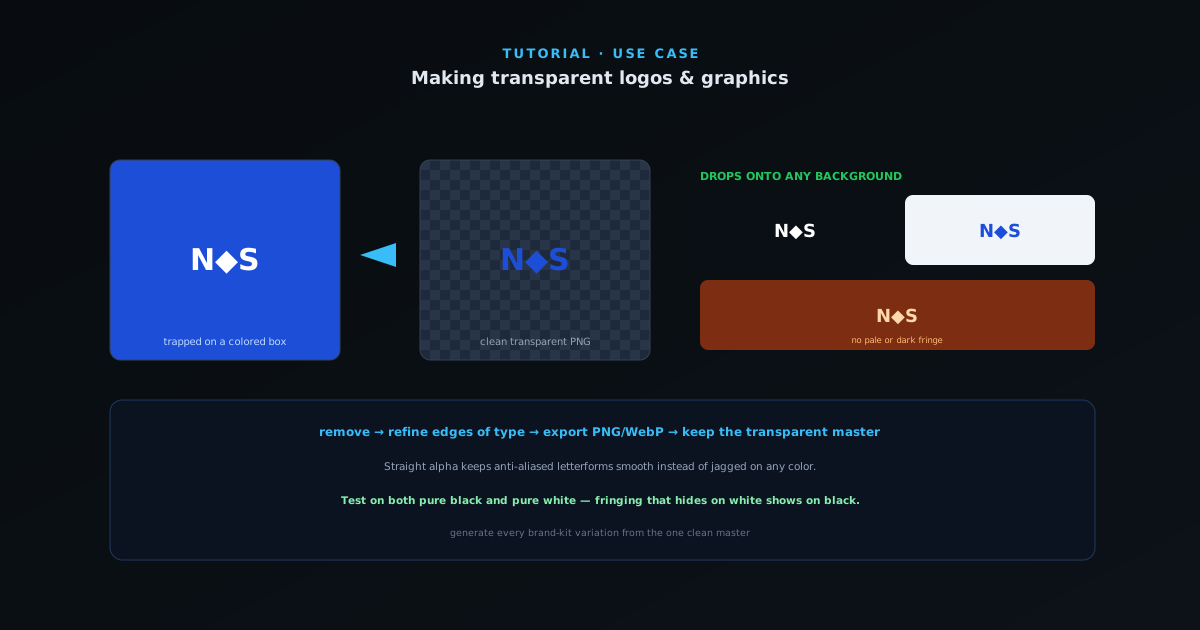
  9. Converting a logo on a solid background into a clean transparent PNG
    Use cases

    Making transparent logos and graphics

    Turn a logo on a solid or busy background into a clean transparent PNG that drops onto any color — the right mode, edge refinement for crisp type, and an export that won’t halo.

    5 min · BeginnerStart
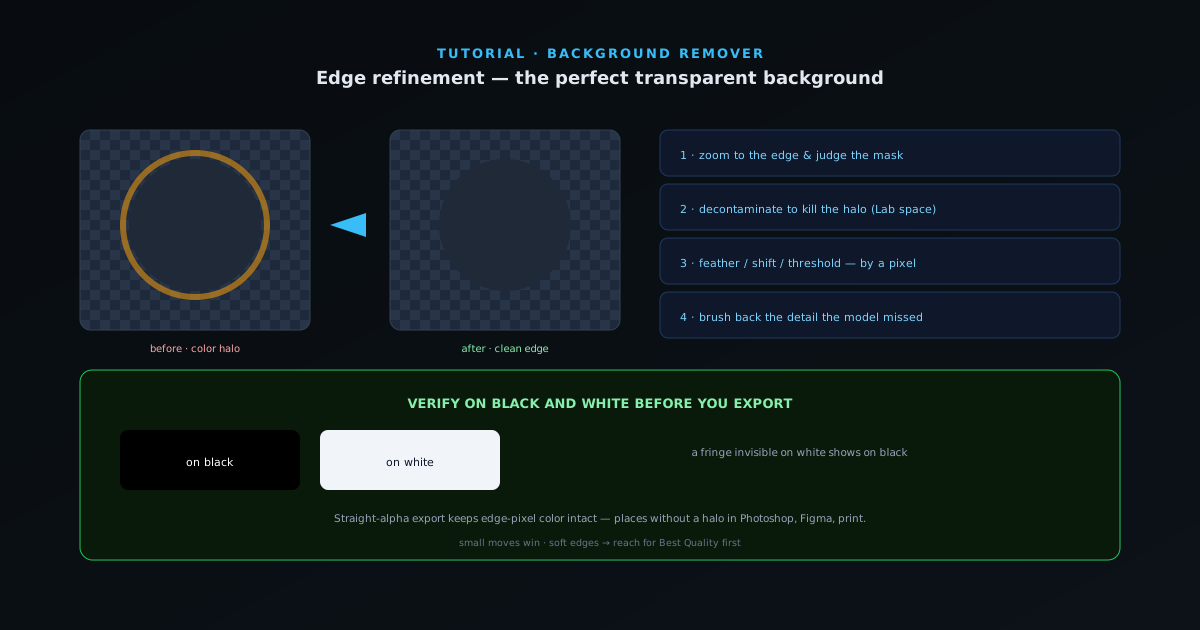
  10. Refining a cutout edge — decontamination, feather, and brush — for a flawless transparent background
    Removal & editing

    Edge refinement: getting a perfect transparent background

    The difference between a good cutout and a perfect one is the last 5% of the edge. How to use the edge-refine and decontamination controls in the editor to kill halos, recover soft detail, and export a flawless transparent background.

    7 min · IntermediateStart
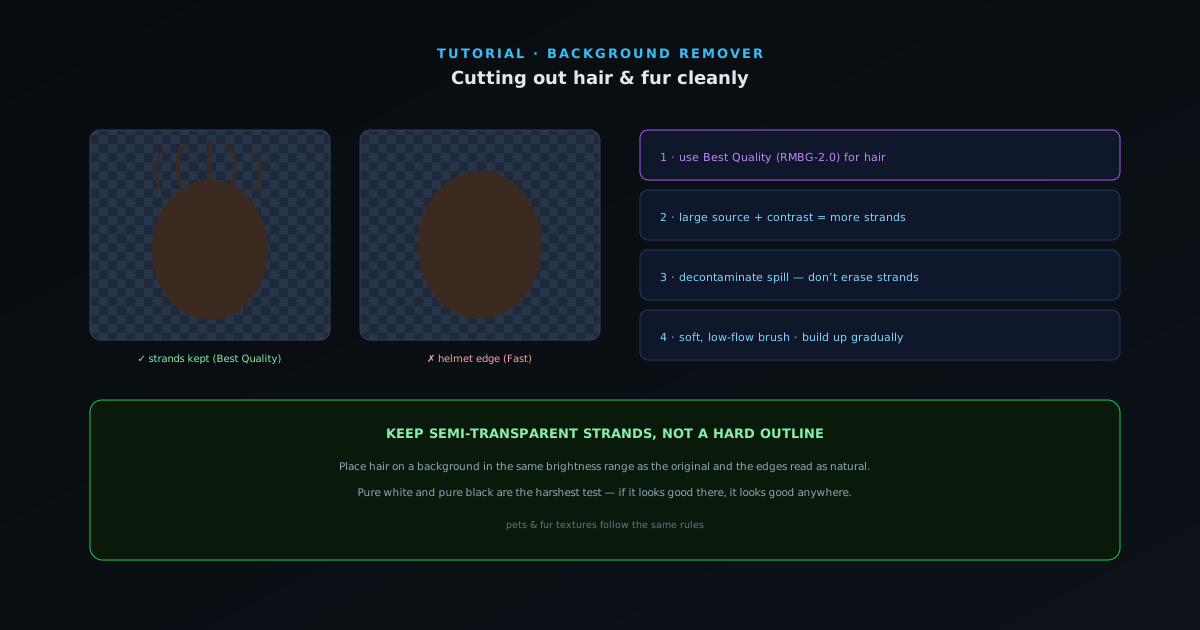
  11. Cutting out flyaway hair and fur strands while keeping fine detail
    Removal & editing

    Cutting out hair and fur cleanly

    Hair and fur are where most background removers fall apart. The model choice, settings, and brush technique that keep individual strands instead of a helmet-shaped blob — for portraits, pets, and fur textures.

    6 min · IntermediateStart
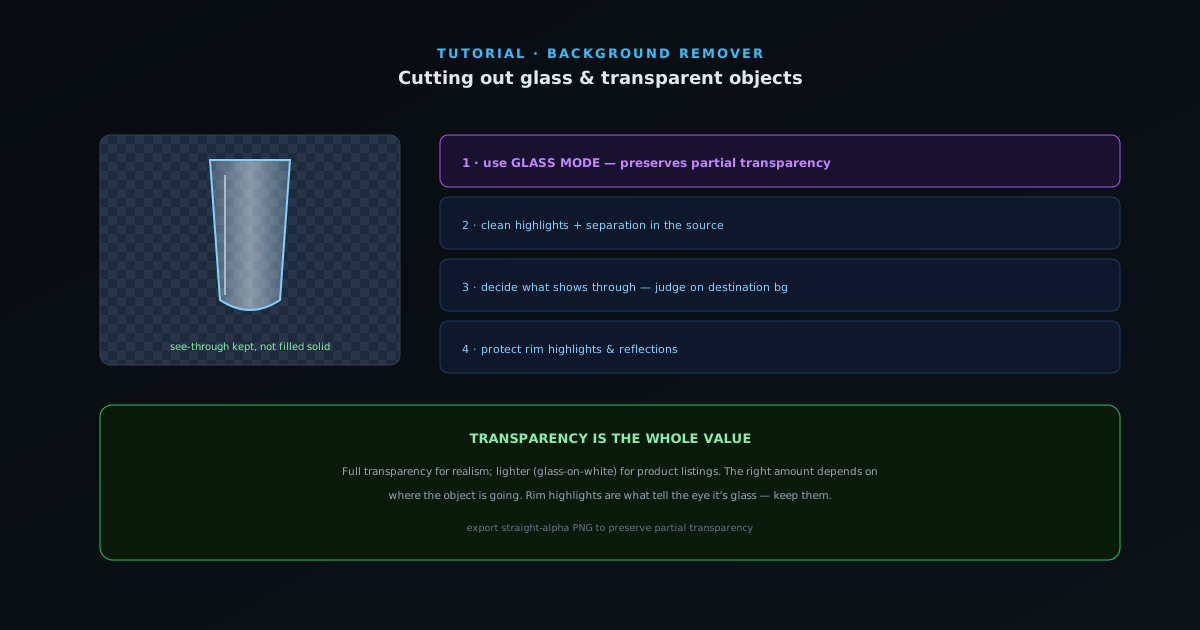
  12. Removing the background from glass and transparent objects while keeping see-through realism
    Removal & editing

    Cutting out glass and transparent objects

    Glassware, bottles, and acrylic break normal background removal because the subject is partly see-through. How Glass mode and careful compositing keep realistic transparency instead of cutting the object to a flat silhouette.

    6 min · IntermediateStart
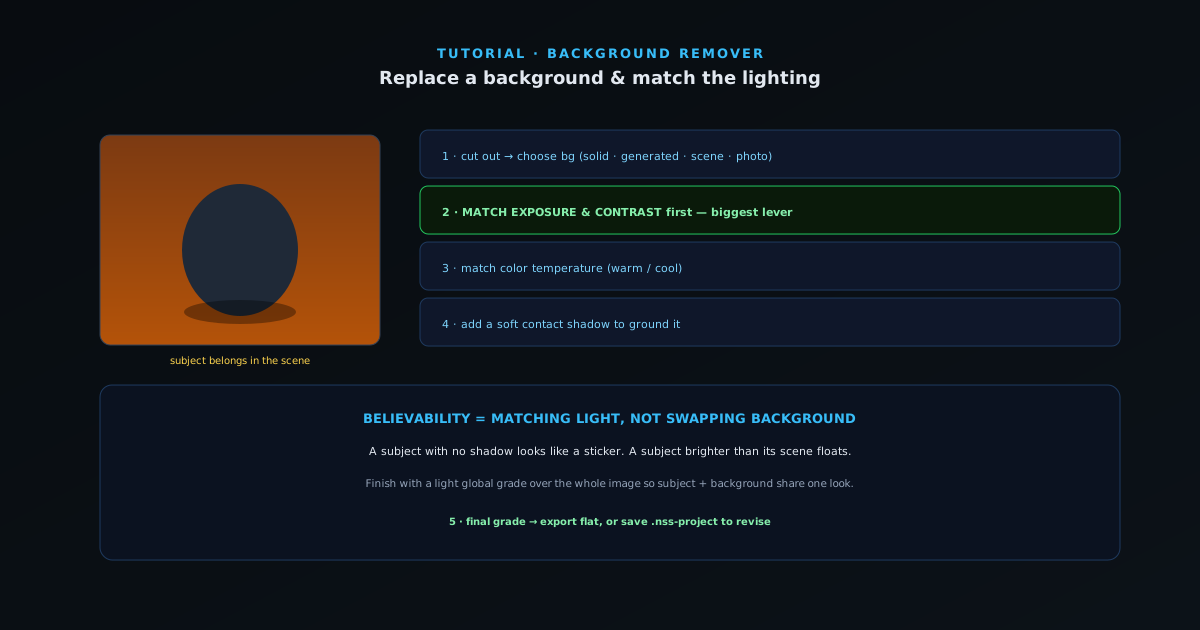
  13. Replacing a background and matching exposure, color, and shadow so the composite looks real
    Removal & editing

    Replacing a background and matching the lighting

    A believable composite is 10% cutout and 90% making the subject belong in its new scene. How to replace a background — solid, generated, or a photo — and match exposure, color, and shadow so the seam disappears.

    7 min · IntermediateStart
  14. Placing a product cutout into a lifestyle scene with correct scale, perspective, and shadow
    Use cases

    Compositing products into lifestyle scenes

    Plain-white product shots convert; lifestyle shots sell the feeling. How to use the Lifestyle Composer and editor to place a product into a believable scene — scale, perspective, shadow, and light — without a photoshoot.

    6 min · IntermediateStart
  15. Live-camera background removal for a clean virtual background on calls and streams
    Use cases

    Virtual backgrounds for calls and streams

    Use live-camera background removal to get a clean virtual background for calls, streams, and recordings — no green screen — and learn the lighting and setup that make real-time removal look sharp.

    5 min · BeginnerStart
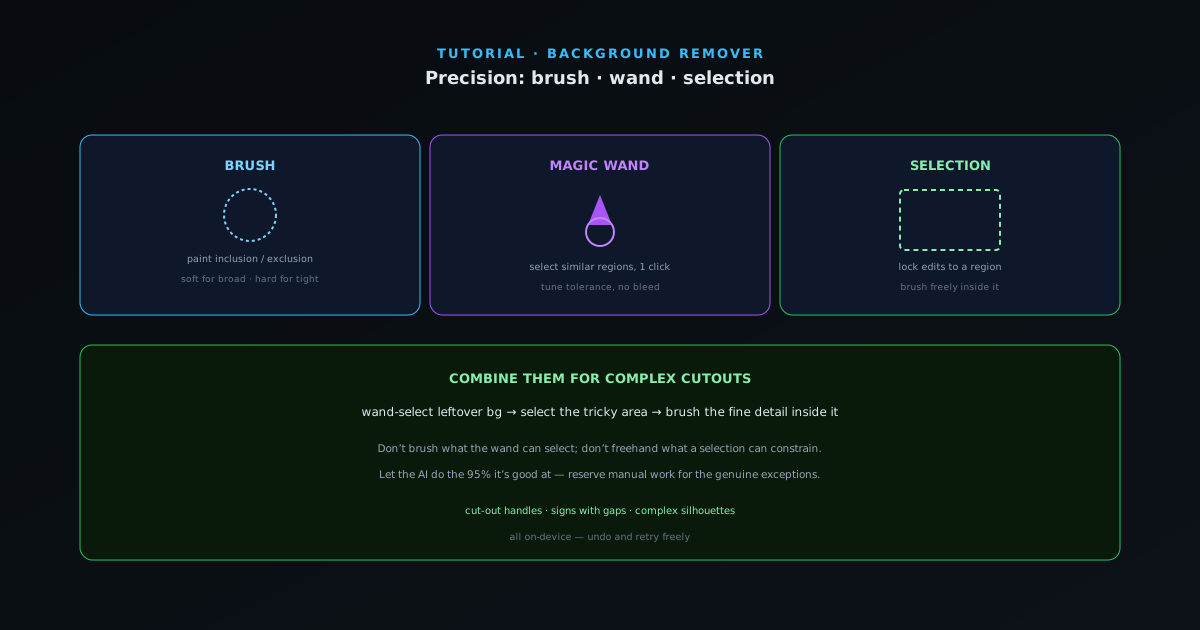
  16. Combining brush, magic wand, and selection tools for precise manual cutouts
    Removal & editing

    Precision cutouts with the brush, wand, and selection tools

    When the AI mask needs manual help, the brush, magic wand, and selection tools give you full control. How to combine them to fix complex cutouts — cut-out shapes, gaps, and tricky boundaries — efficiently.

    6 min · IntermediateStart
  17. AI photo enhancement — exposure, white balance, HDR, relight, deblur, and denoise
    AI tools

    AI photo enhancement: exposure, color, and clarity

    Fix a flat, dark, or dull photo in a few clicks. How to use the on-device enhancement tools — auto-grade, exposure, white balance, HDR, relight, deblur, and denoise — to make an image pop before you cut it out or publish it.

    6 min · BeginnerStart
  18. AI portrait retouching — face restore, skin smooth, blemish removal, teeth whiten
    AI tools

    AI portrait retouching

    Natural, on-device portrait retouching — face restore, skin smoothing, blemish and red-eye removal, teeth whitening, and eye/hair recolor — with the restraint that keeps a person looking like themselves.

    6 min · BeginnerStart
  19. AI image generation — text-to-image, image-to-image, sketch-to-image, variations
    AI tools

    Generating images from text and transforming images with AI

    Create images from a text prompt, transform an existing image with image-to-image, turn a sketch into a render, and spin off variations — all on-device with the AI generation tools.

    6 min · IntermediateStart
  20. AI object removal and fill — inpaint, outpaint, generative fill, replace object
    AI tools

    Removing and replacing objects with AI

    Erase a photobomber, remove text or a logo, swap an object, or extend the frame — using inpaint, outpaint, generative fill, and object replace, all on-device.

    6 min · IntermediateStart
  21. Artistic AI — style transfer, photo to painting, cartoonify
    AI tools

    Artistic AI: style transfer, painting, and cartoon effects

    Turn a photo into art — apply the look of another image with style transfer, render a photo as a painting, or stylize it as a cartoon — all on-device, free, and yours.

    5 min · BeginnerStart
  22. AI vision tools — describe, OCR, tag, alt text, quality score, find similar
    AI tools

    AI vision tools: describe, OCR, tag, and analyze your images

    Let AI read your images: generate captions and alt text, extract text with OCR, auto-tag and categorize, ask questions about a photo, score quality, and find similar images — all on-device.

    6 min · BeginnerStart
  23. Smart framing — smart crop, reframe to new aspect ratios, best frame, auto-straighten
    AI tools

    Smart cropping, reframing, and auto-straighten

    Let AI handle the framing: smart-crop to the subject, reframe to a new aspect ratio without cutting off the important part, pick the best frame from a burst, and auto-straighten a tilted shot.

    5 min · BeginnerStart
  24. Privacy and redaction — blur faces, plates, sensitive regions, strip metadata
    AI tools

    Redacting and protecting privacy in images and video

    Blur faces and license plates, redact sensitive regions in photos and video, and strip hidden metadata — all on-device, which is exactly what privacy work should be.

    5 min · BeginnerStart
  25. AI video effects — slow motion, cinemagraph, video to GIF, video style, camera path, loop point
    AI tools

    AI video effects: slow motion, cinemagraphs, and more

    Beyond background removal, the AI suite restyles and reshapes video — smooth slow motion, cinemagraphs, GIF conversion, style transfer, synthetic camera moves, and seamless loops — on-device.

    6 min · IntermediateStart
  26. AI subtitles and audio — auto-subtitles, translate, summary, speakers, audio clean, source separate
    AI tools

    AI subtitles and audio cleanup for video

    Auto-subtitle and translate a video, summarize and chapter it, separate speakers, and clean up the audio — the AI tools that make video clearer and more accessible, on-device.

    6 min · IntermediateStart
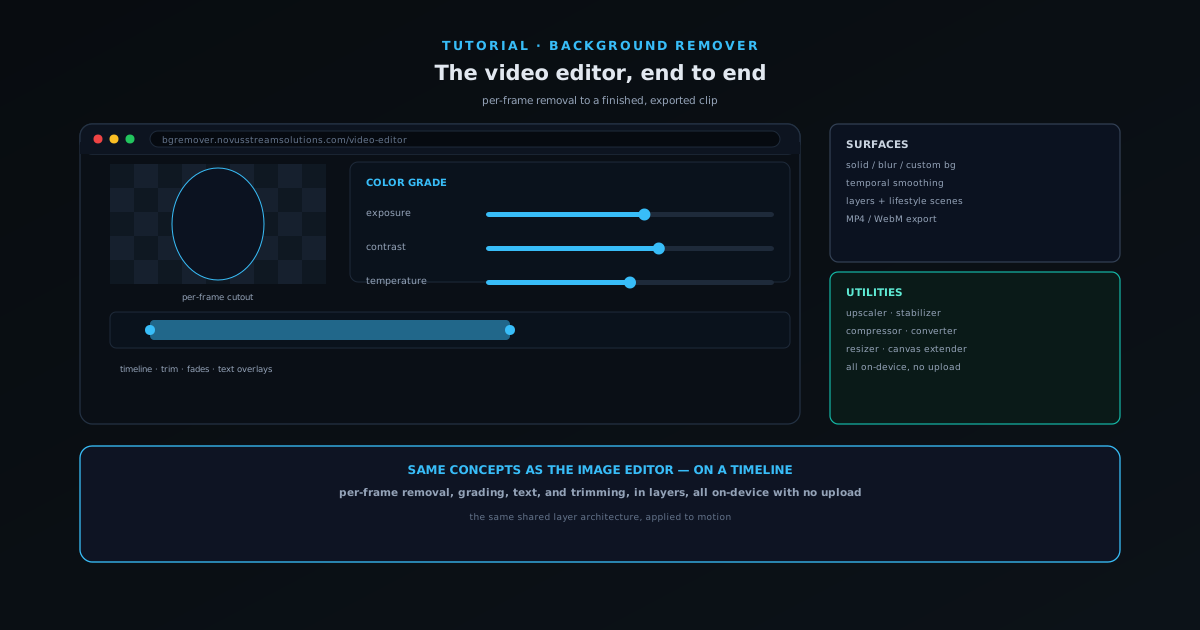
  27. The NSS Background Remover video editor: per-frame removal, grade, filters, text, timeline, and export
    Removal & editing

    The NSS Background Remover video editor, end to end

    Go beyond per-frame removal: color-grade, add LUT filters and text overlays, trim and fade on a timeline, work with layers and lifestyle scenes, and export — all on-device, frame by frame.

    8 min · IntermediateStart
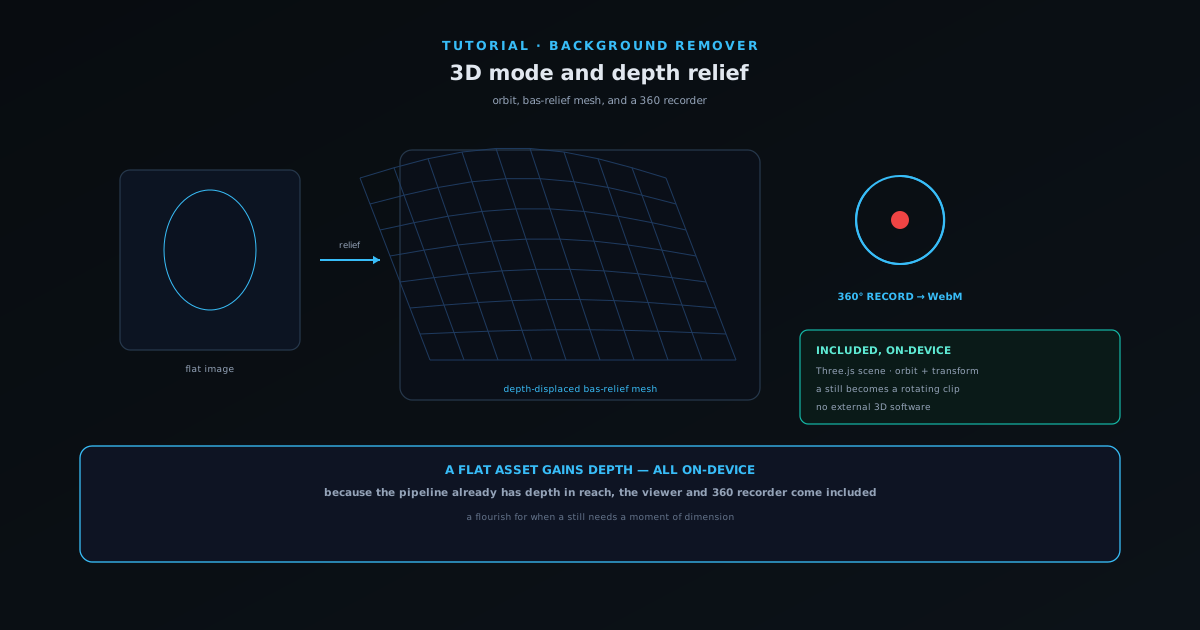
  28. NSS Background Remover 3D mode: orbit controls, depth-relief mesh, and a 360-degree recorder
    Editing & layers

    3D mode and depth relief: orbit, bas-relief, and a 360 recorder

    Turn a flat image into a depth-displaced bas-relief mesh, orbit it in a Three.js scene with a furniture palette, and record a short 360-degree spin to WebM — all on-device.

    6 min · IntermediateStart
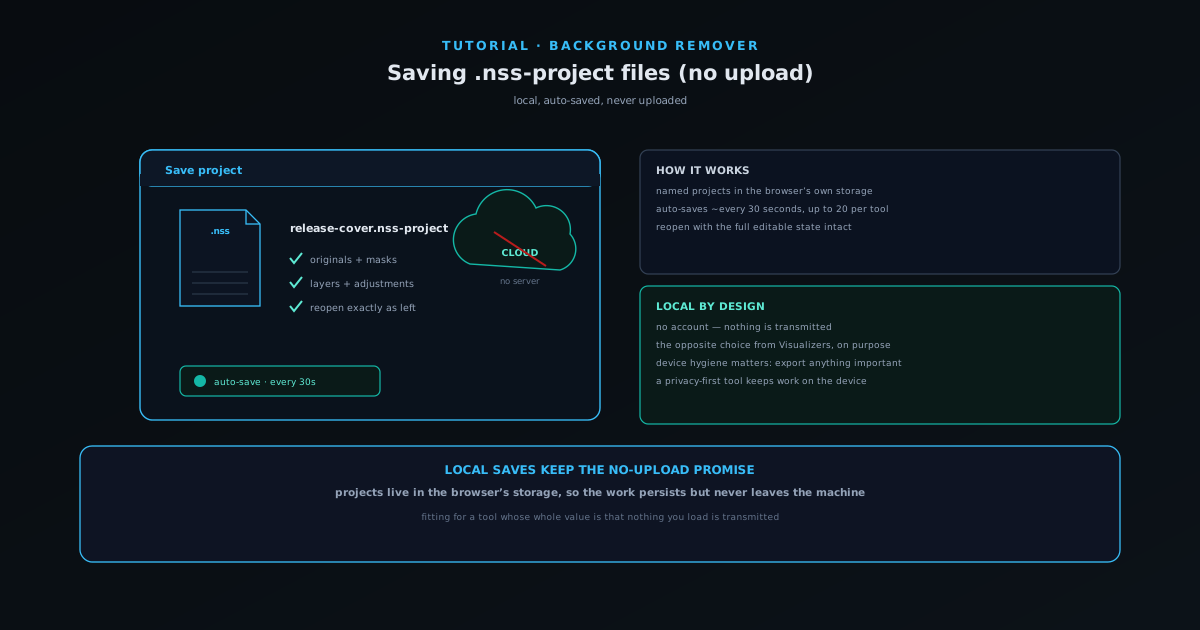
  29. NSS Background Remover .nss-project saves: local storage, auto-save, originals and masks preserved
    Editing & layers

    Saving your work as .nss-project files (locally, no upload)

    Save a composition as a named .nss-project in your browser's own storage — preserving originals, masks, layers, and adjustments — with auto-save every 30 seconds and no upload.

    5 min · BeginnerStart
  30. The NSS Background Remover AI assistant: state a goal, and a recipe assembles the tool steps
    AI tools

    Using the AI assistant and goal recipes

    State a goal in plain language and let the agentic AI assistant assemble the steps from the underlying ~90-tool suite, so you do not have to hunt for each tool yourself.

    6 min · BeginnerStart
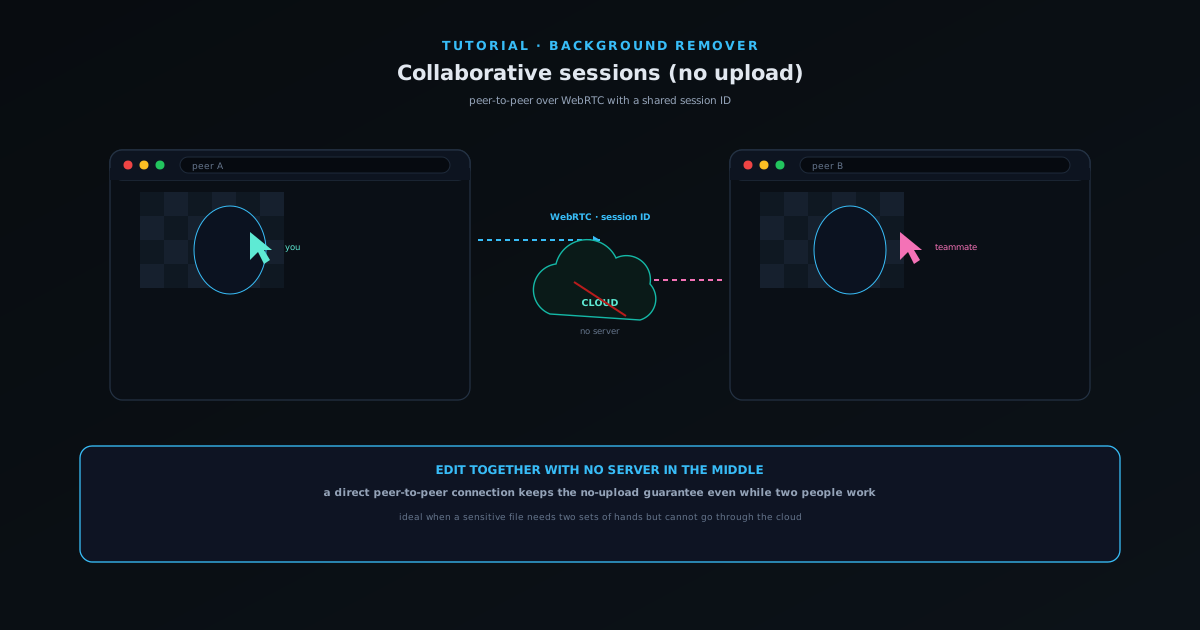
  31. NSS Background Remover collaborative sessions: peer-to-peer editing over WebRTC with a session ID
    Use cases

    Editing together with collaborative sessions (no upload)

    When two people genuinely need to edit together, use peer-to-peer collaborative sessions built on WebRTC with a shared session ID — without routing images through a server.

    5 min · IntermediateStart
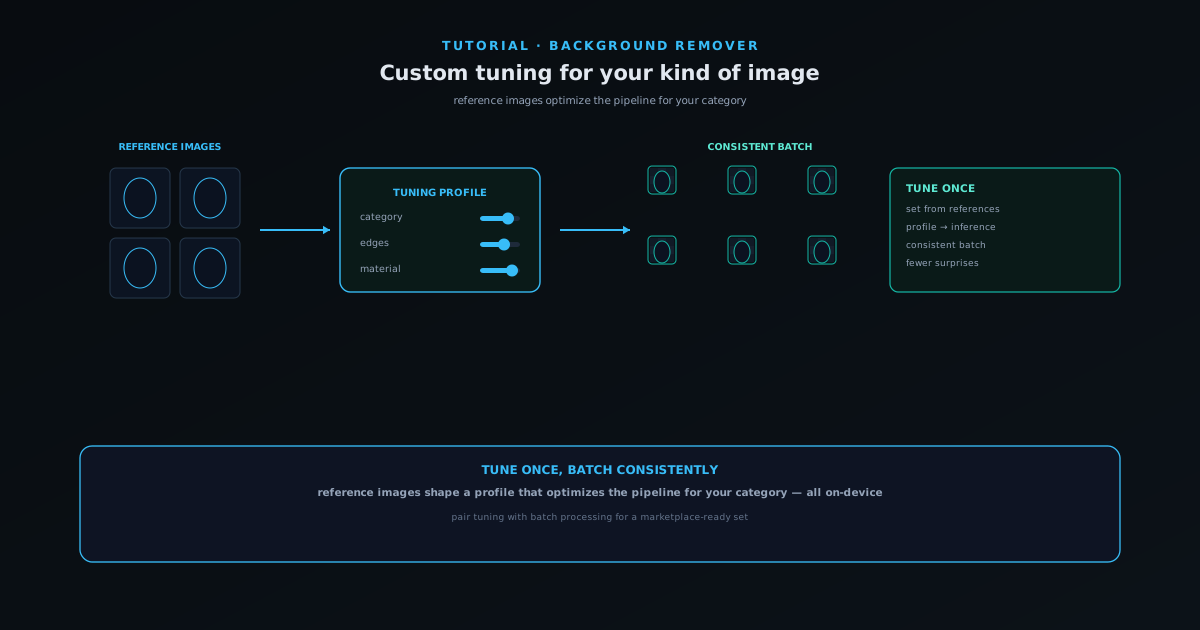
  32. NSS Background Remover custom tuning: reference images optimize the pipeline for your category
    AI tools

    Custom tuning: optimize the pipeline for your kind of image

    Upload reference images to tune the removal pipeline for a specific category of image — your products, your style — so cutouts get more consistent across a catalog, all on-device.

    6 min · IntermediateStart
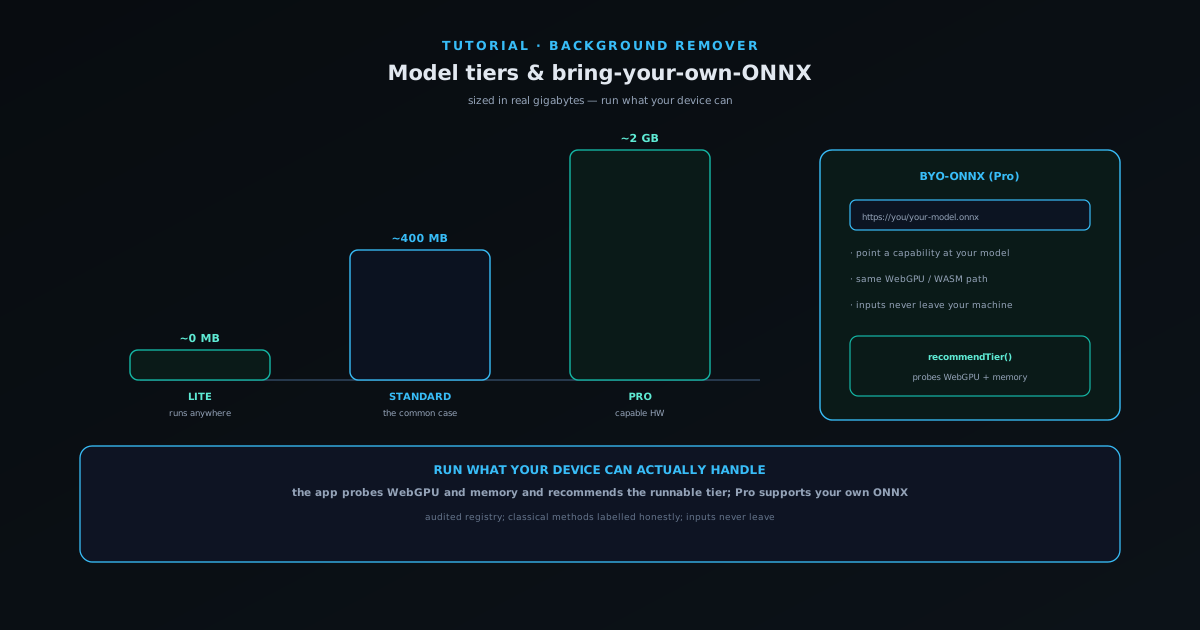
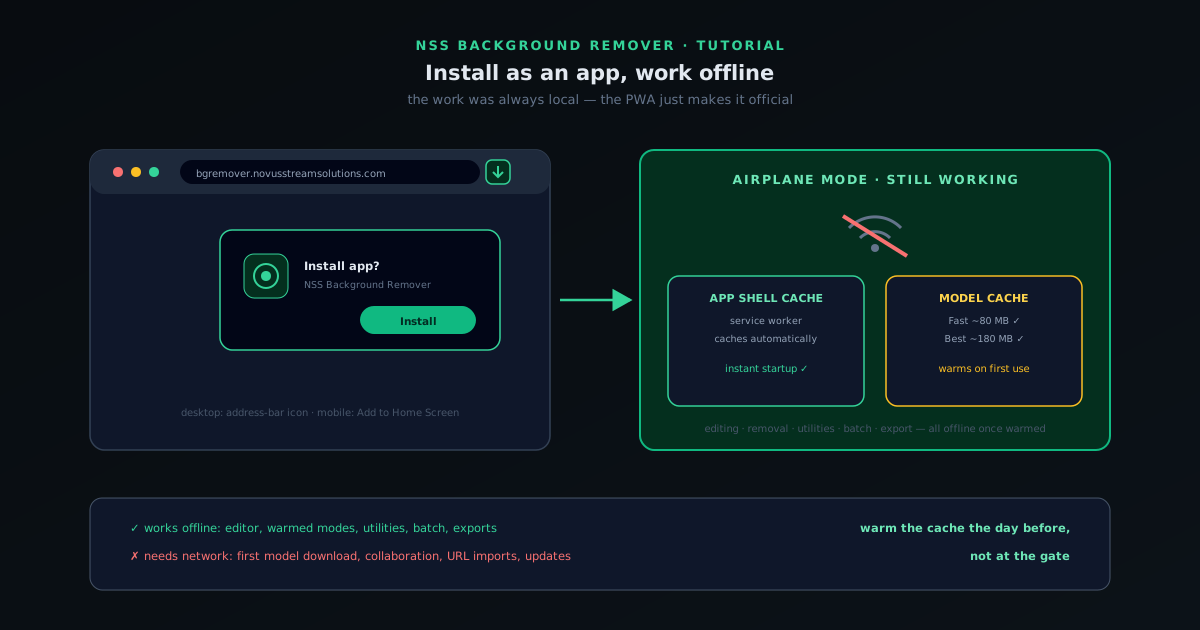
  33. NSS Background Remover model tiers (Lite/Standard/Pro) and bring-your-own-ONNX, all on-device
    AI tools

    Model tiers and bring-your-own-ONNX

    Choose the right model tier for your device — Lite, Standard, or Pro — manage what is cached, and point an advanced Pro capability at your own hosted ONNX model, all running locally.

    6 min · IntermediateStart
Novus Visualizers
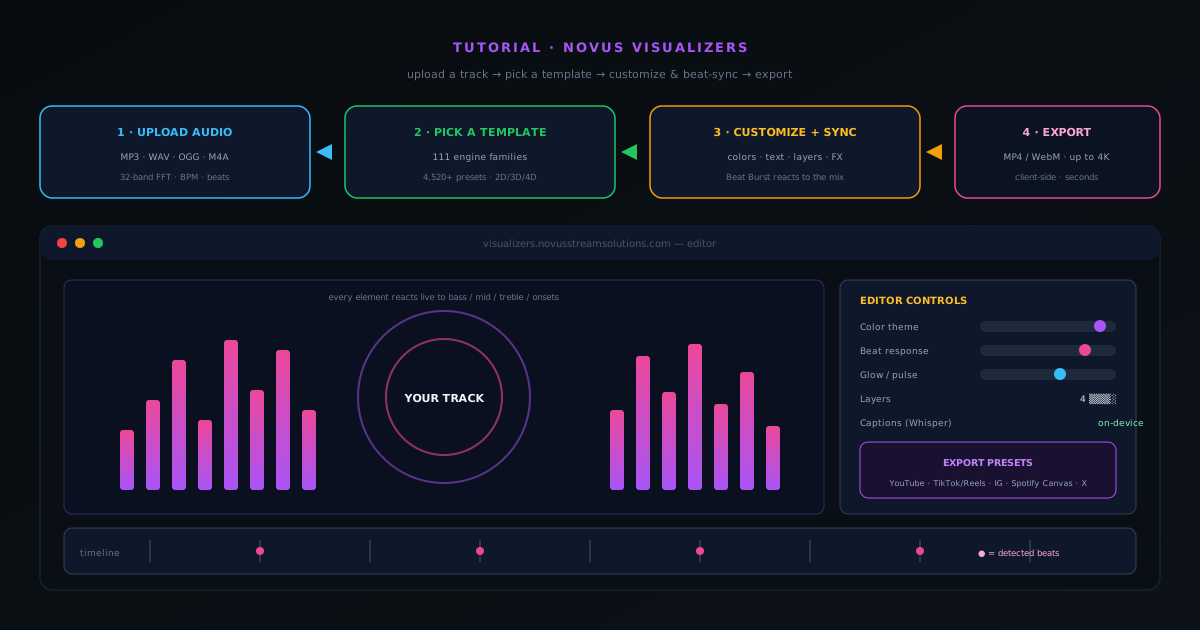
  1. Novus Visualizers tutorial: upload audio, pick a template, customize and beat-sync in the editor, then export
    Getting started

    How to make a music visualizer video with Novus Visualizers

    A complete walkthrough of Novus Visualizers: upload a track, pick a template, tune the visuals and beat-sync in the editor, then export a release-ready MP4 or WebM up to 4K — all in your browser.

    7 min · BeginnerStart
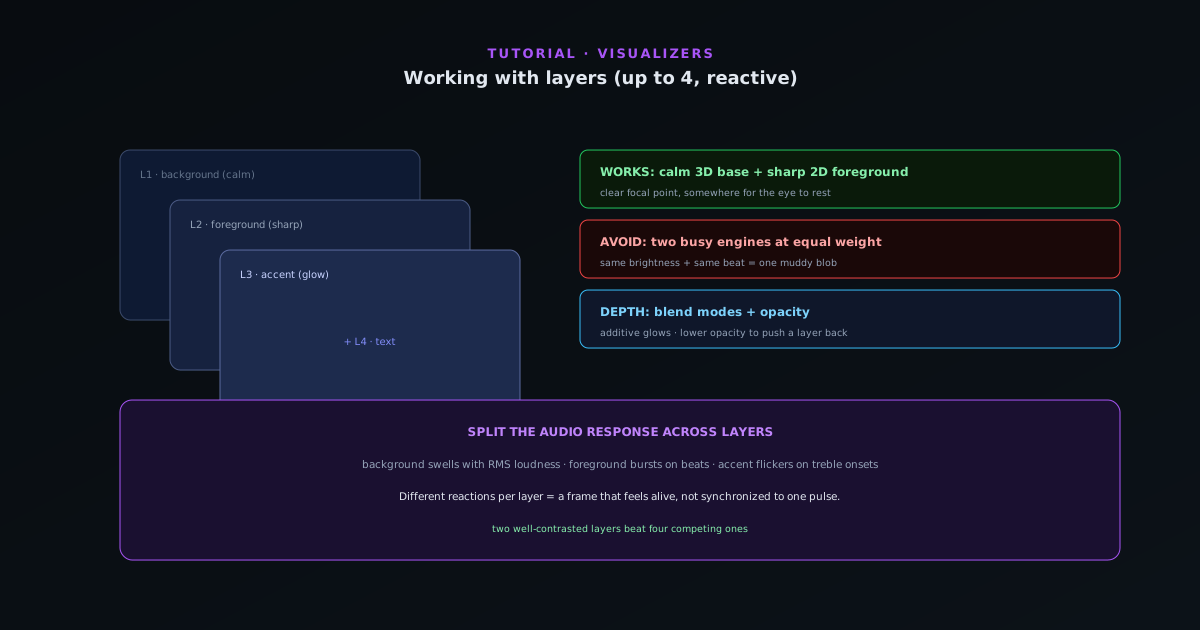
  2. Stacking up to four reactive visualizer layers with blend controls for depth
    Editing & layers

    Working with layers in Novus Visualizers (and which combinations work best)

    Stack up to four reactive layers with blend controls to build depth — a calm background engine, a sharp foreground, accents, and text — and learn the layer combinations that read well instead of turning to mush.

    7 min · IntermediateStart
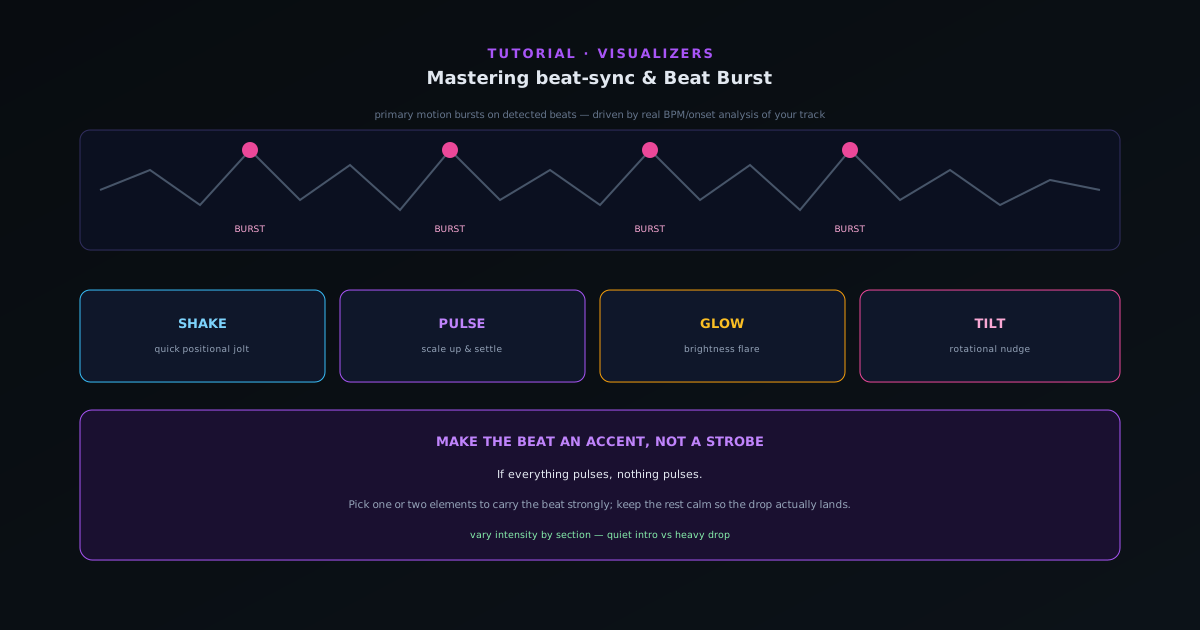
  3. Beat Burst driving motion on detected beats with shake, pulse, glow, and tilt properties
    Audio & beat-sync

    Mastering beat-sync: Beat Burst and beat-reactive properties

    Make the visuals move with the music, not just under it. How Beat Burst drives primary motion on detected beats, and how to layer beat-reactive properties — shake, pulse, glow, tilt — so the hits land where you want them.

    6 min · IntermediateStart
  4. Mapping a 32-band FFT — bass, mid, treble, RMS, and onsets — to visual parameters
    Audio & beat-sync

    Audio reactivity in depth: default bindings vs customizing the FFT mapping

    Go past the defaults: understand the 32-band FFT and how bass, mid, treble, RMS loudness, and onset detection map to motion — then customize which audio signal drives which visual parameter.

    8 min · IntermediateStart
  5. Adding titles, fonts, animation styles, and on-device Whisper AI captions with per-word timing
    Editing & layers

    Text, titles, and on-device AI captions in Novus Visualizers

    Add a title and artist, choose fonts and animation styles, and turn audio into captions with on-device Whisper transcription and per-word timing — without your audio ever leaving the browser.

    6 min · IntermediateStart
  6. Export settings — resolution, fps, MP4/WebM, platform presets — plus the companion tools
    Export & release

    Export settings and the companion tools

    Pick the right export every time — resolution, fps, MP4 vs WebM, and the platform presets for YouTube, TikTok, Reels, Spotify Canvas, and more — then round out a release with the companion tools.

    6 min · IntermediateStart
  7. Designing a 9:16 vertical music visualizer for TikTok, Reels, and Shorts
    Use cases

    Making a vertical visualizer for TikTok, Reels & Shorts

    A focused workflow for short-form vertical video: pick a template that reads at 9:16, keep the motion centered and punchy, add captions, and export with the TikTok/Reels preset.

    5 min · BeginnerStart
  8. Designing a short seamless vertical Spotify Canvas loop
    Use cases

    Creating a Spotify Canvas loop

    Make a short, seamless looping visual for Spotify Canvas: a vertical clip that reads at a glance, loops cleanly, and uses the Spotify Canvas export preset.

    5 min · BeginnerStart
  9. Building a word-synced lyric video with on-device AI captions and per-word timing
    Use cases

    Making a lyric video

    Turn a track into a word-synced lyric video — use on-device AI captions for the transcript, fix per-word timing so lines land with the vocal, set a readable look, and export. Plus when to reach for the Lyric Video Creator.

    6 min · BeginnerStart
  10. Choosing the most reactive section of a track — clear beats, dynamic range, defined frequencies
    Audio & beat-sync

    Picking the perfect song (section) for your visualizer

    The track you feed the analyzer decides how good the visual can be. What makes a section reactive — clear beats, dynamic range, defined frequency content — and how to choose the part of your song that will look best.

    6 min · BeginnerStart
  11. Matching visualizer engine styles to music genres — EDM, hip-hop, lo-fi, rock, ambient, classical
    Editing & layers

    Best visualizer styles by genre

    Which engine families and looks tend to fit which genres — from hip-hop and EDM to lo-fi, rock, ambient, and classical — so you can pick a starting template that already feels right for your track.

    7 min · BeginnerStart
  12. Designing a visualizer color palette with the nine themes and per-element control
    Editing & layers

    Color & theme design for visualizers

    Color is the fastest way to set a mood and match your release art. How to use the nine themes and per-element color control to design a look that feels intentional instead of default.

    6 min · BeginnerStart
  13. Using a brand kit to keep colors, fonts, and logo consistent across releases
    Editing & layers

    The brand kit: a consistent look across releases

    Recognizable artists look the same release after release. How to use the brand kit to save your colors, fonts, and logo so every visualizer, cover, and overlay shares one identity — without redoing the work each time.

    5 min · BeginnerStart
  14. Adding a branded intro, an animated logo, and an outro/end screen to a visualizer
    Editing & layers

    Intros, outros & animated logos

    A short branded intro and outro turns a loop into a finished video. How to add an animated logo, an intro card, and an end screen that drives follows and saves — without padding the runtime.

    5 min · BeginnerStart
  15. Building and saving a custom visualizer template for reuse across tracks
    Editing & layers

    Building a custom template you can reuse

    Once you have dialed in a look you love, save it as a template so every future track starts there. How to build, save, and reuse a custom template for a fast, consistent production line.

    6 min · IntermediateStart
  16. Creating matching album art and stream overlays with the companion tools
    Export & release

    Album art & stream overlays with the companion tools

    A release is more than a video. How to use the Album Art Editor and Stream Overlays companion tools to produce cover art and broadcast overlays that match your visualizer — one cohesive package.

    6 min · BeginnerStart
  17. Working with 3D and 4D engines — tunnels, terrains, vortexes, depth and camera controls
    Editing & layers

    Working with 3D and 4D engines

    The 3D and 4D engine variants add depth, camera movement, and dimensional motion that flat 2D engines can’t. How to use tunnels, terrains, vortexes, and kaleidoscopes — and the camera and depth controls that make them sing.

    7 min · IntermediateStart
  18. Cinematic finishing — vignette, film grain, chromatic aberration, drift
    Editing & layers

    Cinematic effects and finishing touches

    The post-processing layer that separates a polished visualizer from a raw one — vignette, film grain, and chromatic aberration, plus the drift reaction — and how to use them without overdoing it.

    5 min · IntermediateStart
  19. Sound design — the Audio Effects Generator and royalty-free Audio Library
    Audio & beat-sync

    Sound design: the Audio Effects Generator and Audio Library

    The audio companions round out a release: design custom sound effects with the Audio Effects Generator and pull royalty-free music from the Audio Library — so your visuals have the right sound to react to.

    5 min · BeginnerStart
  20. Saving a Novus Visualizers project: sign in, save a draft, reopen with settings intact on any device
    Getting started

    How to save projects and drafts in Novus Visualizers

    Create a free account, save a visualizer as a draft or project, and reopen it later with every setting intact — on any device. The work persists; the rendering still happens on yours.

    6 min · BeginnerStart
  21. Creator Studio dashboard and My Albums: grouping related visualizers into an organized release
    Export & release

    Organizing releases with albums and the Creator Studio dashboard

    Use My Albums and the Creator Studio dashboard to group related visualizers into a release, manage drafts and projects in one place, and keep a multi-format launch organized.

    6 min · BeginnerStart
  22. The Novus Visualizers community feed: browse free, sign in to like, save, and post your work
    Use cases

    Sharing your work on the Novus Visualizers community feed

    Browse the public community feed, then sign in to like, save, and post your own visualizers — all copyright-free, so publishing never trades away ownership of your exports.

    6 min · BeginnerStart
  23. Creator Studio and the Creators hub: share visualizers and build an audience over time
    Use cases

    Building an audience with Creator Studio

    Use the Creators hub and Creator Studio to share visualizers, build a public body of work, and grow an audience — with an honest read on what the young creator network can and cannot do yet.

    6 min · BeginnerStart
  24. The Novus Visualizers templates library: browse, apply, and save your own reusable templates
    Editing & layers

    Using the templates library and saving your own templates

    Browse the full engine-and-preset library and the community Hot Templates, apply one as a working starting point, and save your own configured scene as a reusable template.

    6 min · BeginnerStart
  25. The Novus Visualizers Audio Library: tracks and audio assets to build a visualizer with
    Audio & beat-sync

    Using the Audio Library when you do not have your own track

    Use the companion Audio Library to grab tracks and audio assets to build a visualizer with when you do not have your own music ready.

    5 min · BeginnerStart
  26. The Audio Effects Generator: a preset library of pads, bass, leads, and percussion for short sound elements
    Audio & beat-sync

    Adding sound elements with the Audio Effects Generator

    Use the Audio Effects Generator — a preset library of synth pads, bass, leads, and percussion — to add short sound elements like stingers, risers, and transitions to a release.

    5 min · BeginnerStart
  27. Stream Overlays: a curated catalog of broadcast overlays themed to match a release
    Export & release

    Theming stream overlays for a live premiere

    Use the Stream Overlays companion — a curated catalog of broadcast-oriented overlays — to extend your release look into a live stream so the premiere matches the rest of the kit.

    5 min · BeginnerStart
  28. Multi-band beat sync: bass, mid, and treble each drive their own effects in Novus Visualizers
    Audio & beat-sync

    Multi-band beat sync: drive effects from bass, mid, and treble

    Go beyond one global beat: route bass, mid, and treble energy to different elements so a kick pulses one layer while hi-hats animate another, and the same preset looks different on every song.

    7 min · IntermediateStart