Novus Visualizers
Export settings and the companion tools
Pick the right export every time (resolution, fps, MP4 vs WebM, and the platform presets for YouTube, TikTok, Reels, Spotify Canvas, and more), then round out a release with the companion tools.
A great visualizer still needs to leave the browser in the right shape for where it is going. Export in Novus Visualizers is fully client-side, so this guide is about making good choices quickly, and about the companion tools that turn one video into a full release package.
Contents
- 1
1. Resolution and frame rate
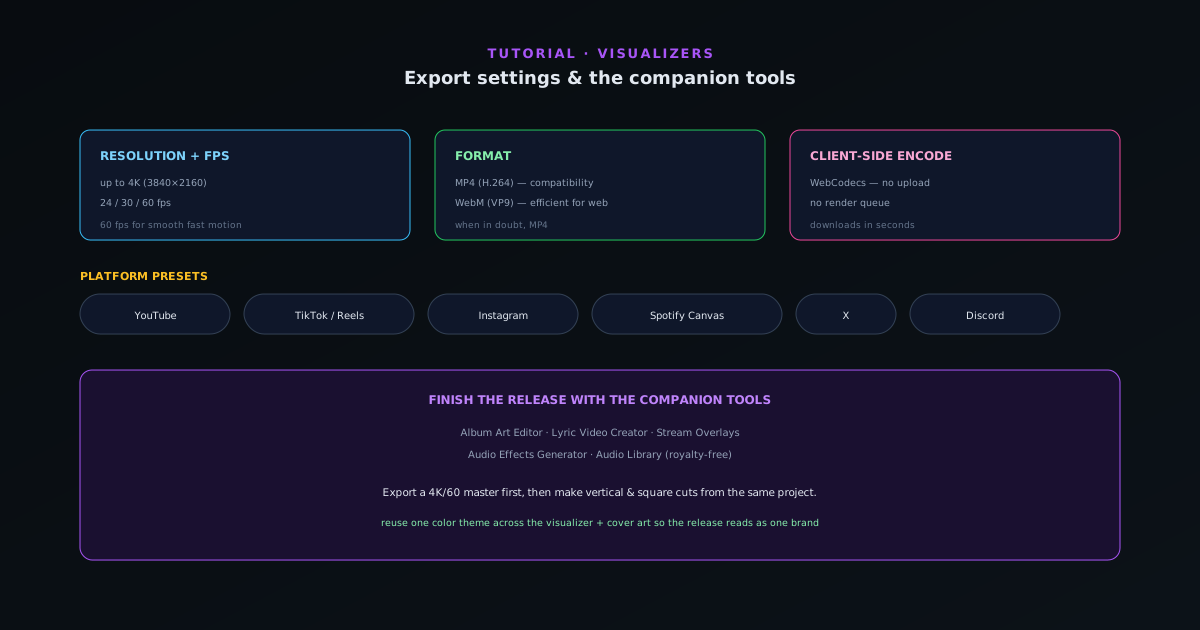
Export up to 4K (3840×2160) at 24, 30, or 60 fps. Use 60 fps when the motion is fast and you want it smooth (most music visuals benefit), 30 fps for a more standard look or smaller files, and 24 fps for a cinematic feel. Match resolution to the destination: 4K for a flagship YouTube upload, 1080p where that is all the platform shows.
- Up to 4K (3840×2160).
- 24 / 30 / 60 fps.
- 60 fps for smooth fast motion.
- 2
2. MP4 vs WebM
MP4 (H.264) is the safe, universally compatible choice; use it for uploads anywhere and for sharing. WebM (VP9) is more efficient and great for web embedding where it is supported. When in doubt, MP4. The encode happens client-side with WebCodecs, so either format downloads in seconds with no server render queue.
- MP4 (H.264): maximum compatibility.
- WebM (VP9): efficient for web.
- Client-side encode, no upload.
- 3
3. Use the platform presets
Rather than remembering each platform’s dimensions, pick the preset: YouTube, TikTok/Reels, Instagram square, Spotify Canvas, X, or Discord. Each sizes the output correctly for its destination (a vertical crop for TikTok and Reels, square for Instagram, the short looping format for Spotify Canvas) so you are not exporting a 16:9 video and hoping it survives a crop.
- Presets: YouTube, TikTok/Reels, Instagram, Spotify Canvas, X, Discord.
- Correct aspect ratio per destination.
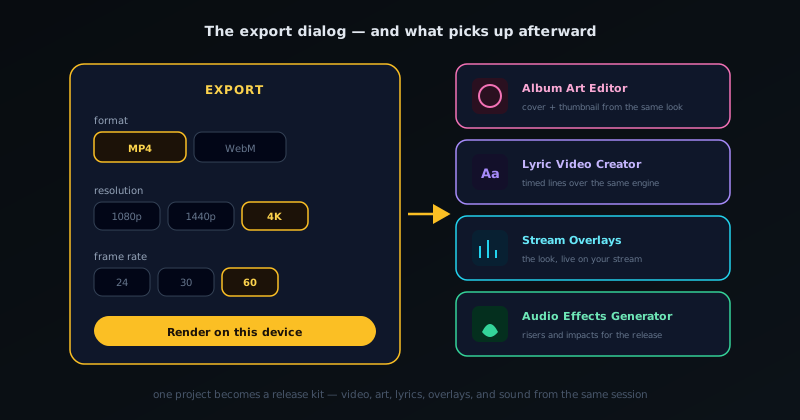
MP4 or WebM, up to 4K, 24/30/60fps. The companion tools pick up where export ends. - 4
4. Finish the release with the companion tools
Novus Visualizers ships alongside companion tools that cover the rest of a release: the Cover Art Studio for cover artwork, the Lyric Video Creator for word-synced lyric videos, Stream Overlays for broadcast-ready overlays, the Audio Effects Generator for sound design, and an Audio Library of royalty-free tracks. Using the same look across the visualizer and the cover art is what makes a release feel cohesive.
- Cover Art Studio, Lyric Video Creator, Stream Overlays.
- Audio Effects Generator, Audio Library.
Export once, repurpose smartly
Export your highest-quality master first (4K/60 MP4 for your main channel), then use the platform presets to produce the vertical and square cuts from the same project rather than rebuilding. Reuse one color theme across the visualizer, the album art, and any overlays so everything in the release reads as the same brand. Exports are copyright-free and yours to publish.
Frequently asked questions
Quick answers to common questions about this topic.
What export settings should I use?
Choose MP4 (H.264) for broad compatibility or WebM (VP9) for smaller files, up to 4K at 24/30/60 fps, and pick the platform preset for your destination. Export runs entirely in your browser.
What companion tools come with Visualizers?
A Cover Art Studio, Audio Effects Generator, Lyric Video Creator, Stream Overlays, and an Audio Library, so one track can become a whole release kit.
Related workflow
A track to a release-ready visualizer, per platform
Render the visual once, then produce the platform masters from it, instead of re-rendering the whole video for every aspect ratio.
- Render the beat-synced videoNovus Visualizers: Pick the engine and mode against your actual track; the analysis is done on your audio, not on a preset preview.
- Trim or upscale the exportNSS Background Remover: The video utilities handle the tidy-up pass so the render does not have to be repeated to fix ten seconds of it.
- Produce the per-platform mastersNovus Convert: Each destination wants a different container and bitrate; converting the finished render is far cheaper than re-rendering it.
Related troubleshooting
Was this page helpful?
Your answer stays in this browser, it is not sent anywhere and no account or cookie is involved.