Visualizers tutorials
Novus Visualizers tutorials
The definitive, step-by-step guides for Novus Visualizers: from your first export to layers, beat-sync, the audio engine, captions, and common release tasks. These cover the essentials as general guidance; the app itself holds a deeper, always-current library, and you can see every tool on the tool map.
Novus Visualizers
 Getting started
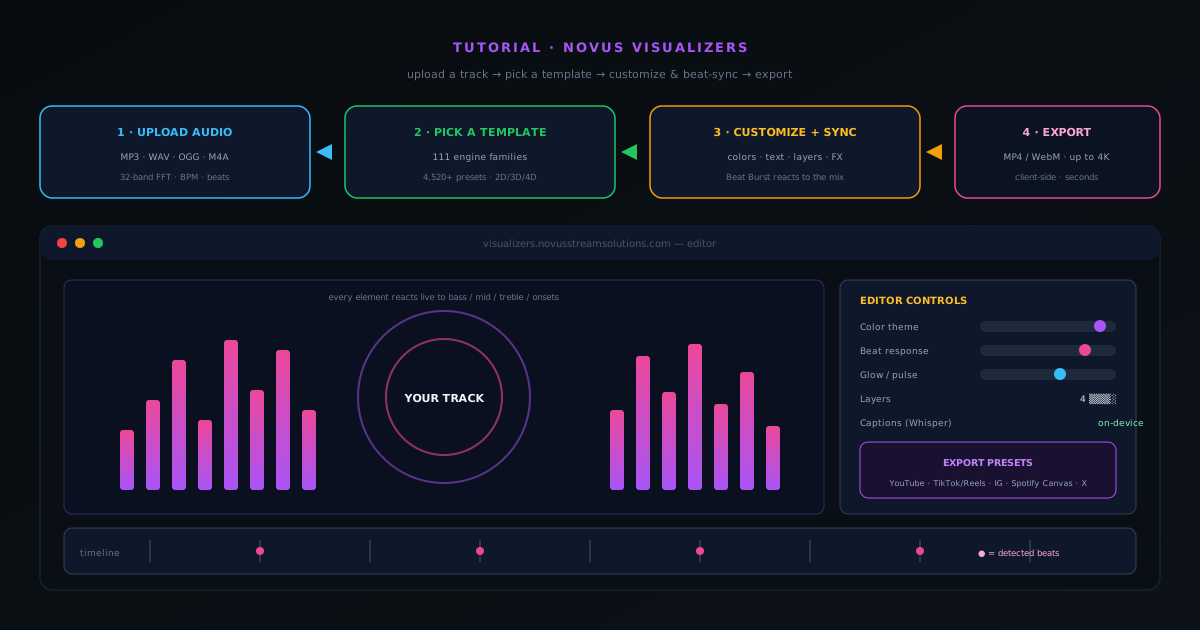
How to make a music visualizer video with Novus Visualizers
A complete walkthrough of Novus Visualizers: upload a track, pick an engine and mode, tune the visuals and beat-sync in the editor, then export a release-ready MP4 or WebM up to 4K, all in your browser.
7 min · BeginnerStart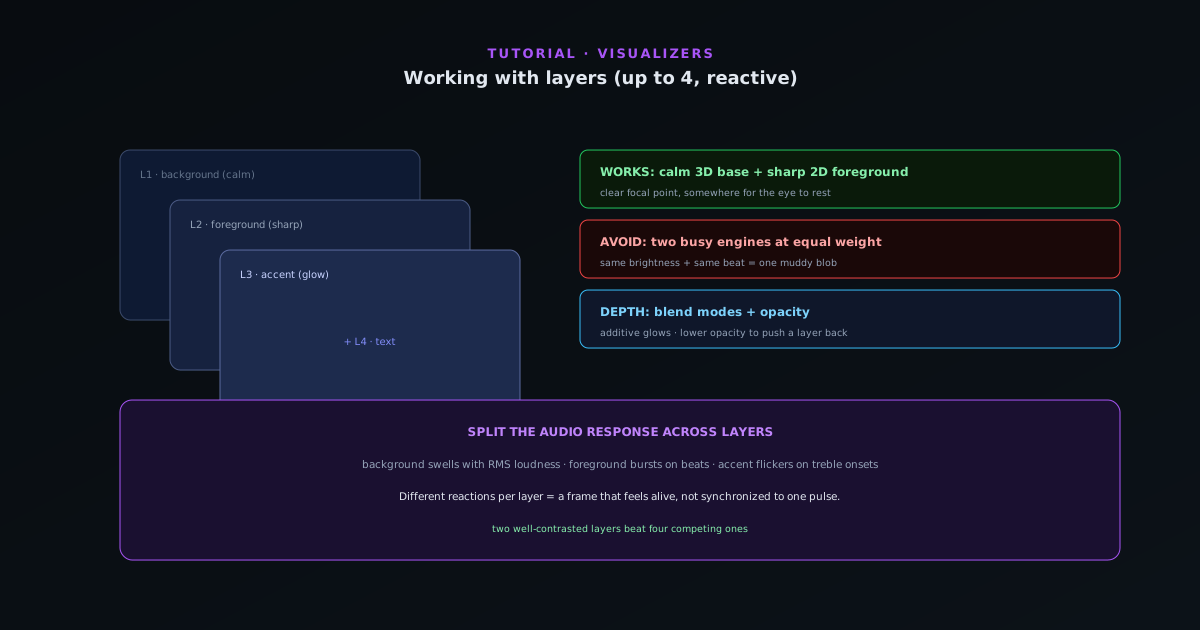 Editing & layers
Working with layers in Novus Visualizers (and which combinations work best)
Stack ordered reactive layers with blend controls to build depth (a calm background engine, a sharp foreground, accents, and text) and learn the layer combinations that read well instead of turning to mush.
7 min · IntermediateStart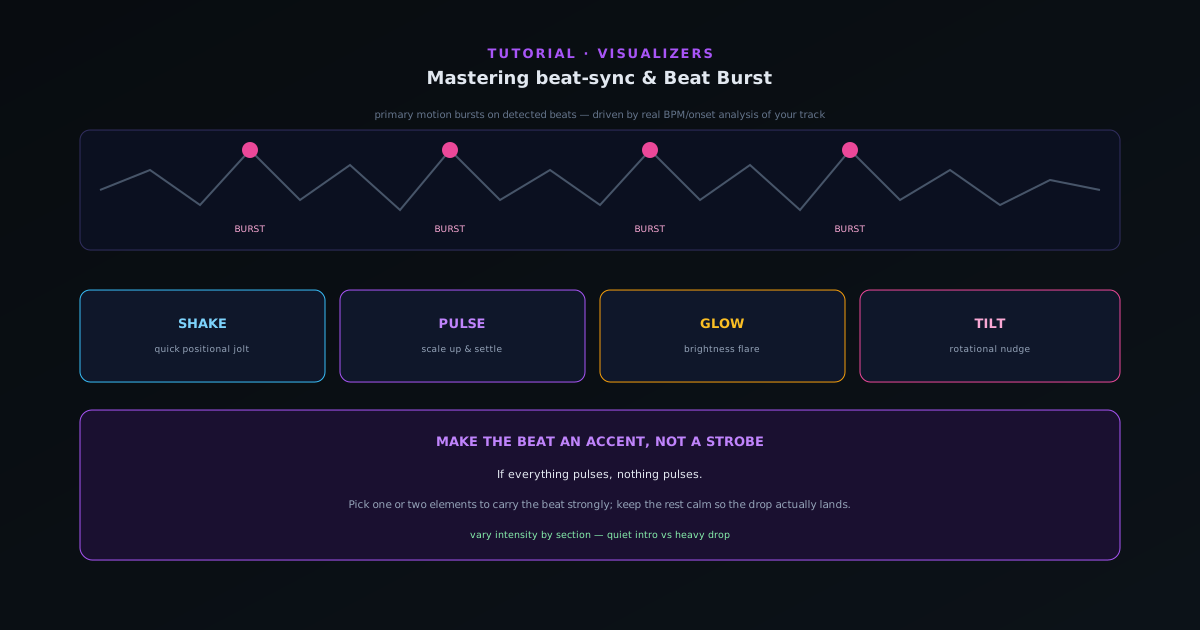 Audio & beat-sync
Mastering beat-sync: Beat Burst and beat-reactive properties
Make the visuals move with the music, not just under it. How Beat Burst drives primary motion on detected beats, and how to layer beat-reactive properties (shake, pulse, glow, tilt) so the hits land where you want them.
6 min · IntermediateStart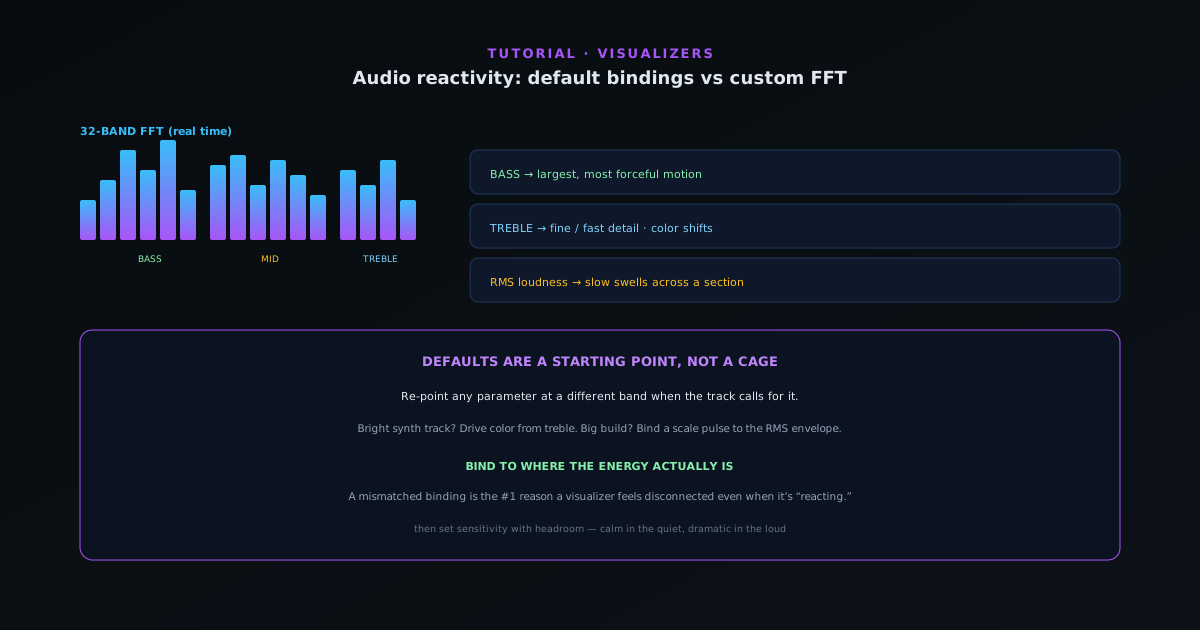 Audio & beat-sync
Audio reactivity in depth: default bindings vs customizing the FFT mapping
Go past the defaults: understand the 32-band FFT and how bass, mid, treble, RMS loudness, and onset detection map to motion, then customize which audio signal drives which visual parameter.
8 min · IntermediateStart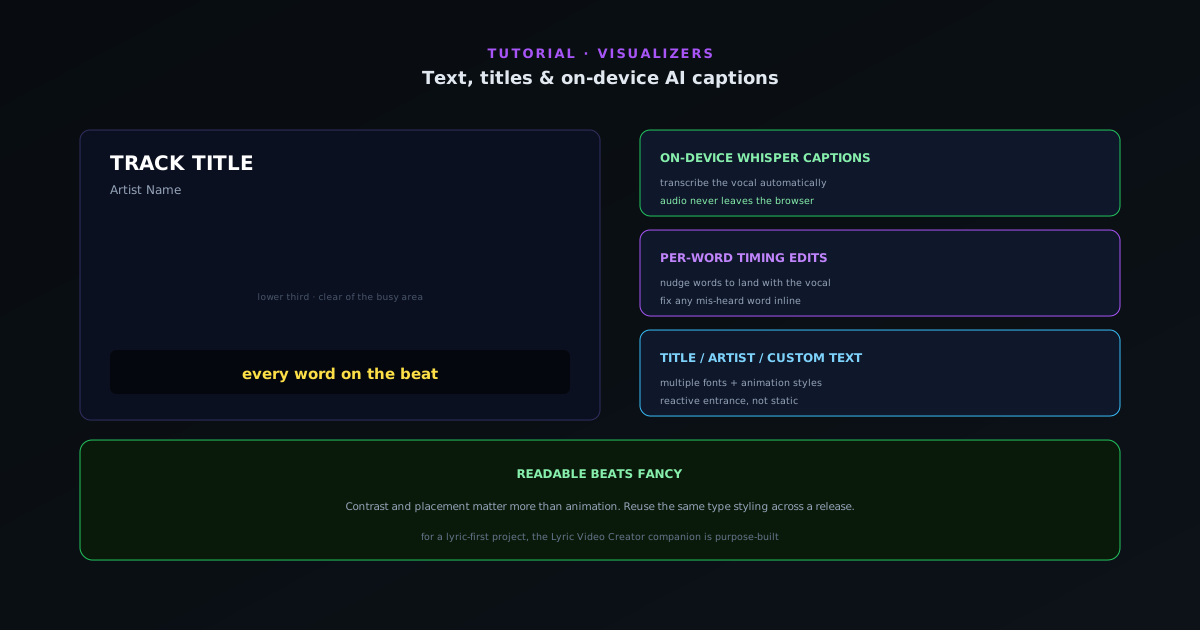 Editing & layers
Text, titles, and on-device AI captions in Novus Visualizers
Add a title and artist, choose fonts and animation styles, and turn audio into captions with on-device Whisper transcription and per-word timing, without your audio ever leaving the browser.
6 min · IntermediateStart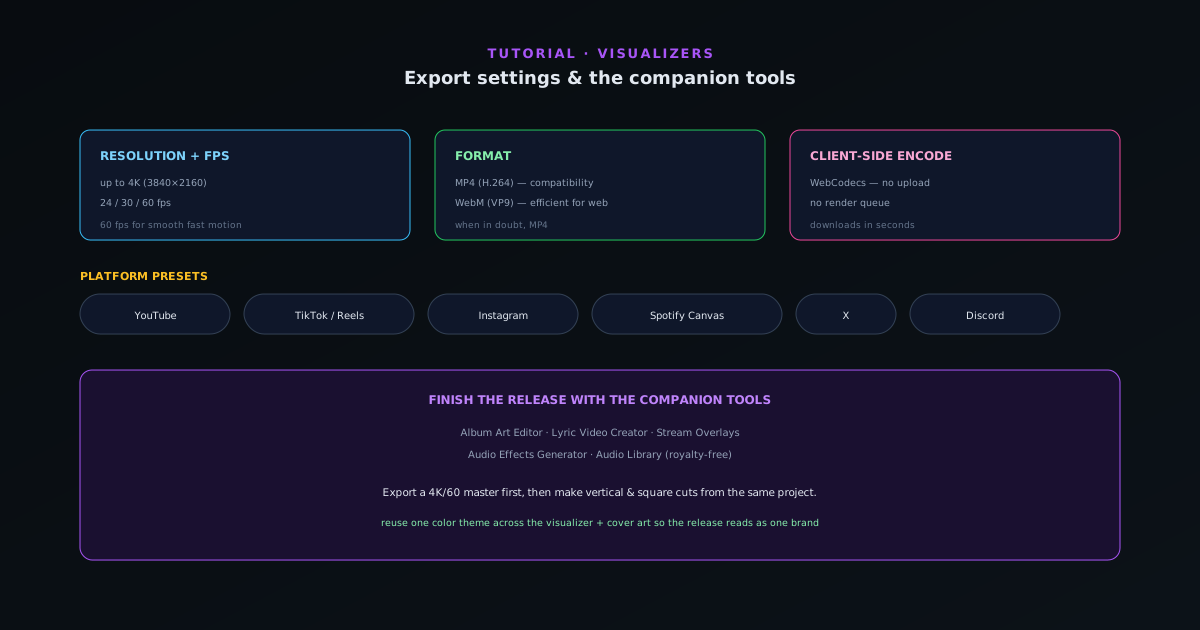 Export & release
Export settings and the companion tools
Pick the right export every time (resolution, fps, MP4 vs WebM, and the platform presets for YouTube, TikTok, Reels, Spotify Canvas, and more), then round out a release with the companion tools.
6 min · IntermediateStart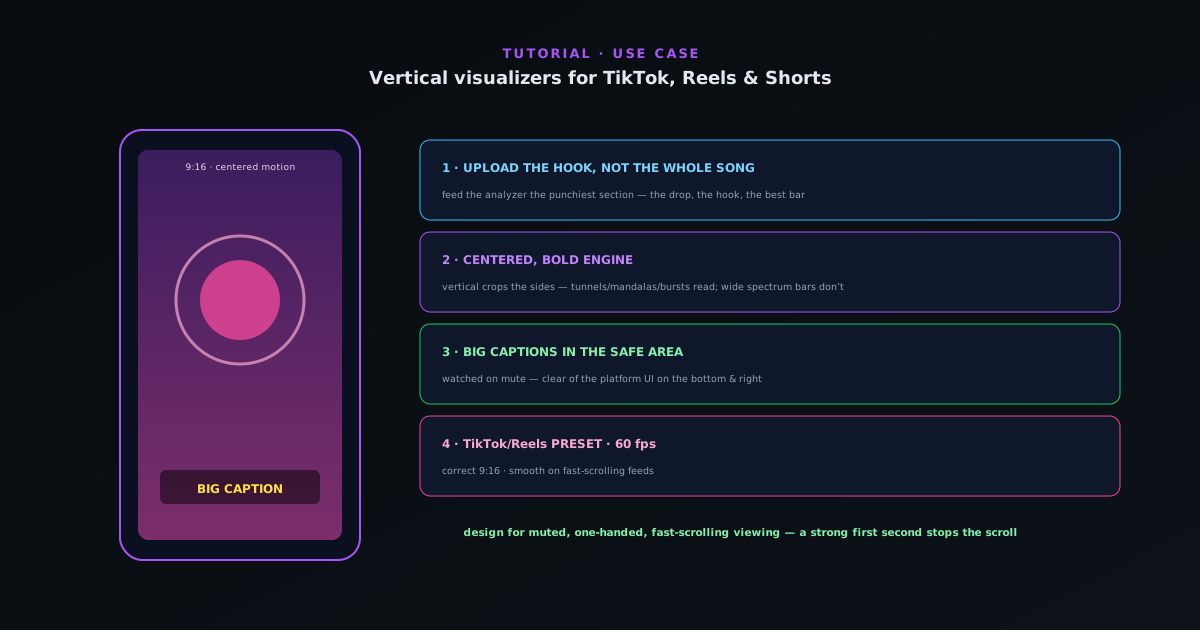 Use cases
Making a vertical visualizer for TikTok, Reels & Shorts
A focused workflow for short-form vertical video: pick an engine and mode that reads at 9:16, keep the motion centered and punchy, add captions, and export with the TikTok/Reels preset.
5 min · BeginnerStart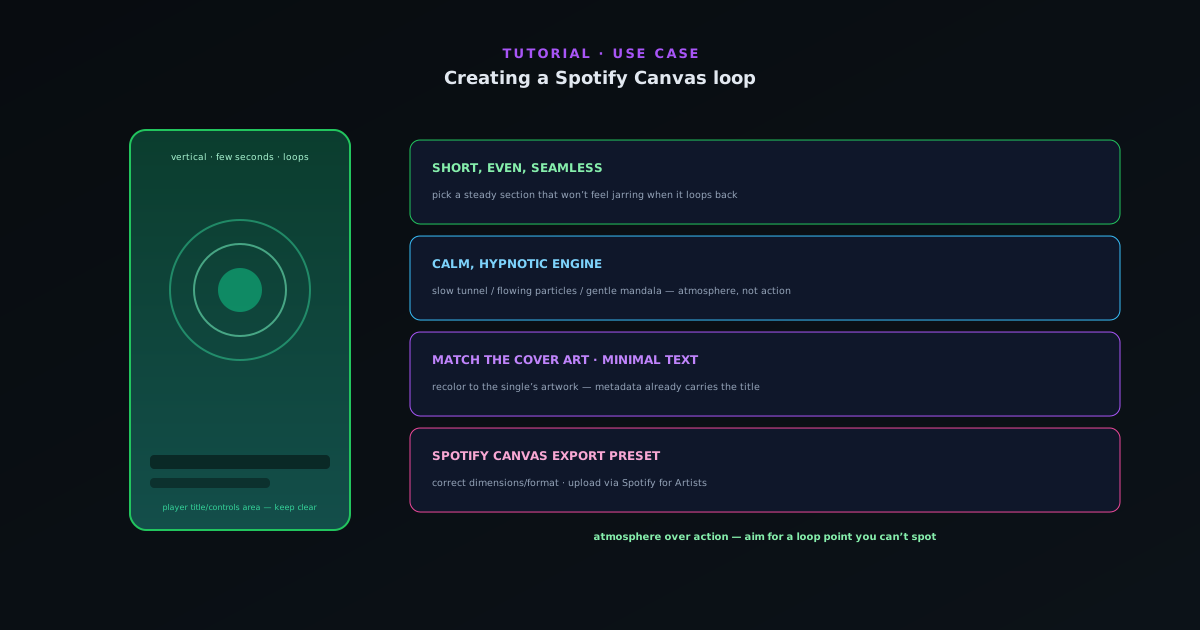 Use cases
Creating a Spotify Canvas loop
Make a short, seamless looping visual for Spotify Canvas: a vertical clip that reads at a glance, loops cleanly, and uses the Spotify Canvas export preset.
5 min · BeginnerStart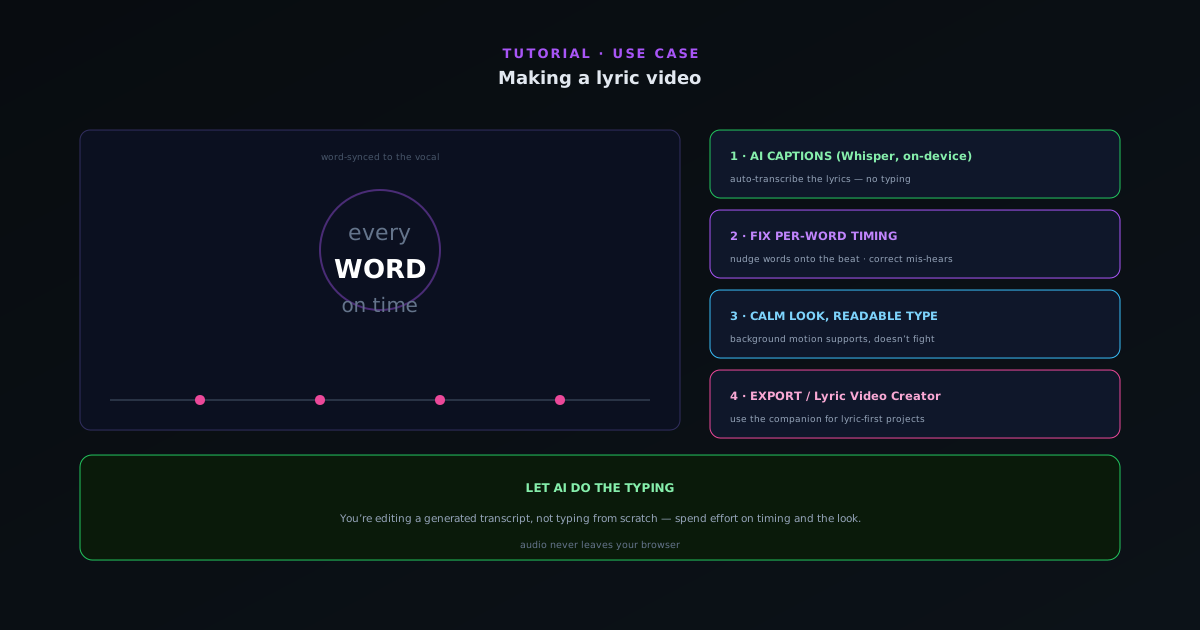 Use cases
Making a lyric video
Turn a track into a word-synced lyric video: use on-device AI captions for the transcript, fix per-word timing so lines land with the vocal, set a readable look, and export. Plus when to reach for the Lyric Video Creator.
6 min · BeginnerStart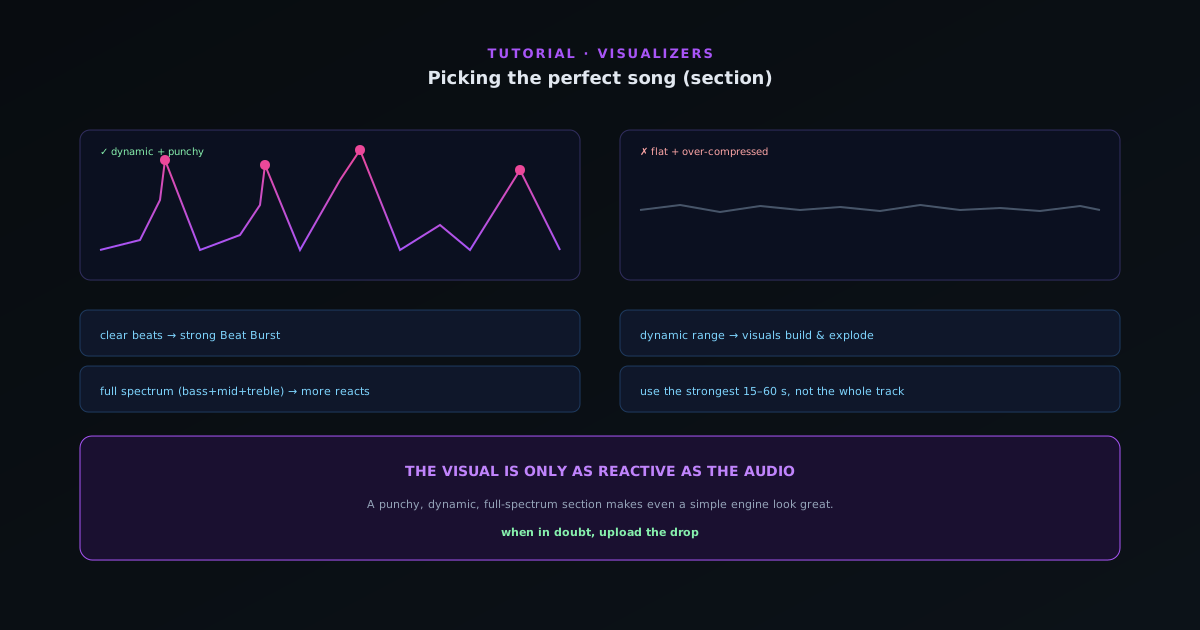 Audio & beat-sync
Picking the perfect song (section) for your visualizer
The track you feed the analyzer decides how good the visual can be. What makes a section reactive (clear beats, dynamic range, defined frequency content) and how to choose the part of your song that will look best.
6 min · BeginnerStart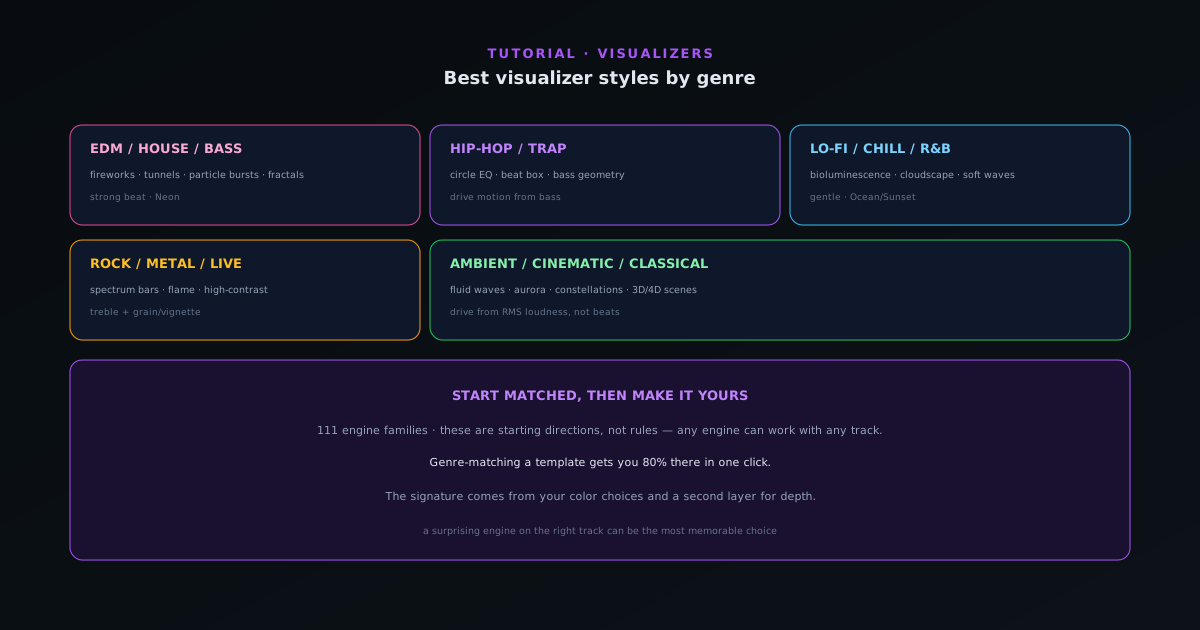 Editing & layers
Best visualizer styles by genre
Which engines and modes tend to fit which genres (from hip-hop and EDM to lo-fi, rock, ambient, and classical) so you can pick an engine and mode that already feels right for your track.
7 min · BeginnerStart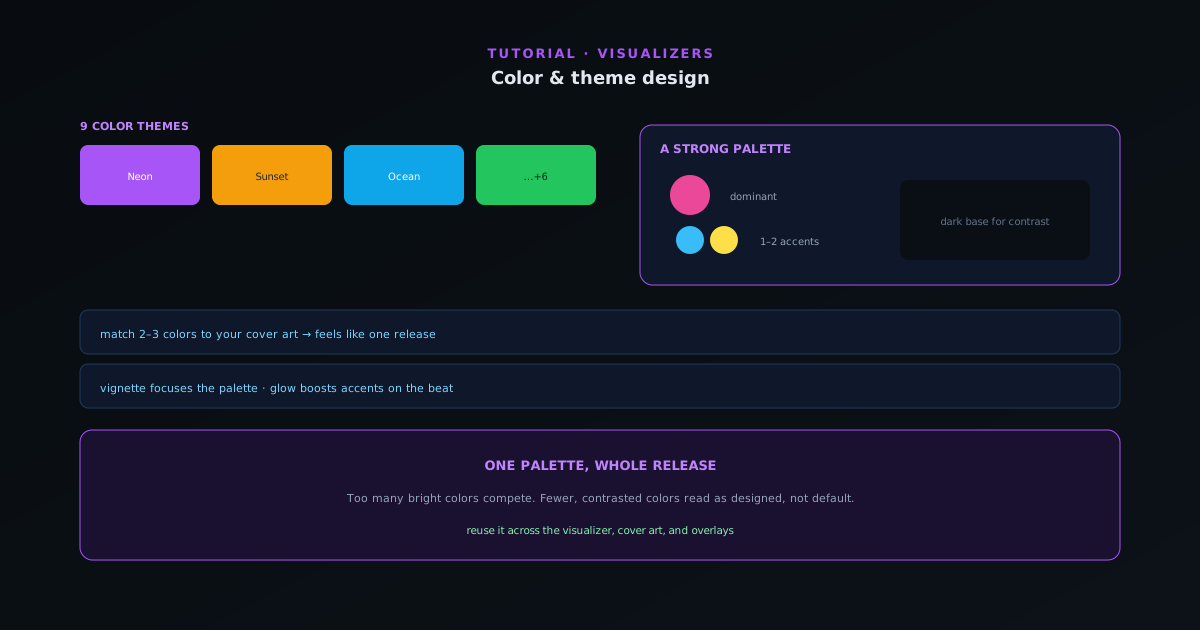 Editing & layers
Color & theme design for visualizers
Color is the fastest way to set a mood and match your release art. How to use the nine themes and per-element color control to design a look that feels intentional instead of default.
6 min · BeginnerStart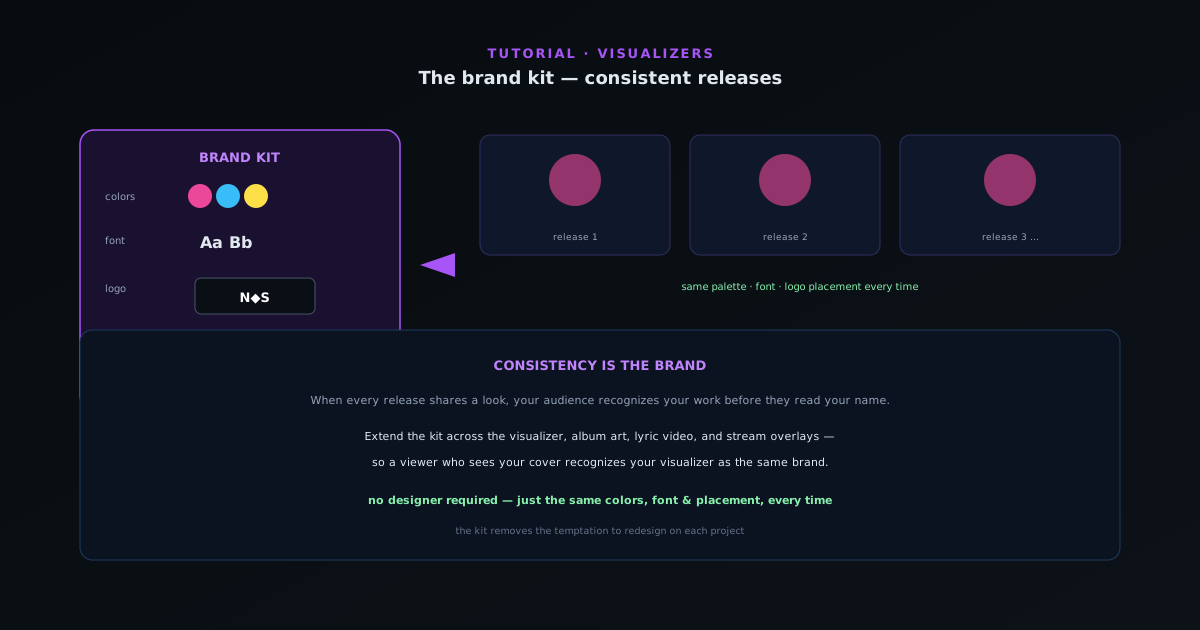 Editing & layers
The brand kit: a consistent look across releases
Recognizable artists look the same release after release. How to use the brand kit to save your colors, fonts, and logo so every visualizer, cover, and overlay shares one identity, without redoing the work each time.
5 min · BeginnerStart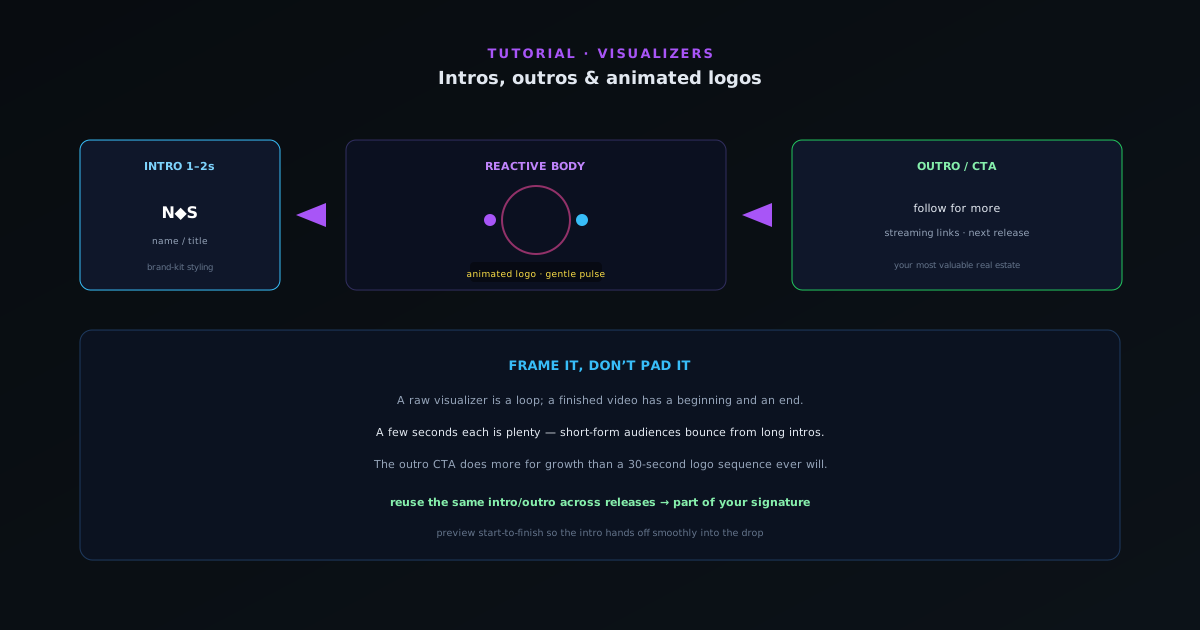 Editing & layers
Intros, outros & animated logos
A short branded intro and outro turns a loop into a finished video. How to add an animated logo, an intro card, and an end screen that drives follows and saves, without padding the runtime.
5 min · BeginnerStart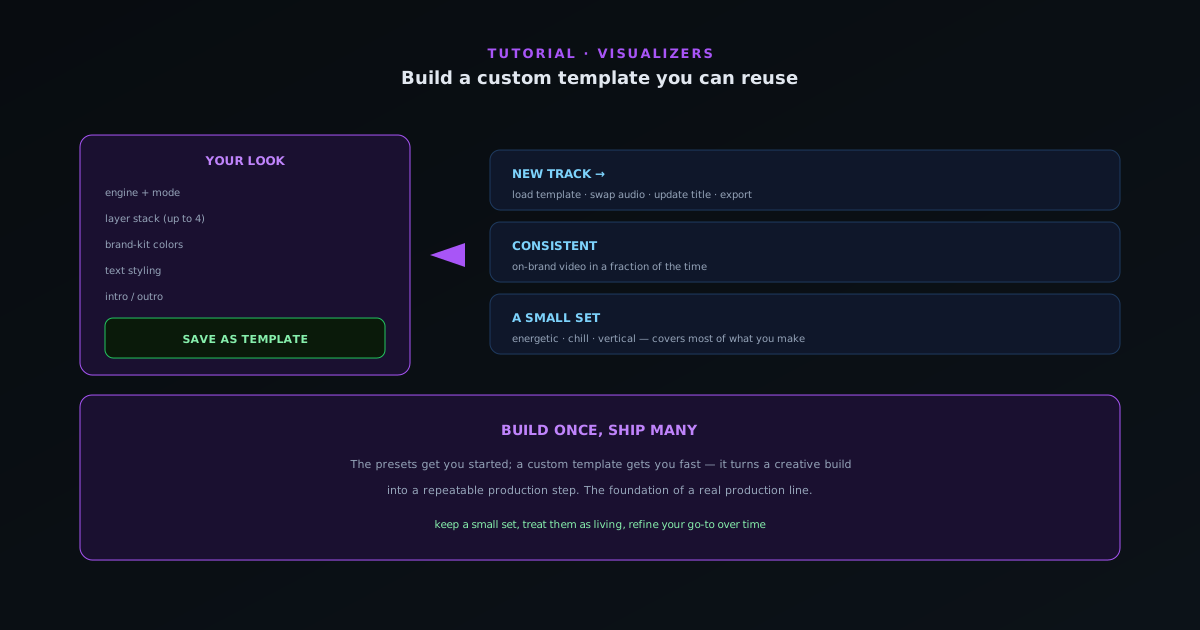 Editing & layers
Saving a project you can reuse across tracks
Once you have dialed in a look you love, save it as a project so every future track starts there. How to build, save, and reopen a saved document for a fast, consistent production line.
6 min · IntermediateStart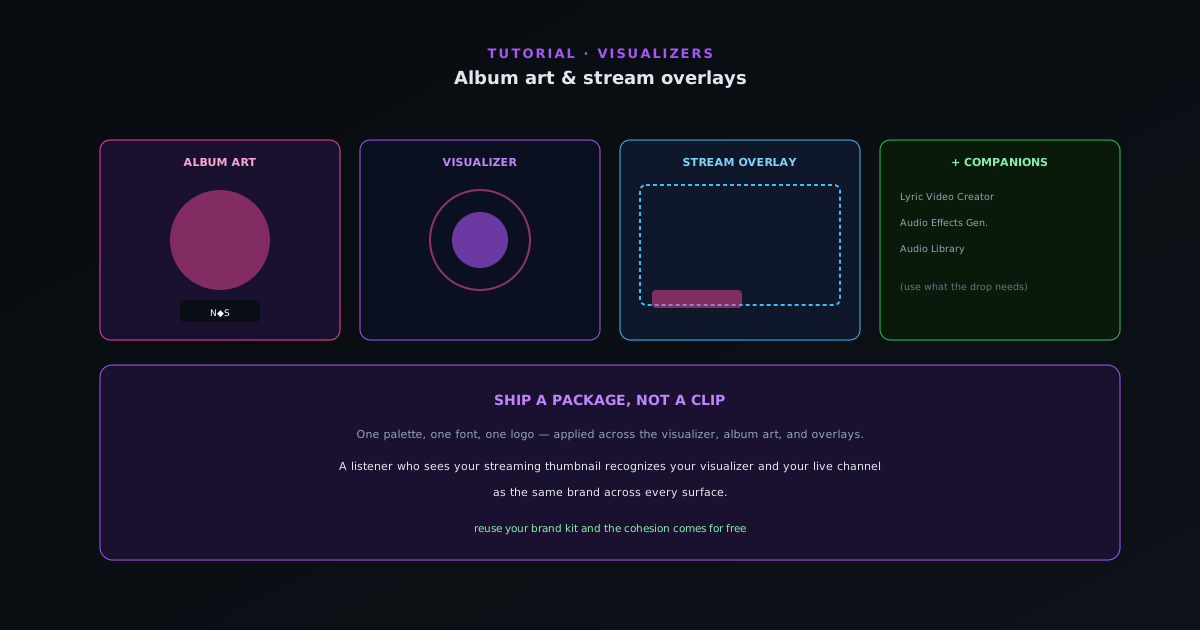 Export & release
Album art & stream overlays with the companion tools
A release is more than a video. How to use the Cover Art Studio and Stream Overlays companion tools to produce cover art and broadcast overlays that match your visualizer, one cohesive package.
6 min · BeginnerStart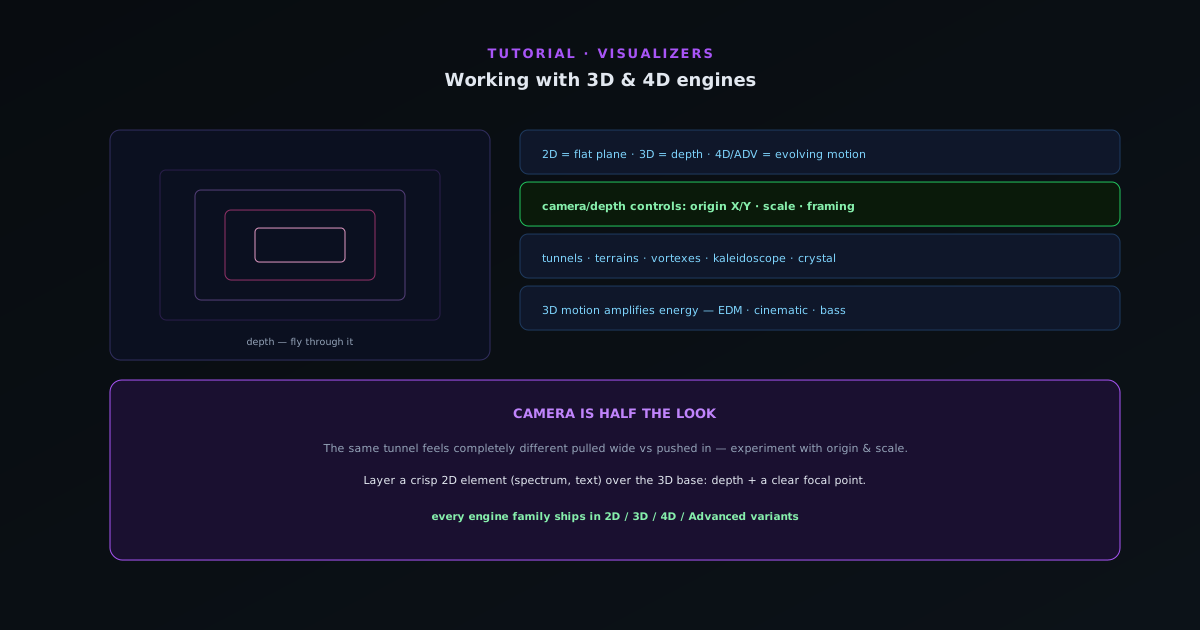 Editing & layers
Working with depth and 3D modes
Depth is not a separate engine; it lives inside specific modes. How to use the 3D modes (Bars 3D Columns, Spectrum Spectral Mesh, Waveform 3D Surface, Character Motion 3D Performer, and the Tunnel corridor and tube modes) plus the camera and depth controls that make them sing.
7 min · IntermediateStart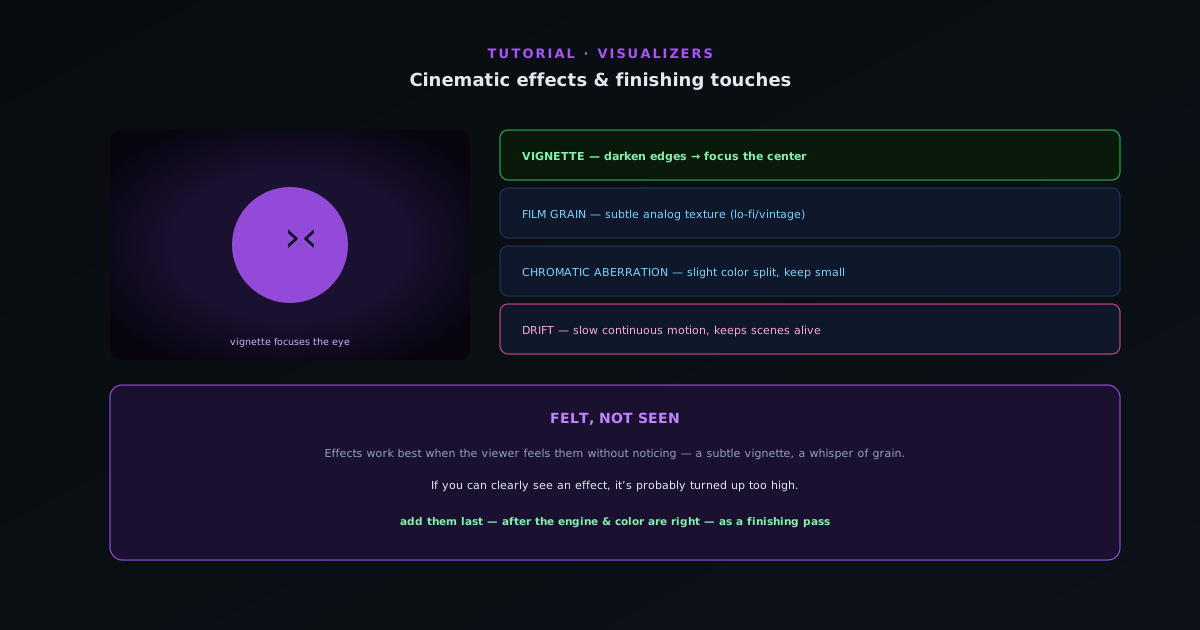 Editing & layers
Cinematic effects and finishing touches
The post-processing layer that separates a polished visualizer from a raw one (vignette, film grain, and chromatic aberration, plus the drift reaction) and how to use them without overdoing it.
5 min · IntermediateStart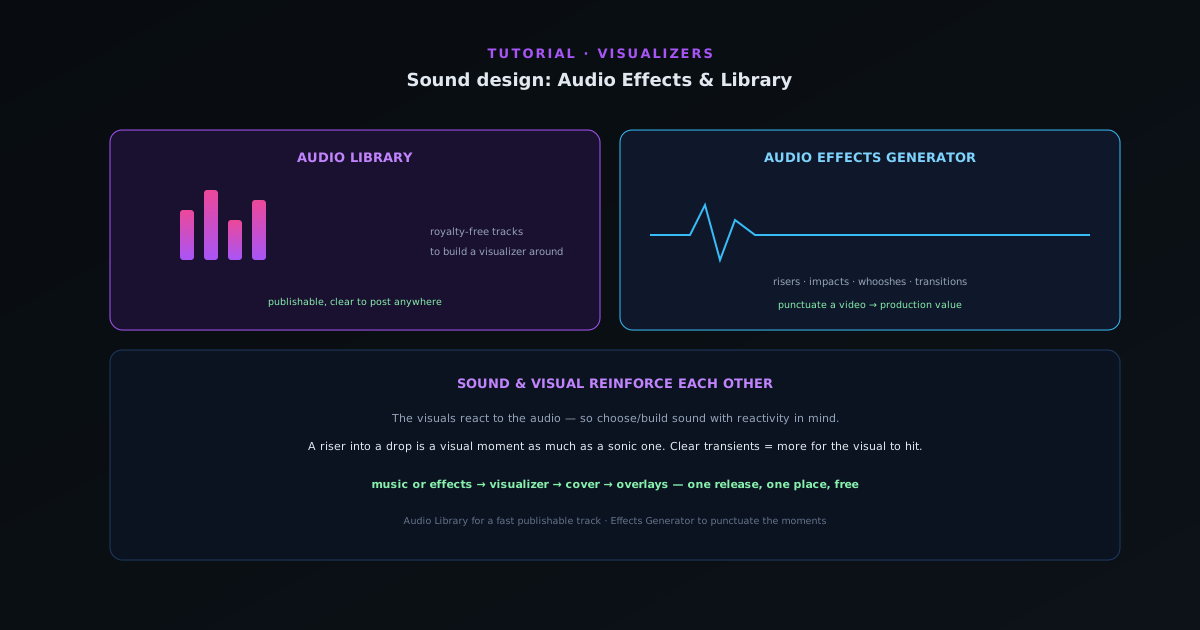 Audio & beat-sync
Sound design: the Audio Effects Generator and Audio Library
The audio companions round out a release: design custom sound effects with the Audio Effects Generator and pull royalty-free music from the Audio Library, so your visuals have the right sound to react to.
5 min · BeginnerStart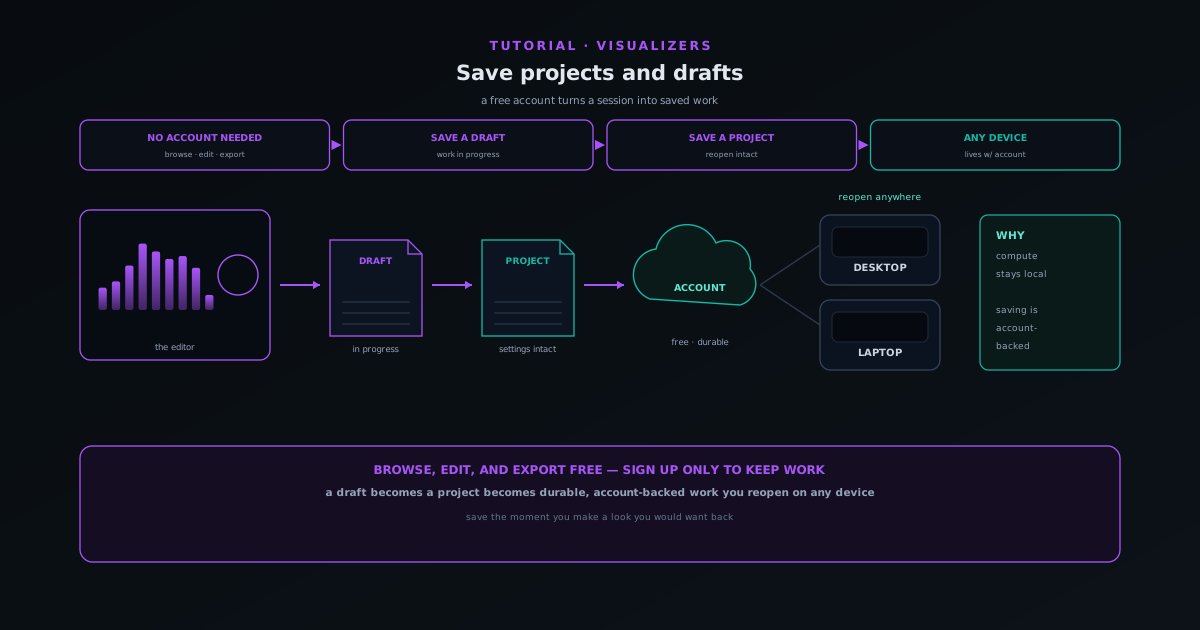 Getting started
How to save projects and drafts in Novus Visualizers
Create a free account, save a visualizer as a draft or project, and reopen it later with every setting intact, on any device. The work persists; the rendering still happens on yours.
6 min · BeginnerStart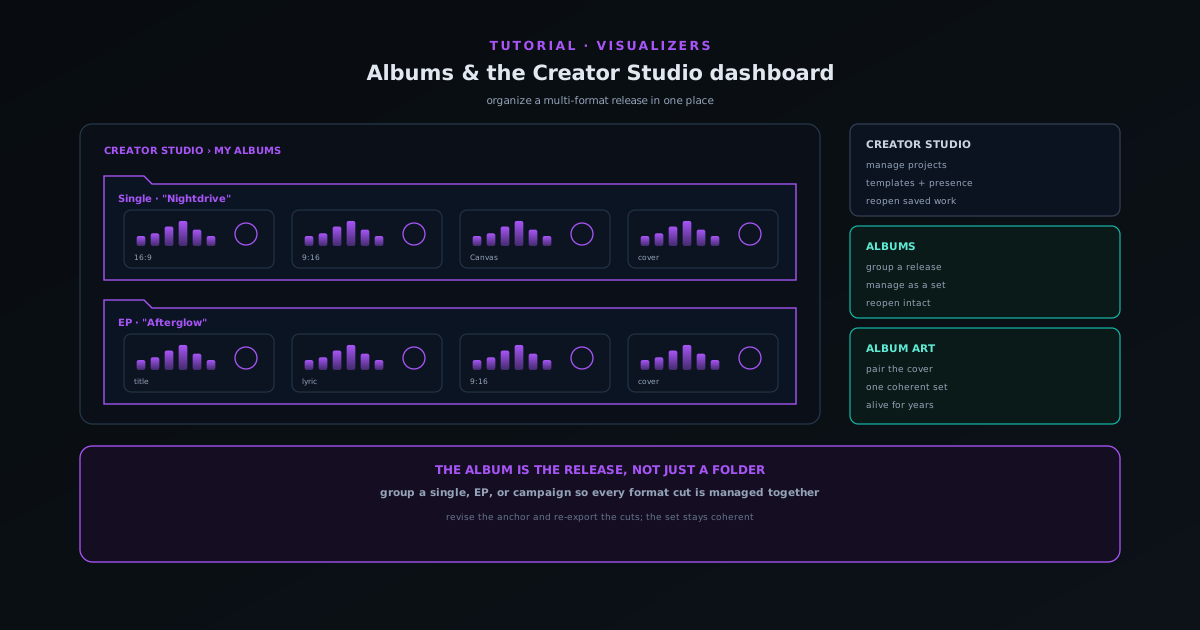 Export & release
Organizing releases with albums and the Creator Studio dashboard
Use My Albums and the Creator Studio dashboard to group related visualizers into a release, manage drafts and projects in one place, and keep a multi-format launch organized.
6 min · BeginnerStart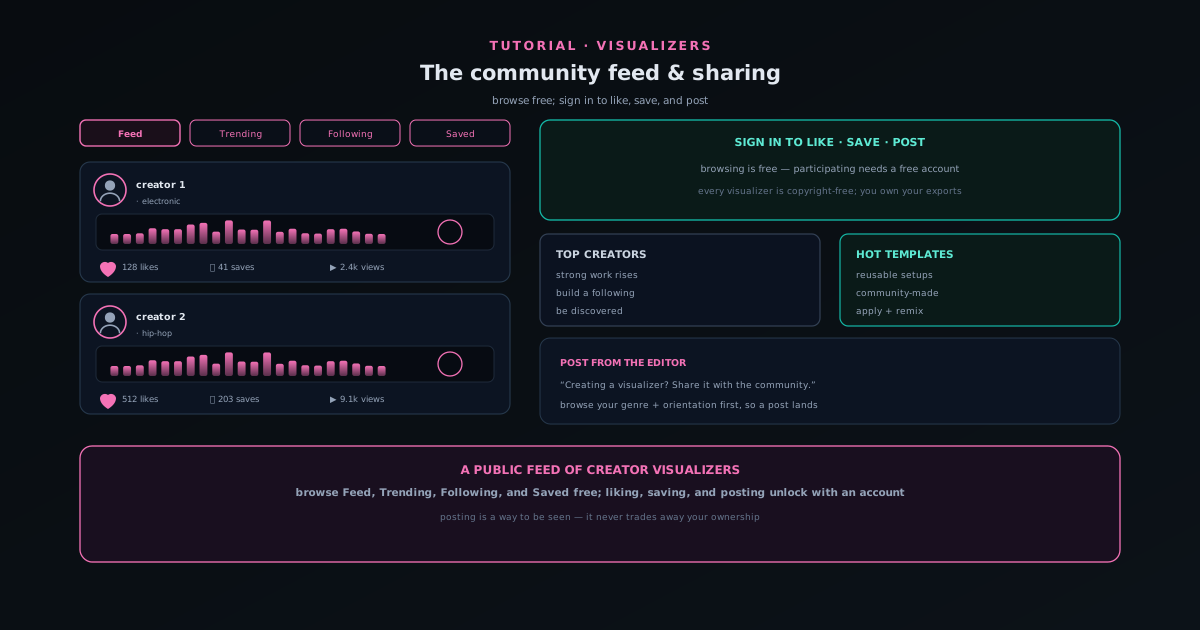 Use cases
Sharing your work on the Novus Visualizers community feed
Browse the public community feed, then sign in to like, save, and post your own visualizers, all copyright-free, so publishing never trades away ownership of your exports.
6 min · BeginnerStart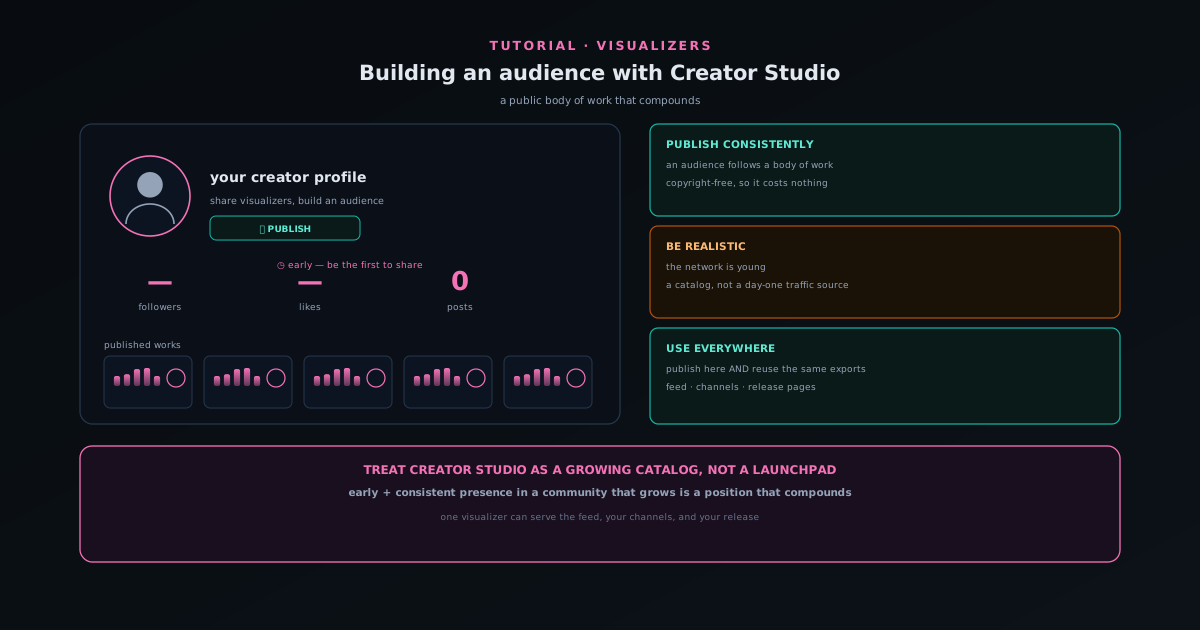 Use cases
Building an audience with Creator Studio
Use the Creators hub and Creator Studio to share visualizers, build a public body of work, and grow an audience, with an honest read on what the young creator network can and cannot do yet.
6 min · BeginnerStart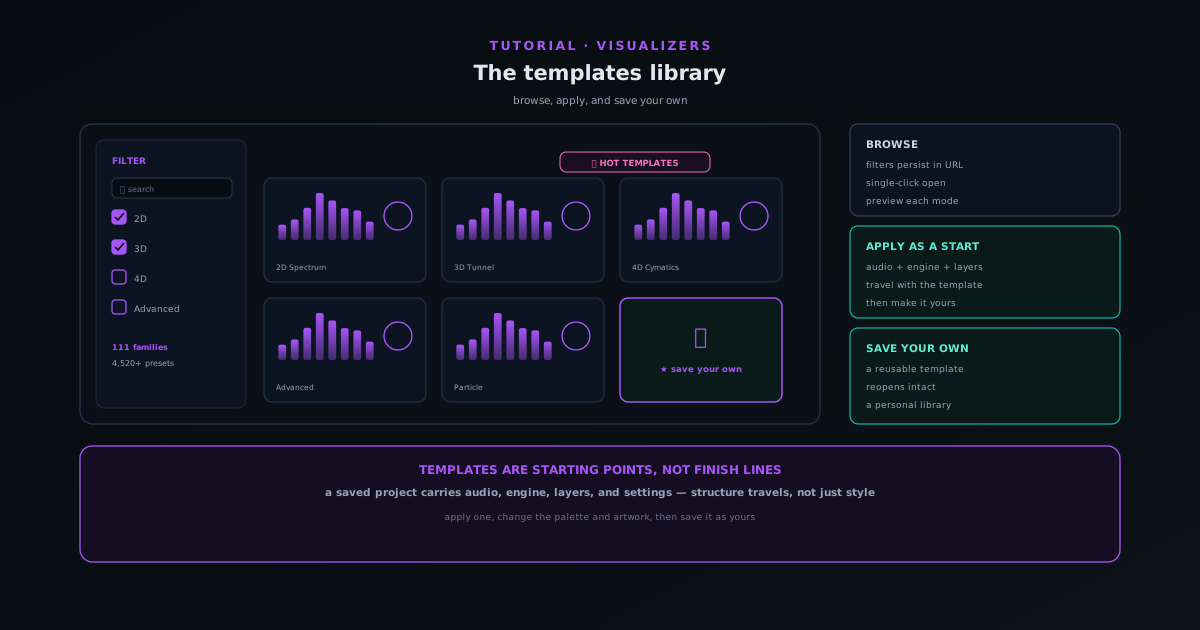 Editing & layers
Browsing the engines and modes in Novus Visualizers
Every visualizer starts from one of ten engines, each with six modes, 60 in total. Learn what each engine does, how to pick a mode that matches your track, and how depth lives inside specific modes rather than as a separate setting.
6 min · BeginnerStart