Novus Visualizers
Browsing the engines and modes in Novus Visualizers
Every visualizer starts from one of ten engines, each with six modes, 60 in total. Learn what each engine does, how to pick a mode that matches your track, and how depth lives inside specific modes rather than as a separate setting.
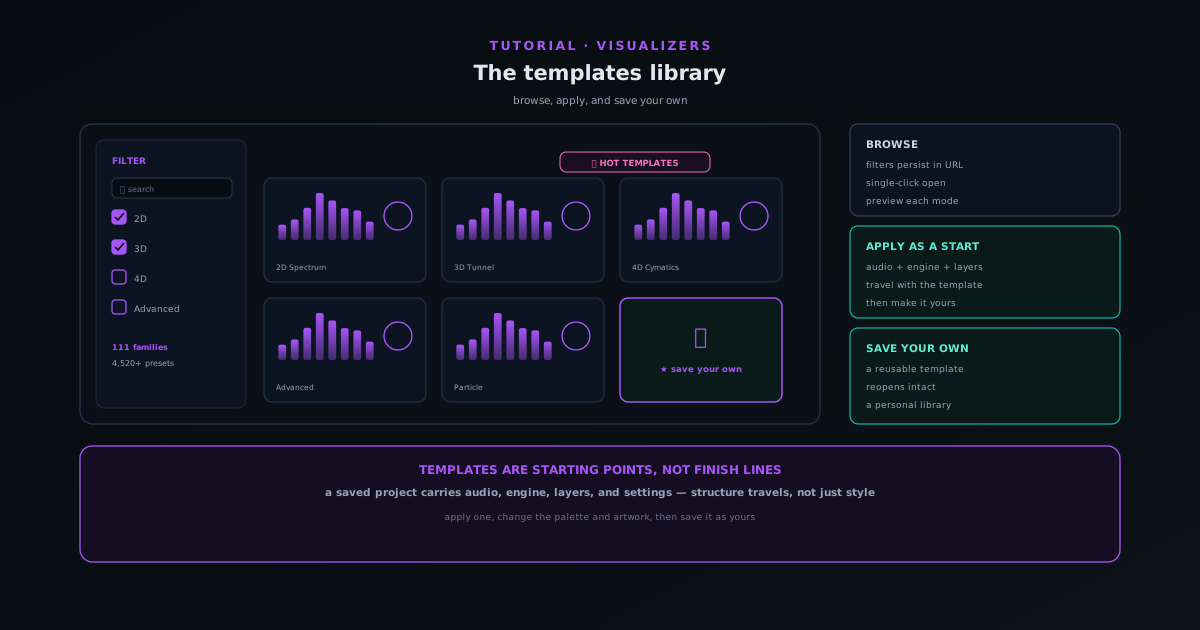
Novus Visualizers is built around a small, legible set of engines rather than a sprawling preset gallery. There are ten engines, and each one has six modes (60 distinct looks in total) so you choose a style by picking an engine and then a mode, not by hunting through thousands of thumbnails.
This tutorial walks through what each engine is for, how the modes differ within an engine, and how to browse them in the editor so the preview is already reacting to your track while you decide.
Contents
- 1
1. Start from an engine
Open the editor with a track loaded and choose an engine. The ten engines are Particles, Trails, Bloom, Character Motion, Radial, Spectrum, Bars, Tunnel, Waveform, and Logo, each a different family of motion, from drifting particle fields to frequency bars to flowing waveforms.
Picking an engine sets the fundamental behaviour of the scene; picking a mode within it chooses the specific variation. Because the preview reacts to your audio immediately, you are comparing live looks rather than guessing from a still image.
- Ten engines: Particles, Trails, Bloom, Character Motion, Radial, Spectrum, Bars, Tunnel, Waveform, Logo.
- The engine is a family of motion; the mode is the specific variation.
- 2
2. Pick a mode within the engine
Every engine carries six modes, so there are 60 in total. Particles runs Dust Storm, Waterfall, Starfield, Fountain Burst, Orbit Swarm, and Constellation; Bars runs Linear Equalizer, Center Mirror, Stacked Bands, Radial Bars, 3D Columns, and Piano/Step Grid; Waveform runs Line, Mirrored, Filled, Ribbon, Oscilloscope/Lissajous, and 3D Surface; and the other engines follow the same six-mode pattern.
Switch modes to see how the same engine can read very differently: Radial's Pulse Orb and its Mandala are the same engine arranging the same audio-reactive parts in a different way.
- Six modes per engine, 60 modes across the ten.
- Modes are variations of one engine, not separate presets.
- 3
3. Find depth inside the engines, not as a separate axis
There is no separate 2D/3D toggle. Depth lives inside specific engines and modes: Bars has 3D Columns, Spectrum has Spectral Mesh, Waveform has 3D Surface, Character Motion has a 3D Performer, and Tunnel's corridor and tube modes are dimensional by nature. If you want a three-dimensional look, you reach for one of those modes.
This keeps the browsing simple: you are choosing a look, and the ones that happen to be dimensional are just modes like any other.
- No separate 2D/3D setting; depth is built into specific modes.
- Dimensional modes: Bars 3D Columns, Spectrum Spectral Mesh, Waveform 3D Surface, Character Motion 3D Performer, Tunnel corridor/tube.
Ten engines, six modes each; depth lives inside specific modes rather than a separate switch. - 4
4. Make the look yours
Once an engine and mode are chosen, the differentiation comes from the settings, not from picking a different preset. Tune the colors, geometry, and direction, bind audio energy to the parts you want to move, and add captions, logos, and overlays. The same mode looks like your release once the color system and audio bindings are yours.
When you have a look worth returning to, save it as a project, a saved document that reopens in the editor with everything intact.
- Differentiate with colors, geometry, direction, and audio bindings.
- Save a look you will reuse as a project.
Browse by track, not by thumbnail
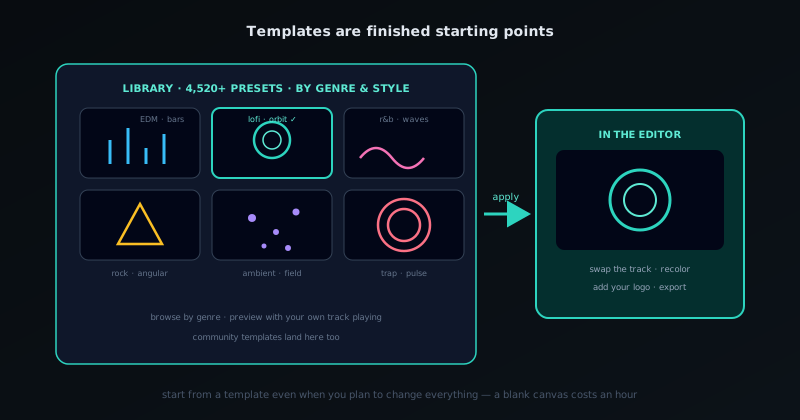
The fastest way to choose is to load your track first, then click through engines and modes with the preview reacting live; a mode that looks flat on a still image can come alive on the right song. Narrow to an engine whose motion matches the track's energy, compare its six modes, and only then start tuning colors and audio bindings.
Frequently asked questions
Quick answers to common questions about this topic.
How do I choose a visual style in Novus Visualizers?
Pick one of the ten engines in the editor, then pick one of its six modes, for 60 modes in total. The preview reacts to your loaded track live, so you compare modes on your own song before committing rather than picking from a static gallery.
Is there a presets or templates gallery to start from?
No. The app is built around engines and modes, not a preset library: you choose an engine and a mode, then tune colors, geometry, direction, and audio bindings to make it yours. A look you want to return to is saved as a project.
Related workflow
A track to a release-ready visualizer, per platform
Render the visual once, then produce the platform masters from it, instead of re-rendering the whole video for every aspect ratio.
- Render the beat-synced videoNovus Visualizers: Pick the engine and mode against your actual track; the analysis is done on your audio, not on a preset preview.
- Trim or upscale the exportNSS Background Remover: The video utilities handle the tidy-up pass so the render does not have to be repeated to fix ten seconds of it.
- Produce the per-platform mastersNovus Convert: Each destination wants a different container and bitrate; converting the finished render is far cheaper than re-rendering it.
Related troubleshooting
Was this page helpful?
Your answer stays in this browser, it is not sent anywhere and no account or cookie is involved.