Novus Visualizers
How to save projects and drafts in Novus Visualizers
Create a free account, save a visualizer as a draft or project, and reopen it later with every setting intact, on any device. The work persists; the rendering still happens on yours.
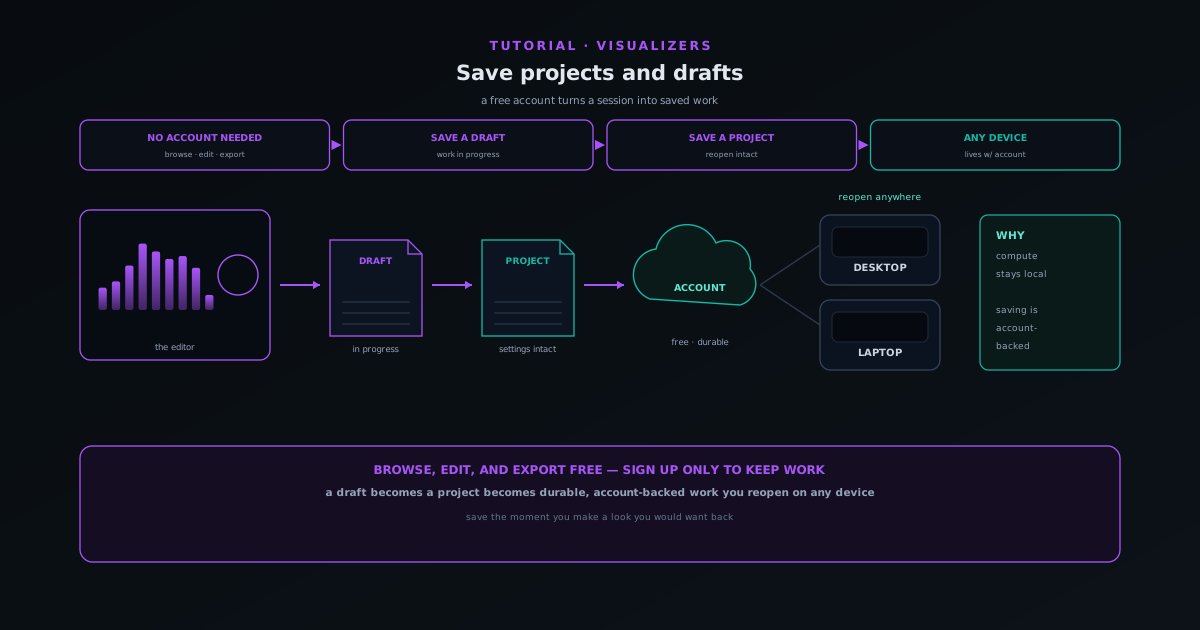
For a long time Novus Visualizers was a one-shot tool: you made a visualizer and, when the tab closed, the session went with it. That changed with the account era: a free account adds durable saving, so a visualizer you are part-way through becomes a draft you can return to, and a finished setup becomes a project that reopens in the editor exactly as you left it.
The important distinction is between local compute and account-backed saving. The heavy work (audio analysis, rendering, and export) still runs on your own device. What an account adds is persistence: your drafts, projects, and albums live with your account, so they survive a closed tab and follow you to another machine. This tutorial covers signing up, saving, and reopening.
Contents
Two ways to finish
Just trying it out
You can browse, edit, and export without an account. Use this path if you only need a quick one-off visualizer and do not need to come back to it.
Building something to keep
Sign up free and save your work as a draft or project so you can revisit a release across days and devices. Best for anything you will return to or publish.
- 1
1. Create a free account (or keep working without one)
Open visualizers.novusstreamsolutions.com. Browsing, opening the editor, customizing, and exporting all work without signing in, so there is no wall in front of the core experience. When you make something you want to keep, choose Sign Up Free, or Sign In if you already have an account.
The natural moment to create an account is the moment you make a look you would want back tomorrow; that is exactly what saving is for, and it is free.
- No account needed to browse, edit, or export.
- A free account adds saving, albums, and a community presence.
- Sign Up Free / Sign In are the two entry points.
- 2
2. Save a draft while you are still editing
A draft is a work in progress: a visualizer you are still dialing in and want to set down to finish later. While signed in, save the current state as a draft and it persists durably rather than living only in the tab.
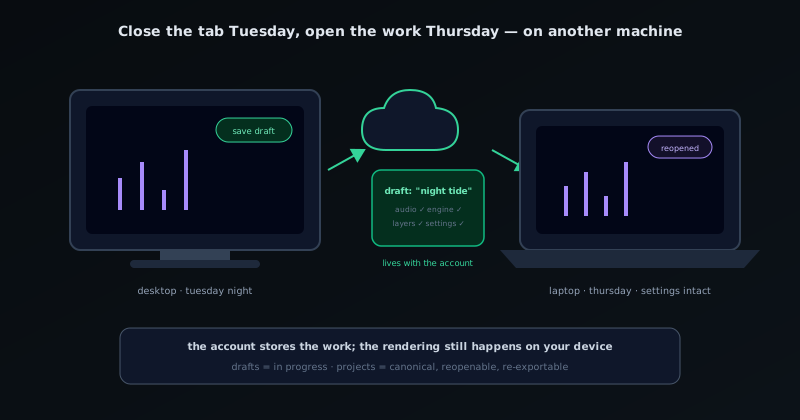
Because the draft is saved to your account, you can leave, come back later, and pick up where you were, even on a different device.
- Drafts capture the in-progress state: audio, engine, layers, and settings.
- Saved drafts survive a closed tab, a refresh, or a different machine.
- 3
3. Save a finished setup as a project
A project is a saved state you return to deliberately: the uploaded audio, the chosen engine and mode, the layer composition, and all of the editing settings, bundled together. Save your finished look as a project so it is the canonical version you can reopen and re-export.
Projects are what make a release manageable over time: a small change requested after review does not mean rebuilding from upload, because the project reopens with everything intact.
- A project bundles audio + engine + layers + settings.
- Reopen a project to make a tweak and re-export without rebuilding.
Drafts and projects live with the account: close the tab, open the work elsewhere. - 4
4. Reopen your work, on any device
From your dashboard (Creator Studio) you can open any saved draft or project straight back into the editor with all settings intact. Because the work lives with your account rather than only in one browser, signing in on another machine brings your saved work with you.
This is the real upgrade over local-only saving: start a draft on a desktop, finish it on a laptop, or pull up last month's release on a different computer entirely.
- Open any saved project back into the editor, settings intact.
- Sign in elsewhere to access the same saved work.
- 5
5. Keep exports in mind
Editing, saving, and exporting are all free and unmetered; there is no export quota. Even so, if you are cutting one song into many formats in a single session, it is worth planning your final renders so you are not re-rendering the same thing over and over.
Saving the project first means a re-export later is a quick action rather than a rebuild, which is the fastest way to produce another format or a revision.
- Exports are free and unmetered: no monthly quota.
- Editing, saving, and community participation are free as well.
Save early, save the look you would want back
The cheapest habit in Novus Visualizers is to save as a project the moment you have a look you are happy with. Everything downstream (albums, re-exports, format cuts, revisions after feedback) is fast when the project exists and painful when it does not. Treat the saved project as the source of truth for a release.
Frequently asked questions
Quick answers to common questions about this topic.
How do I save a project in Novus Visualizers?
Sign in with a free account and save your project; it stores the audio, engine, layers, and settings together so it reopens in the editor exactly as you left it, on any device.
Do I lose my work if I close the tab?
Saved projects and drafts persist durably to your account, so they survive closing the tab. Without signing in, work lives only in that browser session.
Related workflow
A track to a release-ready visualizer, per platform
Render the visual once, then produce the platform masters from it, instead of re-rendering the whole video for every aspect ratio.
- Render the beat-synced videoNovus Visualizers: Pick the engine and mode against your actual track; the analysis is done on your audio, not on a preset preview.
- Trim or upscale the exportNSS Background Remover: The video utilities handle the tidy-up pass so the render does not have to be repeated to fix ten seconds of it.
- Produce the per-platform mastersNovus Convert: Each destination wants a different container and bitrate; converting the finished render is far cheaper than re-rendering it.
Related troubleshooting
Was this page helpful?
Your answer stays in this browser, it is not sent anywhere and no account or cookie is involved.