Novus Visualizers
Organizing releases with albums and the Creator Studio dashboard
Use My Albums and the Creator Studio dashboard to group related visualizers into a release, manage drafts and projects in one place, and keep a multi-format launch organized.
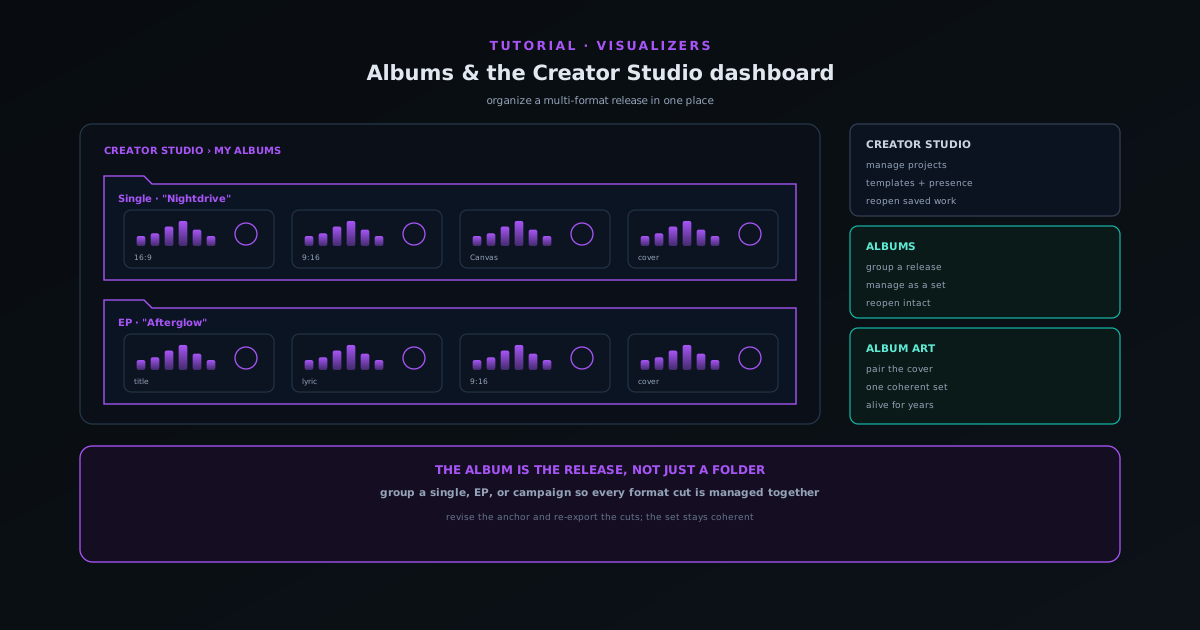
Once you are saving projects, the next thing you need is somewhere to organize them, especially when a single release becomes several assets in different formats. Novus Visualizers gives you two surfaces for this: the Creator Studio dashboard, where your saved work lives, and My Albums, where related visualizers are grouped into a set.
This tutorial covers how to use the dashboard to manage drafts and projects, and how albums turn a scattered pile of exports into a coherent, manageable release. The model is shallow and named in plain language, so there is very little to learn before it becomes second nature.
Contents
- 1
1. Open Creator Studio, your home base
Once signed in, Creator Studio is where you manage your visualizers, saved projects, and community presence. It is the dashboard a returning user navigates to first, the place your saved drafts and projects are listed and reopened.
From here you can open any saved project straight back into the editor, pick up a draft, or start organizing your work into albums.
- Creator Studio = manage your visualizers, saved projects, and community presence.
- Drafts and projects are listed here, ready to reopen.
- 2
2. Create an album for a release
An album groups related visualizers so they can be managed as a set, which maps cleanly onto how releases actually work: a single with several format cuts, an EP, or a campaign that needs a consistent look across multiple videos. Create an album for the release and add the relevant projects to it.
Grouping into an album is what keeps a multi-format launch from scattering across your dashboard and your downloads folder.
- Albums group related visualizers (a single, an EP, a campaign).
- Add your saved projects to the album for the release.
- 3
3. Manage drafts and projects in one place
Use the dashboard to keep your work tidy: finish drafts, promote them to saved projects, group them into the right album, and reopen anything that needs a change. Because everything persists durably and reopens with settings intact, the dashboard is a reliable workspace rather than a list of things you hope still work.
For a working release, treat the album as the living source: revise a project, re-export, and the updated cut stays grouped with the rest.
- Promote a finished draft into a saved project.
- Keep each release's assets grouped in its album.
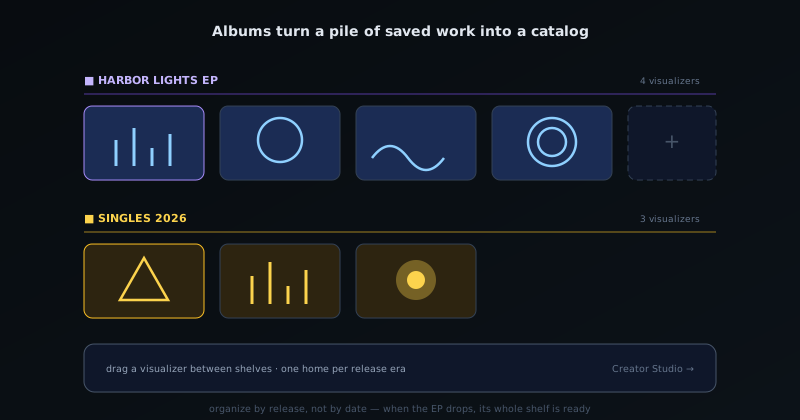
Albums turn a pile of saved work into a catalog: one shelf per release or era. - 4
4. Pair albums with the Cover Art Studio
The album concept connects to the companion Cover Art Studio, so the visual identity of a release and the videos in it can be managed in the same ecosystem. Make the cover in the Cover Art Studio and keep it alongside the visualizers in the album.
This is how a release becomes one coherent set (cover, main visualizer, and format cuts) rather than unrelated files made in unrelated tools.
- Cover Art Studio produces cover and square artwork for the release.
- Keep the cover and the videos together as one set.
The album is the release
Think of an album as the release itself, not just a folder. When you revise the look, revise it in the anchor project and re-export the cuts that need it, keeping everything in the album. A release saved as projects in an album stays alive and editable for as long as it is relevant, which for a catalog track can be years.
Frequently asked questions
Quick answers to common questions about this topic.
What are albums in Novus Visualizers?
Albums group related visualizers (a release, an EP, or a campaign) so you can manage them as a set from the Creator Studio dashboard instead of as loose projects.
What is the Creator Studio dashboard?
Your home base for managing visualizers, saved projects, albums, and community presence once signed in. It is where saved work lives between sessions.
Related workflow
A track to a release-ready visualizer, per platform
Render the visual once, then produce the platform masters from it, instead of re-rendering the whole video for every aspect ratio.
- Render the beat-synced videoNovus Visualizers: Pick the engine and mode against your actual track; the analysis is done on your audio, not on a preset preview.
- Trim or upscale the exportNSS Background Remover: The video utilities handle the tidy-up pass so the render does not have to be repeated to fix ten seconds of it.
- Produce the per-platform mastersNovus Convert: Each destination wants a different container and bitrate; converting the finished render is far cheaper than re-rendering it.
Related troubleshooting
Was this page helpful?
Your answer stays in this browser, it is not sent anywhere and no account or cookie is involved.