Novus Visualizers
How to make a music visualizer video with Novus Visualizers
A complete walkthrough of Novus Visualizers: upload a track, pick an engine and mode, tune the visuals and beat-sync in the editor, then export a release-ready MP4 or WebM up to 4K, all in your browser.
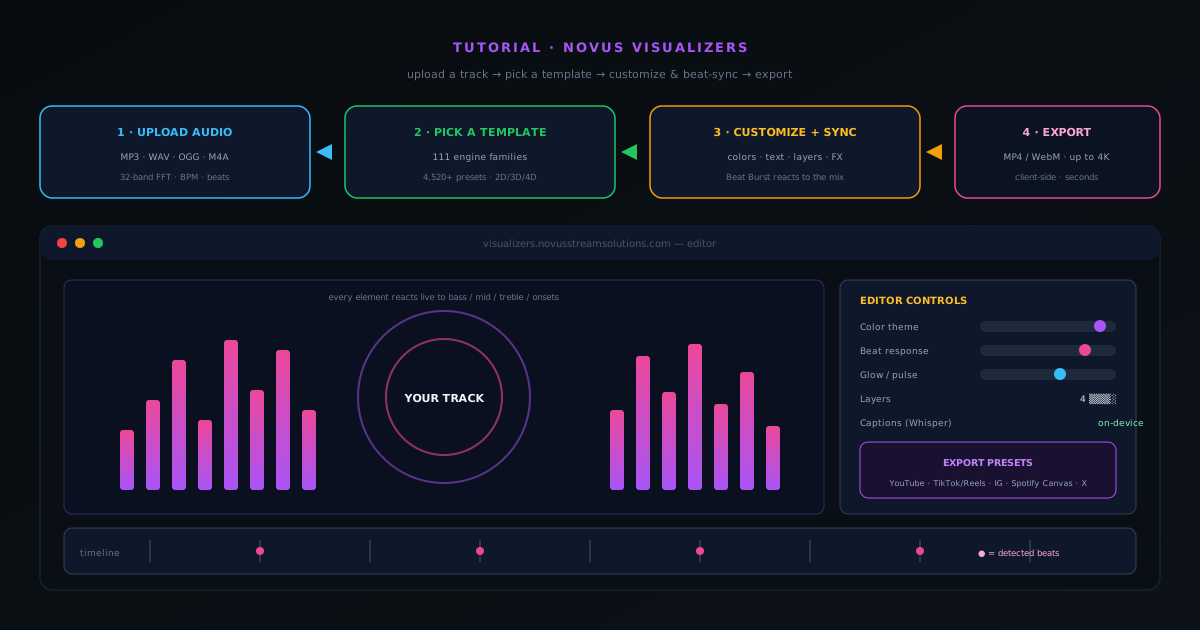
Novus Visualizers turns a track into a finished, reactive video without a motion-graphics background. Everything runs in the browser: the audio analysis, the rendering, and the final export. You do not need an account to start, and the videos you make are yours to use.
The flow is four steps: upload audio, pick an engine and mode, customize in the editor, export. This walkthrough covers each one, including how beat-sync and the layer system work so your visuals actually move with the music instead of just playing underneath it.
Contents
Two ways to finish
Start in the Classic editor
Upload a track, pick an engine and one of its six modes, swap in your colors and text, then export. The fastest, guided route to a finished video.
Go deep in the Studio workstation
Direct canvas editing with ordered layers, a beat-aware timeline, keyframes and curves, masks and blend modes, full control for a look that matches your release before exporting.
- 1
1. Upload your track
Open visualizers.novusstreamsolutions.com and add your audio. As soon as the track loads, the tool analyzes it in real time with a 32-band FFT, isolating bass, mid, and treble and detecting BPM and beat timing. That analysis is what every visual reacts to later, so this step is doing more than just loading a file.
No registration is required to test it out, and the audio is processed in your browser.
- Supported audio: MP3, WAV, OGG, M4A.
- Real-time analysis: 32-band FFT, BPM/beat detection, bass/mid/treble isolation.
- 2
2. Pick an engine and mode
Choose one of the ten engines, then pick one of its six modes, for 60 modes in total. The engines are Particles, Trails, Bloom, Character Motion, Radial, Spectrum, Bars, Tunnel, Waveform, and Logo, covering everything from spectrum bars and mandalas to particle fields, tunnels, and flowing waveforms. Depth and 3D live inside specific modes rather than in a separate variant.
Picking an engine and mode drops you straight into the editor with that look already reacting to your track, so you are tuning something live rather than guessing from a thumbnail.
- Ten engines, each with six modes: 60 modes in total.
- Nine color themes to recolor any engine instantly.
- 3
3. Customize the visuals in the editor
This is where the video becomes yours. Recolor with one of nine themes (Neon, Sunset, Ocean, and more) or set colors per element. Add effects like vignette, film grain, and chromatic aberration, and add your text (song title, artist name, or custom overlays) with a choice of font families and animation styles.
You can stack ordered visualizer layers with blend controls, so a subtle background engine can sit behind a sharper foreground one. If you want captions, the AI captions feature transcribes your audio on-device with Whisper and gives you per-word timing you can fine-tune; the audio never leaves the browser.
- Color: 9 themes or manual per-element control.
- Effects: vignette, film grain, chromatic aberration, and more.
- Text: title/artist/custom overlays with multiple fonts and animations.
- Layers: ordered reactive layers with blending.
- AI captions: on-device Whisper transcription with per-word timing.
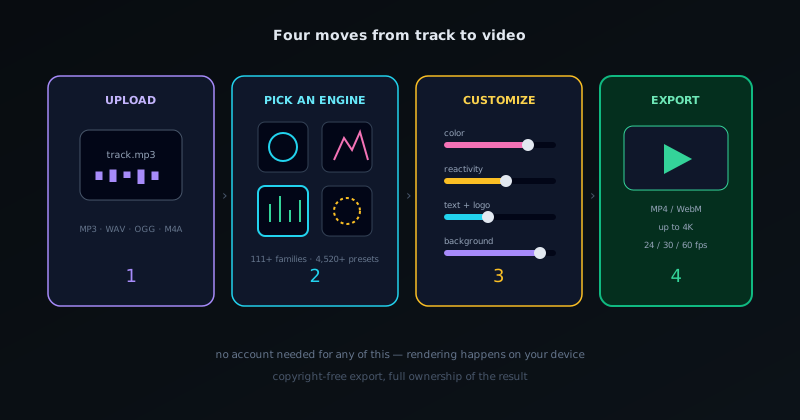
Upload, pick an engine, customize, export. The four moves of a first visualizer. - 4
4. Beat-sync so it moves with the music
Beat-sync is what separates a real visualizer from a video that happens to have music behind it. With Beat Burst, the primary motion in every engine bursts on the beats the analyzer detected: comets accelerate, particles swarm, tunnels rush forward in time with the track. Beat-reactive properties like shake, pulse, glow, and tilt can be layered on top so different elements respond to different parts of the mix.
Because the reactivity is driven by the actual bass, mid, treble, RMS loudness, and onset detection from step 1, the motion lines up with your specific song rather than a generic loop. Tune the response until the hits land where you want them.
- Beat Burst: primary motion bursts on detected beats across every engine.
- Beat-reactive properties: shake, pulse, glow, tilt, assignable per layer.
- 5
5. Export your video
When the look is right, export. Encoding happens client-side with WebCodecs: there is no upload and no render queue, so a finished video downloads in seconds rather than waiting on a server. Choose your resolution up to 4K (3840×2160), a frame rate of 24, 30, or 60 fps, and a format: MP4 (H.264) or WebM (VP9).
Platform presets size the output for where it is going: YouTube, TikTok/Reels, Instagram square, Spotify Canvas, X, or Discord. Your exports are copyright-free and yours to publish.
- Formats: MP4 (H.264) or WebM (VP9), up to 4K, 24/30/60 fps.
- Platform presets: YouTube, TikTok/Reels, Instagram, Spotify Canvas, X, Discord.
- Client-side encoding: no upload, exports download directly.
Tips for a stronger visualizer
Choose an engine and mode whose motion matches the energy of the track before you fine-tune colors; it is faster to recolor a well-matched engine than to force a calm one to feel energetic. Use a second layer sparingly for depth rather than stacking busy engines. And if you are making a set, export a 60 fps MP4 at the platform preset for your main channel and reuse the same color theme across tracks to build a recognizable look. The companion tools (Cover Art Studio, Lyric Video Creator, Stream Overlays, Audio Effects Generator, and the Audio Library) cover the rest of a release package.
Frequently asked questions
Quick answers to common questions about this topic.
How do I make a music visualizer video?
Upload your track to Novus Visualizers, pick a visual style, customize the color and beat reactivity, and export, all free and in your browser. No signup is required to make and export a visualizer.
What audio files can I use?
MP3, WAV, OGG, and M4A. The track is analyzed on your device, so your audio never leaves the browser.
Related workflow
A track to a release-ready visualizer, per platform
Render the visual once, then produce the platform masters from it, instead of re-rendering the whole video for every aspect ratio.
- Render the beat-synced videoNovus Visualizers: Pick the engine and mode against your actual track; the analysis is done on your audio, not on a preset preview.
- Trim or upscale the exportNSS Background Remover: The video utilities handle the tidy-up pass so the render does not have to be repeated to fix ten seconds of it.
- Produce the per-platform mastersNovus Convert: Each destination wants a different container and bitrate; converting the finished render is far cheaper than re-rendering it.
Related troubleshooting
Was this page helpful?
Your answer stays in this browser, it is not sent anywhere and no account or cookie is involved.