Novus Visualizers
Creating a Spotify Canvas loop
Make a short, seamless looping visual for Spotify Canvas: a vertical clip that reads at a glance, loops cleanly, and uses the Spotify Canvas export preset.
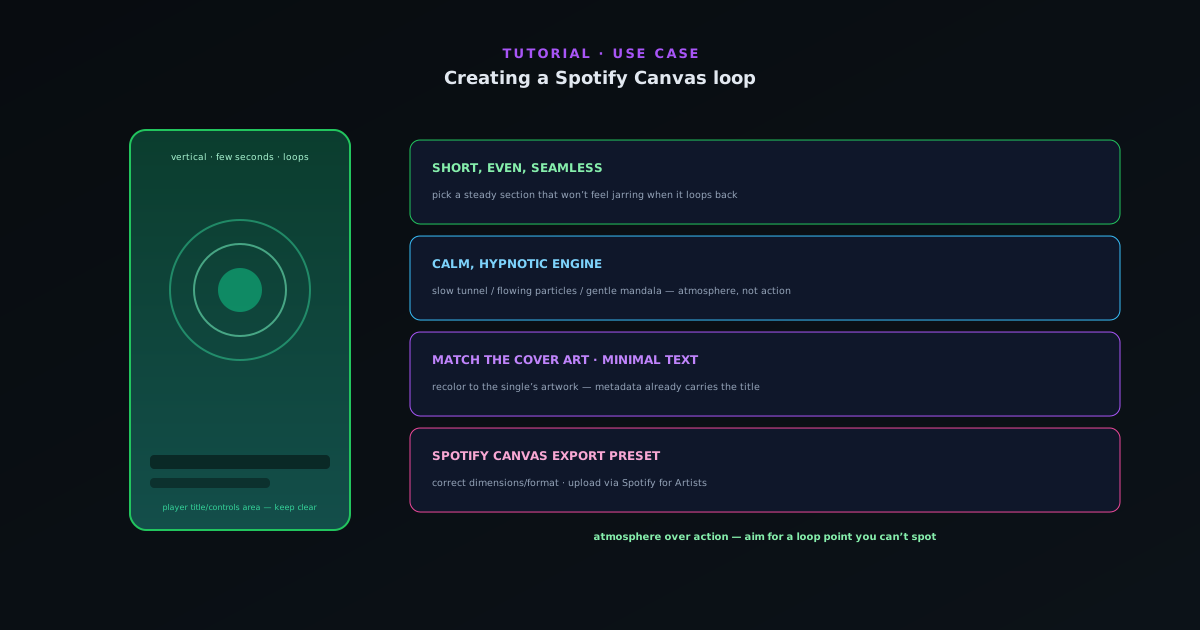
Spotify Canvas is the short looping visual that plays behind a track in the app. It is a different brief from a full visualizer: a few seconds, vertical, seamless, and readable while someone glances at their phone. This guide is tuned for exactly that.
Contents
- 1
1. Pick a short, looping section
Canvas is brief and repeats, so choose a short segment of the track with steady, even energy rather than a big build or drop, a section that will not feel jarring when it loops back to the start. The visual reacts to this segment, so consistent audio gives you a consistent loop.
- 2
2. Choose a calm, hypnotic engine
Canvas works best with smooth, continuous motion (a slow tunnel, a flowing particle field, a gentle mandala) rather than sharp, attention-grabbing bursts. It sits behind cover art and metadata, so it should feel atmospheric, not distracting. Recolor it to match the single’s artwork.
- Favor smooth, continuous motion.
- Match colors to the cover art.
- 3
3. Keep it vertical and clean
Canvas is vertical and shows over the player UI, so keep the composition centered and avoid putting anything important where the track title and controls sit. Usually you want little or no text; the cover art and metadata already carry that, and Canvas is the mood.
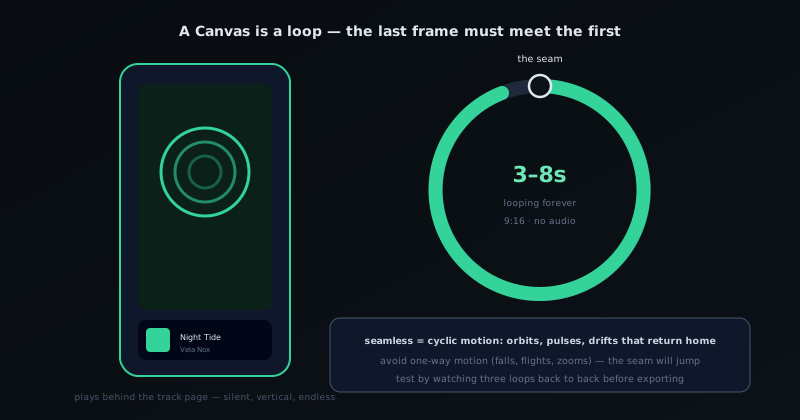
A Canvas is a 3–8 second loop; the craft is making the last frame meet the first. - 4
4. Export with the Spotify Canvas preset
Use the Spotify Canvas platform preset so the dimensions and format match what Spotify expects, then upload it through Spotify for Artists. Because export is instant and local, you can try a couple of looping options and pick the one that feels most seamless.
- Spotify Canvas export preset.
- Iterate on loop options quickly.
Atmosphere over action
Canvas is a mood loop, not a music video: smooth, even motion that you barely notice beats anything flashy. Keep the center clear of where Spotify draws the title and controls, match the colors to the single’s art, and aim for a loop point you cannot spot.
Frequently asked questions
Quick answers to common questions about this topic.
How do I make a Spotify Canvas loop?
Create a short 9:16 visualizer that loops cleanly (about 3–8 seconds), keep visuals centered, and export with the vertical preset. Spotify repeats it behind your track.
Why does my Canvas need to loop seamlessly?
Because Spotify plays it on repeat, a visible jump at the loop point is distracting. Design the motion so the end flows back into the start.
Related workflow
A track to a release-ready visualizer, per platform
Render the visual once, then produce the platform masters from it, instead of re-rendering the whole video for every aspect ratio.
- Render the beat-synced videoNovus Visualizers: Pick the engine and mode against your actual track; the analysis is done on your audio, not on a preset preview.
- Trim or upscale the exportNSS Background Remover: The video utilities handle the tidy-up pass so the render does not have to be repeated to fix ten seconds of it.
- Produce the per-platform mastersNovus Convert: Each destination wants a different container and bitrate; converting the finished render is far cheaper than re-rendering it.
Related troubleshooting
Was this page helpful?
Your answer stays in this browser, it is not sent anywhere and no account or cookie is involved.