Novus Visualizers
Text, titles, and on-device AI captions in Novus Visualizers
Add a title and artist, choose fonts and animation styles, and turn audio into captions with on-device Whisper transcription and per-word timing, without your audio ever leaving the browser.
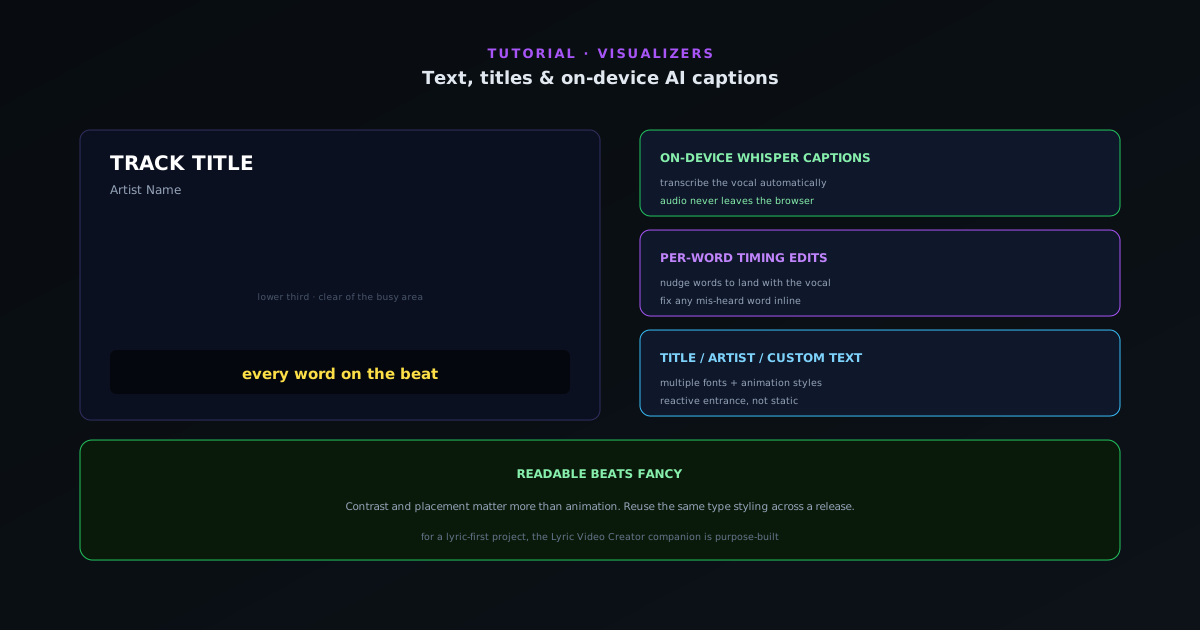
Text turns a visualizer into a branded release asset: a title, an artist name, or full captions. Novus Visualizers handles both static text and AI-generated captions, and the captions are produced on-device so the audio never leaves your browser.
Contents
- 1
1. Add title and artist text
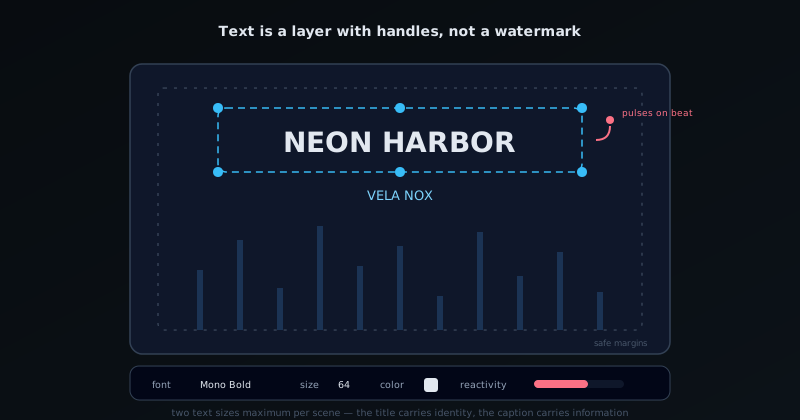
Add your song title, artist name, or any custom overlay as a text layer. Choose from the available font families and pick an animation style so the text enters and reacts rather than sitting static. Place it where it does not fight the main motion; corners and lower thirds usually win.
- Title, artist, or custom overlays.
- Multiple font families and animation styles.
- 2
2. Generate captions with on-device Whisper
The AI captions feature transcribes your audio using Whisper running on-device through the browser; the audio is never uploaded. This gives you a caption track from spoken or sung words automatically, which is the slow part of making a lyric or talking-segment video done for you.
- On-device Whisper transcription.
- Audio never leaves the browser.
- 3
3. Fine-tune per-word timing
Automatic transcription gets you most of the way; per-word timing edits get it exact. Adjust the timing so words land on the beat or with the vocal, fix any mis-heard word, and the captions feel authored rather than auto-generated. This is what makes karaoke-style and lyric videos read cleanly.
- Per-word timing edits.
- Correct transcription mistakes inline.
Text is a first-class layer: placed, styled, and optionally audio-reactive. - 4
4. Style captions to match the visual
Bring the caption styling in line with the rest of the frame: font, size, and placement that match your title and color theme. Consistent type across title and captions is a quiet but strong branding signal, especially if you are releasing a series of tracks with the same look.
Readable beats fancy
Captions exist to be read, so contrast and placement matter more than animation. Keep them clear of the busiest part of the frame, give them enough contrast against the visuals behind them, and reuse the same type styling across a release so your videos look like a set. For a dedicated lyric piece, the Lyric Video Creator companion tool is purpose-built for it.
Frequently asked questions
Quick answers to common questions about this topic.
Can I add text and captions to my visualizer?
Yes: add titles and text layers, and generate AI captions from your audio with on-device transcription. Captions come with per-word timing you can edit and style before export.
Are the AI captions private?
Yes. They use an on-device Whisper model, so your audio never leaves the browser during transcription.
Related workflow
A track to a release-ready visualizer, per platform
Render the visual once, then produce the platform masters from it, instead of re-rendering the whole video for every aspect ratio.
- Render the beat-synced videoNovus Visualizers: Pick the engine and mode against your actual track; the analysis is done on your audio, not on a preset preview.
- Trim or upscale the exportNSS Background Remover: The video utilities handle the tidy-up pass so the render does not have to be repeated to fix ten seconds of it.
- Produce the per-platform mastersNovus Convert: Each destination wants a different container and bitrate; converting the finished render is far cheaper than re-rendering it.
Related troubleshooting
Was this page helpful?
Your answer stays in this browser, it is not sent anywhere and no account or cookie is involved.