Novus PDF Studio
Novus PDF Studio is the live PDF form-filling and signature editor in the Novus Stream Solutions portfolio. It runs at pdf.novusstreamsolutions.com. Its core workflow is the form editor: upload a PDF, scan likely fields with AI, refine every suggested layer manually, add missing text, number, checkmark/cross, date-style, or signature fields, draw a signature, and export or print the finished document. A blank-page authoring surface at /create starts from paper size, headings, images, tables, and shapes with selectable text. /sign-pdf is the dedicated signature workflow that says what a browser signature is and is not. /learn filters guides, tutorials, and workflows by the job you are doing. Alongside those, a suite of page tools is live at /tools: merge, split, organize, rotate, page numbers, protect (AES-256 passwords), unlock, compress, flatten, PDF-to-images, images-to-PDF, and OCR. This page reflects the product as it exists today. Redaction and metadata cleanup remain future possibilities, not current hub claims.
Contents
What Novus PDF Studio is for
Novus PDF Studio is for the common moment when a PDF form needs to be finished, signed, and exported without opening a heavy desktop editor. The form editor is the core of the app: users upload a PDF, optionally scan for likely fields, review the suggested layers, add or adjust manual fields, draw signatures, and export a finished copy. Around that editor sits a focused set of page tools for the other everyday PDF chores.
The live tool set is deliberately focused. The /tools area now offers dedicated tools to merge files, split packets, organize (reorder, rotate, duplicate, and remove) pages, rotate pages, add page numbers, protect with AES-256 passwords, unlock protected PDFs, compress, flatten form fields, convert PDF pages to images, convert images to PDF, and run OCR. /create authors a new PDF from a blank page; /sign-pdf is the signature-only path; /learn is the job-filtered guide centre; /tool-map lists every public route. Redacting content and stripping metadata are not offered yet and may be useful future tools. The live product today is the editor at /editor plus create, sign, learn, /tools, and the guide and privacy pages that explain them.
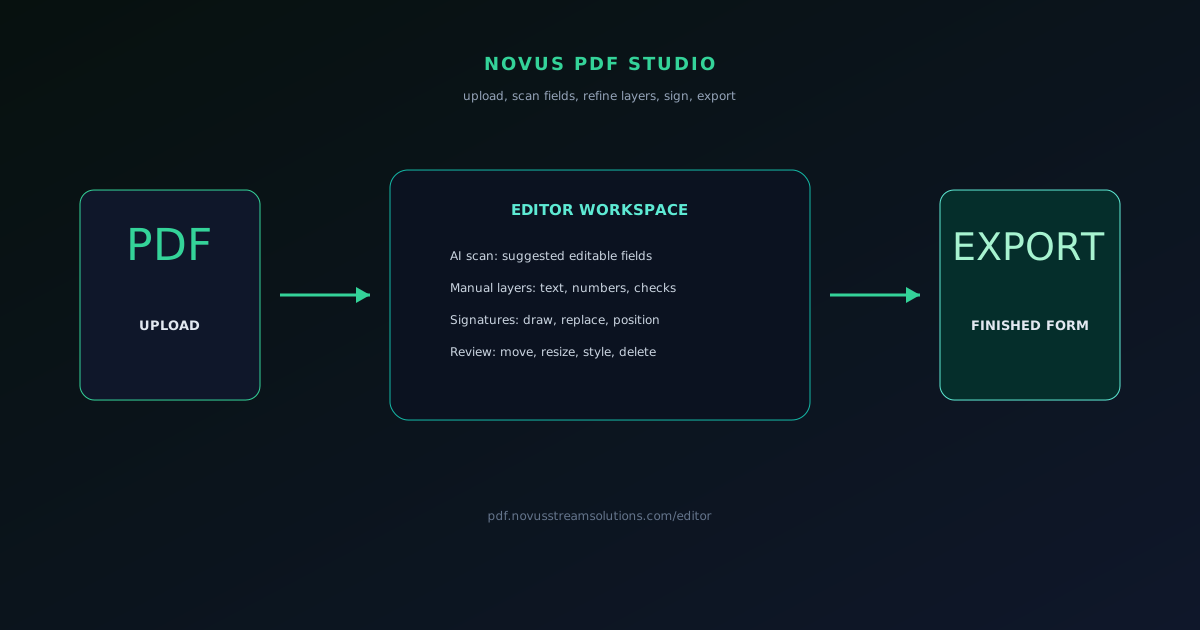
Core workflow: upload, scan, refine, export
The live workflow starts by opening /editor and uploading a PDF. The document stays visible in the canvas while the user works. From there, the AI scan can suggest likely text boxes, numbers, checkmarks, dates, and signature targets. Those suggestions are a starting point, not a locked result: each scanned layer can be moved, resized, styled, duplicated, deleted, or cleared.
Manual tools handle the final precision work. Users can add missing text, number, checkbox/cross, and signature fields, then adjust font, size, color, bounds, and position so the output lines up with the original form. When the document is ready, the user downloads or prints the finished PDF.
- Upload: choose the PDF form or document to work on.
- Scan: let AI suggest likely fields when a form has repeated blanks or tight boxes.
- Refine: use layers and manual controls to correct placement, size, style, and content.
- Export: download or print the filled and signed PDF.
AI scan and editable layers
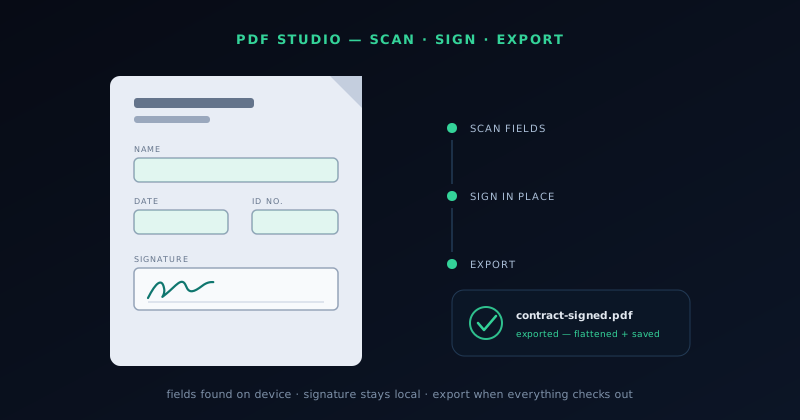
The AI scan exists to speed up setup, especially on forms with repeated blanks, checkboxes, dates, amounts, and signature areas. It identifies likely fields and places them into a layer-style editing model so the user can review each suggestion. The important product choice is that the scan remains editable. It does not pretend to be perfect, and it does not force the user to accept a generated layout.
Accuracy work has continued through 2026. The scan now skips table headers and amount cells that used to be mistaken for inputs, signature-line detection was improved so the place to sign is found rather than guessed at, and the rate of false-positive boxes on already-fillable forms came down. The grey outline that used to sit around fields while editing is gone, so the page reads as the document rather than as a form builder.
The live editor lets users clear only AI fields when a scan is noisy, or clear the full workspace when they want to start over. That distinction matters because a user may want to preserve manually created fields while removing only the machine suggestions.
- AI suggestions remain editable after scanning.
- Improved signature-line detection, and table headers and amount cells are skipped.
- Scanned and manual fields share the same review surface.
- Users can clear AI fields separately from manual work.
- The scan is a setup accelerator, not a replacement for review.
Manual field controls
Manual editing is the part that makes the product useful after the scan. Users can add fields directly on top of the PDF and then move, resize, duplicate, style, or delete them. This is the right model for forms where alignment matters: benefit forms, intake packets, invoices, disclosures, receipts, and other documents with small boxes or strict placement.
The live feature set includes text-like fields, numeric/date-style entries, checkbox and cross marks, signature fields, font controls, size controls, color controls, dimensions, and position controls. The product uses export-safe built-in fonts such as Helvetica, Times Roman, and Courier so the final PDF stays predictable.
- Text, number, date-style, check/cross, and signature fields.
- Move, resize, duplicate, delete, and restyle fields.
- Font, size, color, bounds, and position controls.
- Export-safe fonts for predictable completed documents.
Signatures and export
Signatures are part of the current editor workflow. Users can draw or replace signatures inside the canvas and place them where the form expects them. This is practical signing for forms and records, not a claim of enterprise digital-signature compliance.
Export is the trust moment. The user should review the form visually, make sure all fields are aligned, and then download or print the completed PDF. The app is designed for careful review rather than pretending the scan can finish a document without human inspection.
Privacy and processing boundaries
PDF forms often contain private information, so the product language needs to be precise. The live site describes a browser-side editing workflow for the core PDF form experience and does not require an account-first path. Users remain responsible for reviewing sensitive documents, exporting carefully, and sharing the final file through an appropriate channel.
The current privacy boundary should not be inflated into claims about tools that do not exist yet. Novus PDF Studio fills, signs, scans, and exports forms, and merges, splits, organizes, rotates, numbers, protects, unlocks, compresses, flattens, converts pages to images, converts images to PDF, and runs OCR. It is not currently a redaction tool, metadata-removal tool, compliance platform, or secure document vault.
How PDF Studio fits the ecosystem
Novus PDF Studio adds a focused document-editing surface to the portfolio. NSS Background Remover prepares images. Novus Visualizers prepares creator video. Novus Convert converts and compresses files. Novus Learn handles source-grounded reading. PDF Studio helps finish practical forms and records: government forms, benefit forms, client intake packets, invoices, disclosures, receipts, and business records that need fields, marks, dates, and signatures placed cleanly.
The hub keeps the long-form reference, tool map, tutorial, and launch story connected. The spoke app handles the working editor surface. That split keeps the product focused while giving searchers and returning users a clear place to learn what the editor does, where to start, and how to verify their output.
Where to go next
Open pdf.novusstreamsolutions.com to use the live app: /editor to fill and sign, /create to start from a blank page, /sign-pdf for the signature workflow, /learn for job-filtered guides, and /tools for page utilities. The complete tool inventory lives at Tool maps, and the first hands-on walkthrough is How to fill and sign a PDF form with Novus PDF Studio. For the launch narrative and product positioning, read Novus PDF Studio is live: fill, sign, scan, and export PDF forms.
Frequently asked questions
Quick answers to common questions about this topic.
What can Novus PDF Studio do right now?
The live editor can upload a PDF, scan for likely form fields, let you refine each result as an editable layer, add manual text/number/check/signature fields, draw signatures, and download or print the finished PDF. A separate /tools area adds merge, split, organize, rotate, page numbers, protect (AES-256 passwords), unlock, compress, flatten, PDF-to-images, images-to-PDF, and OCR.
Does it compress, merge, split, or convert PDFs?
Merging, splitting, organize, rotate, page numbers, protect (AES-256 passwords), unlock, compress, flatten, PDF-to-images, images-to-PDF, and OCR are now live at /tools. Redaction and metadata cleanup are not offered yet; those remain possible future utilities beside the fill-and-sign editor.
What is the best first workflow to try?
Start with the getting-started tutorial: upload a form, run the AI scan, correct fields manually, draw or place a signature, then export and review the finished PDF.
Should I keep my original PDF?
Yes. Keep the source file untouched, download a finished copy, and open the final PDF locally before sending or submitting it.
Related workflow
Any document to a signed, sendable PDF
A form that arrived as a scan, a DOCX or an image becomes a filled, signed PDF small enough to email, without a single upload to someone else’s server.
- Bring the source into PDFNovus Convert: Images, documents and ebooks all land as PDF here, so the editor downstream only ever sees one format.
- Fill the fields and signNovus PDF Studio: The AI field scan proposes the boxes; every one stays editable, because a form editor that cannot be corrected is worse than no editor.
- Compress before sendingNovus Convert: Adjustable quality with the measured output size shown before download, so there is no guessing whether it cleared the limit.
Related troubleshooting
Was this page helpful?
Your answer stays in this browser, it is not sent anywhere and no account or cookie is involved.