Novus PDF Studio
How to fill and sign a PDF form with Novus PDF Studio
A practical first workflow for Novus PDF Studio: upload a PDF form, scan likely fields with AI, refine every layer manually, draw a signature, and export a finished document from the browser editor.
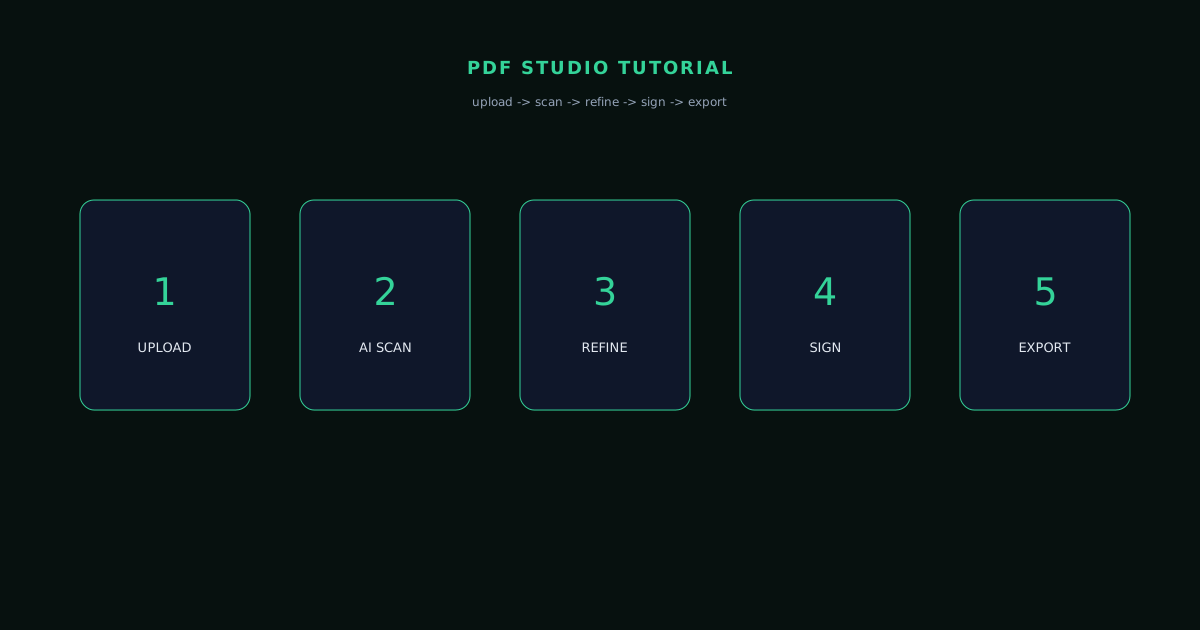
Novus PDF Studio is the fill-and-sign editor at pdf.novusstreamsolutions.com. The live product is focused on one practical job: upload a PDF form, use AI scanning to find likely fields, correct the layout with manual tools, add a signature, and export the finished PDF.
This walkthrough follows the live editor exactly. It does not cover compression, conversion, metadata cleanup, or redaction because those are not live PDF Studio tools today. The goal is to finish a form cleanly with the editor that exists now.
Contents
Two ways to finish
AI-assisted start
Run the scan to place likely fields quickly, then review every layer before export.
Manual precision
Add or adjust fields yourself when a tight form needs exact placement.
- 1
1. Open the editor and upload your PDF
Start at pdf.novusstreamsolutions.com/editor and upload the form or document you want to finish. The editor opens the PDF in a browser workspace so the page remains visible while you add fields, signatures, and marks.
Use a duplicate while you are learning the flow. Keep the original as the source of truth and export a new finished copy after review.
- Use /editor for the live PDF Studio workspace.
- Upload the source form or document.
- Keep the original file untouched until you trust the exported result.
The current PDF Studio workflow is upload, scan, refine, sign, and export. - 2
2. Run the AI field scan if it helps
Use the AI scan when the form has obvious blanks, boxes, amounts, dates, or signature targets. The scan suggests likely fields and adds them as editable layers. Treat those suggestions as a first draft, not a finished form.
If the scan is noisy, clear the AI fields and build manually. The useful part is that AI-generated fields and manually created fields remain editable instead of becoming a locked output.
- Review every suggested field before filling it.
- Clear only AI fields if the scan does not help.
- Keep manual fields when you want to preserve your own cleanup work.
- 3
3. Refine fields with manual controls
Click through the field layers and correct anything that is misaligned. Move fields into place, resize tight boxes, duplicate repeated fields, delete bad suggestions, and add missing manual fields where the scan skipped something.
Use the style and position controls for the details that matter on forms: font, size, color, dimensions, and exact placement. PDF-safe fonts such as Helvetica, Times Roman, and Courier keep the exported result predictable.
- Add text, number, date-style, check/cross, and signature fields.
- Move, resize, duplicate, delete, and style fields.
- Zoom in on tight boxes before exporting.
- 4
4. Fill values and draw the signature
Fill the values only after the field boxes are where you want them. Dates, amounts, names, IDs, and recurring monthly or yearly selections are easier to review when the alignment is already stable.
Use the signature tool for the signature area. Draw or replace the signature, place it cleanly, and check that it does not collide with surrounding form text.
- 5
5. Review the layers before export
Before exporting, scan the layers panel and the visual page. Look for fields that are slightly too high, too wide, duplicated, or still empty. The AI scan can save setup time, but the final review is what makes the document safe to send.
If the form is sensitive, remember the current tool is a fill-and-sign editor. It is not a redaction tool, metadata cleaner, or secure document vault.
- Check each page visually.
- Confirm signature placement.
- Do not rely on the scan without human review.
- 6
6. Download or print the finished PDF
Export the completed PDF when the visible result looks right. Download the file or print directly, then open the downloaded copy locally before sending or submitting it.
This last check is quick, but it is the difference between a useful editor and a risky shortcut. The recipient only sees the finished PDF, so treat the exported copy as the final product.
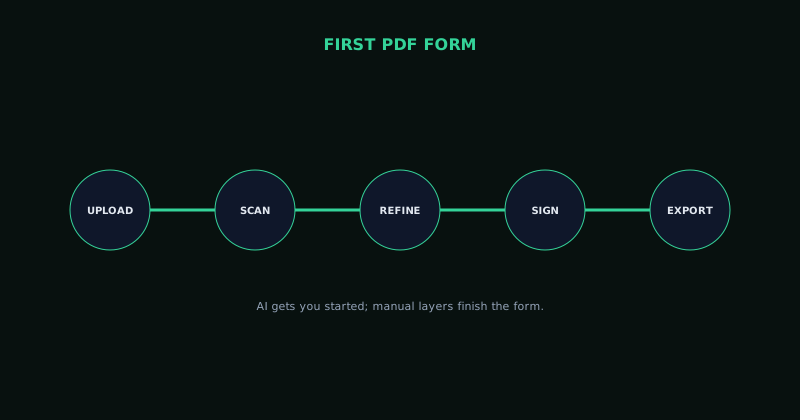
Keep the original and review the exported copy
PDF form workflows are easiest to trust when you never overwrite the source. Keep the original untouched, download a finished copy, and open the exported PDF before sharing or submitting it.
Frequently asked questions
Quick answers to common questions about this topic.
How do I fill and sign a PDF form for free?
Open Novus PDF Studio, upload the PDF, run the scan if you want a head start, correct fields manually, draw your signature, and download or print the finished PDF.
Can I edit fields found by the AI scan?
Yes. AI suggestions are editable layers. You can move, resize, style, duplicate, delete, or clear them, and you can add manual fields where the scan missed something.
Does Novus PDF Studio compress or convert PDFs?
Not today. Compression and conversion remain future possibilities, not current features. Alongside the fill-and-sign editor, Novus PDF Studio does offer separate merge, split, organize, rotate, page-number, protect, and unlock tools.
Related workflow
Any document to a signed, sendable PDF
A form that arrived as a scan, a DOCX or an image becomes a filled, signed PDF small enough to email, without a single upload to someone else’s server.
- Bring the source into PDFNovus Convert: Images, documents and ebooks all land as PDF here, so the editor downstream only ever sees one format.
- Fill the fields and signNovus PDF Studio: The AI field scan proposes the boxes; every one stays editable, because a form editor that cannot be corrected is worse than no editor.
- Compress before sendingNovus Convert: Adjustable quality with the measured output size shown before download, so there is no guessing whether it cleared the limit.
Related troubleshooting
Was this page helpful?
Your answer stays in this browser, it is not sent anywhere and no account or cookie is involved.