Background Remover tutorials
NSS Background Remover tutorials
The definitive, step-by-step guides for NSS Background Remover: from your first cutout to the editors, upscaling, the utility tools, and common tasks. These cover the essentials as general guidance; the app itself holds a deeper, always-current library, and you can see every tool on the tool map.
NSS Background Remover
 Removal & editing
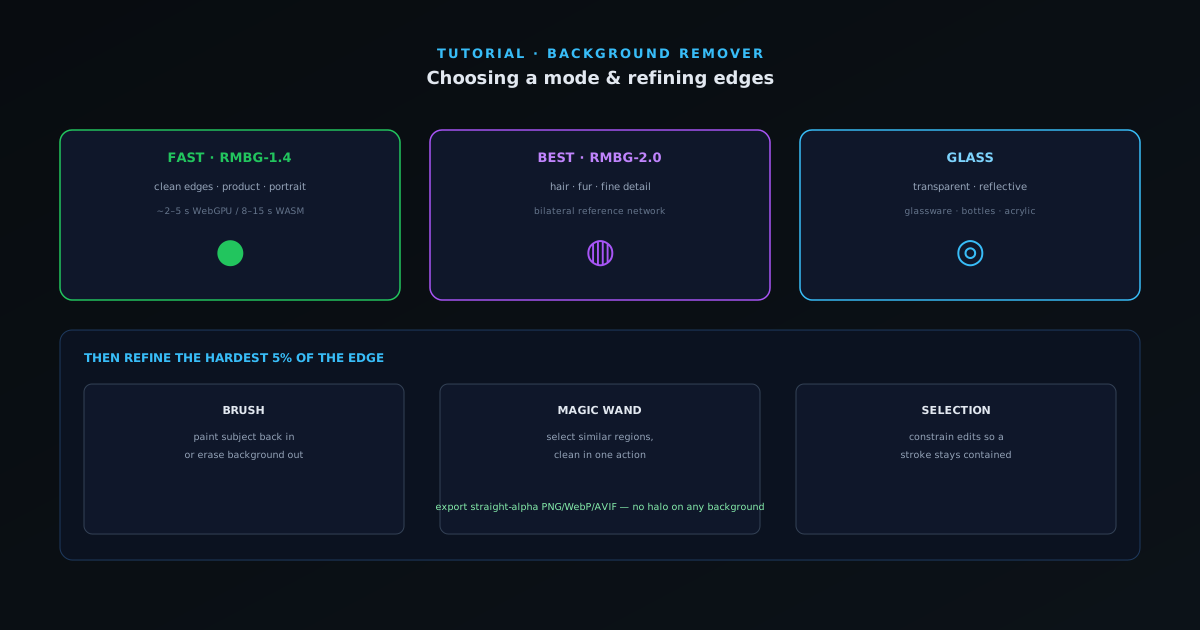
Choosing the right mode and refining edges in NSS Background Remover
When to reach for Fast, Best Quality, or Glass, and how to clean up the last few percent with the brush, wand, and selection tools so even hair and transparent material cut cleanly.
6 min · IntermediateStart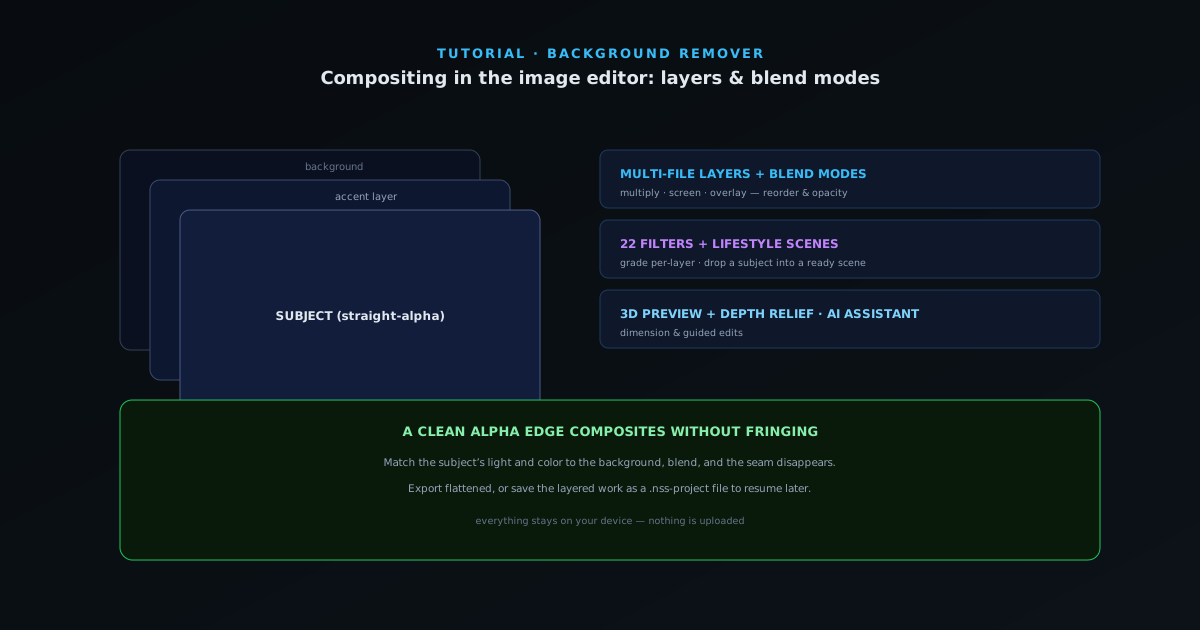 Removal & editing
Compositing with the image editor: layers, blend modes, and filters
Take a cutout further: stack multiple images as layers with blend modes, apply any of 22 filters, drop a subject into a lifestyle scene, and preview in 3D with depth relief, all in the browser.
7 min · IntermediateStart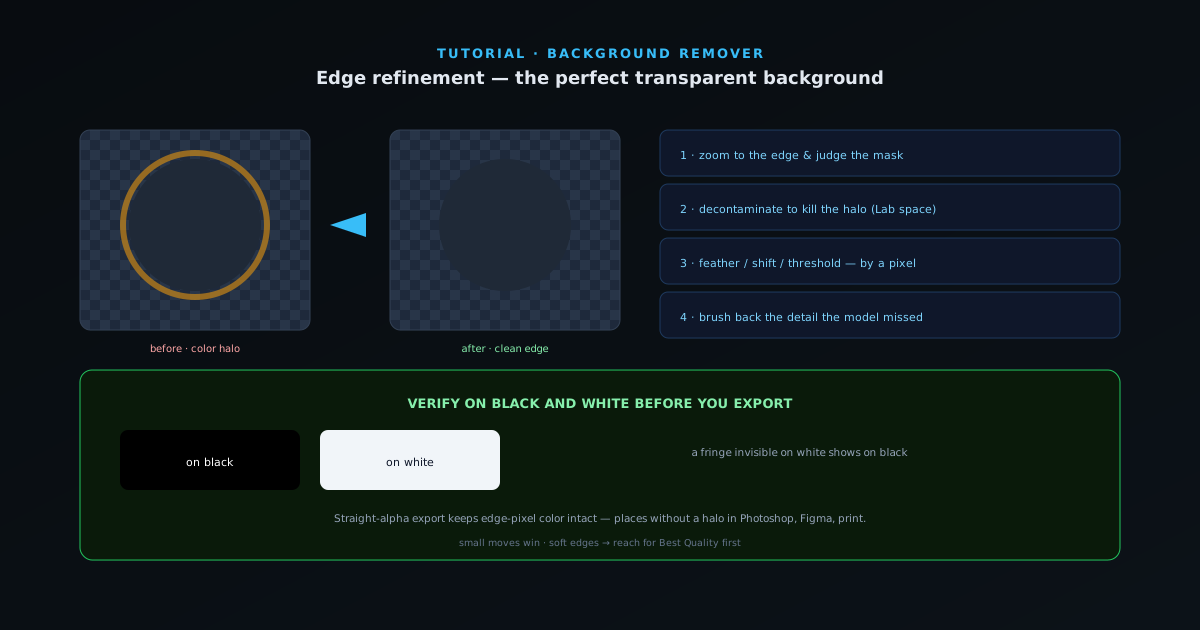 Removal & editing
Edge refinement: getting a perfect transparent background
The difference between a good cutout and a perfect one is the last 5% of the edge. How to use the edge-refine and decontamination controls in the editor to kill halos, recover soft detail, and export a flawless transparent background.
7 min · IntermediateStart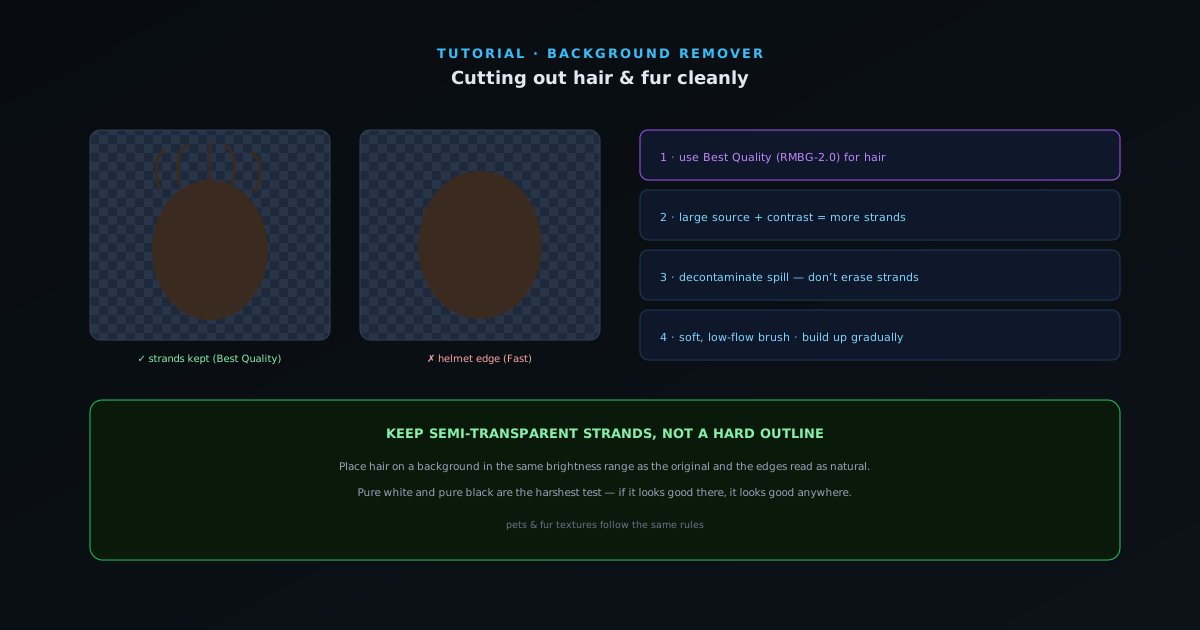 Removal & editing
Cutting out hair and fur cleanly
Hair and fur are where most background removers fall apart. The model choice, settings, and brush technique that keep individual strands instead of a helmet-shaped blob, for portraits, pets, and fur textures.
6 min · IntermediateStart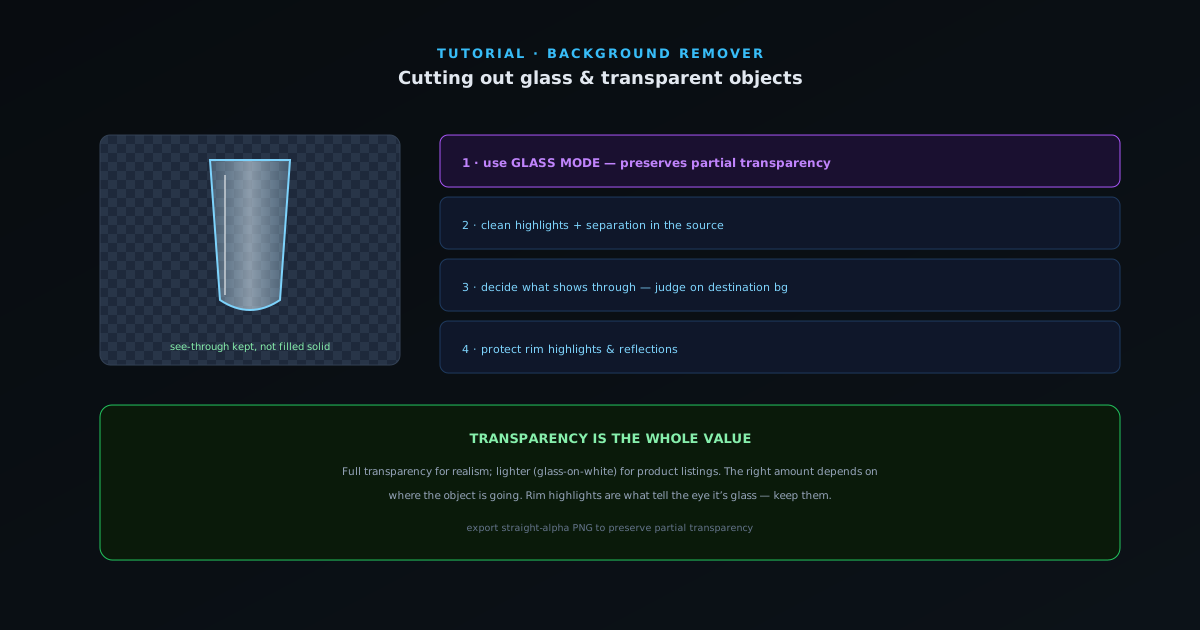 Removal & editing
Cutting out glass and transparent objects
Glassware, bottles, and acrylic break normal background removal because the subject is partly see-through. How Glass mode and careful compositing keep realistic transparency instead of cutting the object to a flat silhouette.
6 min · IntermediateStart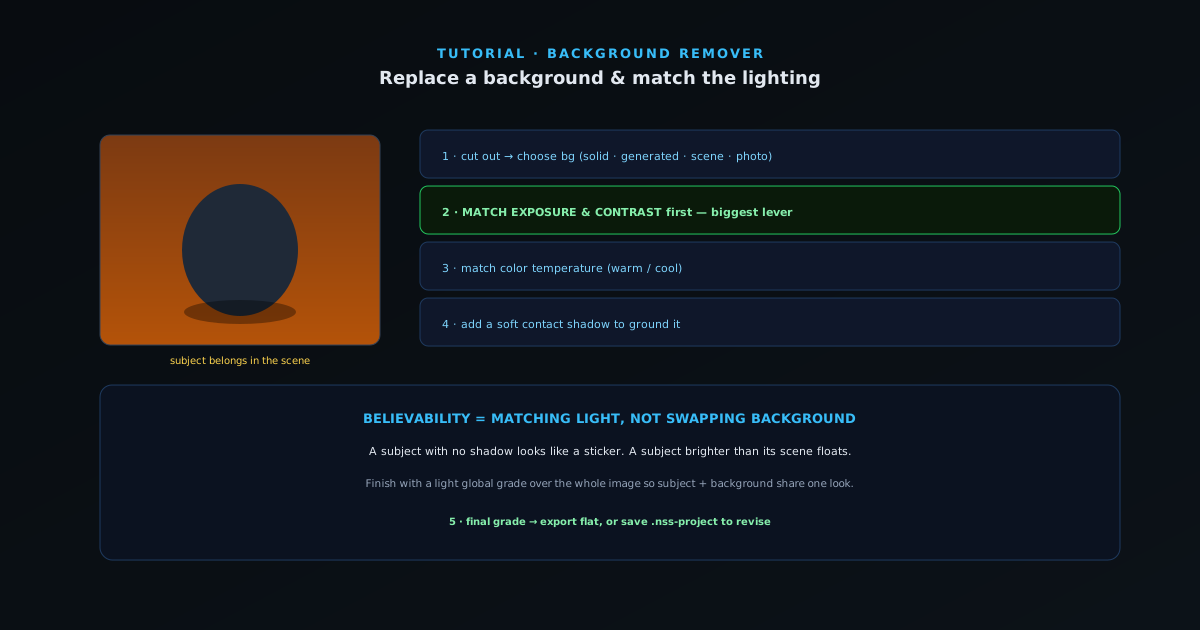 Removal & editing
Replacing a background and matching the lighting
A believable composite is 10% cutout and 90% making the subject belong in its new scene. How to replace a background (a solid color or your own photo) and match exposure, color, and shadow so the seam disappears.
7 min · IntermediateStart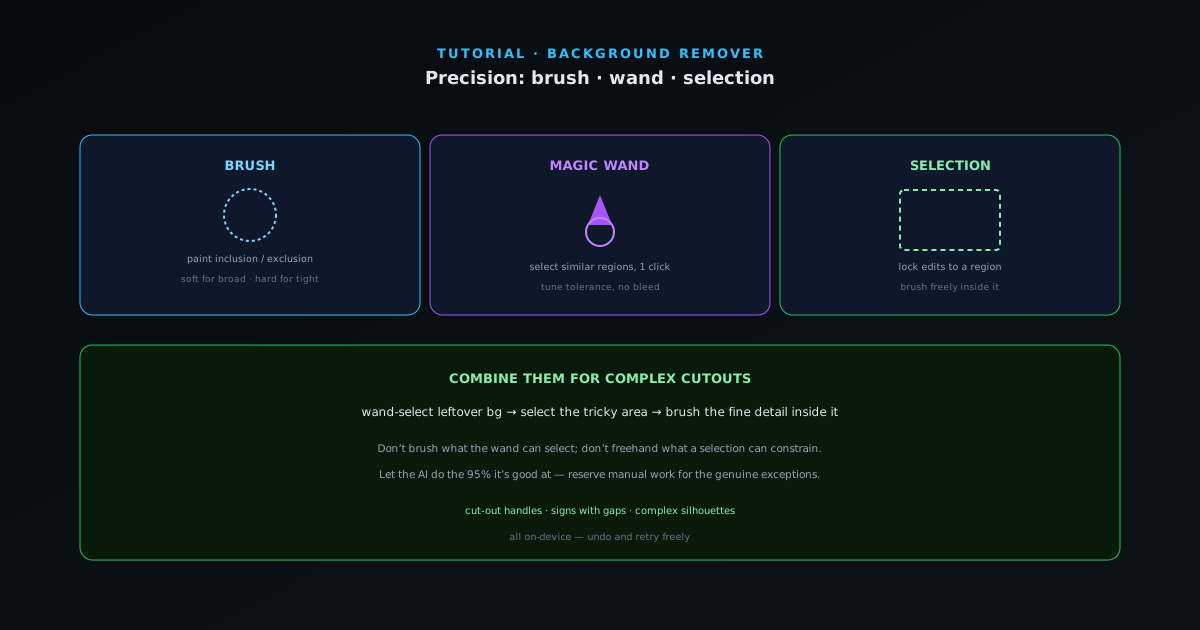 Removal & editing
Precision cutouts with the brush, wand, and selection tools
When the AI mask needs manual help, the brush, magic wand, and selection tools give you full control. How to combine them to fix complex cutouts (cut-out shapes, gaps, and tricky boundaries) efficiently.
6 min · IntermediateStart Removal & editing
Cut out backgrounds from GIFs and video, frame by frame
Two tools handle moving images: the GIF background remover works frame by frame with APNG export, and the video background remover runs a recurrent matting engine for flicker-free people cutouts.
7 min · IntermediateStart