NSS Background Remover
Choosing the right mode and refining edges in NSS Background Remover
When to reach for Fast, Best Quality, or Glass, and how to clean up the last few percent with the brush, wand, and selection tools so even hair and transparent material cut cleanly.
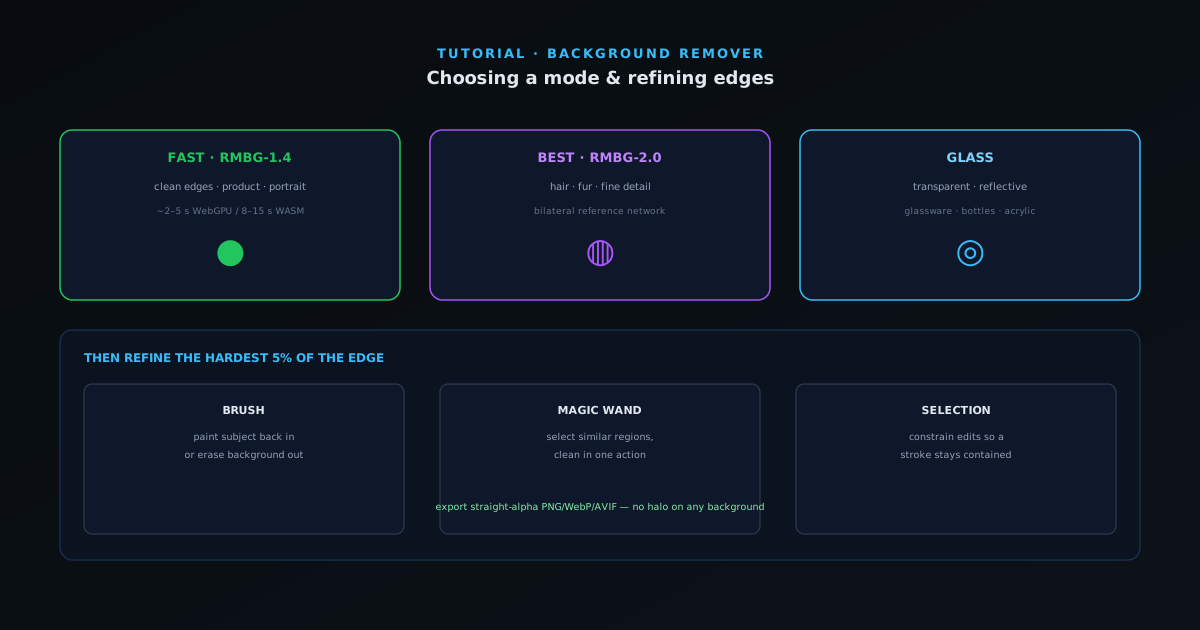
Most background removals are decided in the first click: picking the model that matches your subject. The rest is a small amount of cleanup. This guide covers how to choose between the three modes and how to use the refinement tools so the result holds up at full resolution.
All of it runs on-device, so you can try a different mode or paint an edge as many times as you like without re-uploading anything.
Contents
- 1
1. Match the mode to the subject
Fast (RMBG-1.4) is a lightweight salient-object model; it is the right default for product shots, headshots, and anything with a clean, high-contrast edge. Best Quality (RMBG-2.0, a bilateral reference network) is built for fine-grained boundaries: hair, fur, foliage, and semi-transparent material where Fast would leave a hard or chewed edge. Glass mode is tuned specifically for transparent and reflective subjects (glassware, bottles, acrylic) where you want to keep some of the see-through quality rather than cutting it to a flat silhouette.
If you are unsure, start with Fast; if the edge around hair or a soft boundary looks rough, switch to Best Quality and let it re-process. The cost is processing time, not quality.
- Fast: clean edges, product/portrait, ~2–5 s on WebGPU.
- Best Quality: hair, fur, fine detail, complex boundaries.
- Glass: transparent and reflective subjects.
- 2
2. Read the mask before you refine
After processing, the checkerboard you see is real transparency, not a preview. Zoom in on the tricky areas (wisps of hair, the inside of a handle, the edge of a glass) and decide whether the AI mask is already good enough. For clean subjects it usually is, and you can skip straight to export.
Because the mask stores a smooth opacity value per pixel rather than a hard on/off, soft edges stay soft. That is what keeps composited results from looking cut out with scissors.
- 3
3. Refine with brush, wand, and selection
Use the brush to paint areas back in (restore subject the model dropped) or erase areas out (remove background the model kept). The magic wand selects contiguous regions by similarity, which is fast for cleaning up a stray patch of leftover background. The manual selection tool lets you constrain edits to a region so a brush stroke cannot bleed where you do not want it.
Work at the edges, not the middle: the interior of a subject is almost always solved correctly, so your time is best spent on the boundary. A few strokes on the hardest 5% of the edge is usually the difference between “good” and “publishable.”
- Brush: paint subject back in or erase background out.
- Wand: select similar regions to clean up in one action.
- Selection: constrain edits so strokes stay contained.
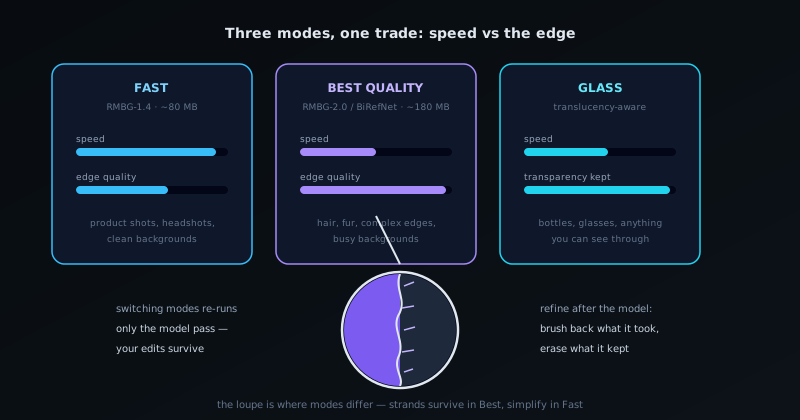
Mode choice is a speed-versus-edge trade; the zoomed edge is where the difference lives. - 4
4. Export: why the alpha matters
Export as PNG, WebP, or AVIF. The tool writes straight (non-premultiplied) alpha, which keeps the original color of edge pixels intact. That is the detail that prevents a dark halo when you place the cutout onto a light background in Photoshop, Figma, or a print layout, a problem that many other removers introduce at export time.
If the cutout is going into a larger composition, you can instead open it in the full editor (covered in the layers tutorial) rather than exporting here.
When in doubt
Hair, fur, smoke, and glass are the signals to leave Fast behind; Best Quality or Glass will save you far more refinement time than they cost in processing. Keep your source image as large as possible; the tool downscales internally if it needs to and scales the mask back up, so a big original always gives the refinement tools more to work with.
Frequently asked questions
Quick answers to common questions about this topic.
Which background-removal mode should I use?
Use the Fast model for clean product shots and portraits, and the Best Quality model for fine hair, fur, or complex edges. Fast is quicker; Best Quality trades speed for detail.
How do I fix a cutout that missed an edge?
Use the brush refinement editor to paint detail back in or remove stray areas after the AI pass; it is a finishing step for difficult edges, not a full re-mask.
Related workflow
Product photo to a transparent image every channel accepts
One photograph, cut out once, then re-encoded for a storefront, a marketplace listing and a social post without redoing the cutout each time.
- Cut the background out and check the edgesNSS Background Remover: Hair, glass and drop shadows are where automatic cutouts fail. Fix them once, on the master, before anything downstream copies the mistake.
- Re-encode and resize per destinationNovus Convert: Transparency survives PNG and WebP and dies in JPEG. Convert validates the file it hands back, so a listing never rejects a silently broken upload.
Related troubleshooting
Was this page helpful?
Your answer stays in this browser, it is not sent anywhere and no account or cookie is involved.