2026 · NSS Background RemoverAbout 13 min readNovus Stream Solutions
How in-browser background removal works, end to end
A non-hand-wavy walkthrough of the NSS Background Remover pipeline: loading the model in the browser, running inference, generating a Float32 alpha mask, decontaminating edges, and compositing a true straight-alpha PNG, all client-side.
Contents
- 1.Overview
- 2.Stage 1: Decode and validate the input
- 3.Stage 2: Inference in the browser
- 4.Stage 3: The mask is Float32, not a binary cutout
- 5.Stage 4: Edge decontamination in Lab color space
- 6.Stage 5: Composite and export with straight alpha
- 7.Memory management is the unglamorous core
- 8.The canvas alpha trap
- 9.Keeping the interface honest during inference
- 10.Why testing spans a browser matrix
- 11.Decoding the formats users actually bring
- 12.So is client-side ML viable for a real tool?
Overview
The phrase "AI removes the background" hides a surprising amount of machinery, and most write-ups stop at the marketing layer. This one does not. If you are a developer trying to decide whether client-side machine learning is viable for a real tool (not a demo, a tool people use daily) the useful thing is to see the actual stages in order, with the real runtime and the real edge cases. So here is the NSS Background Remover pipeline end to end, the one you can run yourself at bgremover.novusstreamsolutions.com/background-remover: what happens between the moment you select a file and the moment a transparent PNG lands in your downloads folder, all of it inside the browser tab.
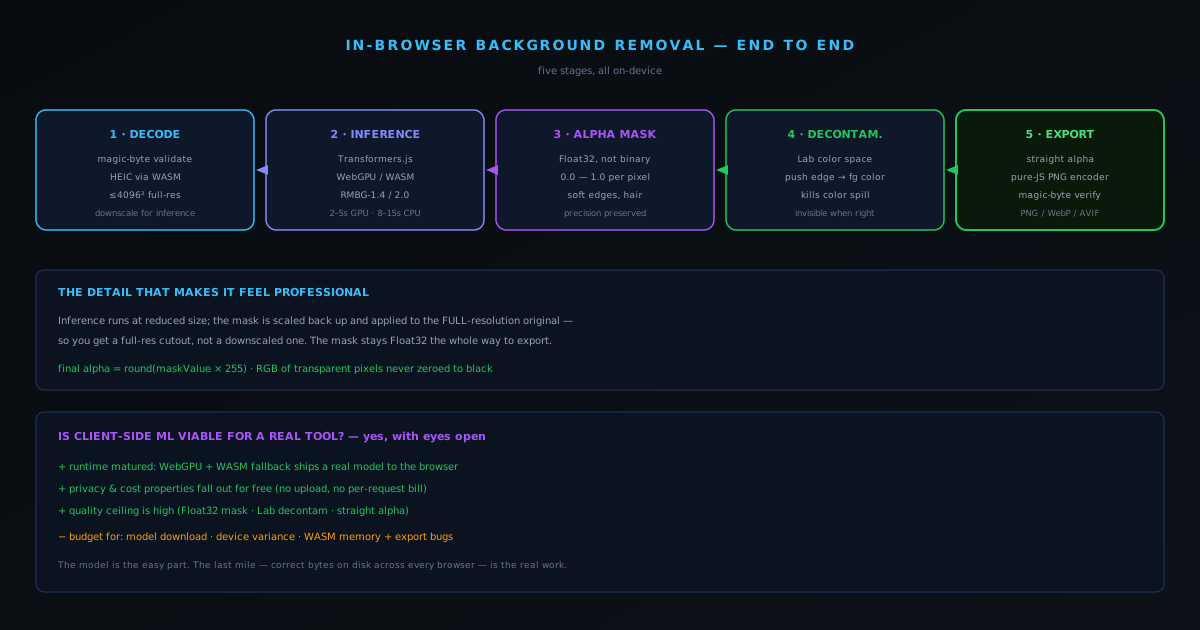
At a high level there are five stages: decode and validate the input, run inference to get a mask, convert that mask into a precise alpha channel, decontaminate the edges, and composite and export with the correct alpha encoding. Each stage has a decision in it that affects output quality, and a couple of them are where most free tools quietly cut corners. We will go through them in sequence.
Stage 1: Decode and validate the input
Before any AI touches the image, the file has to be read and trusted. The tool accepts PNG, JPG/JPEG, WebP, AVIF, and HEIC, the last of which matters because HEIC is what iPhones produce, and a tool that chokes on iPhone photos is dead on arrival for a huge share of users. HEIC is decoded with a WebAssembly decoder so it works without native OS support. Input is validated by checking the actual file signature rather than trusting the extension, which prevents a mislabeled or corrupt file from reaching the model and producing a confusing failure later.
Resolution is handled deliberately. Images up to 4096 by 4096 pixels are processed at full resolution. Anything larger is downscaled for the inference pass (running a segmentation model at arbitrary resolution is both slow and memory-hungry) but, crucially, the full-resolution original is retained. The mask the model produces at the reduced size is later scaled back up and applied to the original pixels, so you get a full-resolution cutout rather than a downscaled one. That "downscale for inference, apply mask to original" trick is the kind of detail that separates a tool that feels professional from one that silently degrades your image quality.
Stage 2: Inference in the browser
This is the stage people assume is impossible in a browser, and it is the one that has changed the most in the last few years. The neural network runs locally through Transformers.js, the JavaScript machine-learning runtime, executing on the device. Where the browser supports WebGPU, inference runs on the GPU; where it does not, the runtime falls back to multi-threaded or single-threaded WebAssembly on the CPU automatically. The user does not choose this and usually does not notice it; they get the fastest path their browser can offer.
There are two models to pick between, and the choice is a real quality-versus-speed tradeoff rather than marketing tiers. The Fast model, RMBG-1.4 at about 80 MB, is excellent for product shots, portraits, and subjects with clean edges, and on WebGPU it runs in roughly two to five seconds. The Best Quality model, RMBG-2.0 (a bilateral reference network built for fine-grained edges like hair, fur, and transparent objects) is about 180 MB and trades speed for detail. Both download once and cache locally. The honest framing we give users is that most clean-background product and headshot work does not need the heavy model, and reaching for it by default just makes things slower for no visible gain.
Stage 3: The mask is Float32, not a binary cutout
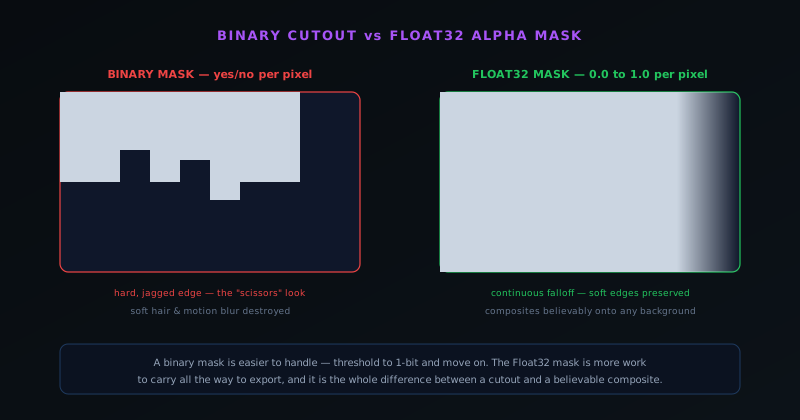
Here is the first place quality is won or lost. A naive background remover treats segmentation as a yes/no question: each pixel is either foreground or background, and you get a hard-edged cutout that looks like it was made with scissors. The model here does not output that. It produces a Float32 alpha mask: every pixel carries a precise opacity value between 0.0 and 1.0. That continuous range is what preserves soft edges, motion blur, semi-transparent fabric, the wispy boundary of hair, and the gentle falloff at the edge of an out-of-focus subject. A binary mask throws all of that away and produces the jagged, pasted-on look that gives cheap cutouts away instantly.
Keeping the mask continuous is more work to handle correctly all the way through to export (it is much easier to threshold to 1-bit and move on) but it is the difference between a cutout that composites believably onto a new background and one that announces itself as a cutout. Everything downstream in the pipeline is built to preserve that Float32 precision rather than collapse it.
Stage 4: Edge decontamination in Lab color space
Even with a perfect mask, cutouts have a characteristic problem: the semi-transparent pixels at the boundary of the subject are contaminated by the color of the old background. Remove a person from a green wall and the fuzzy edge of their hair carries a faint green tint, which becomes obvious the moment you place them on a different color. The pipeline runs an automatic decontamination pass in Lab color space that pushes those semi-transparent edge pixels back toward the foreground color, neutralizing the spill from the background that was removed.
Doing this in Lab rather than RGB matters because Lab separates lightness from color in a way that maps better to how edges are actually perceived, so the correction looks natural rather than producing a hard recolored fringe. This stage is invisible when it works, which is the point. The user just notices that the cutout drops cleanly onto a new background without a halo, and never has to know that a color-space conversion ran to make that true.
Stage 5: Composite and export with straight alpha
The final stage is where another large category of free tools quietly fails, and it is subtle enough to deserve its own article, but in short: the output is written as straight (non-premultiplied) alpha. The RGB values of transparent and semi-transparent pixels are preserved rather than multiplied into black, and the alpha channel is written as a clean function of the mask value. The result is a PNG, WebP, or AVIF that opens correctly in Photoshop, Figma, and print software without the dark halo that premultiplied exports produce. There is a dedicated walkthrough of why that distinction breaks other tools, because it is the single most common reason a "transparent" PNG looks wrong the moment a professional opens it.
There is also a hard-won reliability detail in the export path. On some Windows/Chromium configurations, the browser's canvas export could emit JPEG bytes inside a file labeled as PNG due to a GPU-driver bug, silently corrupting the very transparency the whole pipeline exists to produce. The fix was to route export through a CPU path and write the PNG with a pure-JavaScript encoder that emits the exact PNG magic bytes, then verify those bytes before the download is allowed to start. If the encoding is wrong, the export aborts rather than handing you a broken file. That is the unglamorous side of client-side ML: the model is the easy part, and the last mile of getting correct bytes onto disk across every browser is where a lot of the real engineering goes.
Memory management is the unglamorous core
A detail that demos skip but production cannot is memory management, because a pipeline that runs a model, holds the original full-resolution image, generates a mask, and composites a result is juggling several large buffers at once, and in a browser tab those buffers compete for a bounded memory budget. A high-resolution image decoded to a tensor is large; the intermediate buffers the model produces are larger; and if any of them are held longer than necessary, peak memory climbs toward the point where the tab is killed. Keeping the working set bounded means disposing of tensors and buffers as soon as a stage is done with them rather than letting them accumulate, which is manual discipline the browser does not do for you automatically.
This is why the order of operations in the pipeline is partly a memory-management decision, not just a logical one. Downscaling for inference while retaining the original, applying the mask back to the full-resolution image at the end, and releasing intermediate buffers between stages all serve to keep no more than necessary alive at once. Get this wrong and the tool works on small images and crashes on large ones, which is exactly the kind of bug that passes a casual test and fails a real user with a big photo. The careful lifecycle of buffers through the pipeline is invisible when it works and catastrophic when it does not, which is why it is treated as core engineering rather than an afterthought.
The canvas alpha trap
There is a specific pitfall in how browsers handle the canvas that directly threatens the straight-alpha output the whole pipeline is built to produce. The standard 2D canvas context, in many operations, assumes and works with premultiplied alpha internally, which means naively routing the final composite through certain canvas operations can quietly premultiply the result, reintroducing exactly the dark-edge problem the pipeline took such care to avoid. The platform's default behavior is working against the goal, so producing true straight alpha requires being deliberate about which canvas operations touch the pixels and how the final data is read out.
This is the kind of platform-specific gotcha that makes client-side image work harder than it looks. The model can produce a perfect Float32 mask and the decontamination can be flawless, but if the final readout passes through a path that premultiplies, the exported file carries the halo anyway, and the source of the problem is buried in canvas semantics rather than in the obviously-relevant code. Avoiding it means understanding the alpha handling of every operation in the export path and routing around the ones that would corrupt the result. It is a reminder that the last mile of getting correct pixels out is full of these traps, and that the model is genuinely the easy part of a production client-side imaging pipeline.
Keeping the interface honest during inference
From the user's side, a multi-second inference that gives no feedback is indistinguishable from a frozen tab, so a real client-side pipeline has to communicate progress even though the heavy work is happening off the main thread in a worker. The worker running the model reports back as it moves through the stages, and the main thread translates that into visible progress, so the user sees the operation advancing rather than wondering whether it has hung. This messaging between worker and main thread is part of the pipeline's design, not a cosmetic add-on, because perceived responsiveness depends on it as much as actual speed does.
The discipline here is that every stage long enough to be noticed needs a way to signal that it is underway, and the architecture has to carry that signal across the worker boundary to the interface. A pipeline that did all its work silently and then suddenly produced a result would feel broken even if it were fast, because the user had no evidence it was working during the wait. Designing the progress communication alongside the processing is what makes a several-second local inference feel like a tool doing its job rather than a page that stopped responding, which is a large part of why the worker architecture and the progress reporting are built together rather than bolted on after.
Why testing spans a browser matrix
A client-side pipeline does not run in one environment; it runs in every browser, on every device, with every combination of capability and quirk the user base brings, which means testing it properly spans a matrix rather than a single configuration. The same code takes the WebGPU path on one browser and the WebAssembly path on another, handles HEIC on a device that produces it, hits different memory limits on a phone versus a workstation, and encounters the canvas and driver quirks specific to particular platforms. A pipeline that works on the developer's machine has been tested in exactly one cell of that matrix, which is why so many client-side tools ship subtly broken on configurations the author never tried.
This breadth is a real and ongoing cost of building for the client rather than a server you control. A server-side tool runs on one known, tested environment; a client-side tool must be correct across the messy diversity of real browsers and devices, and verifying that requires deliberately testing across the matrix rather than assuming the happy path generalizes. The reliability work the tool has invested in (the WebGPU-failure retry, the PNG-encoding fix for a specific driver bug, the HEIC handling, the memory discipline) is largely the accumulated result of finding and fixing the cells of that matrix where the naive implementation failed. Budgeting for cross-environment testing as seriously as for the model itself is part of what it actually takes to ship client-side ML that works for everyone.
Decoding the formats users actually bring
A pipeline that only accepts pristine PNGs is a demo; a real tool has to ingest whatever users actually have, which in practice means a messier set of formats than the obvious ones. Beyond PNG and JPEG, the tool accepts WebP, AVIF, and HEIC, and that last one is disproportionately important because it is what modern iPhones produce by default. A background remover that chokes on HEIC is unusable for an enormous share of people who have never converted a photo in their life, so handling it is not an edge case but a mainstream requirement. Because browser-native HEIC support is inconsistent, the tool decodes it with a WebAssembly decoder so it works regardless of whether the underlying platform supports the format.
There is also a validation dimension that matters before any pixel reaches the model: the input is checked by its actual file signature rather than trusting the extension, so a mislabeled or corrupt file is caught up front rather than producing a confusing failure deep in the pipeline. This kind of defensive input handling is part of what separates a tool that feels robust from one that breaks on the first unusual file a real user feeds it. The decoding and validation stage is unglamorous, but it is where a tool either meets users where they are (with their iPhone photos and their oddly-saved files) or quietly excludes them, and meeting them there is a prerequisite for everything the rest of the pipeline does.
So is client-side ML viable for a real tool?
The honest answer from running this in production is yes, with caveats you should go in with your eyes open. It is viable because the runtime story matured: Transformers.js plus a WebGPU-with-WASM-fallback path means you can ship a real segmentation model to a browser and have it run in seconds on capable hardware and still function on weak hardware. It is viable because the privacy and cost properties that fall out of it (no uploads, no per-request server bill) are genuinely valuable rather than just novel. And it is viable because the quality ceiling is high: a Float32 mask, Lab-space decontamination, and correct straight-alpha export produce output that holds up in professional compositing.
The caveats are the model download you have to manage, the performance variance across devices you have to design around, and the class of memory and export bugs that a managed server runtime would have hidden from you. None of those are dealbreakers, but they are real work, and they are the work that demos skip. If you are weighing client-side ML for your own tool, budget for the last-mile reliability engineering as seriously as you budget for the model itself; that is where the difference between a convincing demo and a tool people trust actually lives.
Frequently asked questions
Quick answers to common questions about this topic.
How does AI background removal actually work?
A segmentation model predicts a per-pixel alpha mask separating subject from background, the edges are decontaminated, and the result is composited and exported with true transparency. In the NSS tool all five stages (decode, inference, mask, edge cleanup, and export) run locally in your browser.
Is client-side machine learning fast enough to be usable?
Yes. The model runs through Transformers.js on WebGPU where available (roughly 2–5 seconds for the Fast model) and falls back to WebAssembly otherwise (roughly 8–15 seconds). Output quality is identical on both paths; only the speed differs.
Why does the tool use a Float32 mask instead of a hard cutout?
A binary on/off mask produces jagged, pasted-on edges. A Float32 mask stores a precise opacity from 0.0 to 1.0 per pixel, which preserves soft hair, motion blur, and semi-transparent detail so the cutout composites believably.
What image formats can it read?
PNG, JPG/JPEG, WebP, AVIF, and HEIC (iPhone photos), validated by file signature rather than extension. Images up to 4096×4096 are processed at full resolution; larger images are downscaled for inference and the mask is applied back to the original.
Related workflow
Product photo to a transparent image every channel accepts
One photograph, cut out once, then re-encoded for a storefront, a marketplace listing and a social post without redoing the cutout each time.
- Cut the background out and check the edgesNSS Background Remover: Hair, glass and drop shadows are where automatic cutouts fail. Fix them once, on the master, before anything downstream copies the mistake.
- Re-encode and resize per destinationNovus Convert: Transparency survives PNG and WebP and dies in JPEG. Convert validates the file it hands back, so a listing never rejects a silently broken upload.
Related troubleshooting
Was this page helpful?
Your answer stays in this browser, it is not sent anywhere and no account or cookie is involved.