2026 · NSS Background RemoverAbout 12 min readNovus Stream Solutions
Straight alpha vs premultiplied alpha: the export detail that breaks other tools
Why a "transparent" PNG from most free background removers shows a dark halo the moment you open it in Photoshop, and the specific export decision that makes the NSS cutout composite cleanly everywhere.
Contents
- 1.Overview
- 2.Two ways to store a transparent pixel
- 3.Why the halo appears
- 4.What the NSS Background Remover does instead
- 5.The reliability detail most tools never mention
- 6.The compositing equation, written out
- 7.Why premultiplied alpha exists at all
- 8.Verifying the bytes, not just the pixels
- 9.A developer's checklist for correct alpha export
- 10.Where the halo hurts most
- 11.How to check any tool yourself
Overview
Here is a frustration that has nothing to do with the AI and everything to do with one line of export code. You run an image through a free background remover, it gives you a clean-looking transparent PNG, you are happy. Then you drop that PNG into Photoshop, Figma, a print layout, or an e-commerce template, and a thin dark halo appears around your subject where the edge meets the transparency. The cutout that looked fine in the tool now looks amateur in the place you actually need it. You did nothing wrong. The tool exported the wrong kind of alpha.
This is one of the most common and least-discussed quality failures in the entire category, and it is the reason designers learn to distrust free cutout tools. The NSS Background Remover was built specifically to not do this. Understanding why requires a short, concrete tour of how transparency is actually stored (straight versus premultiplied alpha) because once you see the difference, you will spot the halo failure instantly and know exactly what causes it.
Two ways to store a transparent pixel
A pixel in an image with transparency has four channels: red, green, blue, and alpha (opacity). For fully opaque or fully transparent pixels, nothing interesting happens. The drama is all at the edges, where pixels are partially transparent: the soft boundary of hair, the feathered edge of a blurred subject, the anti-aliased rim of any shape. How those partial pixels store their color is where the two conventions split.
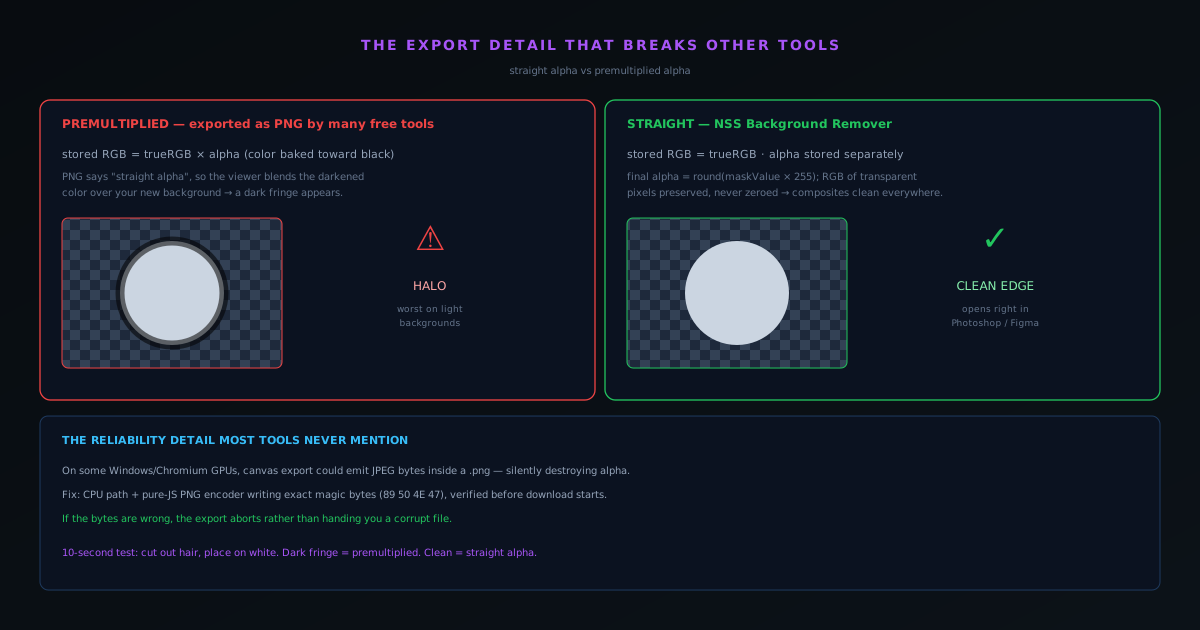
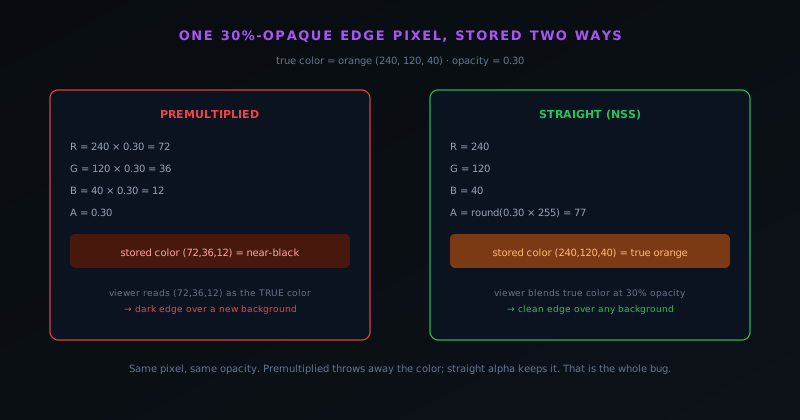
In straight (also called non-premultiplied) alpha, the color channels and the alpha channel are stored independently. A pixel that is 30% opaque still records its true red, green, and blue values, and separately records "I am 30% opaque." The color and the transparency are two facts that have not been mixed together. In premultiplied alpha, the color channels are multiplied by the alpha value before storage. That same 30%-opaque pixel has its RGB scaled down toward black by 70% before saving: the transparency has been baked into the color.
Premultiplied alpha exists for a good reason: it makes certain real-time compositing operations faster and is the right choice inside many rendering engines. The problem is not premultiplied alpha itself; it is exporting a premultiplied file as if it were a straight-alpha PNG, which is exactly what a lot of tools do because it is the simpler code path. The file is now lying about its own edge colors, and the software that opens it has no way to know.
Why the halo appears
When you open a PNG, the software assumes straight alpha, because that is what the PNG format specifies. It reads each pixel's stored RGB as the true color and uses the alpha channel to blend it over whatever is behind it. If the file was actually premultiplied (its edge colors already darkened toward black) then the software blends those darkened colors over your new background. The result is a dark fringe hugging every edge of your subject: the famous halo. It is most visible against light backgrounds, which is exactly where product photography and design work usually places a cutout.
This is why the halo feels like it appears out of nowhere. Inside the original tool, the preview may have composited the premultiplied data correctly against the tool's own dark canvas, so it looked fine. The moment the file leaves that environment and is interpreted as the straight-alpha PNG it claims to be, the baked-in darkening becomes visible. The user experiences this as "the tool gave me a broken file," and they are right, but the cause is invisible unless you know to look for it.
What the NSS Background Remover does instead
The export path writes true straight alpha, and it is deliberate at the pixel level. The Float32 mask the model produces gives each pixel an opacity between 0.0 and 1.0. The final alpha channel is written as that mask value scaled to 8-bit (effectively alpha = round(maskValue × 255)) and, critically, the RGB channels of transparent and semi-transparent pixels are preserved rather than multiplied into black or zeroed out. A pixel that is 30% opaque keeps its real color and records its real 30% opacity, exactly as a straight-alpha PNG is supposed to. When Photoshop or Figma opens the file and blends it over a new background, there is no baked-in darkening to reveal, so there is no halo.
Before the export even reaches that stage, the Lab-color-space decontamination pass has already nudged the semi-transparent edge pixels away from the color of the background that was removed, so they do not carry a tint from the old scene either. The combination (decontaminated edge colors plus correct straight-alpha encoding) is what produces a cutout that drops onto any background, light or dark, without a cleanup pass. The promise the tool makes is simple: the checkerboard you see after removal is real transparency, not a preview, and the file you download behaves the same way everywhere alpha is handled correctly.
The reliability detail most tools never mention
There is one more layer to getting export right that is invisible until it bites you. On some Windows and Chromium configurations, the browser's built-in canvas-to-blob export could, due to a GPU-driver bug, emit JPEG-compressed bytes inside a file labeled as a PNG. JPEG has no alpha channel at all, so this silently destroyed the transparency the entire pipeline existed to produce, and it only happened on certain machines, which is the worst kind of bug to diagnose. The fix was to stop trusting the GPU path for encoding: export routes through a CPU path and writes the PNG with a pure-JavaScript encoder that emits the exact PNG file signature, then verifies those magic bytes before the download is allowed to begin. If the bytes are wrong, the export aborts rather than handing you a corrupt file.
This is the unglamorous reality of building a tool that has to produce correct output on every machine: the alpha math is the part you can reason about cleanly, and the last mile of guaranteeing correct bytes on disk across the messy diversity of real browsers and drivers is where a surprising amount of the engineering goes. It is also exactly the kind of work that a tool can skip and still demo perfectly, which is why so many free tools ship subtly broken exports. Getting it right is invisible by design: the user just notices that the file always works.
The compositing equation, written out
The whole halo problem is captured in a single equation, and writing it out makes the failure mode precise rather than mysterious. When software composites a semi-transparent pixel over a background, it computes the visible color as the pixel's color times its opacity, plus the background's color times one minus that opacity, a straightforward blend that assumes the pixel's stored color is its true, un-darkened color. This assumption is the contract of straight alpha: the color channel holds the real color, and the alpha channel separately holds the opacity, so the blend produces the right result.
Premultiplied alpha breaks that assumption by storing the color already multiplied by the opacity. If software applies the straight-alpha blend equation to premultiplied data, it effectively multiplies by the opacity twice (once already baked into the stored color, once in the blend) which darkens the edge pixels toward black and produces the visible halo. Seeing the math makes clear that the halo is not a vague rendering glitch but the deterministic result of applying the standard blend to data that violates its assumption. The fix is equally precise: store true straight-alpha data so that the blend equation, which everything downstream uses, receives the un-premultiplied color it expects. The equation is short, but it is the entire reason the export format matters.
Why premultiplied alpha exists at all
It would be easy to cast premultiplied alpha as simply wrong, but it exists for good reasons, and understanding them clarifies that the problem is not the format but its misuse. Premultiplied alpha makes certain compositing operations faster and more correct, particularly when blending many layers or filtering, because the premultiplied form avoids some repeated multiplications and handles edge cases in filtering more gracefully. Many rendering engines and graphics pipelines use premultiplied alpha internally for exactly these reasons, and within those contexts it is the right representation, not a mistake.
The problem the halo represents is therefore not premultiplied alpha itself but the mismatch of exporting premultiplied data in a format that the consuming software will interpret as straight alpha. The PNG format specifies straight alpha, so software opening a PNG applies the straight-alpha blend; hand it premultiplied data in that container and the double-darkening occurs. The error is a representation mismatch at the boundary between systems, not an inherently bad choice of internal format. This distinction matters because it locates the fix correctly: the tool must convert to true straight alpha before writing a PNG, regardless of what representation it used internally, because the format defines the contract the rest of the world will assume. Respecting that boundary contract is the whole job.
Verifying the bytes, not just the pixels
Producing correct straight-alpha values is necessary but, as the reliability work discovered, not sufficient, because the path from correct pixels to a correct file on disk can itself corrupt the result. On certain configurations, the browser's built-in canvas export could emit bytes that did not match the format they claimed: under a specific driver bug, producing data that was not a valid PNG at all, which would silently destroy the transparency regardless of how correct the upstream alpha was. The lesson is that correctness has to be verified at the level of the actual output bytes, not assumed from the correctness of the pixels feeding the encoder.
The response was to write the PNG with an encoder that emits the exact format signature and to verify those bytes before allowing the download to proceed, so that a malformed export aborts rather than handing the user a broken file. This is the difference between trusting that correct input produces correct output and confirming that the output is actually correct, a distinction that matters precisely because the failure was platform-specific and invisible on most machines. Validating the export at the byte level is the final guarantee that the careful alpha handling upstream actually reaches the user intact, closing the gap between a correct computation and a correct file. It is the unglamorous last step that ensures the format contract is honored not just in the math but in the bytes written to disk.
A developer's checklist for correct alpha export
For anyone building image tooling, the straight-alpha problem distills into a short checklist that prevents the most common failure in the category. First, keep the alpha as continuous opacity rather than thresholding it to on-or-off, so soft edges survive. Second, decontaminate the edge colors so semi-transparent pixels do not carry a tint from the removed background. Third, ensure the final stored data is true straight alpha (un-premultiplied color alongside opacity) before writing a format that assumes straight alpha. Fourth, verify the actual output bytes form a valid file rather than trusting the encoder. Each step addresses a distinct way the output can go subtly wrong.
Following this checklist is what separates an export that holds up in professional software from one that looks transparent only in the tool that made it. Each item corresponds to a real failure observed in the category: thresholded masks give jagged edges, contaminated edges give color fringes, premultiplied exports give dark halos, and unverified encoding gives corrupt files on specific configurations. A tool that handles all four produces cutouts that drop cleanly onto any background, in any compositing software, the first time. The checklist is short, but each item is a place where many tools quietly fail, which is why getting all of them right is what makes the difference between output that is merely transparent-looking and output that is genuinely correct.
Where the halo hurts most
The dark-halo failure is not equally visible everywhere, and understanding where it hurts most explains why it is such a damaging flaw for exactly the people who rely on cutouts professionally. The halo is most visible against light backgrounds, because a dark fringe stands out sharply on white or pale colors and disappears into dark ones. That is precisely the worst case for the most common professional uses: product photography is overwhelmingly placed on white marketplace backgrounds, and a great deal of design and print work places cutouts on light layouts. So the contexts where cutouts are used most seriously are the contexts where a premultiplied-alpha halo is most glaringly obvious.
Print compounds the problem further, because a halo that might be marginally tolerable on a screen becomes a permanent, physical defect once it is printed, and print work often demands the highest edge quality of any use case. A designer placing a cutout in a print layout cannot afford a fringe that the press will faithfully reproduce. This is why straight-alpha correctness is not a pedantic concern but a practical necessity for the tool's most demanding users: the people doing professional product, design, and print work are exactly the people who place cutouts on light backgrounds at high quality, which is exactly where the halo is most ruinous. Getting the alpha right is what makes the tool usable for the work that needs it most, rather than only for casual cutouts placed on forgiving dark backgrounds.
How to check any tool yourself
You do not need to read export code to know whether a tool gets this right. Take any background remover, cut out a subject with soft or fuzzy edges (hair is the classic test) and export the PNG. Then place it over a solid white or light-colored background in whatever software you actually use. If a dark fringe appears around the edges, the tool exported premultiplied data as a straight-alpha file. If the edge stays clean and the color transitions naturally into the transparency, the tool handled straight alpha correctly. It is a ten-second test that separates tools that understand professional compositing from tools that just produce something that looks transparent in their own preview, and if you would rather inspect the alpha channel directly than eyeball it, bgremover.novusstreamsolutions.com/tools/check-transparency reads it out for you.
For anyone whose output ends up in front of a client or on a storefront, this is not a pedantic distinction; it is the difference between a deliverable and a do-over. The reason we treat straight-alpha export as a core feature rather than an afterthought is that the whole point of a background remover is the cutout being usable somewhere else. A transparent PNG that only looks right inside the tool that made it has not actually solved the problem. If you want to see where this export stage sits in the full pipeline, the end-to-end walkthrough covers all five stages, and the product documentation lists the exact formats and limits.
Frequently asked questions
Quick answers to common questions about this topic.
Why does my transparent PNG show a black or dark halo in Photoshop?
The file was exported with premultiplied alpha, which bakes the old background color into the edge pixels. When Photoshop reads it as straight-alpha (as the PNG format specifies), that baked-in darkening shows as a fringe around your subject.
What is the difference between straight and premultiplied alpha?
Straight (non-premultiplied) alpha stores a pixel's true color and its opacity separately. Premultiplied alpha multiplies the color by the opacity before storage. Exporting premultiplied data inside a PNG (which assumes straight alpha) is what causes halos.
How do I avoid halos when removing a background?
Use a tool that exports true straight alpha. The NSS Background Remover writes the alpha channel as the mask value and preserves the RGB of transparent pixels, so cutouts drop onto any background in Photoshop, Figma, or print with no fringing.
How can I test whether a background remover handles alpha correctly?
Cut out a subject with soft edges (hair is ideal), export the PNG, and place it over a solid white background. If a dark fringe appears, the tool exported premultiplied data; if the edge stays clean, it handled straight alpha correctly.
Related workflow
Product photo to a transparent image every channel accepts
One photograph, cut out once, then re-encoded for a storefront, a marketplace listing and a social post without redoing the cutout each time.
- Cut the background out and check the edgesNSS Background Remover: Hair, glass and drop shadows are where automatic cutouts fail. Fix them once, on the master, before anything downstream copies the mistake.
- Re-encode and resize per destinationNovus Convert: Transparency survives PNG and WebP and dies in JPEG. Convert validates the file it hands back, so a listing never rejects a silently broken upload.
Related troubleshooting
Was this page helpful?
Your answer stays in this browser, it is not sent anywhere and no account or cookie is involved.