NSS Background Remover
Compositing with the image editor: layers, blend modes, and filters
Take a cutout further: stack multiple images as layers with blend modes, apply any of 22 filters, drop a subject into a lifestyle scene, and preview in 3D with depth relief, all in the browser.
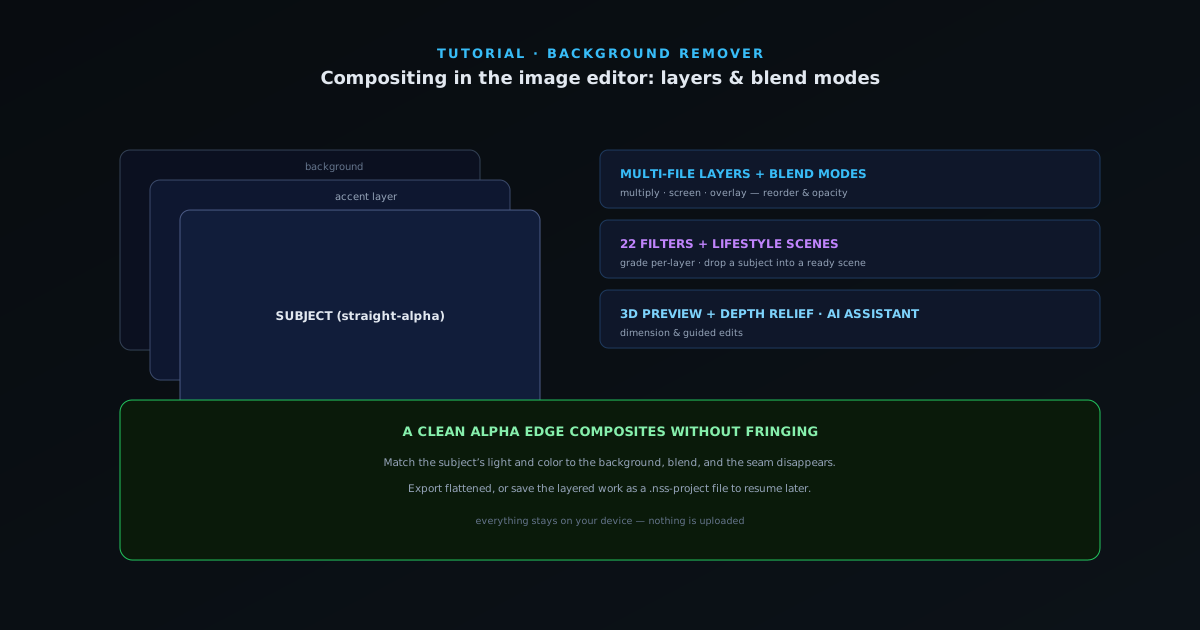
Cutting out a subject is often step one of a bigger image. The full image editor turns NSS Background Remover from a single-purpose cutout tool into a compositor: layers, blend modes, filters, ready-made scenes, and a 3D/depth preview. This guide walks the editor end to end.
Everything stays local, and you can save the whole composition as a .nss-project file to come back to later.
Contents
- 1
- 2
2. Work in layers with blend modes
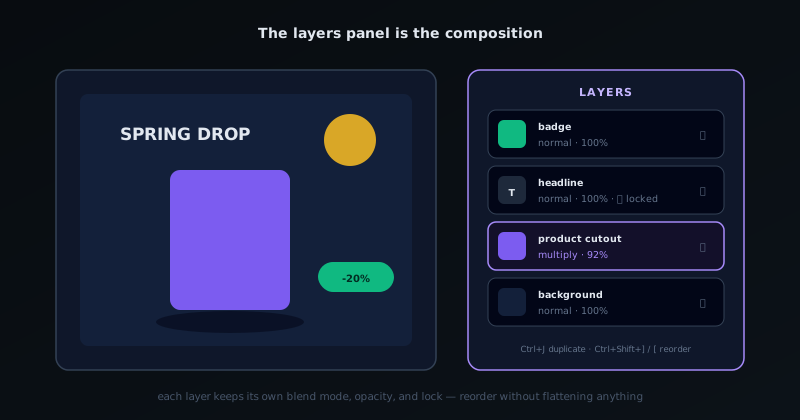
The editor supports multi-file layers, each with its own blend mode. Blend modes control how a layer’s pixels combine with what is beneath: multiply for shadows, screen for light and glow, overlay for contrast. Stack a background photo, your cutout subject, and an accent layer, then reorder and adjust opacity until the composition reads correctly.
Because your subject is on straight alpha, its edges blend cleanly into whatever sits below it, with no halo to clean up.
- Multi-file layers with reordering and opacity.
- Blend modes for realistic shadows, light, and contrast.
- A clean alpha edge composites without fringing.
- 3
3. Apply filters and drop into a scene
Use any of the 22 filters to grade the whole image or a single layer; matching color temperature between a subject and a new background is what makes a composite believable. The built-in lifestyle scenes give you ready-made environments to drop a product or portrait into without sourcing your own background.
Match the subject to the scene rather than the other way around: nudge the subject’s exposure and color toward the scene’s lighting, and the eye stops noticing the seam.
- 22 filters, applied per-layer or globally.
- Lifestyle scenes as instant backgrounds.
Every layer carries its own blend mode, opacity, and lock; the stack is the composition. - 4
- 5
Composite like it’s real
The single biggest believability lever is color and light matching between the subject and its new background; spend your time there, not on the cutout, which the AI already handled. Keep layers non-destructive by using opacity and blend modes rather than baking changes in, and save a .nss-project checkpoint before a big change so you can always step back.
Frequently asked questions
Quick answers to common questions about this topic.
Can I work with layers in the Background Remover editor?
Yes. The image editor supports multiple layers with blend modes and filters, so you can composite a cutout over a new background, stack elements, and adjust each independently, all in the browser.
What are blend modes used for?
Blend modes control how a layer mixes with the ones beneath it, useful for shadows, light effects, and natural compositing so a cutout sits believably in a new scene.
Related workflow
Product photo to a transparent image every channel accepts
One photograph, cut out once, then re-encoded for a storefront, a marketplace listing and a social post without redoing the cutout each time.
- Cut the background out and check the edgesNSS Background Remover: Hair, glass and drop shadows are where automatic cutouts fail. Fix them once, on the master, before anything downstream copies the mistake.
- Re-encode and resize per destinationNovus Convert: Transparency survives PNG and WebP and dies in JPEG. Convert validates the file it hands back, so a listing never rejects a silently broken upload.
Related troubleshooting
Was this page helpful?
Your answer stays in this browser, it is not sent anywhere and no account or cookie is involved.