NSS Background Remover
Precision cutouts with the brush, wand, and selection tools
When the AI mask needs manual help, the brush, magic wand, and selection tools give you full control. How to combine them to fix complex cutouts (cut-out shapes, gaps, and tricky boundaries) efficiently.
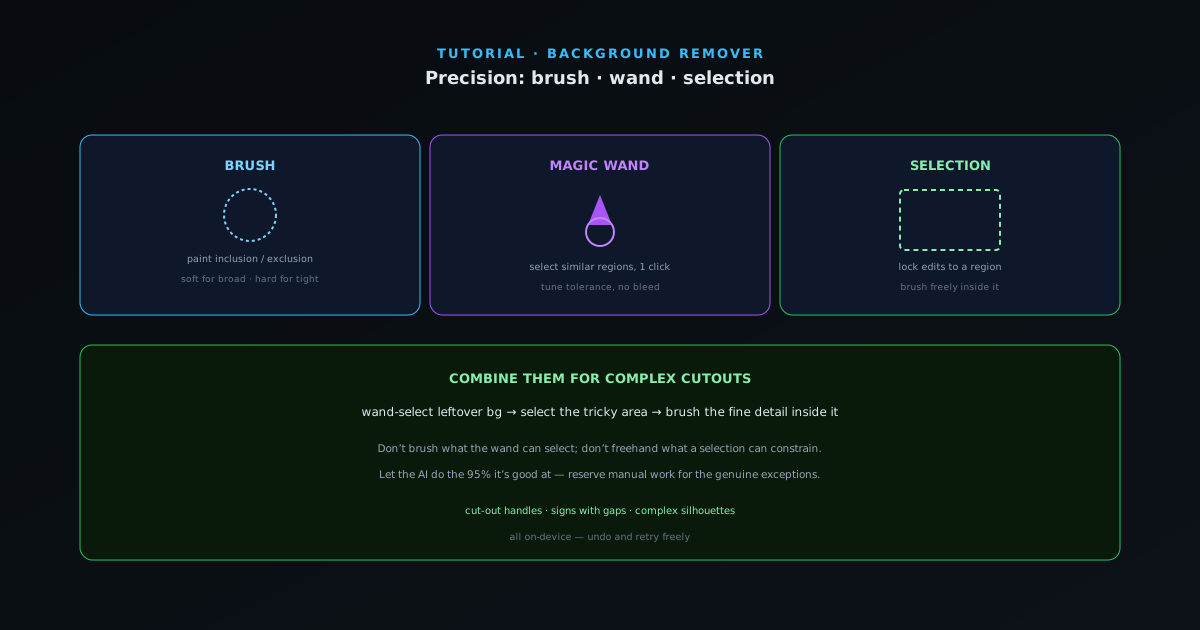
The AI handles the subject; the manual tools handle the exceptions: a cut-out handle the model filled in, a sign with gaps, a product with a complex silhouette. This guide is about using the brush, wand, and selection together so manual cleanup is fast and precise instead of tedious.
Contents
- 1
1. Brush: paint inclusion and exclusion
The brush is your primary manual tool: paint to add the subject back where the model removed it, or switch modes to erase background the model kept. Size and softness matter: a large soft brush for broad areas, a small hard brush for tight, precise edges. Build up rather than forcing it in one stroke.
- Add or erase by painting.
- Large/soft for broad areas, small/hard for tight edges.
- 2
2. Magic wand: select by similarity
The magic wand selects a contiguous region of similar color in one click, perfect for a leftover patch of flat background, or the inside of a uniform shape. Adjust the tolerance so it grabs the region you want without bleeding into the subject, then remove or keep the selection in one action instead of brushing it pixel by pixel.
- One-click selection of similar regions.
- Tune tolerance to avoid bleeding into the subject.
- 3
3. Selection: constrain your edits
Make a selection to lock edits inside (or outside) a region, so a brush stroke physically cannot bleed where it should not. This is the key to clean work on complex silhouettes: select the area you are fixing, then brush freely inside it knowing the rest of the cutout is protected.
- Lock edits to a region with a selection.
- Brush freely inside it without affecting the rest.
Wand for regions, brush for intent; precision selection is the two combined. - 4
4. Combine them for complex cutouts
Real cutouts use all three: wand-select and remove the obvious leftover background, make a selection around a tricky area, then brush the fine detail inside it. Working tool-to-tool like this turns a fiddly manual cutout into a few deliberate steps, and because it is all on-device, you can undo and retry freely.
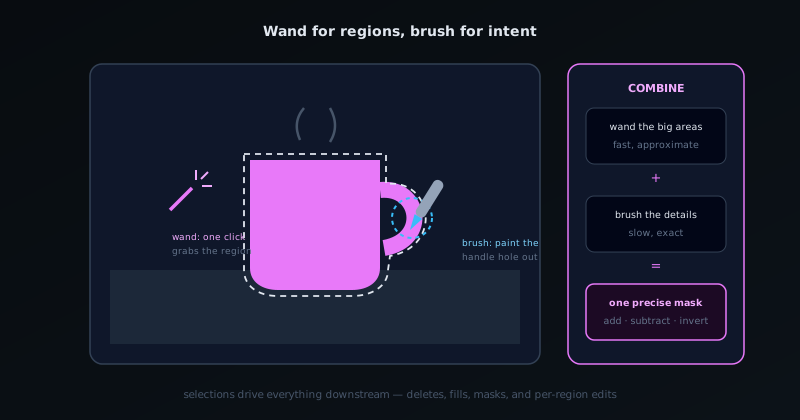
Right tool, right job
Do not brush what the wand can select in one click, and do not freehand what a selection can constrain. Combining the three is faster and far more precise than brushing everything. Let the AI do the 95% it is good at and reserve manual work for the genuine exceptions.
Frequently asked questions
Quick answers to common questions about this topic.
How do I make a precise cutout by hand?
Use the brush, magic wand, and selection tools to add or remove areas after the AI pass, for pixel-level control on tricky subjects. The AI gets you most of the way; these tools perfect it.
When should I use manual selection instead of AI?
When the subject and background are similar in color, or you need to keep or drop a specific region the AI judged differently. Manual tools give you the final say.
Related workflow
Product photo to a transparent image every channel accepts
One photograph, cut out once, then re-encoded for a storefront, a marketplace listing and a social post without redoing the cutout each time.
- Cut the background out and check the edgesNSS Background Remover: Hair, glass and drop shadows are where automatic cutouts fail. Fix them once, on the master, before anything downstream copies the mistake.
- Re-encode and resize per destinationNovus Convert: Transparency survives PNG and WebP and dies in JPEG. Convert validates the file it hands back, so a listing never rejects a silently broken upload.
Related troubleshooting
Was this page helpful?
Your answer stays in this browser, it is not sent anywhere and no account or cookie is involved.