NSS Background Remover
Cutting out glass and transparent objects
Glassware, bottles, and acrylic break normal background removal because the subject is partly see-through. How Glass mode and careful compositing keep realistic transparency instead of cutting the object to a flat silhouette.
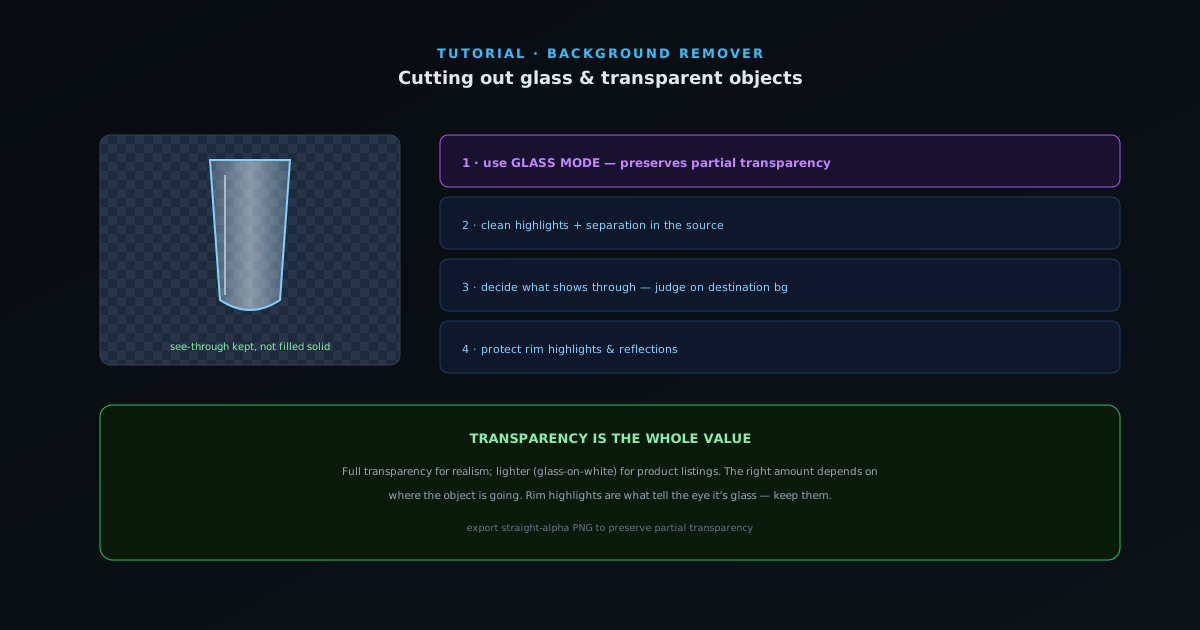
Transparent subjects are a special problem: a perfume bottle, a wine glass, a pair of glasses, a clear-packaged product. A normal cutout treats the whole shape as opaque and you lose the see-through quality that makes the object look real. This guide keeps the transparency.
Contents
- 1
1. Use Glass mode
NSS Background Remover has a dedicated Glass mode tuned for transparent and reflective subjects. Unlike the standard models, it preserves partial transparency through the object instead of filling it in solid, so the highlights, refractions, and what shows through the glass survive the cut.
- Glass mode is built for transparent/reflective subjects.
- Preserves see-through areas rather than filling them solid.
- 2
2. Shoot or pick a source that helps
Transparent objects read best when the original has clear separation between the object and background, and clean highlights on the glass. A busy or similarly-toned background behind glass is the hardest case because the object and backdrop blend. If you control the shot, a simple gradient backdrop makes the cut dramatically cleaner.
- Clean highlights and separation help Glass mode.
- Avoid busy backgrounds directly behind the glass.
- 3
3. Decide what shows through
Here is the creative call: a fully transparent cut shows the new background through the glass, which is realistic but can look odd over a busy backdrop. For product listings you often want the glass on white with just the highlights and edges preserved. Use the editor to place the cutout on the background you intend and judge the see-through there; the right amount of transparency depends entirely on where the object is going.
- Full transparency for realism; lighter for product-on-white.
- Judge see-through against the destination background.
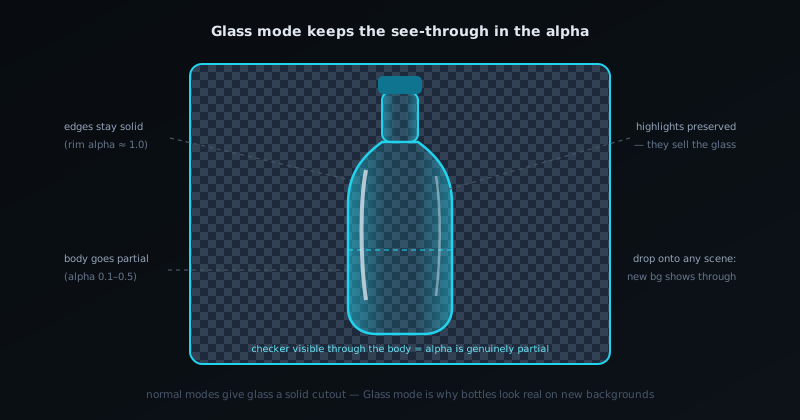
Glass mode keeps transparency in the alpha itself; the new background shows through the object. - 4
4. Refine reflections and rims
The rim of a glass and bright reflections are where the cut is most fragile. Use the edge and brush tools to keep the bright rim highlights (they are what tell the eye the object is glass) and clean up any background caught in a reflection. Small, careful work here is what separates a believable glass cutout from a flat one.
- 5
Transparency is the point
With glass, the see-through quality is the whole value, so use Glass mode, protect the rim highlights, and always judge the result on the background it is actually going onto. A clean source with good highlight separation saves more time than any amount of brushing.
Frequently asked questions
Quick answers to common questions about this topic.
How do I remove the background from glass or transparent objects?
Use the Best Quality model, which handles partial transparency better, and keep the semi-transparent areas with the alpha mask rather than forcing them opaque. Refine the edges to preserve the see-through look.
Why are glass and transparent objects hard to cut out?
Because the background shows through them, so a simple foreground/background split fails. A model that produces continuous opacity, plus manual refinement, keeps the realistic transparency.
Related workflow
Product photo to a transparent image every channel accepts
One photograph, cut out once, then re-encoded for a storefront, a marketplace listing and a social post without redoing the cutout each time.
- Cut the background out and check the edgesNSS Background Remover: Hair, glass and drop shadows are where automatic cutouts fail. Fix them once, on the master, before anything downstream copies the mistake.
- Re-encode and resize per destinationNovus Convert: Transparency survives PNG and WebP and dies in JPEG. Convert validates the file it hands back, so a listing never rejects a silently broken upload.
Related troubleshooting
Was this page helpful?
Your answer stays in this browser, it is not sent anywhere and no account or cookie is involved.