2026 · Novus PDF StudioAbout 15 min readNovus Stream Solutions
Fill and sign a PDF form without uploading it anywhere
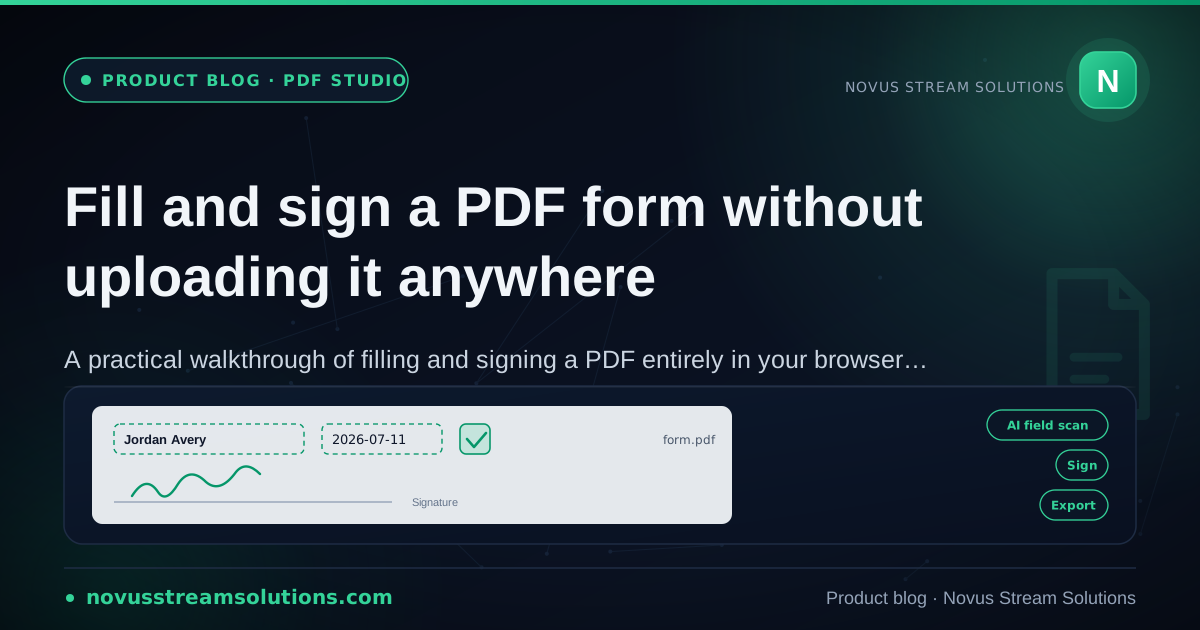
A step-by-step walkthrough of filling and signing a PDF where the file never leaves your browser tab: open it, let the AI field scan propose fields, correct tight boxes with editable layers, draw a signature, and export, plus the seven page-level tools.
Contents
- 1.Overview
- 2.What "without uploading" actually means here
- 3.Open the PDF: the only thing that moves is a file into a tab
- 4.Let the AI field scan propose the fields
- 5.Correct the tight boxes with editable layers
- 6.Style the values so they read as part of the form
- 7.Draw a signature and place it where it belongs
- 8.Export by download or print, and nothing in between
- 9.Beyond the editor: seven page-level tools
- 10.Merge and split: reshaping a document into the file you need
- 11.Organize and rotate: fixing order and orientation
- 12.Page numbers, protect, and unlock: the finishing tools
- 13.Why keeping it local is the point, not a feature
Overview
A signed PDF is one of those small chores that never quite disappears. A form lands in your inbox (a consent sheet from a clinic, a lease addendum from a landlord, a vendor agreement a client wants countersigned by end of day), and it expects you to type into cramped boxes, drop a signature onto a printed line, and send back something that looks finished rather than scrawled. The reflex, for a long time, was to reach for whatever free web tool appeared first in a search, and that reflex carries a quiet cost: you hand a document full of names, amounts, and account numbers to a server you have never heard of, and you have no real idea where the file goes next.
Novus PDF Studio was built around a different assumption. The PDF opens inside your browser tab, you fill and sign it there, and the file is never sent to a server to do any of that work. This post is a practical walkthrough of the whole loop: open the document, let the AI field scan propose the fields, correct the tight boxes with editable layers, draw a signature, and export. It also covers the seven page-level tools that live beside the editor (merge, split, organize, rotate, page numbers, protect, and unlock), so that by the end you know exactly what the tool does, and where your file stays while it does it.
What "without uploading" actually means here
It is worth being precise, because the phrase gets used loosely. When a typical online PDF service says it is free, the usual mechanism is that your file travels over the network to a machine you do not control, gets processed there, and comes back. That is an upload, even when nothing on the page calls it one. Novus PDF Studio inverts that arrangement. The editor renders your PDF in the page itself and treats everything you add (text, numbers, check marks, dates, a signature) as editable layers drawn on top of the document, right there in the tab. The file is opened locally and stays local through the entire fill-and-sign session.
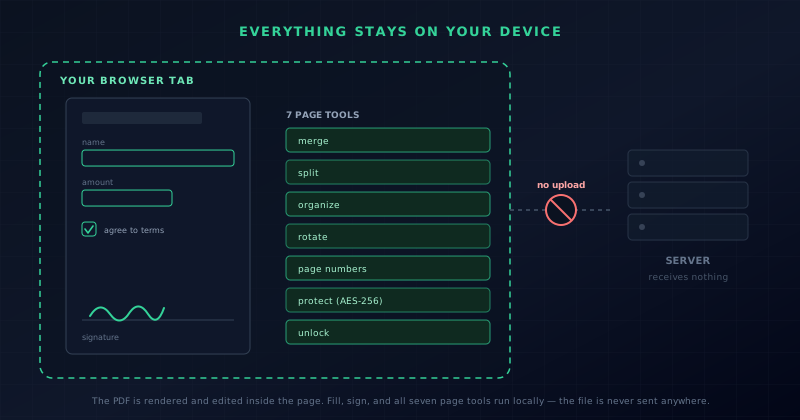
Practically, this changes the mental math of using the tool. You are not deciding whether to trust an unfamiliar host with a benefits form that lists a Social Security number, or a purchase order that shows your margins. You are opening a file the same way you would open a photo to crop it: the work happens where the file already is. That is the property the illustration in this post is trying to capture: a document, its fields, and the page tools all sitting inside your browser, with the path out to a server crossed off. If you want the plain-language version of the same idea, the site describes it at pdf.novusstreamsolutions.com/how-it-works.
Open the PDF: the only thing that moves is a file into a tab
The loop starts at the editor, where you add your PDF to the workspace. It can be almost any flat form: a government application, a rental agreement, an onboarding sheet, a permission slip, an invoice awaiting a countersignature. The document renders at a size you can actually read, and from that first render it is yours to annotate. There is no account wall to clear before you see your own file, no viewer to launch separately, and no installer to approve. Opening the PDF is the entire setup step, which is exactly how a focused tool should behave.
Take ten seconds before you type anything to scroll the whole form top to bottom. Notice how many fields there are, whether the signature line sits at the very end or is scattered across several pages, and whether the same value (a name, a date, an account number) repeats. That quick read decides your next move. On a dense multi-page packet, the AI field scan will save real effort by roughing out the structure for you. On a one-line acknowledgement, placing a field or two by hand is faster than reviewing anything a scan produces. Either way, the document is already on screen and already local.
Let the AI field scan propose the fields
The AI field scan is the feature that turns a wall of empty boxes into a starting point. Rather than hunting for every place that needs input, you let the scan read the form and suggest likely fields as editable layers, dropping a text candidate where a name belongs, a date-style field near a signature line, a check box beside an option, a number field where an amount is expected. On a long form, that is the difference between constructing the entire structure yourself and inheriting a rough draft you only need to correct. The dedicated walkthrough at Using the AI field scan to fill a PDF form fast covers the behavior suggestion by suggestion.
The honest framing is the one the product uses about itself: the scan gets you started, and your review finishes the job. Automated detection is genuinely useful and genuinely imperfect. It can place a field slightly off the line it belongs on, read a check box as a text field, miss an entry buried in a cramped table, or add one where the form has only a decorative rule. None of that breaks the workflow, because the design assumes you will inspect every suggestion. One control is worth knowing early: you can clear the AI-generated fields on their own, separately from clearing the whole workspace, so a messy scan on an unusual form never becomes a trap you cannot back out of.
Correct the tight boxes with editable layers
This is where a browser form filler earns its keep, and where PDF Studio spends most of its precision. Every field, whether the scan placed it or you created it, is a movable, resizable object rather than baked-in ink. You can add fields yourself for text, numbers, check or cross marks, date-style values, and signatures, and then adjust each one until it sits right. Move a field so it lands on the printed line instead of hovering above it. Resize it so the value fills the box without spilling past the edge. Duplicate a field you have already styled so a repeated value stays consistent. Delete anything the scan proposed that the form does not actually need.
Work through the document in reading order rather than jumping around, because that is how omissions get caught. Fill the name, then the address, then the dates and reference numbers, checking each value against the label printed beside it. When a form asks for the same figure in two places, place the first field carefully and duplicate it so the second matches in size and style. When a box wants a mark, drop a check or a cross and nudge it inside the box rather than near it. These small alignment choices are the whole difference between a page that reads as deliberately completed and one that looks hastily marked up, and because every field is a layer, correcting a mistake stays a two-second drag right up until you export.
- Move a field so it sits on the printed line, not above or below it.
- Resize a field so the value fills the box without overflowing.
- Duplicate a styled field to keep repeated values consistent.
- Delete any suggested field the form does not actually use.
- Clear the AI fields alone if a scan gets messy, keeping your own work.
Style the values so they read as part of the form
Once the values are in the right places, styling makes them look like they belong to the document instead of floating over it. PDF Studio lets you set the font from Helvetica, Times Roman, or Courier, change the size, choose the color, and fine-tune position. On a form that is not cosmetic, it is functional: matching your typed text to the weight and neutral color of the printed page is what lets a date on a line disappear into the form the way a properly filled field should. A value that is one size too large or a shade too dark announces itself as an addition, and on documents meant to look official that small mismatch reads as carelessness.
Consistency across the form is the goal, not decoration. Pick a size that fits the tightest box you have to fill and reuse it, so the whole document reads in one voice rather than a patchwork of typefaces. Keep the color close to the ink of the original unless a form specifically asks for something else. Because styling is applied to layers, you can change your mind late: restyle a field after everything else is placed, and the rest of your work is untouched. The reference at Novus PDF Studio notes the available fonts and controls if you want the exact list before you start.
Draw a signature and place it where it belongs
The signature is the step people worry about most, and it is genuinely the simplest one here. You draw your signature directly in the editor, and it becomes a placeable, resizable layer like any other field. If you drew it too large for the line, resize it. If it landed in the wrong spot, move it. If the stroke came out shaky, replace it and draw again rather than committing to a first attempt you do not like. Because the signature is an object and not permanent ink, you keep full control over how it looks and where it sits, right up to the moment you export the file.
If you are signing more than one field in a sitting, get the signature the way you want it and then reuse and reposition that same mark across the places that need it, rather than redrawing each time. Consistency reads as intent: a signature that matches itself from page to page looks more deliberate than three slightly different attempts. This matters most on the documents that carry weight, so take the extra moment on anything legal or financial. The signatures-and-export tutorial at Drawing a signature and exporting a finished PDF walks the signing loop end to end, from the first stroke to a signature seated cleanly on the line.
Export by download or print, and nothing in between
When the form looks right, exporting is the final move, and it stays as plain as the rest of the loop: download the finished PDF or send it to print. Downloading gives you a file you can attach to an email, upload to the portal that actually needs it, or archive for your own records. Printing covers the cases where a physical copy is still required downstream. Either way, what you export reflects exactly what you arranged on screen (the layers flattened into a document you can hand off), and, like everything before it, the export happens locally rather than by shipping your file somewhere to be rendered.
Give yourself one last review before you click. Zoom through every page, confirm each field carries the value you intended, check that the signature sits on its line, and make sure no stray field is hovering where it should not be. This is the moment to catch small things, because once a form leaves your hands it is out of your control. The reassuring part is that nothing forces the issue early: the whole session stays editable until you choose to export, and the core fill-and-sign features, download and print included, are not gated behind a paywall. You will not complete a form only to meet a subscription screen at the download step.
Beyond the editor: seven page-level tools
Filling and signing is the core loop, but a real document rarely arrives in the shape you need. Sometimes two forms should be one file; sometimes a long scan should be split into the parts different people care about; sometimes a page came in sideways. For those jobs, PDF Studio keeps seven page-level tools beside the editor, reachable at /tools: merge, split, organize, rotate, add page numbers, protect, and unlock. They operate on the structure of a PDF rather than its content, and they follow the same rule as the editor: the file is worked on in your browser, not sent away to be processed.
Keeping these next to the fill-and-sign editor is deliberate. The whole point of the app is to finish a document without bouncing between a filler on one site, a merge tool on another, and a page rotator on a third, each one a separate upload of the same sensitive file to a separate unknown host. When the tools sit together and run locally, a realistic sequence becomes one uninterrupted session: unlock a protected form so you can edit it, fill and sign it, merge in a supporting page, number the result, and export. The next few sections cover what each tool is actually for.
Merge and split: reshaping a document into the file you need
Merge combines several PDFs into a single document. This is the tool for the everyday case where a submission is not one file but a small stack: a completed application, a signed disclosure, and a scanned ID that a portal wants as a single attachment. Instead of asking the recipient to open three files in the right order, you assemble them into one, in the order you choose, and hand over a single clean PDF. It is a structural operation, so it does not touch the content of any page; it just decides which pages, from which files, sit together in one document.
Split does the opposite, breaking a long PDF into smaller pieces. A thirty-page packet often contains three things that belong to three different people, and sending the whole bundle to each is both noisy and, when the pages are sensitive, a small privacy leak. Splitting lets you extract exactly the pages that matter and share only those. Merge and split are natural companions: you reshape a document by pulling it apart, keeping the relevant pages, and combining them with whatever else belongs, all without a single one of those files ever being uploaded to a server to be recut.
Organize and rotate: fixing order and orientation
Organize is the tool for when a PDF has all the right pages in the wrong sequence. Documents assembled from a scanner or stitched together in a hurry often arrive out of order: a signature page ahead of the terms it belongs to, an appendix wedged into the middle, a cover sheet that ended up last. Organizing lets you reorder pages, remove ones that do not belong, and settle the document into the sequence a reader expects, so the file makes sense from the first page rather than forcing whoever opens it to reconstruct the intended order in their head.
Rotate handles the equally common problem of orientation. A page scanned sideways or upside down is legible only if the reader keeps turning their screen, and no amount of careful field placement fixes a page that is ninety degrees off to begin with. Rotating brings each page upright so the whole document reads cleanly and prints correctly. Organize and rotate are the quiet cleanup pass most forms need before or after filling (the difference between a file that looks handled and one that looks dumped out of a scanner), and both run on the page structure locally, with nothing sent out to be reordered or turned.
Page numbers, protect, and unlock: the finishing tools
Adding page numbers is a small touch that matters most on longer documents and anything that might be printed and separated. Numbered pages are easier to reference in a conversation, harder to reassemble in the wrong order, and simply read as more finished. The tool stamps a consistent sequence across the document so a multi-page contract or report arrives looking deliberately produced rather than loosely bound. It is the kind of detail that costs one step and quietly raises how a document is received, and it pairs naturally with the merge and organize tools: assemble the file, settle the pages into order, then number the result so the final version is unambiguous the moment someone opens it.
Protect and unlock handle access. Protect applies an AES-256 password to a PDF, which is the right move before emailing anything with personal or financial detail: the file becomes readable only to someone who has the password, so an intercepted or misdirected message does not expose its contents. Unlock is the inverse: when a form arrives already protected and you hold the password, unlocking removes that barrier so you can actually fill and sign it. Together they bracket the workflow. Unlock a protected form to edit it, do the work, then protect the finished file before it goes out; like every other tool here, both run against the file in your browser rather than on a remote server.
Why keeping it local is the point, not a feature
It is easy to treat "nothing uploaded" as a checkbox on a marketing page, but for documents it is the substance of the tool. The files people fill and sign are exactly the ones that should travel the least: application forms with identifiers, medical intake sheets, agreements with names and amounts, anything with a signature on it. A workflow that keeps those files inside the browser removes a whole category of question you would otherwise have to ask (where the host stores your document, how long it keeps it, who else can reach it) because the answer is that the file was never handed over in the first place. That is a more honest kind of privacy than a promise to delete something later.
The practical payoff is a routine you can run without hesitation. Open the PDF, glance through every page, run the AI field scan when the form is dense, correct the layers against their labels, place anything the scan missed, style the values to match the print, sign once and reposition as needed, use the page tools to merge, split, organize, rotate, number, protect, or unlock as the job requires, review every page, and export. Written out it looks long; after two or three documents it is muscle memory. When you are ready to try it on something real, open pdf.novusstreamsolutions.com/editor, and keep the reference at Novus PDF Studio beside you for the exact controls.
Frequently asked questions
Quick answers to common questions about this topic.
Is my PDF really not uploaded when I fill and sign it?
That is the design. Novus PDF Studio opens and renders your PDF inside the browser tab and treats your text, marks, and signature as editable layers on top of it. The fill-and-sign work, and the seven page tools, run locally rather than by sending your file to a server to be processed.
What does the AI field scan do, and can I trust its placement?
The scan reads the form and proposes likely fields (text, number, check box, date, and signature) as editable layers, giving you a rough draft to correct. It is a head start, not a final answer: it can misplace or miss a field, so you review each suggestion, move or resize it, and add anything it missed. You can also clear the AI fields on their own without losing your manual work.
Which page tools are included besides the editor?
Seven, all reachable at /tools: merge several PDFs into one, split a long PDF into parts, organize pages by reordering or removing them, rotate pages to fix orientation, add page numbers, protect a file with an AES-256 password, and unlock a protected file you have the password for.
Can it read a scanned paper form or compress a file?
No. PDF Studio does not run optical character recognition on scanned paper, so it will not turn a photographed page into selectable text, though you can still place typed fields and a signature on top of it. It also does not compress files or convert PDFs to or from other formats such as Word or images.
Related workflow
Any document to a signed, sendable PDF
A form that arrived as a scan, a DOCX or an image becomes a filled, signed PDF small enough to email, without a single upload to someone else’s server.
- Bring the source into PDFNovus Convert: Images, documents and ebooks all land as PDF here, so the editor downstream only ever sees one format.
- Fill the fields and signNovus PDF Studio: The AI field scan proposes the boxes; every one stays editable, because a form editor that cannot be corrected is worse than no editor.
- Compress before sendingNovus Convert: Adjustable quality with the measured output size shown before download, so there is no guessing whether it cleared the limit.
Related troubleshooting
Was this page helpful?
Your answer stays in this browser, it is not sent anywhere and no account or cookie is involved.