2026 · Novus PDF StudioAbout 13 min readNovus Stream Solutions
How to fill and sign PDFs in your browser without a desktop app
A step-by-step guide to filling and signing a PDF form in your browser with Novus PDF Studio: upload, run the AI field scan, correct every layer by hand, sign, and export.
Contents
- 1.Overview
- 2.What filling and signing in the browser really means
- 3.Step one: upload the form
- 4.Step two: let the AI field scan take a first pass
- 5.Step three: refine and correct every field by hand
- 6.Step four: style and sign so the result looks finished
- 7.Step five: export by download or print
- 8.What PDF Studio will not do for you, yet
- 9.Build a repeatable routine for forms you fill often
Overview
There is a specific kind of small task that quietly eats an afternoon. A landlord emails a lease addendum. A clinic sends an intake packet. A client returns a statement of work, except it is not signed yet, and the deadline is today. Each of these arrives as a PDF, and each one expects you to type into cramped boxes, place a signature that lines up with a printed line, and send back something that looks finished rather than scribbled. For years the default answer was to print the page, fill it with a pen, scan it back, and hope the result was legible. The slightly better answer was to install a heavy desktop editor, wait for its updates, and dodge an upsell screen every time you opened it.
There is a lighter path. Novus PDF Studio runs in an ordinary browser tab, and it is built to do one job cleanly: let you fill a PDF form, sign it, and export a finished file you can send. This guide walks the whole loop from the first upload to the final download, explains where the AI field scan helps and where your own eyes still matter, and is honest about the things the tool does not do so you never waste time hunting for a button that is not there. If you would rather learn by clicking, open pdf.novusstreamsolutions.com/editor and follow along, or keep the reference at Novus PDF Studio open beside you while you work.
What filling and signing in the browser really means
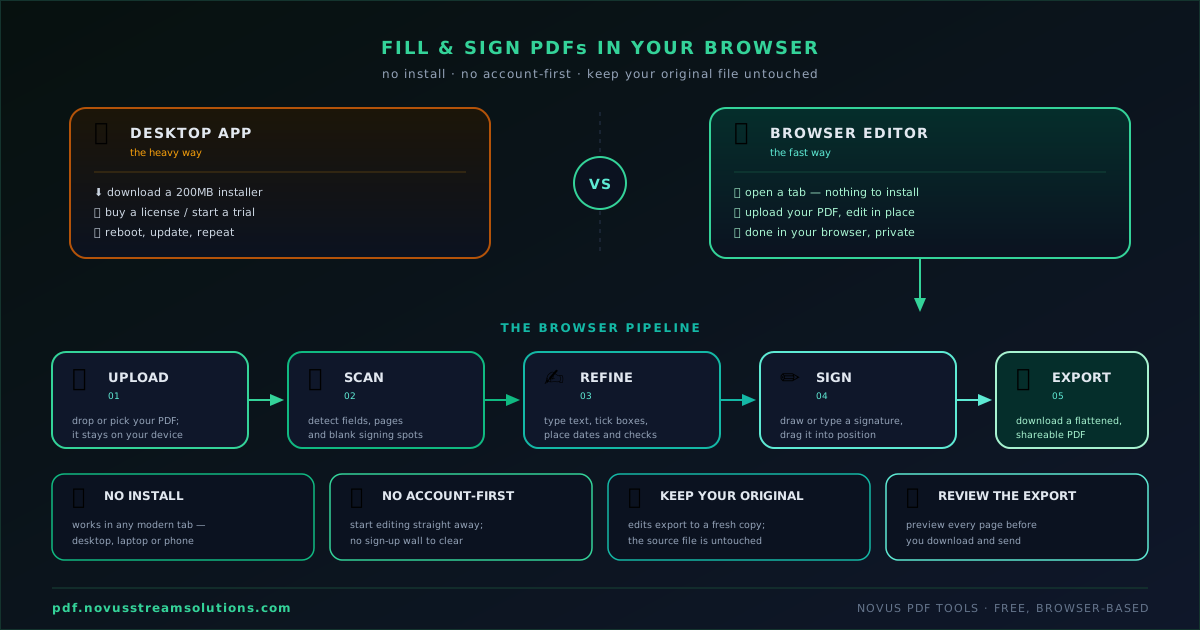
A browser-first editor is not a stripped-down version of a desktop program. It is a different assumption about where your file lives and how quickly you should be able to start. You open a page, drop in a PDF, and you are working within seconds. There is nothing to license, no installer to trust, and no separate viewer to launch just to see what you typed. That immediacy is the entire point of a fill-and-sign workspace: the form is on screen, the fields are editable, and the export path is obvious from the first moment.
It helps to be precise about the words, because “fill and sign” gets used loosely. Filling means adding readable values on top of the document, whether that is a name, a policy number, a dollar amount, a date, or a check mark in the right box. Signing means placing a signature that reads as yours, either drawn in the moment or reused from earlier in the session. Neither step rewrites the underlying PDF text the way a word processor would. Instead, PDF Studio treats your additions as editable layers that sit above the page, which is exactly why you can nudge, resize, and correct them until the placement is right.
That layer model matters more than it sounds. When your name is a movable object rather than baked-in ink, a typo is a two-second fix instead of a reprint. When a check mark lands one row too high, you drag it down rather than starting over. The whole flow, described plainly at pdf.novusstreamsolutions.com/how-it-works, is designed so that nothing you place is permanent until you decide to export it.
Step one: upload the form
Everything begins with getting the PDF into the editor. Head to the editor page and add your file. This can be a government benefits form, a rental agreement, a vendor onboarding sheet, a permission slip, an invoice you need to countersign, or any of the hundred flat documents that show up in ordinary work. The document renders in the workspace at a size you can actually read, and from that moment the page is yours to annotate.
A short note on what counts as a good upload. PDF Studio works with the document you give it as a visual page. If the PDF already has real, selectable text, that is ideal, because the AI field scan has more to work with. If the PDF is a photograph of paper flattened into a file, you can still place fields and sign it, but understand that the tool is not performing optical character recognition on scanned paper, so it will not read blurry handwriting or convert an image into machine text. It will let you lay clean, typed values on top, which for most forms is exactly the outcome you want anyway.
Before you type a single character, take ten seconds to scroll the entire form. Notice how many fields there are, whether the signature line sits at the bottom or is scattered across several pages, and whether the same value repeats. This quick pass tells you whether to run the AI scan first or simply place a few fields by hand. For a dense multi-page packet, the scan saves real time. For a one-line acknowledgement, manual placement is faster than reviewing suggestions.
Step two: let the AI field scan take a first pass
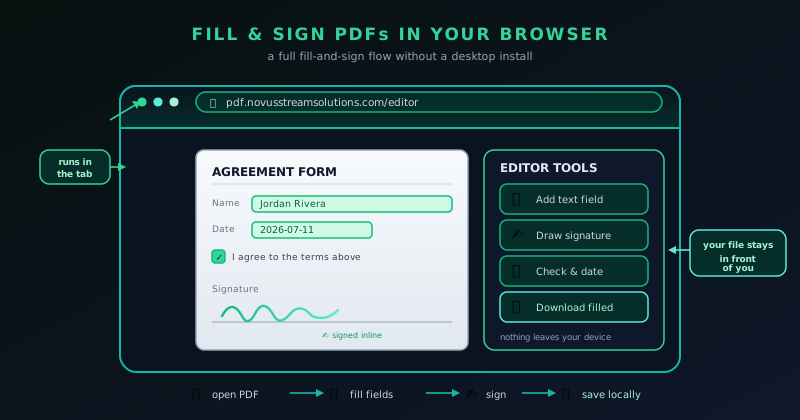
The AI field scan is the feature that turns a wall of empty boxes into a starting point. Instead of you hunting for every place that needs input, the scan looks at the form and suggests likely fields as editable layers, dropping candidates where it believes a name, date, amount, or check box belongs. On a long form this is the difference between building the whole structure yourself and inheriting a rough draft you only need to correct. The dedicated walkthrough at Using the AI field scan to fill a PDF form fast covers the behavior in detail.
The honest framing is the one the product itself uses: the scan gets you started, and your review finishes the job. Automated field detection is genuinely useful and genuinely imperfect. It may place a field slightly off the line it belongs on, guess a text box where a check mark was intended, miss a field in a cramped table, or add one where the form only has a decorative rule. None of that is a failure of the workflow, because the whole design assumes you will inspect each suggestion. Treat the scan output as a proposal, not a verdict.
There is one control worth knowing early. PDF Studio lets you clear the AI-generated fields separately from clearing your entire workspace. That distinction is more valuable than it first appears. If a scan produces a messy set of suggestions on an unusual form, you can wipe just those AI fields and start clean with manual placement, without losing a signature you already drew or values you already typed elsewhere. It keeps the automated pass from ever becoming a trap you cannot back out of.
Step three: refine and correct every field by hand
This is where a browser form filler earns its keep, and where PDF Studio spends most of its precision. Every field, whether the AI placed it or you added it, is a movable, resizable object. You can create fields yourself for text, numbers, check or cross marks, date-style values, and signatures. You can move a field to sit exactly on the line, resize it so the value fits the box, duplicate one you have already styled so a repeated field stays consistent, and delete anything that does not belong. The manual layer is the part of the tool that guarantees the finished form looks deliberate rather than approximate.
Work through the document in reading order rather than jumping around, because that is how you catch omissions. Fill the name, then the address, then the date, then the reference numbers, checking each value against the label beside it. When a form asks for the same figure in two places, place the first field carefully, then duplicate it so the second matches in size and style. When a check box needs a mark, drop a check or a cross and position it inside the box rather than floating near it. Small alignment choices are what separate a form that reads as professionally completed from one that looks hastily marked up.
Take particular care with anything that carries legal or financial weight. Double-check the spelling of names, confirm dollar amounts to the cent, and read dates back to yourself before moving on. PDF Studio will faithfully export whatever you place, which is exactly why the human review step is not optional. The tool is fast, but it does not know whether the policy number you typed is the right one. That judgment stays with you, and the layer model exists precisely so that correcting a mistake is trivial right up until you export.
- Move a field so it sits on the printed line, not above or below it.
- Resize a field so the value fills the box without spilling over.
- Duplicate a styled field to keep repeated values consistent.
- Delete any suggested field the form does not actually need.
Step four: style and sign so the result looks finished
Once the values are in the right places, styling makes them look like they belong to the document. PDF Studio lets you set the font from Helvetica, Times Roman, or Courier, adjust the size, choose the color, and fine-tune position. That may sound cosmetic, but on a form it is functional. Matching your typed text to the weight and style of the printed form is what makes the finished page read as one coherent document instead of an original with sticky notes pasted over it. A date in the right size, sitting on the line in a neutral color, disappears into the form the way a properly filled field should.
Then comes the signature, which is the step people worry about most and which is genuinely straightforward here. You draw your signature directly in the editor, and it becomes a placeable, resizable layer like any other field. If you drew it too large for the signature line, resize it. If it landed in the wrong spot, move it. If you are not happy with the stroke, you can replace it and draw again rather than living with a shaky first attempt. Because the signature is an object rather than baked-in ink, you stay in control of how it looks right up to export.
A practical tip for anyone who signs more than one form in a sitting: get the signature the way you like it, then reuse and reposition it across the fields that need it rather than redrawing each time. Consistency reads as intent. The getting-started walkthrough at How to fill and sign a PDF form with Novus PDF Studio shows this signing loop end to end, from drawing the mark to placing it on the line and confirming it sits where the form expects.
Step five: export by download or print
When the form looks right, exporting is the last move, and PDF Studio keeps it simple: download the finished PDF or send it to print. Downloading gives you a file you can attach to an email, upload to a portal, or archive for your records. Printing is there for the cases where a physical copy is still required, or where someone downstream wants paper. Either way, what you export reflects exactly what you arranged on screen, layers and all, flattened into a document you can hand off with confidence.
Give yourself one final review before you click. Zoom through every page, confirm each field carries the value you intended, check that the signature sits on its line, and make sure no stray field is hovering where it should not be. This is the moment to catch the small things, because once a form leaves your hands it is out of your control. The good news is that nothing forces your hand earlier: the entire session stays editable until you choose to export, so there is no penalty for taking an extra minute to look.
It is worth restating the promise that shapes this whole tool. Exporting is never locked behind a paywall, and the core fill-and-sign features are not gated. You will not fill out an entire form only to discover that the download button demands a subscription. That is a deliberate line the Novus tools hold across the portfolio, and PDF Studio is no exception.
What PDF Studio will not do for you, yet
Being useful means being honest about the edges. PDF Studio has grown beyond a fill-and-sign editor. It now also merges several PDFs into one, splits a long document into parts, organizes and rotates pages, adds page numbers, and can protect or unlock a file with an AES-256 password. Yet it is still not a complete PDF utility suite. It does not compress files to shrink their size, and it does not convert PDFs to or from other formats such as Word or images. It does not run optical character recognition to turn scanned paper into selectable text either. If your task is one of those, this is not yet the tool for it, and you can read the current boundaries in the reference at Novus PDF Studio.
There are a few more absences worth naming plainly so you never go looking for a control that does not exist. PDF Studio does not perform redaction, so it is not the way to permanently black out sensitive text. It does not clean up document metadata, and it does not offer a stored document vault where your files live between sessions. It can, on the other hand, now lock a file with an AES-256 password and unlock one that is already protected. The gaps that remain are meaningful, and they are intentional rather than accidental: the product ships its fill-and-sign and page tools well before it claims a broader roadmap it has not built.
None of this makes the tool less honest about privacy; it makes it clearer. You can read exactly how the app treats your document at pdf.novusstreamsolutions.com/privacy. The point of listing what is missing is respect for your time. A tool that tells you its limits up front is one you can trust with the tasks it actually handles, and the fill-and-sign job is one it handles cleanly.
Build a repeatable routine for forms you fill often
If you deal with the same kinds of forms week after week, it pays to turn the steps above into a habit rather than rediscovering them each time. The rhythm is short: upload the PDF, glance through every page, run the AI field scan when the form is dense, correct the suggested layers against their labels, place any fields the scan missed, style the values so they match the print, sign once and reposition as needed, review every page, and export. Written out it looks long; in practice it becomes muscle memory after two or three documents.
The habit that saves the most time is treating your first clean version of a recurring form as a template in your own head. You already know which fields the scan tends to misplace on that specific document, which values repeat, and where the signature belongs. On the second pass you are not solving the form, you are just filling it. That is the quiet advantage of a focused tool: because it does one thing, you get fast at that one thing. For a structured first run, the getting-started tutorial at How to fill and sign a PDF form with Novus PDF Studio and the field-scan walkthrough at Using the AI field scan to fill a PDF form fast are the two references worth bookmarking.
When you are ready, the fastest way to internalize all of this is to do it once with a real document. Open pdf.novusstreamsolutions.com/editor, upload a form you actually need to return, and run the loop from scan to signature to export. The first pass may take a few minutes as you learn where each control lives. Every pass after that is quick, and you will have traded the print-sign-scan ritual for a browser tab that hands you a finished, signed PDF and lets you get on with your day.
Frequently asked questions
Quick answers to common questions about this topic.
Do I need to install anything to fill and sign a PDF?
No. Novus PDF Studio runs in your browser tab. You open the editor, upload a PDF, fill and sign it, and export the finished file. There is no desktop app, license, or plugin to install.
Is exporting the signed PDF free, or is it behind a paywall?
Exporting is free. The core fill-and-sign features, including downloading or printing the finished document, are not gated. You will not complete a form only to hit a subscription screen at the download step.
Can it read a scanned paper form or extract its text?
Not currently. PDF Studio does not run optical character recognition on scanned paper. You can still place typed fields and a signature on top of a scanned page and export it, but the tool will not convert the image into selectable, editable text.
Does it also merge, split, compress, or redact PDFs?
Some of them, yes. PDF Studio now merges and splits PDFs, organizes and rotates pages, adds page numbers, and can password-protect (AES-256) or unlock a file. Compression, format conversion, redaction, and metadata cleanup are not part of the current feature set.
Related workflow
Any document to a signed, sendable PDF
A form that arrived as a scan, a DOCX or an image becomes a filled, signed PDF small enough to email, without a single upload to someone else’s server.
- Bring the source into PDFNovus Convert: Images, documents and ebooks all land as PDF here, so the editor downstream only ever sees one format.
- Fill the fields and signNovus PDF Studio: The AI field scan proposes the boxes; every one stays editable, because a form editor that cannot be corrected is worse than no editor.
- Compress before sendingNovus Convert: Adjustable quality with the measured output size shown before download, so there is no guessing whether it cleared the limit.
Related troubleshooting
Was this page helpful?
Your answer stays in this browser, it is not sent anywhere and no account or cookie is involved.