2026 · Novus PDF StudioAbout 13 min readNovus Stream Solutions
Covering is not removing: what Novus PDF Studio can actually take out of a document
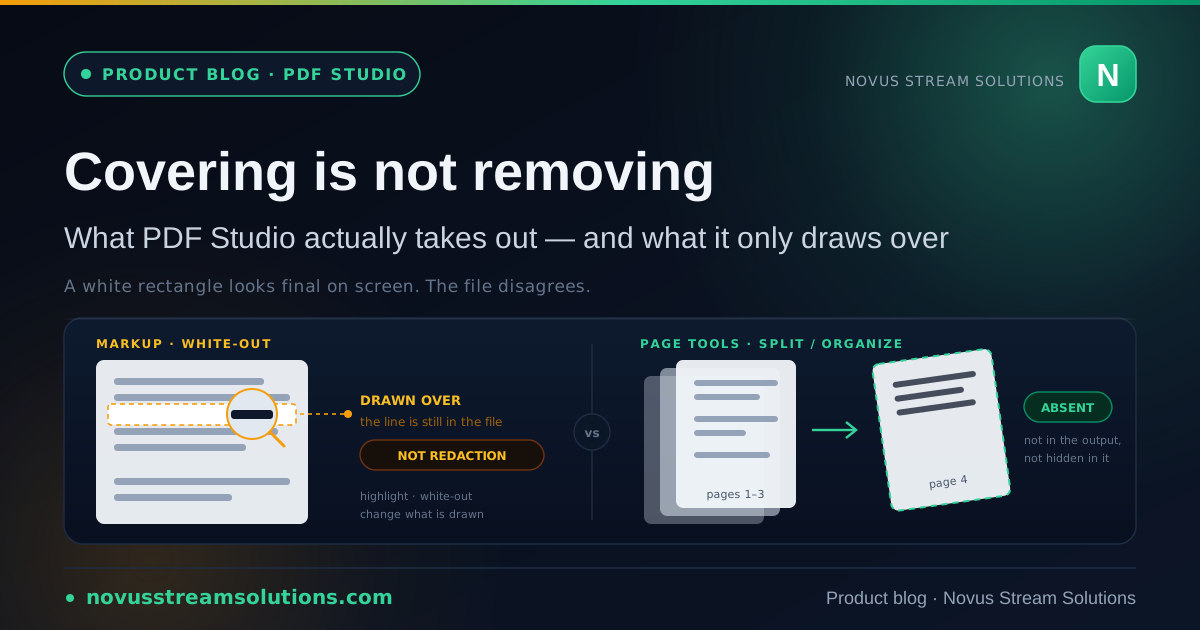
The editor in Novus PDF Studio only ever adds: fields, marks, signatures, and white-out are layers drawn on top of the page. The page tools are the part that genuinely removes. Knowing which is which is the difference between a document you can send and one you should not.
Contents
- 1.Overview
- 2.The editor is additive by design, and that is the right design
- 3.White-out is paint, not a delete key
- 4.Why we never shipped a button called Redact
- 5.What genuinely removes content: pages
- 6.Fix it upstream, because that is the only reliable redaction
- 7.What an AES-256 password protects, and the sentence people get wrong
- 8.The gap we have not closed: metadata
- 9.A decision table for "make this go away"
- 10.Where the boundary sits today
Overview
The most dangerous thing a document tool can do is make you believe something is gone. Everything else it gets wrong, you find out about: a misaligned field looks misaligned, a missing signature is missing, a bad export refuses to open. But a white rectangle drawn over an account number looks completely final on screen, and the moment the file leaves your hands you have no way to check. The failure is silent, it is downstream, and it is usually discovered by somebody who was not supposed to see the number.
Novus PDF Studio has two halves, and the line between them is exactly this line. The editor adds: every field, mark, signature, highlight, and white-out is drawn on top of the page. The page tools at /tools are where content genuinely leaves the file. This article is about where that boundary sits, why we drew it where we did, and why the product does not ship a button called Redact even though shipping one would have been easy and would have made the feature list look better.
The editor is additive by design, and that is the right design
Start with why the additive model exists, because it is not a shortcut; it is the product's best property. When you fill a form in PDF Studio, what you place is not typed into the document the way a word processor types into a paragraph. Text values, numbers, date-style entries, check and cross marks, and signatures all arrive as editable layers sitting above the page. You can move them, resize them, duplicate them, restyle the font, size, colour, and position, and delete them.
That model is what makes the tool forgiving. A typo is a two-second correction rather than a reprint. A check mark that landed one row too high gets dragged down. A signature drawn too large for the line gets resized rather than redrawn. And it is what allows the AI field scan to be useful without being authoritative: every suggestion the scan makes lands as a layer you can correct, and you can clear only the AI-placed fields while keeping the ones you added by hand. A tool that was confidently wrong and uncorrectable would be worse than one that is tentatively right and easy to fix.
The same mechanism, though, is the source of the misunderstanding this whole article exists to clear up. If your name is a movable object rather than baked-in ink, so is the white rectangle you dragged over a paragraph. Both are things drawn on the page. The interface does not distinguish between "content I am adding" and "content I am hiding", because at the level of the mechanism there is no distinction to draw. That is fine for a signature. It is not fine for a bank account number.
White-out is paint, not a delete key
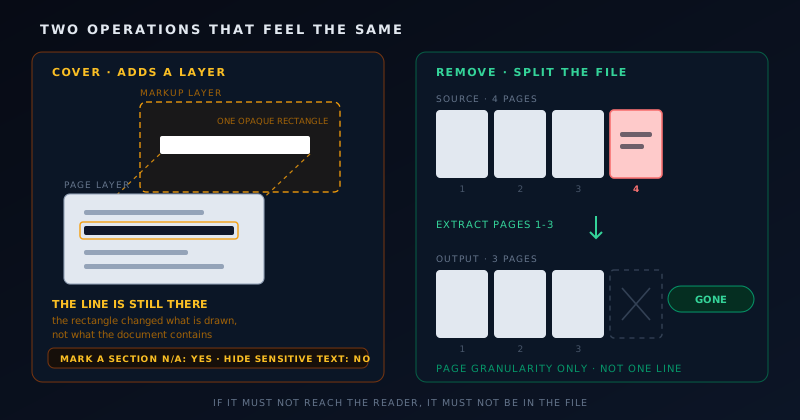
The markup in PDF Studio includes highlight and white-out. Both are exactly what their names say: they change what is drawn on the page. A white-out rectangle is an opaque shape placed above the region you want hidden. On screen, and on paper, it does its job: the text underneath is not visible.
What it does not do is remove the underlying content from the document. True redaction, in the sense that a security professional means it, deletes the text objects rather than obscuring them, so that the information is not present in the file at all. That is a materially stronger guarantee than covering, and it is one this product does not currently make. The hub documentation says so, the launch note says so, and this article says so, because the whole value of the claim lies in it being consistent everywhere.
It is worth sitting with the practical consequence rather than moving quickly past it. If a document has to be sent, and one line on a page must not reach the recipient, then covering that line with a rectangle is not the operation you want, no matter how convincing it looks in the preview. The visual result and the security result are two different results, and only one of them is verifiable by looking.
What genuinely removes content: pages
So what does work? The page tools. Split breaks a PDF into separate documents or extracts a page range, and the pages you did not extract are not in the output file. Organize reorders, duplicates, rotates, and removes pages before export, and a removed page is removed. These are the operations in PDF Studio where content actually leaves the document rather than being covered up inside it.
That points at a practical pattern which is better than most of what people attempt with markup. If you have a twelve-page packet and the recipient needs pages three through five, the reliable move is to split out pages three through five and send that file, not to send all twelve with the other nine obscured. The first version cannot leak the other nine, because they are not there. The second version depends entirely on your covering having been thorough, on every page, in every place, which is a standard nobody meets under time pressure.
The honest limitation is granularity. This works at page level and only at page level. It cannot take one line off a page that otherwise has to be sent, and there is no combination of the seventeen page tools that adds up to line-level removal. If your problem is a single sensitive line on a page you must deliver in full, PDF Studio does not solve it, and the following section is about what to do instead.
- Split: extract the page range you want to send; everything else is absent from the output, not hidden in it.
- Organize: reorder, duplicate, rotate, and remove pages before export.
- Merge: combine files into one document, which is also the moment to check you are not merging in a page you meant to leave behind.
- Rotate, page numbers: presentation, not content.
- Protect, unlock: access control, covered below. Neither changes what is inside.
Fix it upstream, because that is the only reliable redaction
The most dependable way to keep information out of a PDF is not to put it in. That sounds like a dodge and is in fact the professional answer. Once content has been flattened into a page description, taking it back out reliably is a specialist operation with a verification burden attached. Producing the document without the sensitive line in the first place costs nothing and has no failure mode.
In practice this means regenerating the export from whatever produced the PDF with the field excluded, using the version of a template that does not include the appendix, or asking the sender for the extract rather than the whole record. When you are the one generating the document, the decision point is upstream of the PDF entirely, in the system that renders it. When you are not, the request is usually easier to make than the workaround is to perform.
Where that is impossible and a page has to go out with something on it that must not be readable, the answer is a purpose-built redaction tool that removes content objects and can demonstrate it, not a rectangle in any application. We would rather point you there than take the work and be approximately right about it.
What an AES-256 password protects, and the sentence people get wrong
The Protect tool encrypts a PDF with AES-256 and can set viewer permissions, producing a protected copy while leaving the source untouched. The encryption is real: without the password, the file does not open. For sending a benefit form, an invoice carrying account numbers, or any record you would not want a stranger reading if the message went to the wrong address, that is a sensible and meaningful safeguard.
The sentence people get wrong is what it protects. A password controls who can open the document. It does not control what is inside it. Everyone you give the password to sees the entire file, every page, including the parts you were uneasy about. Encryption is not a substitute for removal and it is not a partial-visibility mechanism: there is no version of a PDF password that shows a recipient some pages and withholds others. If a particular reader must not see a page, that page has to be out of the file before you protect it, not hidden behind the password.
It is also worth distinguishing the two things the Protect tool can set, because they are not equally strong. The password is enforced by cryptography. Viewer permissions are a flag in the document that a cooperating reader honours; they express an intention about what should be allowed rather than making it impossible. Treat the password as the security boundary and the permissions as a courtesy notice, and you will not be surprised later.
Unlock is the reverse operation and is deliberately narrow: it removes a password you already know from a file you are authorised to open. It is not recovery and it is not cracking, so there is no route back from a password you have lost, which is precisely why the sharing habit is to keep an unprotected master copy of your own. The step-by-step version of that habit, including choosing a passphrase and sending it through a channel separate from the file, is in the protect tutorial rather than repeated here.
The gap we have not closed: metadata
A page that lists only strengths is advertising, so here is the one that is easiest to overlook. Novus PDF Studio does not clean document metadata. Whatever the source file carried in its document properties travels into the export with it, and none of the careful work you did on the visible page touches that.
This matters because metadata is exactly the category of information that survives a careful review of the thing you were looking at. You checked every field, verified the amounts, confirmed the signature sat on the line, and exported. The visible document is now correct. What was never on screen was never checked. Naming this is more useful than a reassuring silence would be, because a user who knows the tool does not scrub metadata can decide whether that matters for the document in front of them, and a user who assumes it does cannot.
The same honesty applies to the rest of the boundary. PDF Studio is not a compliance platform, and adding a password does not satisfy any legal or regulatory standard by itself. It is not a secure document vault; your files do not live in it between sessions. OCR is now a live page tool for English, French, or Spanish; it adds a searchable invisible text layer rather than rebuilding the form as editable fields. Compression and PDF↔image conversion are also live at /tools. Cross-format conversion out of PDF into Word or spreadsheets remains Novus Convert's job, not this one.
A decision table for "make this go away"
Most of the confusion this article addresses comes from a single question (how do I get rid of this?) having five different correct answers depending on what "this" is and who must not see it. Sorting the question before reaching for a tool prevents nearly every mistake in the category.
- A whole page should not be in the file the recipient receives: use Split or Organize. The page is genuinely absent from the output.
- The file should not be openable at all by anyone without a key: use Protect with an AES-256 password, and send the password through a different channel from the file.
- A value needs to be legible, correct, and correctly placed on the form: use the editor fields. This is the additive half, working as intended.
- A section needs a visible mark that it is not applicable, and the underlying text is not sensitive: highlight or white-out is fine, with the understanding that it is markup.
- Text must be provably gone from a page that still has to be sent in full: this tool does not do that. Fix it upstream in the source document, or use a purpose-built redaction tool.
Where the boundary sits today
What exists is the fill-and-sign editor, blank-page authoring at /create, a dedicated sign workflow at /sign-pdf, a job-filtered learn centre at /learn, and seventeen page tools: merge, split, organize, rotate, page numbers, protect, unlock, compress, flatten, PDF-to-images, images-to-PDF, and OCR. They share the editor's rendering and export pipeline, so a document that comes out of a page tool and one that comes out of the editor are produced the same way. What does not exist is redaction and metadata cleanup, and those absences are choices rather than a roadmap with a delivery date attached.
The reason to write a whole article about the difference between covering and removing, rather than leaving it as a line in the documentation, is that this is the one gap in the product where not knowing about it has a real cost. Every other limitation announces itself: you look for a redact button, you do not find one, you go elsewhere. This one does the opposite. It gives you a satisfying result on screen and lets you find out later.
If you want the reference for what the editor and the page tools do today, that is Novus PDF Studio, and the route-by-route inventory is Tool maps. If you want the sharing habit in full, Protect a PDF with an AES-256 password walks it. And if what you actually needed was to send part of a packet rather than all of it, Split a PDF and extract page ranges is the two-minute version of the most useful idea in this article.
Frequently asked questions
Quick answers to common questions about this topic.
Does white-out in Novus PDF Studio delete the text underneath?
No. Highlight and white-out are markup: they change what is drawn on the page, not what is stored in the document. True redaction removes the underlying content rather than covering it, which is a stronger guarantee than this product makes, so we call the tool White-out rather than Redact.
How do I remove a whole section from a PDF before sending it?
Use Split to extract only the page range the recipient needs, or Organize to remove pages before export. Those are the operations where content genuinely leaves the file. Sending the full document with parts covered depends on your covering having been thorough everywhere, which is not a standard worth relying on.
Can an AES-256 password hide part of a document from some readers?
No. A password controls who can open the file, not what is inside it. Everyone you give the password to sees the whole document. If a particular reader must not see a page, that page has to be out of the file before you protect it.
Does PDF Studio strip metadata from a PDF?
No. Document metadata is not cleaned, so whatever the source file carried travels into the export. It is worth knowing because metadata is the category that survives a careful review of the visible page: you checked what was on screen, and this was never on screen.
Can Unlock open a PDF whose password I have lost?
No. Unlock removes a password you already know from a file you are authorised to open. It is not password recovery and not cracking, and there is no back door, which is the encryption working as designed. Keep an unprotected master copy so a forgotten password never costs you the document.
Related workflow
Any document to a signed, sendable PDF
A form that arrived as a scan, a DOCX or an image becomes a filled, signed PDF small enough to email, without a single upload to someone else’s server.
- Bring the source into PDFNovus Convert: Images, documents and ebooks all land as PDF here, so the editor downstream only ever sees one format.
- Fill the fields and signNovus PDF Studio: The automatic field scan proposes the boxes; every one stays editable, because a form editor that cannot be corrected is worse than no editor.
- Compress before sendingNovus Convert: Adjustable quality with the measured output size shown before download, so there is no guessing whether it cleared the limit.
Related troubleshooting
Was this page helpful?
Your answer stays in this browser, it is not sent anywhere and no account or cookie is involved.