2026 · Novus ConvertAbout 13 min readNovus Stream Solutions
Transcoding video and audio locally, with nothing uploaded
Novus Convert runs an in-browser FFmpeg engine, so you can change video containers, pull the audio out of a clip, capture a poster frame, and re-encode audio to MP3, FLAC, or an M4R ringtone without a personal recording ever leaving your device.
Contents
- 1.Overview
- 2.Why the browser is the right place for personal media
- 3.What 'transcoding' actually means here
- 4.The in-browser FFmpeg engine
- 5.Converting between video containers
- 6.Pulling the audio out of a video
- 7.Capturing a poster frame
- 8.Audio format conversion and the lossy question
- 9.Making an M4R ringtone
- 10.Adjustable compression for media
- 11.A mixed media queue, validated per file
- 12.Limits, safeguards, and where this fits
Overview
Media files are among the most personal things on a phone or laptop. A video is usually a moment with family, a walkthrough of an apartment, a lecture you recorded, or footage you have not decided what to do with yet. A voice memo can be an interview, a song idea hummed in a car, or a note to yourself. When a file like that needs to change format, the ordinary path is to hand it to a website: upload the clip, wait, and download whatever comes back. That path quietly copies private footage onto someone else's server before you have decided you trust them with it.
Novus Convert takes a different route for exactly these files. Its video and audio conversions run through an in-browser FFmpeg engine, which means the decoding and re-encoding happen on your own device, inside the browser tab, using the same machine that already holds the file. There is no account, no queue on a remote server, and no upload step for the media itself. This post is about how that engine handles video and audio specifically, what it can produce, and why keeping the work local is the right architecture for recordings you would not casually email to a stranger.
Why the browser is the right place for personal media
The privacy argument for local media processing is stronger than it is for, say, a spreadsheet, because media files are large and revealing. A single phone video can be hundreds of megabytes, and it often captures faces, homes, license plates, and conversations that were never meant for an audience. Uploading that file to convert it means it now exists in at least two places, and you have no way to confirm what the second copy does after the download finishes. Log retention, backups, and analytics are decisions the other service makes without you. Local processing removes the entire question by never creating that second copy in the first place.
There is also a practical argument that has nothing to do with trust. Uploading a large clip and waiting for a server to send back a converted version is slow, and it fails whenever the connection drops mid-transfer. Doing the work in the browser means the bottleneck is your own processor rather than your upload bandwidth, which is usually the slower of the two for video. On a laptop with a reasonable amount of memory, a short clip converts in the time it takes to read this paragraph, and a longer one runs while you do something else. Nothing waits on a round trip across the network.
What 'transcoding' actually means here
It helps to separate two ideas that filenames blur together: the container and the codec. A container is the outer wrapper, the part you see in the extension, such as MP4, MOV, MKV, or WebM. The codec is how the picture and sound inside are actually encoded. Two files that both end in .mp4 can hold very different codecs, and a file that plays perfectly in one app can refuse to open in another because of what is inside the wrapper rather than the wrapper itself. This is why renaming a file never converts it, and why a converter that only swaps extensions is not converting anything at all.
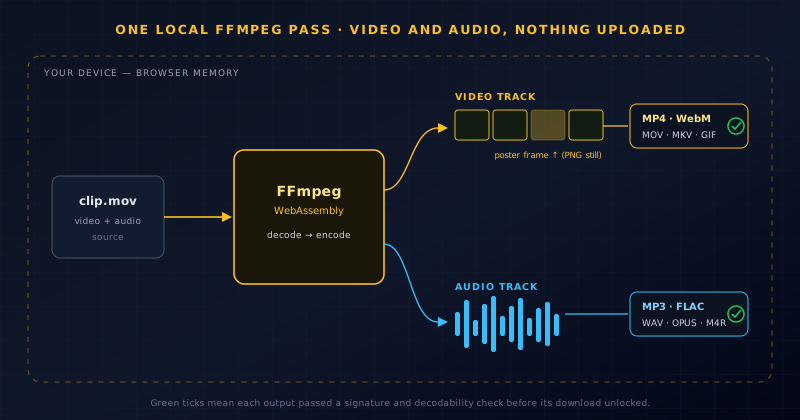
Transcoding means decoding the real content and re-encoding it into the target format, container and codec together, so the output genuinely is what its extension claims. That is the work FFmpeg does, and it is the reason a proper media conversion takes measurable processing rather than a rename. Novus Convert treats this honestly. When you drop a clip in and choose a video or audio destination, the engine decodes the source and produces a new file in the destination format, then checks that the result is decodable before it lets you download it. An extension is only ever attached to a file that has passed through this process.
The in-browser FFmpeg engine
FFmpeg is the open-source toolkit that sits underneath a large share of the world's video and audio processing, from desktop editors to streaming pipelines. Novus Convert uses a build of it compiled to WebAssembly, the low-level format that lets browsers run near-native code safely inside the page. The engine is loaded on demand rather than shipped up front, so opening the site does not pull down a heavy media library you may never use; it arrives when a video or audio job actually needs it. Once loaded, it runs entirely within the tab's sandbox, with your file handed to it directly from local memory.
Running FFmpeg this way keeps the capability broad while keeping the data local. The same engine that handles a container swap can extract an audio stream, capture a still frame, or re-encode audio at a new bitrate, because all of those are operations FFmpeg already knows how to perform. The difference from a desktop install is only where it runs. You are not downloading and configuring a command-line tool, and you are not sending anything to a hosted copy of one. The engine comes to the file, does its work, and hands back a result that never left the machine you are sitting at.
Converting between video containers
The most common video job is moving a clip from the format a device recorded to the format something else expects. An iPhone or a screen recorder might hand you a MOV, a camera might produce an AVI or MKV, and a website upload form might insist on MP4 or WebM. The video family covers these directions across MP4, MOV, MKV, WebM, AVI, and more, so a recording made in one ecosystem becomes usable in another. You pick the destination on each row, the engine re-encodes the clip locally, and the download unlocks once the output validates as a real, playable file rather than a renamed one.
Because there are roughly three hundred active video routes, the practical answer to 'can it convert this to that' is usually yes, and the reliable way to confirm any specific pair is the live route directory rather than a guess. Every working combination has its own page, which is also the honest boundary of the feature: if a pair is not listed as active, the tool will not pretend to produce it. That keeps the promise narrow and true. A converted MP4 is one that the engine actually built and checked, not a MOV wearing a different extension in the hope that the target app will cope.
Pulling the audio out of a video
Sometimes the picture is not the point. You recorded a lecture and only need the sound, you captured a live set on video and want the audio to keep, or a client sent a screen recording whose narration you need as a standalone track. The video family includes audio extraction for exactly this, so a video row can target an audio destination instead of another video. The engine pulls the audio stream out during the same local decode and encodes it into the format you chose, leaving the picture behind entirely.
The destination for an extraction is any of the supported audio formats, which gives you room to match the downstream use. Extract to MP3 when you need something small and universally playable, to WAV or FLAC when the audio will be edited further and you want to avoid stacking lossy compression, or to AAC, OGG, or OPUS when a particular app or platform prefers them. Because the whole operation is local, an hour-long recording is extracted without uploading an hour-long video first, which is the slow and privacy-eroding part that this approach removes. What leaves the engine is only the audio you asked for.
Capturing a poster frame
A video is also a source of still images, and the poster-frame capture in the video family treats it that way. A poster frame is a single representative image pulled from a clip, the sort of still you use as a video thumbnail, a preview in a document, a cover for an upload, or simply a photograph of a moment you only caught on video. Rather than screenshotting your own playback and cropping the result, you convert the clip to a still and get a clean image at the video's own resolution, produced by the same engine that handles the moving picture.
This is a small feature that quietly solves a recurring annoyance. Screenshots of a paused video pick up player controls, compression artifacts from the display, and whatever scaling the window happened to be at. A poster frame taken from the source decodes the actual frame data, so the still is as sharp as the footage allows. Combined with local processing, it means you can grab a thumbnail from a private clip without that clip touching a server, which matters when the frame you want happens to show a face, a document, or a location you would rather not upload to find out.
Audio format conversion and the lossy question
On the audio side, the engine converts across the formats people actually accumulate: MP3, WAV, FLAC, AAC, M4A, OGG, and OPUS, among roughly a hundred and twenty active routes. The choice between them usually comes down to one distinction. WAV and FLAC are lossless, meaning they preserve the original samples exactly, at the cost of larger files. MP3, AAC, OGG, and OPUS are lossy, discarding detail that is hard to hear in exchange for much smaller files. Neither is simply better; they answer different questions about size, fidelity, and what the file has to do next.
The rule worth remembering is that lossy compression stacks. Each time you decode a lossy file and re-encode it as another lossy format, you lose a little more, because the second encoder cannot recover what the first one discarded. If a recording is a working master you will keep editing, converting to WAV or FLAC avoids that erosion. If it is a finished file headed for a phone, a podcast host, or a messaging app, a lossy format is the sensible destination and the small quality loss is invisible in practice. Knowing which situation you are in is most of choosing an audio output well.
- WAV or FLAC: lossless masters, editing sources, and archives where fidelity matters more than size.
- MP3 or AAC: broadly compatible lossy files for playback, sharing, and upload forms.
- OGG or OPUS: efficient lossy formats favored by some apps and platforms, strong at small sizes.
- M4R: the iPhone ringtone container, for a short clip you want as a custom tone.
Making an M4R ringtone
Custom ringtones are one of those tasks that feels like it should be trivial and usually is not. The obstacle is the format: iPhones expect ringtones in an M4R container, and most audio you have is not in it. The typical workarounds involve a desktop media manager, a paid app, or a website you upload a music clip to, none of which is appealing when the audio is something personal like a family member's voice or a recording you made yourself. M4R is one of the active audio outputs here, so the conversion is just another local route.
The workflow is the same as any other audio job. Trim or prepare a short clip in whatever tool you already use, drop it into the converter, choose M4R as the destination, and let the engine build the ringtone locally. Because it never uploads, the audio behind a personal ringtone stays on your device throughout, which is the right handling for a clip that might be a child laughing or a lyric you are not ready to share. The output is a validated M4R file you can move onto the phone through your normal sync path and set as a tone.
Adjustable compression for media
Format is not the only thing worth changing about a media file; size often matters just as much. A video that is too large to email, a podcast episode over an upload limit, or an audio note you want to keep small on a phone all call for compression rather than a format swap. Compression covers video and audio in addition to images, and the important part is that it is adjustable. Instead of a single fixed 'compress' button that guesses on your behalf, you set the quality or target, the engine re-encodes locally, and the interface reports the measured result size so you can see the trade you made.
Adjustable is the operative word because the right amount of compression depends entirely on the destination, and only you know that. Audio headed for a phone can tolerate aggressive settings that would be wrong for a file you plan to edit. Video for a messaging app can shed a great deal of size before anyone notices on a small screen, while footage for a large display should keep more. Seeing the real output size rather than a promise lets you nudge the setting until the file fits its purpose, and because the re-encode runs on your device, iterating a couple of times costs seconds rather than repeated uploads.
A mixed media queue, validated per file
Media jobs rarely arrive one at a time or in a single format. You might have three MOV clips from a phone, a folder of WAV recordings to shrink to MP3, and one video you only want the audio from. The mixed batch queue handles this without forcing everything into one format. Each row keeps its own destination, so the clips can target MP4, the recordings can target MP3, and the odd one out can target audio extraction, all in the same session. There is no need to build a separate batch for every format the folder happens to contain.
Validation stays per file, which is what makes a mixed queue trustworthy. Each result is checked for a valid signature, container, and decodability, and each downloads independently once it passes. If one clip uses a codec the engine cannot decode, that single row fails and says so, while every other file in the batch remains finished and downloadable. You are never handed a folder of outputs where one is silently broken, and you never lose completed work because one item stumbled. The failure is isolated to the file that caused it, and the honest report is part of the result rather than a surprise you discover later.
Limits, safeguards, and where this fits
Local processing has real boundaries, and the tool is upfront about them rather than pretending they do not exist. Media work happens in your browser's memory, so very large files are constrained by what the device can hold, and there are local size safeguards plus per-format daily download allowances shown where they apply. These are the honest edges of running a media engine in a tab instead of on a fleet of servers, and stating them plainly is the same design choice as validating outputs: describe what the tool actually does, then do exactly that. The live Help page carries the current limits, and each download control shows its remaining allowance.
Within those boundaries, the video and audio routes give personal media a place to be converted that never asks it to leave the device. Novus Convert sits alongside the rest of the portfolio as the general file-preparation surface, and its media family is the part that matters most when the files are recordings you care about. To use it, open the converter and drop a clip in, confirm a specific pair in the live route directory when you want certainty, or read the documentation for how validation and safeguards work across every family. The engine is already on your machine; the media never needs to go anywhere else.
Frequently asked questions
Quick answers to common questions about this topic.
Are my videos or voice recordings uploaded to a server?
No. The video and audio routes run through an in-browser FFmpeg engine compiled to WebAssembly, so decoding and re-encoding happen in your browser's memory. Results live behind temporary object URLs that are revoked when you remove a job or close the tab.
Can I extract just the audio from a video?
Yes. The video family includes audio extraction, so an MP4, MOV, MKV, or WebM clip can produce a standalone MP3, WAV, FLAC, AAC, OGG, or OPUS file. You choose the audio destination on that row like any other conversion.
What is an M4R file, and can Novus Convert make one?
M4R is the container Apple uses for iPhone ringtones. It is one of the active audio outputs, so you can turn a short piece of audio into an M4R locally and sync it as a custom ringtone without an installer or an upload.
Can I make a video or audio file smaller?
Yes. Compression covers video and audio alongside images. You adjust the quality or target, the file is re-encoded locally, and the interface reports the measured result size before you download it.
Related workflow
Product photo to a transparent image every channel accepts
One photograph, cut out once, then re-encoded for a storefront, a marketplace listing and a social post without redoing the cutout each time.
- Cut the background out and check the edgesNSS Background Remover: Hair, glass and drop shadows are where automatic cutouts fail. Fix them once, on the master, before anything downstream copies the mistake.
- Re-encode and resize per destinationNovus Convert: Transparency survives PNG and WebP and dies in JPEG. Convert validates the file it hands back, so a listing never rejects a silently broken upload.
Related troubleshooting
Was this page helpful?
Your answer stays in this browser, it is not sent anywhere and no account or cookie is involved.