2026 · Novus ConvertAbout 13 min readNovus Stream Solutions
Choosing the right output format in Novus Convert
Novus Convert will happily produce whichever output you pick, which makes picking the right one your job. These are the decision rules I actually use: when a photo should be JPG or WebP, when transparency forces PNG, how CSV and JSON round-trips behave, which archive format to reach for, and why every download is validated first.
Contents
- 1.The output picker is a real decision
- 2.Photographs: JPG for reach, WebP for weight
- 3.Graphics, screenshots, and transparency: lossless territory
- 4.Animation: GIF and APNG are now on the menu
- 5.SVG in, raster out: crossing a one-way bridge
- 6.Structured data: round-trips only keep what both formats can hold
- 7.Archives: ZIP for the audience, TAR.GZ for the lineage
- 8.Quality and size: a dial you can see, not a preset you inherit
- 9.Why the download button waits for validation
The output picker is a real decision
A converter’s output menu looks like a preference and behaves like a commitment. Pick JPG for a logo and the crisp edges grow fuzz. Pick PNG for a forty-photo shoot and the folder balloons to five times the size it needed to be. Pick CSV for a deeply nested JSON export and the structure gets steamrolled into columns that no longer mean what the original meant. None of these are bugs; they are formats doing exactly what formats do, which is impose their own assumptions on whatever passes through them.
So when I built Novus Convert, I resisted the temptation to add a “best format” auto-picker, because the best format is a fact about where the file is going, not about the file itself. The same photograph wants WebP on my website, JPG in an email to someone whose software I cannot vouch for, and PNG if it is about to go through five more editing passes. Only the person running the conversion knows the destination, so the interface puts the choice in your hands per file and keeps the routes honest about what they produce.
This guide is the decision layer I run in my own head at the output picker, written down. It covers the image calls (photo versus graphic, transparency, animation), then the structured-data routes where round-trip behavior is the whole game, then archives, then the quality-versus-size dial, and finally why the app refuses to hand over any result that fails validation. The complete route inventory and limits live at Novus Convert; this is about choosing well within them.
Photographs: JPG for reach, WebP for weight
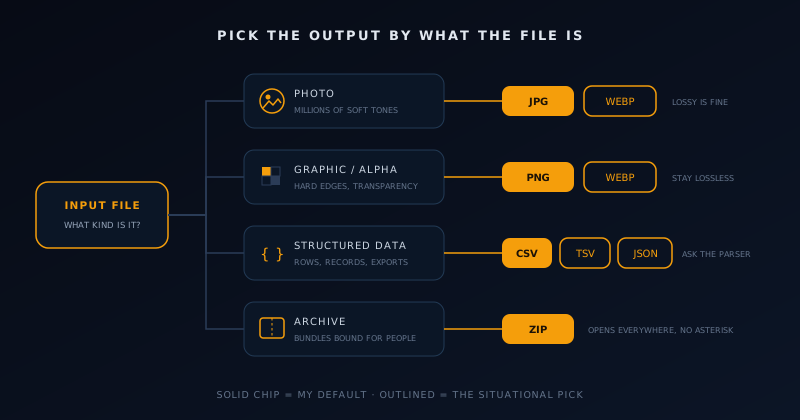
Continuous-tone images (photos of people, places, products, anything a camera saw) compress beautifully in lossy formats because the gradual color transitions hide the approximation. For these, my choice is a two-horse race. JPG is the universal donor: every device, every upload portal, every government website, every grandparent’s tablet renders it without a thought, which makes it the automatic pick whenever the file leaves my control. WebP typically lands meaningfully smaller at comparable visual quality, which makes it my pick for anything web-bound where I control the page serving it.
The HEIC pile on every iPhone owner’s hands is the most common real-world version of this call. Apple’s format is technically excellent and socially awkward (half the systems you send it to shrug at it), so the practical move is HEIC to JPG for sharing and HEIC to WebP for publishing, both of which are active local routes in the converter. The same logic covers AVIF sources arriving from newer tools: superb format, patchy reception, convert at the boundary where the file exits your ecosystem.
One JPG behavior is worth knowing before you pick it: the format has no concept of transparency, so when a source with an alpha channel heads to JPG, Novus Convert composites it onto a white background rather than producing something broken. For an actual photograph this is irrelevant, because photographs have no transparent pixels. But it is the canary that tells you a file was never a photograph in the first place: if white corners appear where you expected transparency, you wanted the next section’s formats, not this one’s.
Graphics, screenshots, and transparency: lossless territory
Images made of flat color regions and hard edges (logos, icons, charts, UI screenshots, diagrams) are the opposite compression problem from photos. Lossy encoders smear their sharp boundaries into visible ringing artifacts, and text in a screenshot is the first casualty. These files go to PNG, which compresses flat-color regions efficiently, preserves every pixel exactly, and carries full alpha transparency. A logo that must sit on unknown backgrounds is the canonical case: PNG keeps its transparent surround intact through any number of downstream uses.
WebP complicates the picture in a useful way, because it operates in both worlds: it supports transparency and can encode losslessly while frequently beating PNG on size. For web delivery of graphics I increasingly route to WebP and pocket the savings. The reason PNG still earns its place in my exports is the same reach argument from the photo section inverted: design tools, print shops, slide software, and older pipelines treat PNG as a first-class citizen everywhere, while WebP support outside browsers remains genuinely uneven. Web-bound graphic, WebP; graphic with an unknown future, PNG.
Screenshots deserve their own sentence because people reflexively JPG them and immediately regret it. A screenshot is text and interface chrome (the exact content lossy compression damages most visibly), and the artifact fuzz around every letter is what makes screenshots in bug reports unreadable. Screenshots are graphics. They go to PNG or lossless-leaning WebP, and the day you need one to be small, shrink its dimensions rather than switching it to a photographic format.
SVG in, raster out: crossing a one-way bridge
SVG occupies a special seat among the accepted inputs because it is not pixels at all; it is geometry, instructions for drawing that stay perfectly sharp at any size. Rasterizing an SVG to JPG, PNG, or WebP trades that infinite scalability for universal compatibility, and the trade is one-way: no converter on earth can turn the resulting pixels back into clean geometry. So the first rule of this route is boring and absolute: the .svg source file stays archived forever, and the raster output is treated as a disposable rendition for one destination.
The output pick follows the same logic as the graphics section, because a rasterized SVG is a graphic by construction. PNG is the default for its exact edges and preserved transparency, which matters for the logos and icons that dominate real SVG collections. WebP serves the web-delivery case at a lower byte cost. JPG is the niche pick, defensible only when the SVG is a photographic illustration with no transparency and gradient-heavy fills, rare, but they exist. And because the output menu now reaches well beyond the big three (BMP, TIFF, TGA, and ICO are live raster targets too), an SVG icon can go straight to ICO for a favicon or to TGA for a game-art pipeline, with the full matrix of active pairs at /conversions.
When do I rasterize at all, given that browsers render SVG natively? At the boundaries where vector support ends: marketplace listings that accept only raster uploads, office documents headed to machines I do not manage, messaging apps that thumbnail unpredictably, and any print pipeline that asks for “a PNG at least this big.” Inside my own sites the SVG stays vector; the raster copy exists for the places that cannot cope, produced on demand and regenerated from source whenever needs change.
Structured data: round-trips only keep what both formats can hold
The JSON, CSV, TSV, and TXT routes look like the simplest converters in the app and hide the most judgment. The core mental model: a conversion between data formats preserves the intersection of what both formats can express, and silently sheds the rest. JSON expresses nesting, types, and objects inside objects; CSV expresses a flat rectangle of text cells. Flat, tabular JSON (an array of similar objects) crosses into CSV essentially intact. Deeply nested JSON does not, because there is no rectangle that means the same thing as a tree.
The round-trip consequences follow directly. JSON to CSV to JSON returns something close to the original only when the original was already rectangular, and even then the types come back changed: CSV stores text, so the number 42, the string "42", and a boolean all flatten into characters, and whatever parses the result must reconstruct types by convention. This is not a defect in any converter (it is the nature of the target), but it is exactly the surprise that corrupts a dataset three tools downstream if nobody thought about it at the picker.
Between the tabular formats, my rule is embarrassingly practical: TSV whenever the values themselves contain commas (addresses, prose fields, formatted numbers) because tab delimiters sidestep the quoting acrobatics that RFC 4180 exists to standardize, and spreadsheet imports go smoother. CSV when a system explicitly demands it, which many do. The parser underneath treats inputs as data rather than trusting extensions, so a malformed file fails the conversion cleanly instead of shipping garbage forward, and the original is never modified either way.
The TXT route rounds out the set for the times the destination is a human or a log pipeline rather than a parser. And all the structured routes share the same honest ceiling documented at Novus Convert (inputs up to 25 MB, processed entirely in browser memory), which comfortably covers exports, configuration files, and working datasets while staying out of the big-data business it was never meant for.
- Flat arrays of similar JSON objects convert to CSV or TSV nearly losslessly; nested structures do not survive the rectangle.
- Types dissolve on the way into CSV: everything becomes text, and the return trip cannot fully restore them.
- Column order and quoting are conventions, not guarantees; check both when a downstream system is picky.
- Prefer TSV when values contain commas; prefer CSV when the destination explicitly requires it.
- Malformed input fails the route without touching your original file: a failed conversion is recoverable, silent corruption is not.
Archives: ZIP for the audience, TAR.GZ for the lineage
The archive routes (ZIP, TAR, TAR.GZ) sound interchangeable and serve different social worlds. ZIP is the archive format ordinary computing understands natively: double-click on any desktop OS and it opens, no explanation required. It compresses each entry independently, which allows pulling one file out without unpacking the rest. When an archive is headed to a client, a colleague, or anyone whose tooling I cannot predict, it becomes a ZIP, and I never have to write instructions.
TAR.GZ earns its place through lineage and ratio. It compresses the entire stream as one body rather than entry by entry, which typically packs tighter, noticeably so across many small similar files, like source trees or log collections. It is also the native dialect of the Unix world, where build systems, deployment pipelines, and package tooling expect it. Repackaging a downloaded ZIP as TAR.GZ for a Linux-side workflow, or the reverse for a Windows-bound handoff, is precisely the unglamorous job these routes exist for. Bare TAR, uncompressed, is the narrow case: a container for tooling that will handle compression itself.
Because archives are containers for arbitrary content, this is the corner of the app with the strictest guardrails, and choosing an archive output implicitly accepts them. Inputs are treated as untrusted: entries attempting path traversal are rejected, entry counts and expansion are capped (200 MB compressed in, at most 5,000 entries, at most 512 MB unpacked), TAR checksums are verified, and the produced container is validated before download like every other route. An archive that fails those checks fails loudly, which beats a browser tab quietly drowning in a decompression bomb.
Quality and size: a dial you can see, not a preset you inherit
Sometimes the format is already right and the file is simply too heavy, which is why compression lives at its own surface, /compress, instead of being tangled into format conversion. It accepts JPG, PNG, and WebP, exposes an actual quality control, re-encodes locally, and (the part I insisted on) reports the measured output size before you download. Not an estimate, not a marketing “up to 80% smaller,” but the real byte count of the file you are about to receive, so the trade-off is made with open eyes.
My working method with the dial is to find the cliff. Visual quality degrades non-linearly: a photograph typically survives a substantial quality reduction with no visible change, then crosses a threshold where blockiness and smearing arrive all at once. I step downward, watching the size fall, and stop one step above where degradation becomes noticeable at the destination’s viewing size: a thumbnail tolerates far more compression than a hero image. The measured size readout turns this from guesswork into a two-minute calibration.
The dial also has a boundary worth respecting: compression solves byte problems, not pixel problems. If an image is oversized because it is 6000 pixels wide and will display at 800, quality reduction is attacking the wrong variable. I wrote up the full reasoning in How to compress an image without losing quality, but the short version fits in a sentence: get the dimensions right for the destination first, then spend the quality budget on whatever weight remains.
Frequently asked questions
Quick answers to common questions about this topic.
How do I decide between JPG, PNG, and WebP?
Ask what the image is and where it is going. Photographs and other camera-origin images take lossy compression gracefully: JPG when the file leaves your control and must open everywhere, WebP when it is web-bound and you want the smaller size. Flat-color graphics, logos, screenshots, and anything needing transparency stay lossless: PNG for universal reach and exact edges, WebP for lighter web delivery. If white corners appear after a JPG conversion, the source had transparency and belonged in PNG or WebP instead.
Will converting JSON to CSV and back give me the same file?
Only if the JSON was already flat, an array of similar objects with no nesting. CSV is a rectangle of text cells, so nested structures have no faithful representation in it, and types dissolve on the way in: numbers, strings, and booleans all become characters that the return trip cannot reliably distinguish. Treat JSON-to-CSV as a projection into a simpler shape rather than a reversible encoding, keep the original JSON archived, and use TSV when your values contain commas to avoid quoting complications.
When should I choose ZIP versus TAR.GZ?
Choose by audience. ZIP opens natively on every mainstream desktop with a double-click and allows extracting single entries without unpacking everything, which makes it the default for handing files to people whose tooling you cannot predict. TAR.GZ compresses the whole stream as one body, typically packing tighter across many small files, and is the expected dialect of Unix-side build systems and deployment pipelines. Bare TAR is for tooling that applies its own compression. Repackaging between them is exactly what the archive routes are for.
Can Novus Convert handle animated GIFs or video?
Animated images, yes; video, no. The image output set now includes GIF and APNG alongside JPG, PNG, WebP, BMP, TIFF, TGA, and ICO, and GIF is an accepted input, so routing an animated source to an animated output keeps its frames rather than silently dropping them. Choose a still format like PNG or JPG only when you deliberately want a single frame. Full-blown video remains a job for a dedicated video tool, and the complete list of active pairs (now hundreds of routes) is published at /conversions.
What does output validation actually check?
Before any download is enabled, the result must match the format it claims: images must carry the correct signature and decode, archives must be valid containers with intact structure and verified checksums, and data outputs must parse as their format. Inputs are identified by signature rather than filename, so a mislabeled source is caught at intake too. A conversion can therefore fail after processing (encrypted archives, unsupported codec variants, truncated data), which is deliberate: a clean failure beats a convincing extension wrapped around broken bytes.
Related workflow
Product photo to a transparent image every channel accepts
One photograph, cut out once, then re-encoded for a storefront, a marketplace listing and a social post without redoing the cutout each time.
- Cut the background out and check the edgesNSS Background Remover: Hair, glass and drop shadows are where automatic cutouts fail. Fix them once, on the master, before anything downstream copies the mistake.
- Re-encode and resize per destinationNovus Convert: Transparency survives PNG and WebP and dies in JPEG. Convert validates the file it hands back, so a listing never rejects a silently broken upload.
Related troubleshooting
Was this page helpful?
Your answer stays in this browser, it is not sent anywhere and no account or cookie is involved.