Novus Convert
How to convert and compress files privately with Novus Convert
A complete first workflow for Novus Convert: choose an active route, add supported files, set per-file outputs, compress images, handle failures, and download validated results.
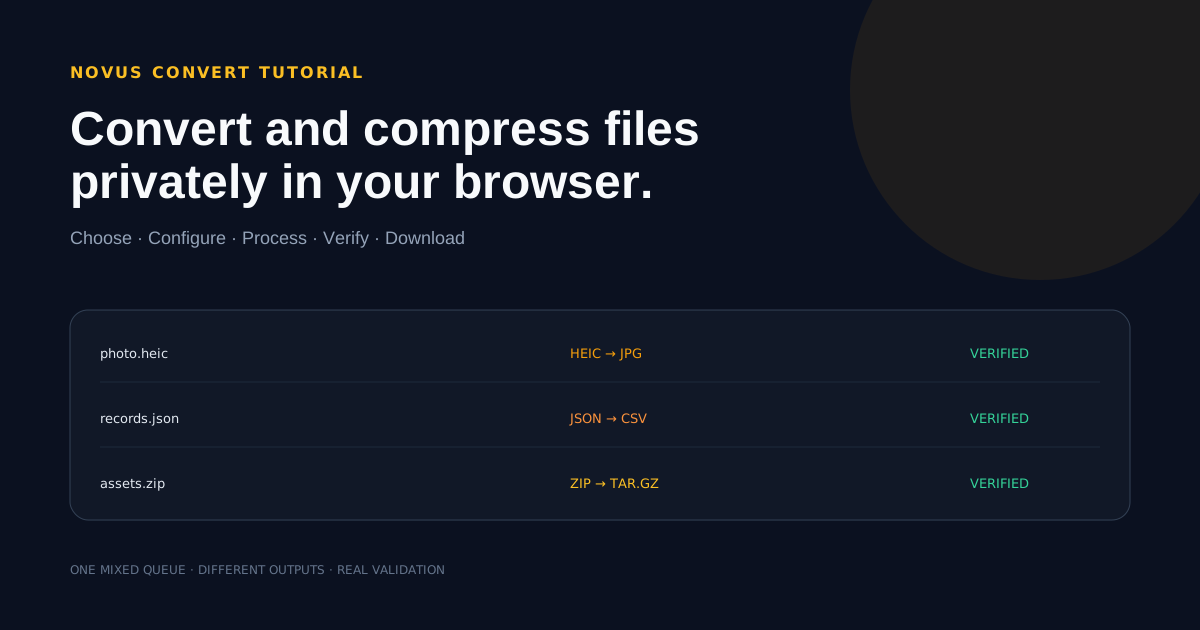
Novus Convert is built around a simple promise: when a conversion is active, the supported file stays in browser memory, the output is checked before download, and a mixed batch does not force every row into the same format. This guide walks through the complete workflow as it exists now, including image compression and the limits that protect browser memory.
The live format directory now spans a large active matrix: images and camera RAW, video, audio, documents and subtitles, archives, ebooks, vector, CAD, and fonts all convert in the browser. That breadth is exactly why /conversions matters: it is the authoritative, always-current map of which exact input-to-output pairs are live, so it is the page to check before choosing files rather than assuming any single pair from such a large matrix exists.
Contents
Two ways to finish
Convert files
Use /convert for supported images, structured data, archives, and mixed batches.
Compress images
Use /compress for adjustable JPG, PNG, and WebP compression.
- 1
1. Confirm the format is active
Open convert.novusstreamsolutions.com/convert or choose an active conversion route from the live formats directory. The working set now spans images (including camera RAW such as CR2, NEF, and ARW), video, audio, documents and subtitles, archives, ebooks, vector, CAD, and 3D-mesh formats, and fonts, well over a thousand active input-to-output pairs. The complete, always-current matrix is published at /conversions, so confirm the exact pair you need there rather than assuming a specific route from such a large set exists.
Choose the job, not just the extension. Use /compress when the goal is a smaller JPG, PNG, or WebP. Use /convert when the file needs a different format or archive container.
- An active upload/output control is the reliable sign that a conversion is available.
- Confirm the exact input-to-output pair in /conversions before loading files.
- 2
2. Add supported files
Drag files into the workspace or use the file chooser. Novus Convert reads signatures and browser capabilities instead of trusting the filename alone. This protects the workflow from a renamed or malformed file that only looks supported by extension.
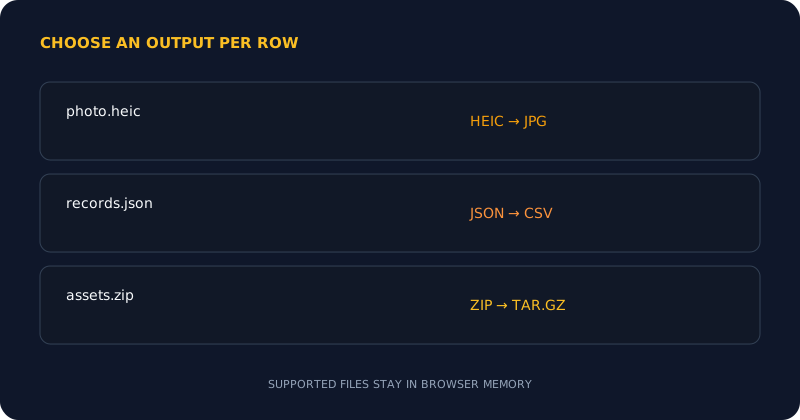
You can add a mixed batch. An HEIC photo, JSON export, and ZIP archive can sit in the same queue because each row keeps its own compatible output choices. The source files remain unchanged.
Each row in a mixed batch can use a different compatible output. - 3
3. Choose an output for each row
Select the output shown for each compatible file. Image rows expose the raster outputs the current route can genuinely produce: JPG, PNG, WebP, GIF, APNG, BMP, TIFF, TGA, and ICO, depending on the source. Structured-data rows expose the active JSON, CSV, TSV, or TXT destinations. Archive rows expose the supported ZIP, TAR, or TAR.GZ containers. Browse /conversions for the full input-to-output matrix.
When exporting a transparent source to JPG, remember that JPG cannot preserve transparency. Novus Convert places the transparent region on white rather than pretending the alpha channel survived.
- Use one output across compatible rows when the batch is uniform.
- Choose per-file outputs when the queue contains different jobs.
- Use PNG or WebP when transparency must remain available.
- 4
4. Compress JPG, PNG, or WebP when size is the goal
Open /compress for image-size reduction. Add a JPG, PNG, or WebP, adjust the quality control, and compare the measured result size before download. Compression is a re-encode rather than an extension change, so judge the visual result and file-size saving together.
A lower quality setting is not automatically better. Start conservatively, inspect detailed edges and text, then lower quality only while the output still looks right for its destination.
- 5
5. Process locally and review each result
Start processing and leave the tab open while the browser works. HEIC and HEIF decoding lazy-loads a local WebAssembly worker; other active paths use browser-side decoders, encoders, parsers, and archive handlers. The site does not send supported source files to a remote conversion service for these routes.
A malformed, encrypted, unsupported-codec, over-limit, or invalid file can fail. That row can be retried or removed without discarding completed files elsewhere in the queue. The original is never overwritten.
- 6
6. Download only after validation
Novus Convert checks the expected signature, container, or decodability before enabling a download. This means a result can finish processing and still fail the quality gate. Treat that as useful protection: a file with the right extension but the wrong internal data is not a successful conversion.
Download each successful row and open important outputs in the application that will consume them. Temporary result URLs disappear when you remove a job or close the page, so save the finished files before leaving the session.
- 7
7. Work within the current safeguards
Active image routes accept files up to 100 MB and 80 megapixels. Structured text accepts up to 25 MB. Archives accept compressed inputs up to 200 MB, no more than 5,000 entries, and no more than 512 MB expanded. These are browser-memory and archive-bomb protections, not arbitrary upload limits.
The free app also tracks downloads separately by input format and local calendar day. Current defaults are 15 for HEIC or HEIF, 20 for AVIF, 10 for archive formats, 50 for structured text, and 25 for other active formats. The interface shows the remaining allowance beside the download action.
Trust the active route and the validated file
Do not assume every input-to-output pair in such a large matrix is wired, and do not treat a changed extension as proof of success. Confirm the exact route in /conversions, keep the source untouched, wait for validation, and open important downloads once in their destination app.
Frequently asked questions
Quick answers to common questions about this topic.
Can I convert different file types in one batch?
Yes. Add supported files to one mixed queue and choose a compatible output for each row. A failed row does not remove successful results from the rest of the batch.
Does Novus Convert upload my files?
No. Every conversion currently exposed in the interface runs in browser memory, including HEIC and HEIF decoding through a lazy-loaded local WebAssembly worker.
Does every listed format convert?
The active matrix now spans images and camera RAW, video, audio, documents, archives, ebooks, vector, CAD, and fonts, so whole categories that were once read-only convert today. With over a thousand pairs, though, not every individual input-to-output combination is wired, so confirm your exact pair in /conversions; a converter appears wherever the release can create and validate a real output for that route.
Why is my transparent image white after JPG export?
JPG does not support transparency. Novus Convert places transparent pixels on a white background; choose PNG or WebP when alpha transparency must be preserved.
Related workflow
Product photo to a transparent image every channel accepts
One photograph, cut out once, then re-encoded for a storefront, a marketplace listing and a social post without redoing the cutout each time.
- Cut the background out and check the edgesNSS Background Remover: Hair, glass and drop shadows are where automatic cutouts fail. Fix them once, on the master, before anything downstream copies the mistake.
- Re-encode and resize per destinationNovus Convert: Transparency survives PNG and WebP and dies in JPEG. Convert validates the file it hands back, so a listing never rejects a silently broken upload.
Related troubleshooting
Was this page helpful?
Your answer stays in this browser, it is not sent anywhere and no account or cookie is involved.