2026 · NSS Background RemoverAbout 13 min readNovus Stream Solutions
How to compress an image without losing quality
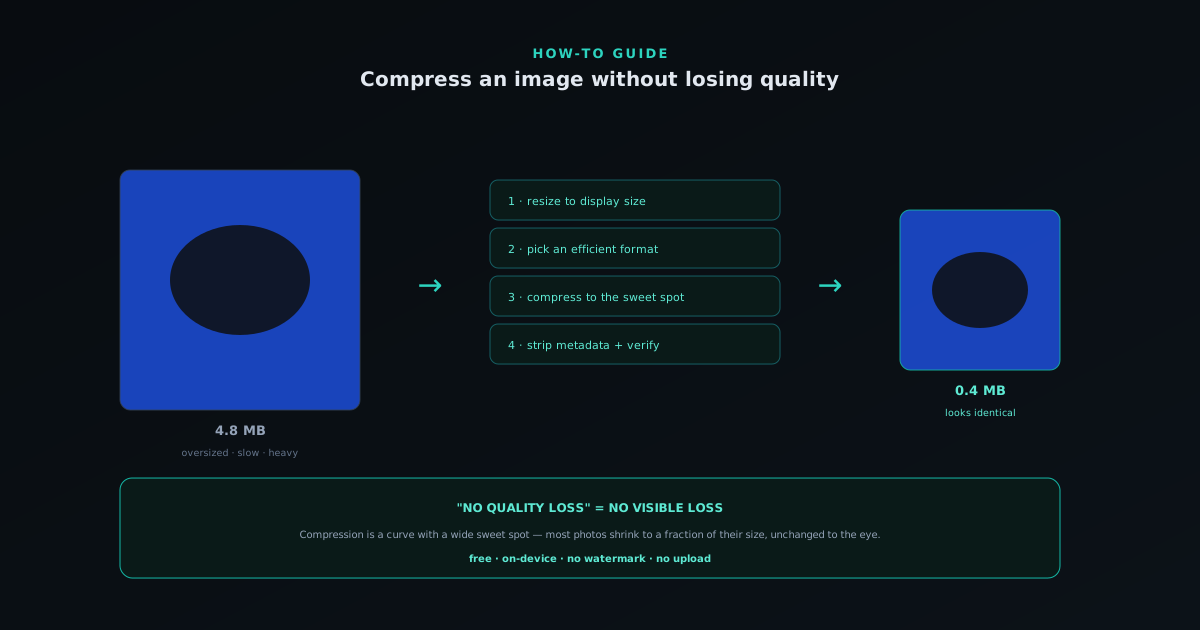
Heavy images slow pages and eat storage, but most can shrink to a fraction of their size with no visible quality loss. Here is how compression actually works and how to do it free, on-device.
Contents
- 1.Overview
- 2.What "losing quality" actually means
- 3.Lossy vs lossless: pick the right one
- 4.Format is the biggest lever
- 5.Resize before you compress
- 6.Finding the quality sweet spot
- 7.Compressing transparent images
- 8.Metadata and other hidden weight
- 9.Batch compressing many images
- 10.Doing it free and on-device
- 11.Verify the result before you ship it
Overview
Heavy images are a quiet tax: they slow down web pages, eat storage, burn bandwidth, and frustrate anyone on a slow connection, and most of that weight is unnecessary, because the typical image can shrink to a fraction of its original file size with no visible loss of quality. The phrase "without losing quality" needs a small asterisk, since compression always involves some technical change, but the practical truth is that a well-compressed image looks identical to the original to the human eye while being dramatically smaller. This guide explains how compression actually works, the few decisions that determine whether you keep quality or wreck it, and how to compress images for free on your own device. Understanding the handful of underlying ideas (lossy versus lossless, resizing, format choice, and the quality-versus-size curve) turns compression from a mysterious slider into a deliberate process you control.
The reason this is worth getting right rather than accepting whatever a tool spits out is that the difference between a thoughtfully compressed image and a carelessly compressed one is enormous: one shaves most of the file size while looking pristine, the other either stays needlessly heavy or visibly degrades. The good news is that the rules are simple and apply everywhere images are used: websites, marketplaces, email, storage. Once you understand them, you can shrink an image confidently to the smallest size that still looks right for its purpose, which is the actual goal: not maximum compression, but the smallest file with no visible quality cost.
What "losing quality" actually means
To compress without losing quality, it helps to understand what "losing quality" technically means, because the goal is not to avoid all compression but to avoid visible degradation. When an image is compressed, the encoder discards or rearranges data to make the file smaller; lossless compression reorganizes the data so it can be perfectly reconstructed, while lossy compression actually discards some information that it judges the eye is unlikely to miss. Visible quality loss happens when lossy compression is pushed too far and starts discarding information the eye does notice: soft blocky artifacts in smooth areas, fuzziness around sharp edges, banding in gradients. The art is compressing enough to shrink the file meaningfully while staying below the threshold where these artifacts become visible.
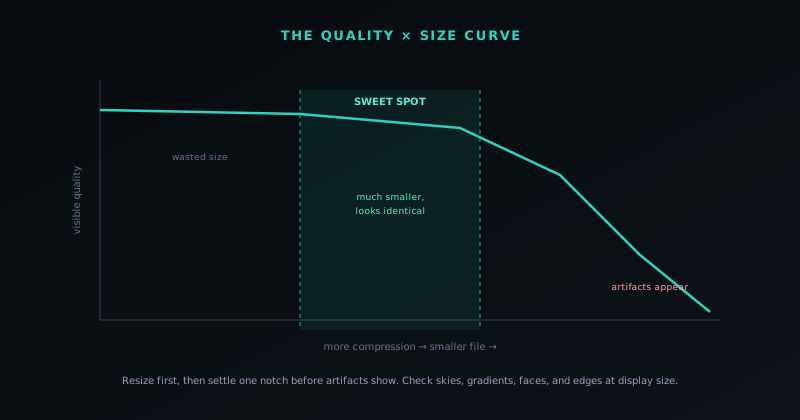
This framing matters because it reveals that "no quality loss" is really "no visible quality loss," and that there is a wide range of compression where the file gets much smaller while looking identical. The eye is remarkably tolerant of certain kinds of data reduction (it does not notice tiny variations in color or detail it was not attending to) which is exactly what good lossy compression exploits. The mistake people make is treating compression as binary (pristine or ruined) when it is a curve, with a large sweet spot where the image is much smaller and visually unchanged. Knowing that this sweet spot exists, and how to land in it, is the whole skill of compressing without losing quality.
Lossy vs lossless: pick the right one
The first real decision is lossy versus lossless compression, and the right choice depends on the image and its purpose. Lossless compression (used by PNG and available in WebP and AVIF) reduces file size while preserving every pixel exactly, so there is genuinely zero quality loss, but the size reduction is modest, especially for photographs. It is the right choice for graphics, screenshots, images with sharp text, and any source asset you will edit again, where exactness matters. Lossy compression (used by JPEG and the lossy modes of WebP and AVIF) achieves much larger size reductions by discarding imperceptible detail, and is the right choice for photographs and final display images where a small, invisible data reduction is a worthwhile trade for a much smaller file.
The practical rule is to use lossless for graphics and source files, and lossy for photographs and final web images, because each is built for a different kind of content. A photograph compressed losslessly stays large because there is little redundant data to squeeze without discarding detail; the same photograph compressed with well-tuned lossy settings shrinks dramatically while looking identical. Conversely, a graphic with flat colors and sharp text compresses beautifully losslessly and develops ugly artifacts under aggressive lossy compression. Matching the compression type to the content is the single most important decision, because using the wrong one either fails to shrink the file (lossless on a photo) or visibly damages it (aggressive lossy on a graphic).
Format is the biggest lever
Closely tied to the lossy-versus-lossless choice is the format, which is the single biggest lever on file size, because modern formats compress far better than older ones at the same quality. A photograph saved as a high-quality JPEG is already reasonably compact, but the same photograph as a well-tuned WebP or AVIF is often substantially smaller at the same visual quality, because those newer formats use more advanced compression. For graphics, a PNG is lossless and universal, but a lossless WebP can be smaller. So before fiddling with quality sliders, choosing the right format for the content captures much of the available size reduction automatically.
The catch, as always, is compatibility: the newest, smallest format is only useful where it will display, so the format decision balances size against where the image needs to work. For the modern web, WebP is a strong default that combines wide support with much smaller files than JPEG or PNG; AVIF is smaller still where you can serve it with a fallback; and JPEG and PNG remain the universal choices for maximum compatibility. The companion guide at PNG vs WebP vs AVIF for transparency: which should you export? covers the format tradeoff in depth, but the key point for compression is that picking a modern, efficient format does much of the work before you touch any other setting.
Resize before you compress
One of the most overlooked and most effective compression steps has nothing to do with compression settings at all: resizing the image to the dimensions it will actually be displayed at. A huge number of oversized images on the web are simply far larger in pixel dimensions than they are ever shown: a 4000-pixel-wide photo displayed in a 800-pixel-wide column carries five times the pixels it needs, and those extra pixels are pure wasted weight. Resizing the image down to its actual display size, before any other compression, often shrinks the file more than any quality-slider adjustment, because file size scales with pixel count.
The discipline is to ask what the maximum size the image will be displayed at actually is, and resize to that (plus a margin for high-density screens, which benefit from roughly double the displayed dimensions). The image resizer at bgremover.novusstreamsolutions.com/tools/image-resizer scales to exact dimensions locally before you compress. A product image shown at 800 pixels does not need to be 4000 pixels; a thumbnail does not need to be full resolution. Resizing first means the subsequent compression operates on a sensibly-sized image rather than wasting effort on pixels that will be thrown away by the browser anyway. This step alone resolves a large fraction of oversized-image problems, which is why "is this image bigger than it needs to be" is the first question to ask before reaching for any compression setting.
Finding the quality sweet spot
With the right format and a sensible size, the final lever is the quality setting on lossy compression, and the goal is to find the sweet spot on the quality-versus-size curve where the file is as small as possible while still looking identical. This is not a fixed number (it varies by image, since a busy photograph hides compression artifacts better than a smooth gradient or a face) but the approach is consistent: compress, look closely at the result (especially in the areas where artifacts show first, like smooth skies, gradients, and edges), and back off if you see degradation. Most photographs tolerate fairly aggressive lossy compression before any artifact becomes visible, which is why the typical photo can shrink so much.
The mistake to avoid is reflexively maxing out quality (wasting size) or reflexively maxing out compression (risking artifacts); the right move is to find the point where one more notch of compression would just start to show, and stop one notch before it. Because the eye notices artifacts first in smooth, simple areas, those are where to check. For a batch of similar images, finding the right setting once and applying it across the set is efficient, since similar content tolerates similar compression. The sweet spot is where compressing without losing quality actually happens (small enough to matter, not so small that it shows) and finding it deliberately rather than guessing is what separates a good compression from a careless one.
Compressing transparent images
Transparent images add a wrinkle, because transparency requires an alpha channel and not every format or compression mode handles it the same way. PNG supports lossless transparency but produces large files; WebP and AVIF support transparency in both lossless and lossy modes, so they can compress a transparent image far smaller than PNG while keeping the alpha channel intact. This means a heavy transparent PNG (a detailed cutout, say) can often shrink dramatically by converting to a lossy WebP or AVIF that preserves the transparency, which is the transparent-image equivalent of the photograph sweet spot.
The thing to watch with lossy compression of transparent images is the edges, since the soft, semi-transparent boundary of a cutout is exactly where aggressive lossy compression can introduce artifacts. Moderate lossy compression usually keeps edges clean while shrinking the file substantially, but very aggressive settings can fuzz or fringe the edge, so transparent images often warrant slightly more conservative compression than opaque ones. The combination that works for most transparent images is a modern format (WebP or AVIF) with moderate lossy compression, which captures most of the size reduction while keeping the transparency and edges clean. Compressing transparent images well is the same skill as compressing any image, with extra attention to the edge where the transparency lives.
Batch compressing many images
For more than a handful of images (a product catalogue, a photo gallery, a content library), compressing them individually is impractical, and batch compression applies a consistent approach across many images at once. The key to good batch compression is that the images should be similar enough to share settings: a set of product photos with comparable content tolerates the same format, size, and quality settings, so finding the right configuration once and applying it across the batch produces a uniformly well-compressed set. Mixing very different content types in one batch with one setting risks under-compressing some and over-compressing others, so grouping similar images is worth the small effort.
Batch compression also enforces the consistency that makes a set of images look professional and load uniformly, since every image comes out the same format, sized the same way, compressed the same amount. This is the same principle that governs any repeated image task: standardize the approach and apply it across the set, so consistency is a byproduct of the process. For a catalogue or a content site, batch-compressing images as part of the publishing workflow keeps page weight under control without per-image effort, which is what makes good compression sustainable at scale rather than a tedious manual chore on every image.
Doing it free and on-device
All of this (resizing, format conversion, quality compression, metadata stripping, and batching) can be done for free in the browser without uploading your images, which matters both for privacy and for cost. The NSS Background Remover's image utility tools at bgremover.novusstreamsolutions.com/tools handle compression, resizing, and format conversion on your device, so the images never leave your machine and there is no per-image fee or watermark. The compressor itself lives at bgremover.novusstreamsolutions.com/tools/image-compressor, with a quality slider for finding the sweet spot. For images that are personal, confidential, or simply something you would rather not upload to an unknown server, on-device compression keeps the whole process local.
The on-device approach also avoids the common downsides of free online compression tools: upload limits, watermarks, and the privacy question of where your images go. Because the processing happens in your browser, you can compress as many images as you like, as large as you like, with the only constraint being your device's speed on very large batches. This makes it practical to build compression into a real workflow (preparing a catalogue, optimizing a site's images, shrinking a folder of photos for sharing) rather than treating it as an occasional one-off through a limited online tool. Free, private, on-device compression is what turns image optimization from a chore you avoid into a routine step you can apply whenever images need to be smaller.
Verify the result before you ship it
The final discipline of compressing without losing quality is to actually verify the result, because the only way to know you stayed in the sweet spot is to look at the compressed image at the size it will be displayed. Compare it to the original, paying attention to the areas where artifacts appear first (smooth gradients, skies, faces, sharp edges, and any fine detail) and confirm that the compressed version looks identical at display size. An image that looks fine at a tiny thumbnail might show artifacts when viewed larger, so check it at the actual size and context where it will be used.
This verification step is quick and prevents the two failure modes: shipping an image that is visibly degraded because the compression went too far, or shipping one that is needlessly heavy because you were too cautious. If the compressed image looks identical to the original at display size, you have succeeded: the file is smaller with no visible cost. If you can see degradation, back off the compression a notch and re-check. Building this glance into the workflow means you compress confidently rather than hoping, and over time you develop an intuition for how much different kinds of images tolerate, which makes the whole process faster. Verifying the result is what closes the loop and guarantees that "without losing quality" is actually true for the specific image, not just an aspiration.
Frequently asked questions
Quick answers to common questions about this topic.
How do I compress an image without losing quality?
Resize it to its actual display size, choose an efficient modern format (WebP or AVIF for the web), and apply lossy compression up to the point just before artifacts become visible. For most photos this shrinks the file dramatically with no visible change.
What is the difference between lossy and lossless compression?
Lossless compression preserves every pixel exactly but shrinks files modestly: good for graphics and source files. Lossy compression discards imperceptible detail for much smaller files: good for photographs and final web images. Match the type to the content.
Why is resizing important before compressing?
File size scales with pixel count, so an image far larger than its display size carries wasted weight. Resizing to the actual display dimensions (plus a margin for high-density screens) often shrinks the file more than any quality-slider change.
Can I compress images for free without uploading them?
Yes. The NSS Background Remover's utility tools at https://bgremover.novusstreamsolutions.com compress, resize, and convert images in your browser: free, no watermark, and on-device so the images never leave your machine.
Related workflow
Product photo to a transparent image every channel accepts
One photograph, cut out once, then re-encoded for a storefront, a marketplace listing and a social post without redoing the cutout each time.
- Cut the background out and check the edgesNSS Background Remover: Hair, glass and drop shadows are where automatic cutouts fail. Fix them once, on the master, before anything downstream copies the mistake.
- Re-encode and resize per destinationNovus Convert: Transparency survives PNG and WebP and dies in JPEG. Convert validates the file it hands back, so a listing never rejects a silently broken upload.
Related troubleshooting
Was this page helpful?
Your answer stays in this browser, it is not sent anywhere and no account or cookie is involved.