2026 · NSS Background RemoverAbout 13 min readNovus Stream Solutions
How to upscale an image without losing quality
Make a small or low-resolution image larger and sharper with AI super-resolution, free and in the browser, for printing, hero images, and product shots.
Contents
- 1.Overview
- 2.Step 1: open the upscaler
- 3.Step 2: choose 2× or 4×
- 4.Step 3: combine with the rest of the toolkit
- 5.Why on-device upscaling is the right default
- 6.Adding detail versus stretching pixels
- 7.When you genuinely need to upscale
- 8.Why 2× is often the smarter choice than 4×
- 9.Cleaning the source before you enlarge
- 10.Where upscaling sits in a multi-step workflow
- 11.Upscaling for print versus for screen
- 12.Upscaling video, not just stills
- 13.The honest limits of super-resolution
- 14.A simple recipe to follow
- 15.Why doing it locally changes what is practical
Overview
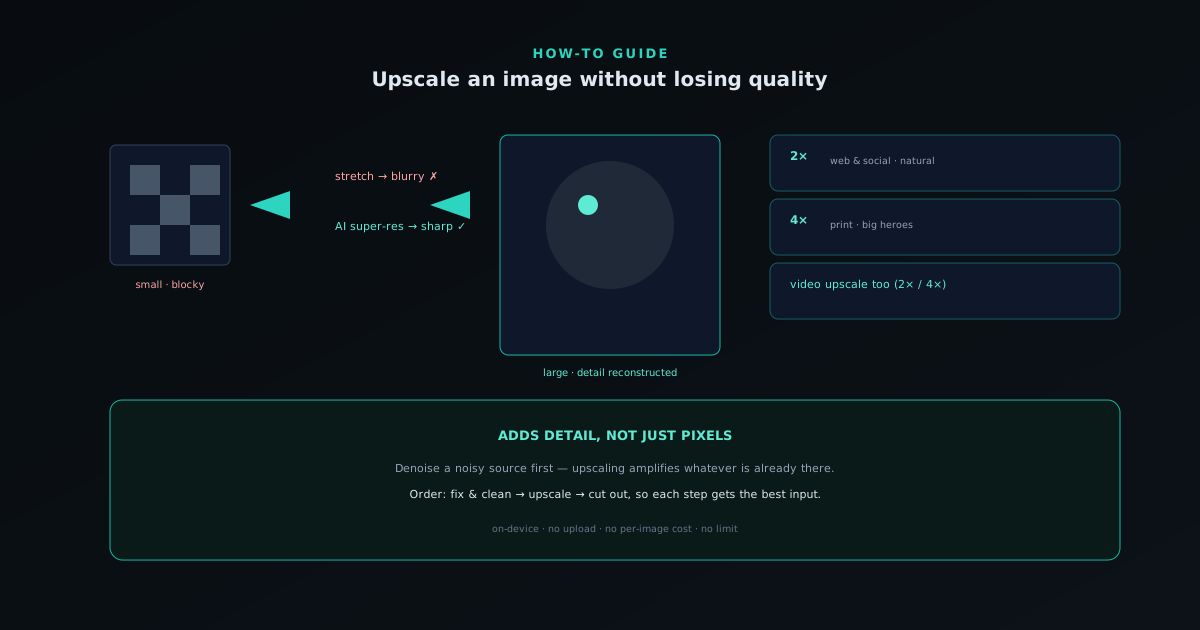
Enlarging an image the normal way, by stretching it, makes it blurry, because you are spreading the same pixels over more space. AI upscaling (super-resolution) is different: the model adds plausible new detail as it enlarges, so the result is both bigger and sharper. This guide upscales an image free, in the browser, with the upscaler at bgremover.novusstreamsolutions.com/upscale.
You would use this when a product photo is too small for a hero slot, an old scan needs to print larger, or a cutout has to scale up without going soft.
Step 1: open the upscaler
Go to bgremover.novusstreamsolutions.com and open the image upscaler. Add your image; it is processed on your device, with nothing uploaded. The tool offers 2× and 4× AI super-resolution: 2× doubles each dimension, 4× quadruples it.
Start with the smallest enlargement that meets your target size. More is not always better: 2× is often enough and looks more natural than pushing everything to 4×.
Step 2: choose 2× or 4×
Pick the factor based on where the image is going. For web and social, 2× from a decent source is usually plenty. For print or a large hero image from a small original, 4× buys the resolution you need. The model reconstructs edges and texture as it scales, which is why the result keeps detail instead of going blurry.
If the source is noisy or compressed, run Denoise first: upscaling amplifies whatever is already there, so cleaning it up beforehand gives the upscaler a better starting point.
Step 3: combine with the rest of the toolkit
Upscaling pairs naturally with the other tools. Restore and denoise an old photo, then upscale it for printing. Cut out a product, then upscale the cutout to fill a larger frame. For video, the same 2× / 4× upscaling is available to enlarge a clip.
Order matters: fix and clean the source first, then upscale, then cut out, so each step works from the best possible input.
- 2× for web/social, 4× for print or large heroes.
- Denoise before upscaling a noisy source.
- Also available for video (2× / 4×).
Why on-device upscaling is the right default
Because the model runs in your browser, there is no upload, no per-image cost, and no limit, so you can upscale a whole batch without sending your images anywhere. For product catalogs, that means enlarging every shot to a consistent size locally.
The result is a larger image that still looks sharp, ready for the slot it could not fill before, done for free, privately, in a couple of clicks.
Adding detail versus stretching pixels
The whole reason AI upscaling produces a usable result where ordinary enlargement does not comes down to a fundamental difference in what the two are doing. Stretching an image (the kind of resizing any image editor does by default) spreads the existing pixels over a larger area, inventing the in-between pixels by simple averaging, which is why an enlarged image looks soft and blurry: there is no new information, just the same data smeared across more space. The detail that should be there at the larger size genuinely is not present, so the result can only ever be a bigger, fuzzier version of the original.
AI super-resolution works on a different principle: the model has learned, from vast numbers of images, what real detail tends to look like at finer scales, and it uses that learned knowledge to reconstruct plausible new detail as it enlarges. Where simple stretching averages, the model infers, rebuilding edges, textures, and fine structure that are consistent with the image rather than just interpolated between existing pixels. That is why an AI-upscaled image can look both larger and sharper than the source, and why the technique is called super-resolution rather than just resizing. It is adding information the model has good reason to believe belongs there, not merely spreading the original thinner.
When you genuinely need to upscale
Upscaling is a fix for a specific problem (an image that is too small for where it needs to go) and recognizing those situations helps you reach for it at the right moment. The classic cases are a product photo that is too low-resolution for a hero slot or a large display, an old scan or photo that needs to print larger than its original size, a cutout that has to scale up to fill a bigger frame without going soft, and a screenshot or web-sourced image that is sharp at its native size but breaks down when enlarged. In each, the source simply lacks the pixels the destination demands, and upscaling is what closes that gap.
It is equally worth knowing when not to upscale, because applying it needlessly wastes effort and can occasionally do more harm than good. If your source is already large enough for its destination, enlarging it further gains nothing and only inflates the file. Upscaling is a targeted tool for the resolution-shortfall problem, not a quality-improvement step to run on everything; an image that is the right size and already sharp does not need it. Matching the tool to the actual need, rather than upscaling reflexively, keeps your workflow efficient and your files appropriately sized for where they are going.
Why 2× is often the smarter choice than 4×
The instinct when offered 2× and 4× is to assume the larger factor is always better, but that is usually wrong, and choosing the smallest enlargement that meets your target size produces a more natural result. Every upscaling step asks the model to invent more detail, and the more aggressively you enlarge, the more the result depends on the model's reconstruction rather than the real image, and pushed too far, that can start to look subtly artificial. A 2× enlargement from a decent source stays closely anchored to the genuine detail in the original, which tends to read as more natural and convincing than a 4× version of the same image.
The right way to choose is by destination rather than by maximizing the number. For web and social use, 2× from a reasonable source is usually plenty and looks excellent; reserve 4× for the cases that genuinely require it, like print output or a large hero built from a small original, where the extra resolution is actually needed to fill the space. Starting with the smallest factor that hits your target dimensions, and only going larger when that target demands it, gives you the cleanest result the situation allows. More enlargement is not more quality; it is more reconstruction, and reconstruction is best used only as much as the destination truly requires.
Cleaning the source before you enlarge
Upscaling amplifies whatever is already in the image, including its flaws, which makes preparing the source an important and often-skipped step. If an image is noisy, compressed, or full of artifacts, enlarging it does not just make the subject bigger; it makes the noise and the artifacts bigger and more obvious too, because the model faithfully reconstructs at larger scale whatever it is given. Cleaning the source first in the image editor (smoothing noise and easing compression artifacts with filters and adjustments before upscaling) gives the model a better starting point and produces a noticeably cleaner enlarged result than upscaling the raw, noisy source would.
This is why order of operations matters with upscaling. The general principle is to fix and clean the source first, then upscale, so that each step works from the best possible input and the enlargement is reconstructing genuine detail rather than amplifying defects. A noisy source upscaled directly bakes its noise into a larger image that is then harder to clean; the same source denoised and then upscaled comes out sharp and clean. Treating upscaling as a step that should receive a clean input, rather than as a first move applied to whatever you have, is what separates a crisp enlargement from one that is merely a bigger version of a flawed original.
Where upscaling sits in a multi-step workflow
Upscaling rarely happens in isolation; it usually pairs with other tools, and getting the sequence right matters because each step works best on a particular kind of input. For an old photo, the natural flow is to restore and denoise it first, then upscale it for printing: clean, then enlarge. For a product, you might cut it out, then upscale the cutout to fill a larger frame, since upscaling a clean cutout enlarges exactly the subject you care about. The recurring rule is that corrective and cleaning steps come before enlargement, so the upscaler reconstructs from the best version of the image.
There is one ordering nuance worth holding: when both cutting out and upscaling are involved, think about which the destination needs at full resolution. Often the sensible order is to clean and fix the source, then upscale, then cut out, so each operation works from the best input and the final cutout is already at the resolution you need. Sequencing these steps deliberately, rather than running them in whatever order you happen to think of them, is what lets a chain of free tools produce a result that looks professionally prepared, with each step handing the next a clean, appropriately-sized image to work from.
Upscaling for print versus for screen
The destination, print or screen, changes how aggressively you should upscale and what target to aim for, because the two have very different resolution demands. Screen use is forgiving: a 2× enlargement from a decent source covers most web, social, and display needs, since screens show images at moderate pixel densities and a slightly-reconstructed image reads perfectly well. Print is the demanding case, because print resolution is far higher than screen, so an image that looks sharp on a monitor can be too small to print at size, and this is where 4× from a small original earns its place.
Knowing which you are targeting prevents both under- and over-shooting. Upscaling a small image only to screen resolution when you actually need to print it large will leave you short; pushing a screen-bound image to 4× wastes reconstruction and file size on resolution no monitor will use. The practical habit is to identify the destination first (this is going to print at this size, or this is a web hero at these dimensions) and choose the factor to hit that specific need. Letting the destination set the target, rather than upscaling to a generic maximum, is what makes the enlarged image exactly as big as it needs to be and no more.
Upscaling video, not just stills
The same super-resolution capability extends to video at bgremover.novusstreamsolutions.com/video-upscale, where the 2× and 4× options can enlarge a clip rather than a single image, and the same principles carry over with the added weight of many frames. A low-resolution video clip (old footage, a small social export, a screen recording) can be upscaled to a larger, sharper version, with the model reconstructing detail on each frame just as it does for a still. As with background removal, video is proportionally more work than a photo because every frame is processed, so trimming to the segment you need before upscaling is again the efficient move.
Video upscaling shares the still version's logic about clean inputs and sensible factors: a noisy or heavily-compressed clip benefits from cleanup before enlargement, and the smallest factor that meets your target keeps the result natural across the sequence. The payoff is the ability to rescue or repurpose footage that was captured or exported too small, bringing an old or low-resolution clip up to a size that holds on a modern screen. It is the same tool answering the same problem in the moving-image case, with the practical reminder that the per-frame nature makes trimming and source preparation matter even more than they do for a single photo.
The honest limits of super-resolution
Super-resolution is powerful but not magic, and being clear about its limits keeps your expectations realistic. The model reconstructs plausible detail based on what it has learned, but it cannot recover information that was never captured. If a face is so small that its features are just a few pixels, the upscaler can produce a sharper, larger version, but it cannot invent the specific true details that were never there to begin with. There is a difference between reconstructing plausible texture and recovering exact lost information, and super-resolution does the former, not the latter.
In practice this means upscaling works best as an enhancement of an image that already has a reasonable amount of real detail to build on, and is most strained when asked to enlarge something tiny into something large. A modestly-sized source upscaled 2× has plenty of genuine detail for the model to extend; a tiny thumbnail pushed to 4× is asking the model to invent most of the result, which is where the limits show. Knowing this lets you use upscaling where it genuinely helps (giving a decent image the extra resolution it needs) without expecting it to perform miracles on sources that simply never contained enough information to enlarge convincingly. Used within its range, it is excellent; pushed past it, it can only approximate.
A simple recipe to follow
Putting the principles together, a reliable upscaling routine looks like this. First, decide the destination and the size it requires, because that determines everything downstream. Second, clean the source if it needs it: denoise a noisy or compressed image before enlarging, so the upscaler reconstructs detail rather than amplifying noise. Third, choose the smallest factor that meets your target, defaulting to 2× and reaching for 4× only when print or a large hero genuinely demands it. Fourth, run the upscale and check the result at full size, looking for natural detail rather than artificial-looking reconstruction.
Following that sequence (destination, clean, choose the factor, upscale, verify) turns upscaling from a hopeful one-click guess into a deliberate step that produces predictable, professional results. The whole routine runs in the browser, on your device, for free and without limit, so you can apply it to a single hero image or repeat it across an entire catalog with the same care. It is a short recipe, but following it is the difference between an enlargement that looks intentionally prepared and one that is merely bigger, and it costs nothing but the few seconds of thought to match the factor and the preparation to what the image and its destination actually need.
Why doing it locally changes what is practical
Running the upscaler on your own device rather than a server does more than protect privacy; it changes what is economically practical, because there is no per-image cost to recover. A server-based upscaler has to charge somehow for the compute each enlargement uses, which is why such tools tend to meter usage, cap resolution, or gate the good output behind a subscription. With the model running in your browser, the marginal cost of upscaling one more image is borne by your hardware, which is why there is no limit, no per-image charge, and no watermark: you can upscale a single hero or an entire catalog without any of that friction.
For volume work this is the decisive advantage. Enlarging every shot in a product catalog to a consistent size is a routine need, and doing it locally means you can run the whole set without sending your images anywhere or paying per file, producing a uniform, appropriately-sized library for free. The privacy benefit (that sensitive or unreleased images never leave your machine) comes along with the practical one, and together they make on-device upscaling not just a private alternative to cloud tools but a genuinely more usable one for anyone working at any scale beyond the occasional single image.
Frequently asked questions
Quick answers to common questions about this topic.
How do I upscale an image without it getting blurry?
Use AI upscaling, which reconstructs detail rather than just stretching pixels. The NSS upscaler enlarges images 2x or 4x in your browser, keeping edges and texture sharp where a plain resize would go soft.
What is the difference between AI upscaling and a normal resize?
A normal resize (like Lanczos) interpolates between existing pixels and softens as it enlarges. AI upscaling predicts plausible new detail, so the result looks sharper at higher magnifications, at the cost of more compute.
Is the image upscaler free and private?
Yes. It is free with no watermark, and the upscaling runs on your device, so your image is never uploaded. Try it at https://bgremover.novusstreamsolutions.com/upscale.
How much can I enlarge an image?
Typically 2x or 4x in a single pass. For very small source images, repeated incremental upscaling can push further while keeping artifacts under control.
Related workflow
Product photo to a transparent image every channel accepts
One photograph, cut out once, then re-encoded for a storefront, a marketplace listing and a social post without redoing the cutout each time.
- Cut the background out and check the edgesNSS Background Remover: Hair, glass and drop shadows are where automatic cutouts fail. Fix them once, on the master, before anything downstream copies the mistake.
- Re-encode and resize per destinationNovus Convert: Transparency survives PNG and WebP and dies in JPEG. Convert validates the file it hands back, so a listing never rejects a silently broken upload.
Related troubleshooting
Was this page helpful?
Your answer stays in this browser, it is not sent anywhere and no account or cookie is involved.