2026 · NSS Background RemoverAbout 12 min readNovus Stream Solutions
How to make a transparent PNG (free, no upload)
Turn any photo into a clean transparent PNG in your browser (no signup, no upload, no watermark) and avoid the dark-halo problem that ruins most free cutouts.
Contents
- 1.Overview
- 2.Step 1: open the tool and add your image
- 3.Step 2: let the AI remove the background
- 4.Step 3: refine the edge if needed
- 5.Step 4: export a true transparent PNG
- 6.What "transparent" actually means in a PNG
- 7.Picking the right removal mode for your subject
- 8.How to handle the common subject types
- 9.Choosing PNG, WebP, or AVIF for your cutout
- 10.Where a transparent PNG actually gets used
- 11.Checking the cutout before you call it done
- 12.Why doing this on your device matters
- 13.From one cutout to the rest of the toolkit
- 14.Troubleshooting a cutout that came out wrong
Overview
A transparent PNG is an image whose background has been replaced with real transparency, so the subject can be placed onto any color, photo, or layout without a box around it. You need one for logos, product shots, stickers, profile cutouts, and any design work. This guide makes one in the browser, free, with nothing uploaded.
The tool is NSS Background Remover at bgremover.novusstreamsolutions.com/background-remover. The AI model runs on your own device, so your image never goes to a server, which matters when the image is a client deliverable, a product photo, or anything you would rather not upload. If you want the deeper background on the alpha channel before you start, bgremover.novusstreamsolutions.com/resources/transparency-explained walks through it in plain language.
Step 1: open the tool and add your image
Go to bgremover.novusstreamsolutions.com and drag your image onto the drop zone, or click to browse. Supported inputs include PNG, JPG, WebP, and AVIF. The first time you open the tool it downloads the AI model into your browser (about 80 MB); after that it works offline and processes everything locally.
You will see your image appear in the workspace immediately, with no upload progress bar, because there is no upload.
Step 2: let the AI remove the background
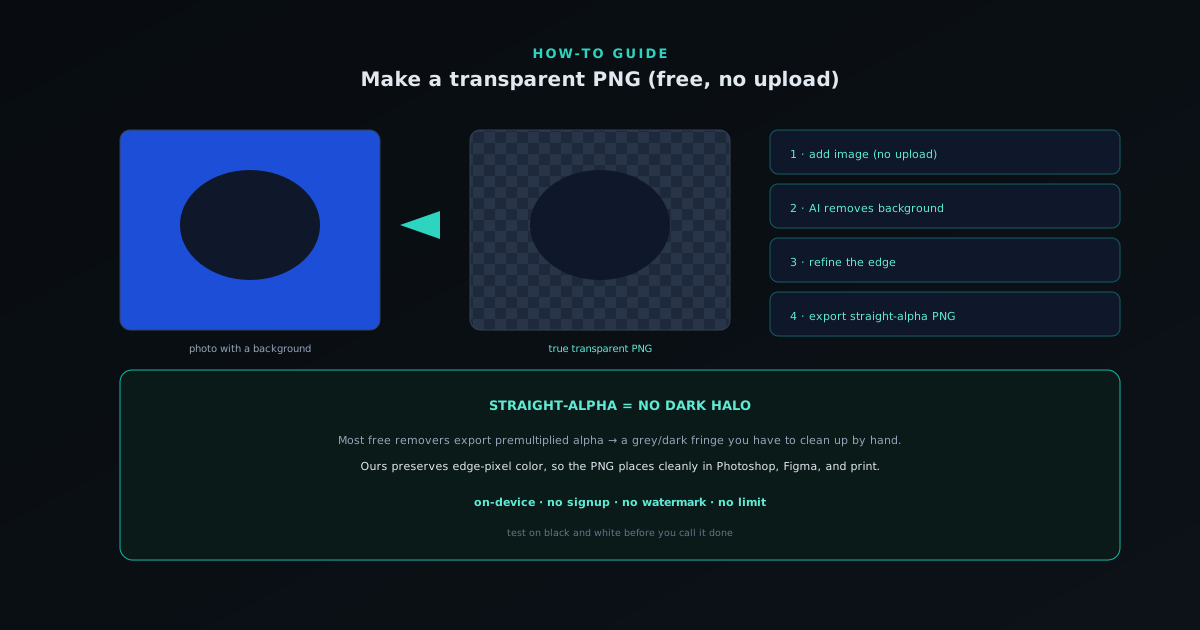
Choose a removal mode. Fast is right for product shots, headshots, and anything with a clean edge; Best Quality handles hair, fur, and fine detail; Glass is for transparent and reflective objects. The tool produces a high-precision mask (every pixel keeps a smooth opacity value rather than a hard on/off) and runs an automatic decontamination pass to remove color spill from the old background.
The checkerboard pattern you see after removal is real transparency, not a preview. For most clean subjects, the result is ready to export with no further work.
Step 3: refine the edge if needed
For tricky subjects, refine before exporting. The brush paints the subject back in or erases stray background; the magic wand selects leftover background by similarity in one click; a selection constrains your edits so a stroke cannot bleed. Spend your time on the edge; the interior is almost always correct.
Hair and fur are the exception that benefit from the higher-quality model rather than manual brushing. If a soft edge looks chewed, switch to Best Quality and re-process.
Step 4: export a true transparent PNG
Export as PNG (or WebP/AVIF for a smaller web file). The key detail: NSS Background Remover writes straight (non-premultiplied) alpha, which preserves the original color of edge pixels. That is what prevents the dark halo or grey fringe that appears when many other free removers export premultiplied alpha, a problem you would otherwise have to clean up by hand in Photoshop.
Before you call it done, drop the PNG onto both a dark and a light background to check the edge. A fringe that is invisible on white often shows on black. When it is clean on both, your transparent PNG is ready for any design tool, listing, or layout.
- Export formats: PNG, WebP, AVIF (all keep transparency).
- Straight-alpha = no dark halo in Photoshop, Figma, or print.
- Everything stays on your device; free, no watermark, no limit.
What "transparent" actually means in a PNG
It helps to understand what you are really making, because the word "transparent" hides the mechanism. A PNG can carry a fourth channel alongside red, green, and blue called alpha, which records how opaque each pixel is on a scale from fully transparent to fully solid. A transparent PNG is simply one where the pixels that used to be background have been set to fully transparent, and, crucially, the pixels at the edge of your subject carry partial opacity values so the boundary fades naturally rather than ending in a hard, jagged line. That partial-opacity edge is what makes a good cutout look like it belongs on its new background instead of being stamped onto it.
This matters because the quality of a transparent PNG lives almost entirely in those partial-opacity edge pixels. A crude cutout treats every pixel as either fully kept or fully removed, producing the hard, pasted-on look that gives cheap cutouts away instantly. A good one preserves a smooth gradient of opacity across the edge (the soft falloff of hair, the gentle blur at the rim of an out-of-focus subject), which is exactly what the high-precision mask in this tool is designed to capture. When you export, you are not just deleting a background; you are encoding a careful map of how opaque every pixel should be, and that map is what separates a professional cutout from an amateur one.
Picking the right removal mode for your subject
The mode you choose at the removal step has more effect on the result than anything else, so it is worth matching it to your subject deliberately rather than always taking the default. Fast mode is the right choice for the large majority of work (product shots, headshots, logos, and anything with a reasonably clean, well-defined edge) and it is quick enough that reaching for something heavier by default just costs you time for no visible gain. The instinct to always use the highest-quality setting is a common mistake; for a crisp-edged subject, Fast produces an identical-looking result far faster.
The heavier modes earn their cost on specific, harder subjects. Best Quality is built for fine, wispy edges (hair, fur, fringe, the fuzzy boundary of a soft object) where the extra precision genuinely shows, and it is the right call the moment a soft edge looks chewed or rough on the Fast pass. The dedicated glass-and-reflective handling is for transparent or shiny objects like glassware and jewelry, where the subject is partly see-through and a normal cutout would either erase too much or keep a hard rim. Knowing which subject calls for which mode means you spend processing time only where it improves the result, and get clean edges everywhere without waiting on the heavy model for images that never needed it.
How to handle the common subject types
Different kinds of subject have their own quirks, and a few specifics save a lot of trial and error. Logos and graphics with hard, geometric edges are the easiest case and almost always come out perfectly on the first pass, since there is no ambiguous boundary for the model to interpret. Product shots are nearly as reliable when the product was photographed against a contrasting background, which is why a little care at the shooting stage pays off. People are usually clean except at the hair, which is the one place to reach for the higher-quality model and, if needed, a few brush strokes.
The genuinely hard subjects are the ones that are partly transparent or have extremely fine detail: wine glasses, a model with flyaway hair against a busy backdrop, mesh or lace. For those, the combination of the right mode and a brief manual refinement is the reliable path, and it is worth accepting that these specific subjects take a minute of attention rather than expecting one click to nail them. The reassuring part is that this difficult category is a small fraction of real work; most transparent PNGs you need (a logo, a product, a clean headshot) are one-pass jobs, and only the visually ambiguous subjects warrant the extra care.
Choosing PNG, WebP, or AVIF for your cutout
All three export formats preserve transparency, so the choice between them is about where the image is going rather than whether the cutout survives. PNG is the universal, maximally-compatible option: it opens correctly everywhere, every design tool and platform understands it, and it is the safe default when you are not sure or when a marketplace or client expects it. The tradeoff is file size: a transparent PNG of a large image can be heavy, which matters if you are putting many of them on a web page.
WebP and AVIF are the modern alternatives that keep the transparency while producing substantially smaller files at similar visual quality, which makes them the better choice for your own website or anywhere page-load speed matters and you control the rendering. The practical rule is to use PNG when compatibility is the priority and WebP or AVIF when file size is, and to remember that you can re-export the same cutout in a different format at any time since the removal itself does not change. The cutout is the work; the format is just how you package it for a particular destination.
Where a transparent PNG actually gets used
It is worth knowing the destinations, because they shape how careful you need to be with the edge. A transparent logo goes on top of photos, colored headers, and merchandise, where any stray background or dark fringe would be glaringly visible against varied backdrops, so logos reward a clean, well-checked edge. Product cutouts go onto white marketplace backgrounds, into lifestyle compositions, and across storefront templates, where consistency across many images matters as much as any single cutout. Profile and sticker cutouts go onto chat backgrounds and overlays of unpredictable color.
The common thread is that a transparent PNG's whole purpose is to be placed somewhere else, onto a background you do not control, which is exactly why the edge quality and the straight-alpha export matter so much. A cutout that looks fine on the tool's own checkerboard but reveals a fringe on a real colored background has not actually done its job. Thinking about the destination while you cut (what will sit behind this, light or dark, busy or plain) tells you how much edge refinement the image really needs, and keeps you from either under-finishing a logo that will face many backgrounds or over-finishing a product shot that will only ever sit on white.
Checking the cutout before you call it done
A thirty-second check before you ship a transparent PNG catches the problems that are invisible in the tool itself. The single most useful test is to place the cutout over both a dark and a light background and inspect the edge, because a fringe that is invisible against white frequently shows against black, and vice versa. The tool's checkerboard preview is real transparency, but it is a neutral mid-tone, so it can hide edge issues that a strong color reveals, and checking against both extremes is how you catch a halo or a leftover rim before a client or a customer does.
Beyond the edge, glance at the interior for any holes the model punched in the subject (occasionally a region that matches the background color gets removed by mistake) and at fine details like gaps between fingers or strands of hair to confirm they were handled sensibly. These checks take seconds and are the difference between a cutout that is genuinely done and one that looks done until it is placed in context. For anything going in front of a client or onto a storefront, that brief verification pass is worth the small effort, because fixing a flaw now is trivial and discovering it after publishing is not.
Why doing this on your device matters
The fact that the whole process runs in your browser is not just a convenience; for a lot of the images people cut out, it is the difference between being able to use a free tool and not. Logos under embargo, unreleased product photography, client deliverables covered by confidentiality, profile and ID photos containing personal information: these are exactly the images people most often need to make transparent, and exactly the images you would least want to upload to an opaque third-party server. Because the model runs on your machine and the image never leaves it, that entire concern simply does not arise.
This on-device property also removes the usual limits that make free tools frustrating. With no server doing the work, there is no per-image cost to recover, which is why there is no cap on how many transparent PNGs you can make, no watermark, and no premium tier gating the good output. You can cut out one image or a hundred, on sensitive material or public, without weighing an upload or hitting a quota. The privacy and the generosity are the same architectural fact: the computation happening on your device is what keeps the tool both private and genuinely free.
From one cutout to the rest of the toolkit
A transparent PNG is often the starting point for something else, and the same suite that made the cutout can take it further without ever uploading it. A clean cutout can be dropped onto a solid color or gradient with bgremover.novusstreamsolutions.com/tools/add-background to produce a uniform marketplace shot, scaled up with the AI upscaler when it needs to fill a larger frame, turned into a multi-size favicon or app icon with bgremover.novusstreamsolutions.com/tools/ico-creator, or dropped into the image editor to be composited into a new scene. The cutout is reusable raw material, and recognizing that one good transparent PNG can feed several downstream outputs is what makes the initial effort pay off more than once.
This is why it is worth getting the cutout right rather than treating it as a throwaway step. Every later use (the upscaled version, the icon, the composited scene, the on-white listing image) inherits the quality of the original cutout, so a clean, well-checked transparent PNG improves everything built from it, while a sloppy one propagates its flaws. Thinking of the transparent PNG as the foundation of a small family of derived assets, rather than as a single disposable file, changes how much care it deserves and how much value you get from the few minutes spent making it properly. The whole toolkit runs on your device, so building out from a cutout stays as private and free as making it.
Troubleshooting a cutout that came out wrong
When a transparent PNG does not look right, the fix is usually quick once you recognize the symptom. A rough or chewed-looking soft edge, typically on hair or fur, almost always means the Fast model was used on a subject that needed Best Quality; switching modes and re-processing fixes it directly. A dark or grey fringe that appears only when you place the cutout on a light background points at an edge that picked up color from the old scene, which the automatic decontamination handles in most cases but which a manual touch-up can clean up for stubborn examples.
A hole punched in the middle of the subject, where a region matching the background got removed, is corrected by painting the subject back in with the brush; the magic wand and brush tools exist precisely for these recoveries. And if the whole cutout looks hard and pasted-on, the issue is usually that you are viewing a low-precision preview or exporting from a tool that does not do straight alpha, which is not a problem here since this tool preserves edge opacity and exports straight alpha by default. Most bad cutouts trace to one of these few causes, and each has a direct fix, so a result that disappoints on the first pass is nearly always a minute away from being right.
Frequently asked questions
Quick answers to common questions about this topic.
How do I make a transparent PNG for free?
Open the NSS Background Remover at https://bgremover.novusstreamsolutions.com, drop in your image, let the AI remove the background, and export as PNG. It is free, needs no account, and processes the image in your browser so nothing is uploaded.
Will the transparent PNG work in Photoshop, Figma, and Canva?
Yes. The export uses true straight-alpha transparency, so the cutout composites cleanly in Photoshop, Figma, Canva, and print layouts without the dark halo that premultiplied exports from many free tools produce.
Is there a watermark or limit on free transparent PNGs?
No. There are no watermarks, no usage limits, and no premium tier, so you can make as many transparent PNGs as you like at full quality.
Can I make a transparent PNG on my phone?
Yes. It works in modern mobile browsers and accepts HEIC straight from an iPhone, so you can drop in a photo and export a transparent PNG without installing an app.
Related workflow
Product photo to a transparent image every channel accepts
One photograph, cut out once, then re-encoded for a storefront, a marketplace listing and a social post without redoing the cutout each time.
- Cut the background out and check the edgesNSS Background Remover: Hair, glass and drop shadows are where automatic cutouts fail. Fix them once, on the master, before anything downstream copies the mistake.
- Re-encode and resize per destinationNovus Convert: Transparency survives PNG and WebP and dies in JPEG. Convert validates the file it hands back, so a listing never rejects a silently broken upload.
Related troubleshooting
Was this page helpful?
Your answer stays in this browser, it is not sent anywhere and no account or cookie is involved.