NSS Background Remover
The NSS Background Remover video editor, end to end
Edit a clip end to end: trim and arrange on a timeline, color-grade, add LUT filters and text overlays, work in layers, and export, all on-device, with 2×/4× video upscaling on hand.
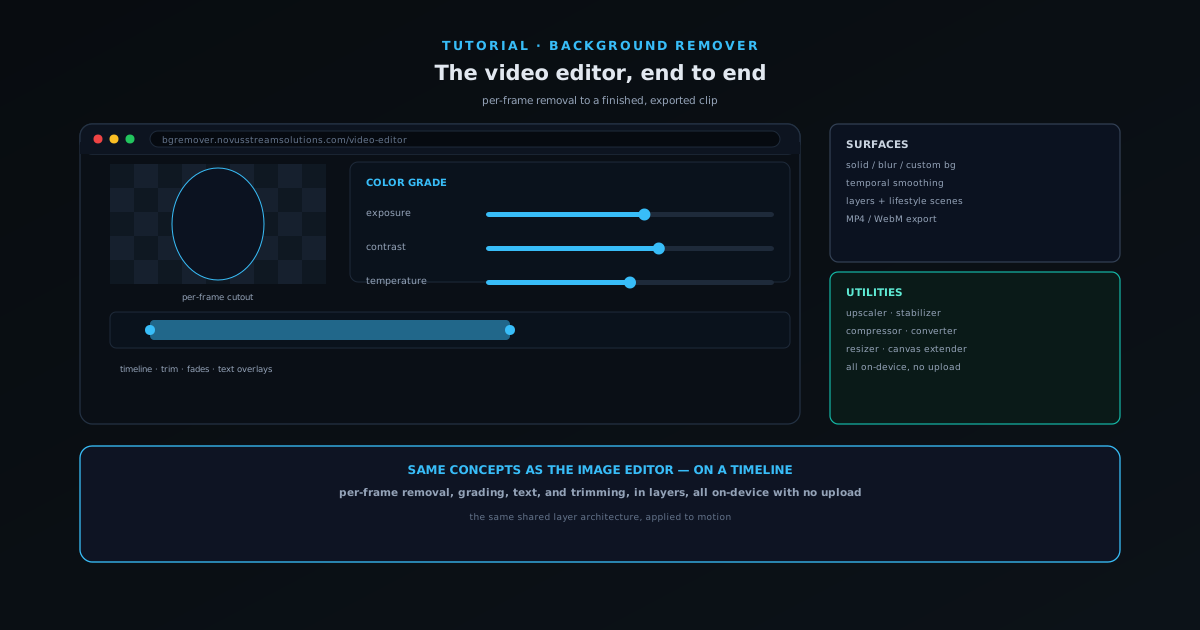
NSS Background Remover is not only an image tool; its video editor brings the same layer-based, on-device approach to a timeline. It handles trimming and fades, color grading, LUT-style filters, text overlays, layers, and export to MP4 or WebM, with 2×/4× upscaling available alongside it.
This tutorial walks the video editor end to end. As with images, everything runs on your device: decode, grade, and encode all happen locally, and nothing about your clip leaves the machine.
Contents
- 1
1. Open the video editor and load a clip
Open the video editor directly from the tool and load your clip. It decodes locally, with no upload; your footage stays on your device from the moment you open it.
The editor supports full-length playback, so you can work with the whole clip rather than a short preview.
- Everything runs on-device, with no upload.
- Inputs: MP4, WebM, MOV and more.
- 2
2. Trim, split, and arrange on the timeline
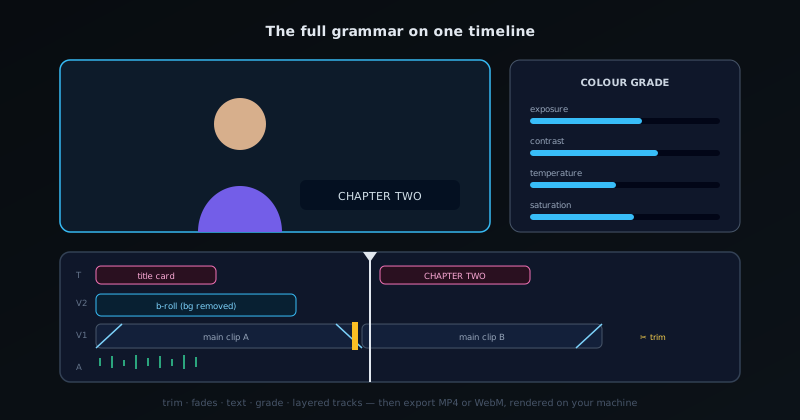
Set the structure first. Use the timeline to trim the head and tail, split the clip, and arrange segments in the order you want. Layers let you stack segments and overlays and reorder them without flattening everything into one destructive pass.
For most clips, cutting the dead air and getting the sequence right is the foundation everything else builds on.
- Timeline trim and split.
- Layered segments with reordering.
- 3
3. Grade and filter the footage
Use the color-grading sliders and LUT-style filters to set the look: sepia, faded film, high contrast, cool or warm treatments, and more. Because the editor is layer-aware, you can grade a segment independently of the others so the whole piece shares one consistent look.
Grading is where a plain clip becomes a shot with intent.
- Color-grade sliders plus LUT preset filters.
- Grade per layer for a consistent look across the piece.
The full grammar in one view: trim, grade, text, fades, and layers on a single timeline. - 4
4. Add text, trim, and fade on the timeline
Add text overlays, then use the timeline to trim the clip and add fades. These are the finishing moves that turn a processed clip into a deliverable, a titled, trimmed, cleanly-faded video.
Layers let you stack the subject, background, and text, and reorder or adjust them without flattening everything into one destructive pass.
- Text overlays, timeline trim, and fades.
- Layered composition with reordering and adjustment.
- 5
5. Upscale, finish, and export
When the edit is right, reach for the surrounding video utilities as needed (the 2×/4× upscaler for low-resolution footage, plus the stabilizer, compressor, format converter, resizer, canvas extender, rotate, and metadata remover) all in the same place. Then export to MP4 or WebM, produced on your device with no watermark.
Upscale before compressing so every step works from the best version of the pixels.
- 2×/4× upscaling plus stabilize, compress, convert, and more.
- Export MP4 / WebM on-device, no watermark.
Same concepts as the image editor
The video editor is built on the same shared layer architecture and the same on-device pipeline as the image editor, so the concepts transfer: layers, adjustments, and the no-upload guarantee mean the same thing whether you are working on a photo or a clip. What you learn arranging and grading a clip applies directly to a layered image composition.
Frequently asked questions
Quick answers to common questions about this topic.
What can the NSS Background Remover video editor do?
Trim, split, and arrange clips, color-grade, add LUT filters and text overlays, work in layers, and export, a full in-browser video editor that runs on your device with no uploads.
Is the video editor free?
Yes: free, no watermark, and on-device. Your footage stays in your browser the whole time.
Related workflow
Product photo to a transparent image every channel accepts
One photograph, cut out once, then re-encoded for a storefront, a marketplace listing and a social post without redoing the cutout each time.
- Cut the background out and check the edgesNSS Background Remover: Hair, glass and drop shadows are where automatic cutouts fail. Fix them once, on the master, before anything downstream copies the mistake.
- Re-encode and resize per destinationNovus Convert: Transparency survives PNG and WebP and dies in JPEG. Convert validates the file it hands back, so a listing never rejects a silently broken upload.
Related troubleshooting
Was this page helpful?
Your answer stays in this browser, it is not sent anywhere and no account or cookie is involved.