NSS Background Remover
The video utilities: upscale, stabilize, compress, convert, and clean metadata
Nine single-purpose video tools that fix delivery problems in the browser: 2×/4× upscaling, stabilization for handheld footage, compression, resizing, canvas extension, rotation, format conversion, side-by-side comparison, and metadata removal.
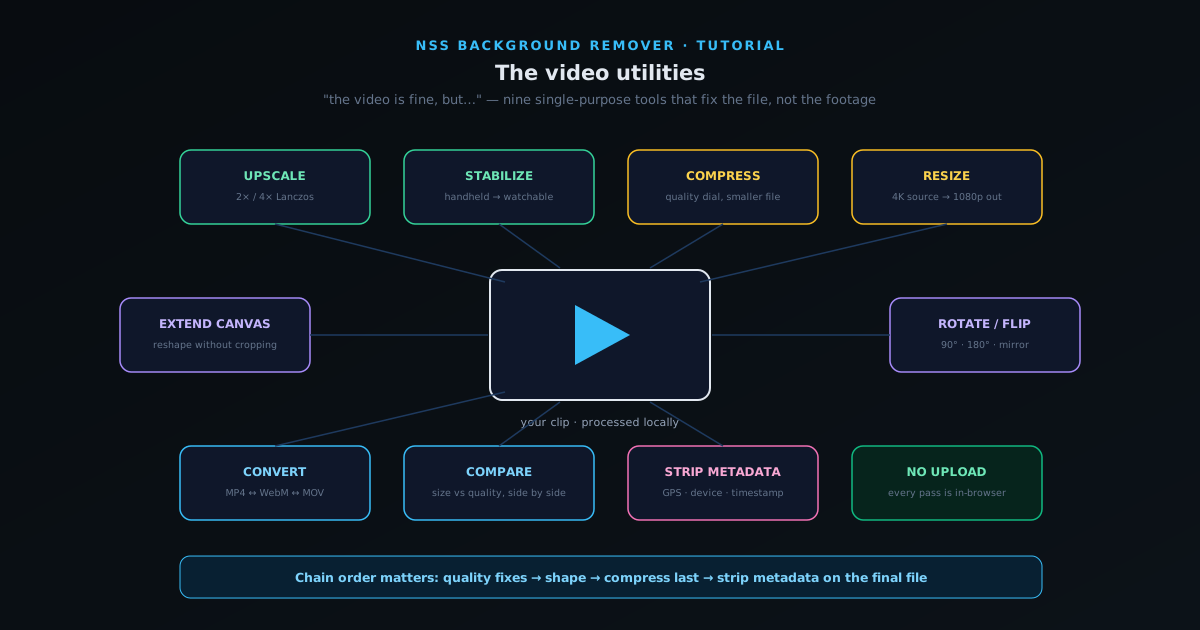
Alongside the full video editor, NSS Background Remover ships a shelf of single-purpose video utilities, the tools you reach for when the footage is fine but the file is wrong. The clip is too low-resolution for the platform, too shaky to watch, too big to send, the wrong shape, the wrong format, or carrying GPS coordinates you would rather not publish. Each utility does one of those jobs and nothing else.
Like everything in the app, the utilities process video on your device: no upload, no queue, no account. This tutorial tours the shelf in the order the jobs usually arrive: quality fixes first (upscale, stabilize), then delivery fixes (compress, resize, extend canvas, rotate), then format work (convert, compare), and finally the privacy pass (metadata removal) before anything leaves your machine.
Contents
- 1
1. Know when to use a utility instead of the editor
The video editor is for changing what the video shows: cuts, text, and grading. The utilities are for changing the file itself while leaving the content alone. If your sentence starts with "the video is fine, but…" you want a utility, and the right one is usually named in the rest of the sentence.
Utilities are also faster than editor round-trips for their jobs: each one opens, takes a file, applies its single transformation, and hands back the result.
- Editor: change what the video shows. Utilities: change the file.
- "The video is fine, but…" The rest of the sentence names the utility.
- 2
2. Upscale low-resolution footage (2× / 4× Lanczos)
The upscaler raises resolution by 2× or 4× using Lanczos resampling, the classical high-quality scaler that preserves edges far better than naive stretching. A 720p clip becomes a clean 1440p; older 480p footage becomes usable 1080p. It will not invent detail that was never captured, but it removes the soft, smeared look platforms create when they stretch a small video to fill a large player.
Upscale before compressing or converting, so every downstream step works from the best version of the pixels.
- 2× and 4× Lanczos upscaling, in the browser.
- Removes platform-stretch softness; cannot invent missing detail.
- Upscale first in any multi-step chain.
- 3
3. Stabilize handheld footage
The stabilizer analyzes the clip's motion and counteracts handheld shake, the difference between footage that reads as deliberate and footage that reads as accidental. It earns its keep on walking shots, phone-in-hand product demos, and anything filmed without a tripod.
Stabilization crops slightly inward to create room for the correction, so frame your shots with a little headroom if you know you will stabilize. Severe shake is reduced rather than erased; the tool makes shaky footage watchable, not gimbal-perfect.
- Counteracts handheld shake; best on walking and demo shots.
- Expect a slight inward crop; frame with headroom.
- 4
4. Compress, resize, extend, and rotate for delivery
Four utilities fix delivery problems. The compressor shrinks file size with a quality control: for the email attachment limit, the messaging app cap, the upload that times out. The resizer changes resolution outright (4K source to a 1080p deliverable). The canvas extender pads the frame to a new aspect ratio without cropping, a landscape clip letterboxed into a square or vertical canvas for feed posts. And rotation fixes the phone clip that arrived sideways: 90° either way, 180°, or flipped.
These chain naturally: rotate first if needed, extend or resize to the target shape, compress last. Doing compression last matters: compressing and then resizing throws away quality twice.
- Compress with a quality slider; resize to target resolution.
- Canvas extender re-shapes without cropping (landscape → square/vertical).
- Rotate/flip fixes sideways phone footage.
- Chain order: rotate → reshape → compress last.
Delivery fixes chain in a fixed order: rotate, reshape, resize, and compress last so quality is only spent once. - 5
5. Convert formats, and compare before you commit
The converter moves clips between MP4, WebM, and MOV. The usual reasons: a platform that only accepts MP4, a web page that wants WebM, an editing handoff that expects MOV. Conversion re-encodes, so it costs a little quality each time; convert once to the target, not back and forth.
When you are unsure which format or setting to ship, the comparison tool puts two versions side by side with their file sizes, so you can see what a smaller file actually looks like before committing. Thirty seconds of comparison routinely saves shipping an over-compressed clip or an unnecessarily huge one.
- MP4 ↔ WebM ↔ MOV, converted locally.
- Convert once to the target; avoid round-trips.
- Side-by-side comparison shows size vs. quality before you commit.
- 6
6. Strip metadata before sharing
Video files carry more than video: GPS coordinates from the phone that shot them, device model and serial details, and capture timestamps. The metadata remover strips these before a clip goes anywhere public, the same privacy pass you would give a photo, applied to video.
Make it the last step before sharing anything filmed at home, at a client's site, or anywhere the location is nobody's business. Since the whole pipeline is in-browser, the unstripped original never touches a server in the first place.
- Removes GPS, device, and timestamp metadata.
- Run it last, on the final deliverable.
- Originals never leave your machine at any step.
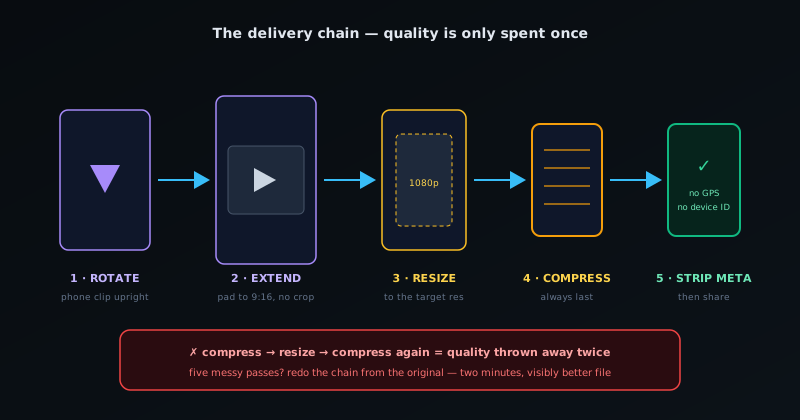
One pass per job, in the right order
Every utility pass re-encodes the file, and quality spent is never refunded. Plan the chain before you start: quality fixes first (upscale, stabilize), shape and size second, compression second-to-last, and the metadata strip on the final file. If you catch yourself running a clip through five passes, do the chain again from the original in the right order; it takes two minutes and ships a visibly better file.
Frequently asked questions
Quick answers to common questions about this topic.
What video utilities does the Background Remover include?
Upscale, stabilize, compress, format-convert, resize, rotate, and strip metadata from video, a full set of utilities that run on your device with no upload.
Can I clean location data from a video?
Yes: the video metadata remover strips embedded data like location before you share, keeping the file from leaking where it was shot.
Related workflow
Product photo to a transparent image every channel accepts
One photograph, cut out once, then re-encoded for a storefront, a marketplace listing and a social post without redoing the cutout each time.
- Cut the background out and check the edgesNSS Background Remover: Hair, glass and drop shadows are where automatic cutouts fail. Fix them once, on the master, before anything downstream copies the mistake.
- Re-encode and resize per destinationNovus Convert: Transparency survives PNG and WebP and dies in JPEG. Convert validates the file it hands back, so a listing never rejects a silently broken upload.
Related troubleshooting
Was this page helpful?
Your answer stays in this browser, it is not sent anywhere and no account or cookie is involved.