NSS Background Remover
3D mode and depth relief: orbit, bas-relief, and a 360 recorder
Turn a flat image into a depth-displaced bas-relief mesh, orbit it in a Three.js scene with a furniture palette, and record a short 360-degree spin to WebM, all on-device.
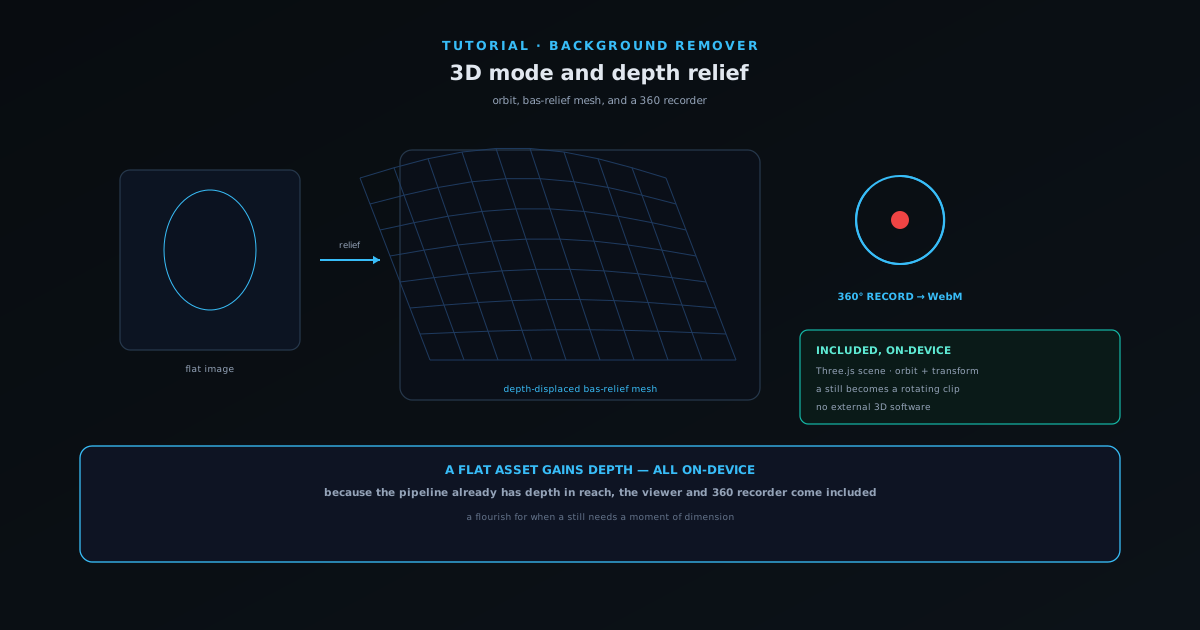
One of the least expected features in a background remover is a genuine 3D mode. The editor includes a Three.js-backed scene with orbit controls, transform controls, and a furniture palette, plus a relief feature that turns an image into a depth-displaced bas-relief mesh.
This tutorial covers using 3D mode to push a flat image into a subtly three-dimensional surface, orbiting it on a canvas, and recording a short 360-degree spin, turning a still into a rotating clip without any external 3D software.
Contents
- 1
1. Enter 3D mode
From the editor, switch into 3D mode to open the Three.js-backed scene. You get orbit controls to move around the view and transform controls to position elements, plus a furniture palette for staging.
This is a viewer and staging environment running locally in your browser, the same on-device pipeline as the rest of the tool.
- Three.js scene with orbit and transform controls.
- Furniture palette for staging.
- 2
2. Create a depth-relief mesh
Use the relief feature to turn your image into a depth-displaced bas-relief mesh, a flat picture pushed into a subtly three-dimensional surface based on estimated depth. It is a striking treatment for a photo, a product, or a logo.
The depth information is estimated on-device, so the relief is generated without sending the image anywhere.
- Relief = a depth-displaced bas-relief mesh from a flat image.
- Depth is estimated locally.
- 3
3. Orbit and frame the result
Orbit around the result on the canvas to find the angle you want. The orbit and transform controls let you frame the relief or the staged scene exactly, the way you would in a lightweight 3D viewer.
This is where a flat asset becomes something with a sense of depth and dimension you can present.
- Orbit to find the best angle.
- Frame the relief or staged scene precisely.
Depth estimation turns the flat image into a relief, and the orbit shows it off. - 4
4. Record a 360-degree spin
Use the built-in recorder to capture a short 360-degree orbit to WebM. A still becomes a rotating clip (a product spin, a depth-relief treatment of a logo or photo) produced entirely on your device.
The recorder outputs a short WebM you can drop straight into a post or a composite.
- Records a short 360-degree orbit to WebM.
- Turns a still into a rotating clip, no external 3D software.
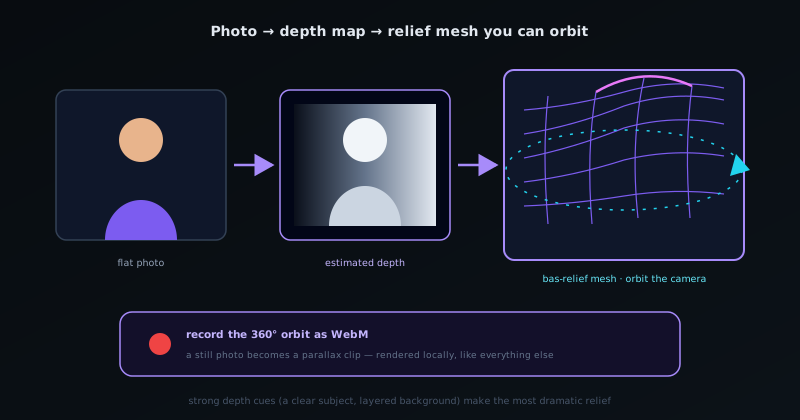
A flourish, not the main event
3D mode is an occasional flourish (a product spin, a depth treatment of a logo) rather than an everyday step, and that is the point: because the pipeline is already on-device and has depth in reach, features that would be expensive as cloud services come included. Reach for it when a still needs a moment of dimension.
Frequently asked questions
Quick answers to common questions about this topic.
What does 3D mode in the Background Remover do?
It builds a depth-based 3D view of your image (orbit around it, generate a bas-relief mesh, and record a 360 spin) turning a flat photo into a dimensional asset, all in the browser.
Can I export the 3D view as a video?
Yes: the 360 recorder captures an orbit you can export, useful for product showcases and dynamic social posts.
Related workflow
Product photo to a transparent image every channel accepts
One photograph, cut out once, then re-encoded for a storefront, a marketplace listing and a social post without redoing the cutout each time.
- Cut the background out and check the edgesNSS Background Remover: Hair, glass and drop shadows are where automatic cutouts fail. Fix them once, on the master, before anything downstream copies the mistake.
- Re-encode and resize per destinationNovus Convert: Transparency survives PNG and WebP and dies in JPEG. Convert validates the file it hands back, so a listing never rejects a silently broken upload.
Related troubleshooting
Was this page helpful?
Your answer stays in this browser, it is not sent anywhere and no account or cookie is involved.