NSS Background Remover
Making transparent logos and graphics
Turn a logo on a solid or busy background into a clean transparent PNG that drops onto any color: the right mode, edge refinement for crisp type, and an export that won’t halo.
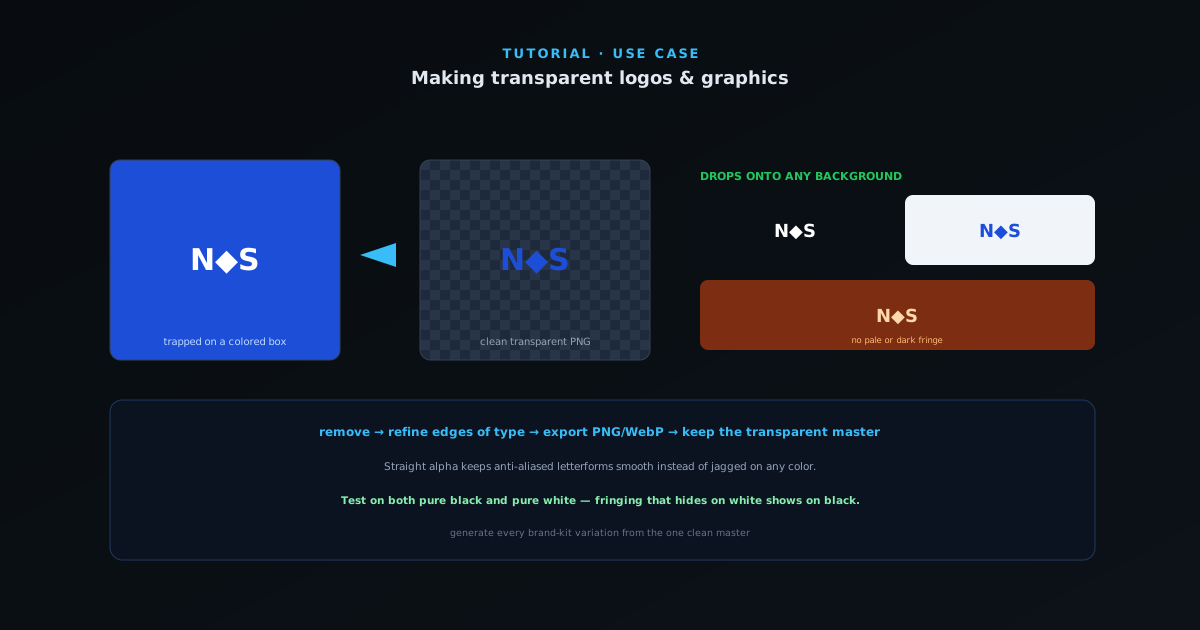
A logo trapped on a white or colored background is hard to reuse: you cannot place it on a dark header, a photo, or merch without the box around it showing. This guide turns that into a clean transparent PNG that works everywhere, in a few minutes.
Contents
- 1
- 2
2. Refine for crisp edges
Type and sharp geometric marks need clean edges. Use the brush and selection tools to tidy any rough spots around letterforms and thin elements, where a slightly soft AI edge is most visible. The straight-alpha output keeps anti-aliased edges smooth rather than jagged.
- Brush/selection cleanup around type.
- Smooth anti-aliased edges via straight alpha.
- 3
3. Export a transparent PNG (or WebP)
Export as a transparent PNG for maximum compatibility, or WebP for a smaller file on the web. Because the alpha is straight, the logo will drop onto a dark header, a colored button, or a photo without a pale or dark fringe around it.
- PNG for compatibility, WebP for web.
- No fringe on dark or colored backgrounds.
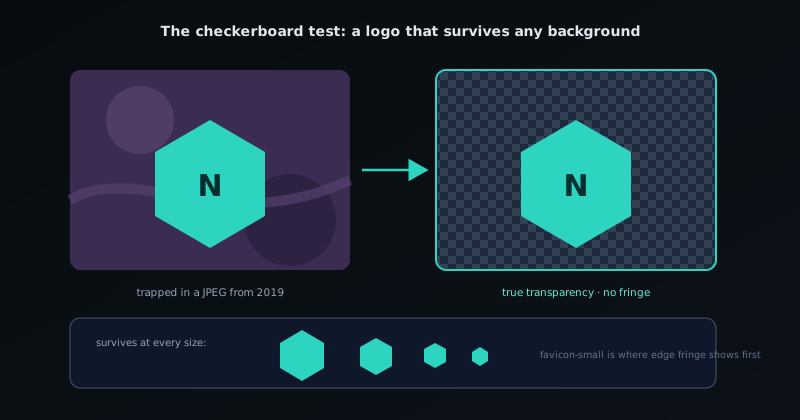
A good logo cutout survives the checkerboard test: clean edges with no background fringe. - 4
Keep the transparent master
Always keep one clean transparent PNG as your master and generate every placement from it, rather than re-cutting the logo each time. Test the cutout on both a very dark and a very light background before you call it done; fringing that is invisible on white often shows up on black.
Frequently asked questions
Quick answers to common questions about this topic.
How do I make a logo with a transparent background?
Remove the background from your logo image and export as PNG with true straight-alpha transparency, so it drops cleanly onto any color or design without a white box or halo.
What format is best for a transparent logo?
PNG for maximum compatibility, or WebP/AVIF for smaller files where supported. All preserve the transparent background; avoid JPG, which has no alpha channel.
Related workflow
Product photo to a transparent image every channel accepts
One photograph, cut out once, then re-encoded for a storefront, a marketplace listing and a social post without redoing the cutout each time.
- Cut the background out and check the edgesNSS Background Remover: Hair, glass and drop shadows are where automatic cutouts fail. Fix them once, on the master, before anything downstream copies the mistake.
- Re-encode and resize per destinationNovus Convert: Transparency survives PNG and WebP and dies in JPEG. Convert validates the file it hands back, so a listing never rejects a silently broken upload.
Related troubleshooting
Was this page helpful?
Your answer stays in this browser, it is not sent anywhere and no account or cookie is involved.