2026 · Novus VisualizersAbout 12 min readNovus Stream Solutions
Make a music visualizer on your phone, start to finish
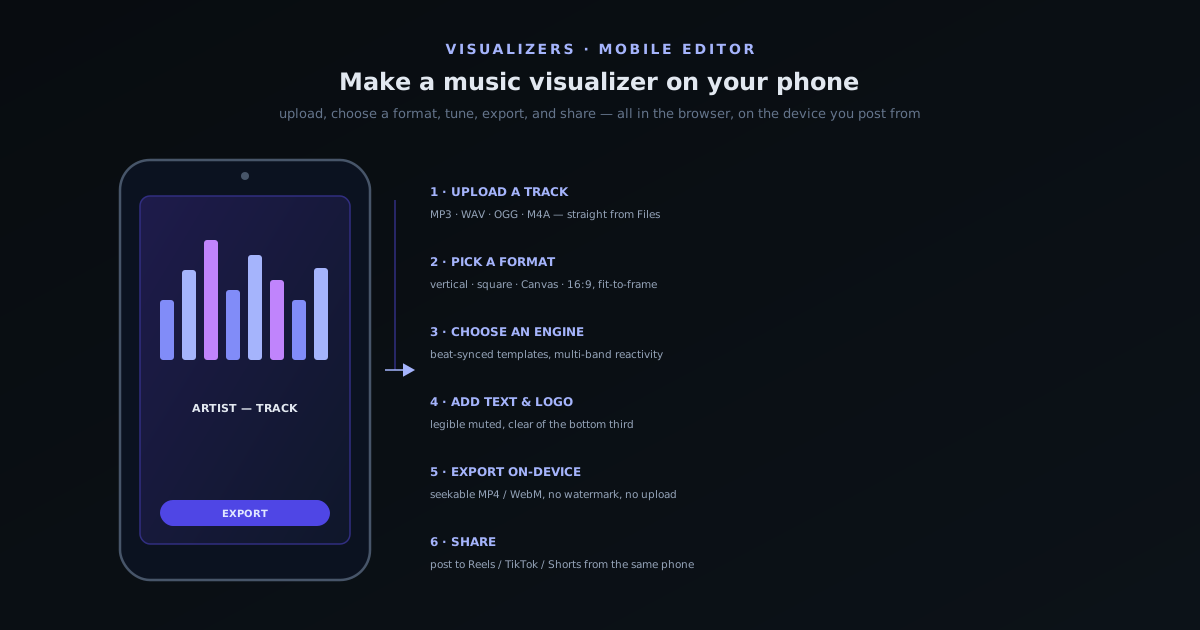
A phone is now enough to make a release-ready music visualizer. This is the complete mobile workflow in Novus Visualizers (from uploading a track to exporting a vertical, beat-synced video) done entirely in your phone's browser, free and on-device.
Contents
- 1.Overview
- 2.Why your phone is enough now
- 3.Step 1: Bring in your track
- 4.Step 2: Choose a format for where it is going
- 5.Step 3: Pick an engine and make it react
- 6.Step 4: Add your text, logo, and lyrics
- 7.Step 5: Preview, then export on your device
- 8.Step 6: Share it where it is going
- 9.Save, revisit, and publish from the phone
- 10.Getting good results within mobile's limits
Overview
For a long time, making a music visualizer meant sitting at a desktop: a render-heavy app, a big screen, a file you exported and then moved to your phone to actually post. That order is now backwards. Most music is discovered on phones, most short-form video is shot and posted on phones, and the tools have finally caught up: the Novus Visualizers mobile editor lets you do the whole job on the device in your pocket, from uploading a track to exporting a finished, beat-synced video, in a browser tab, for free, with nothing rendered on a server. This guide walks the entire mobile workflow end to end, so that "I have a song on my phone and I want a video for it" becomes a fifteen-minute task instead of a desktop session.
The case for doing it on a phone is not just convenience, though convenience is most of it. It is that the phone is where the constraints of the destination live: a vertical frame, a thumb-scrollable first second, a track you are already listening to in your headphones. Working on the device you will post from keeps you honest about how the result will actually be seen, and removes the friction (the export, the transfer, the reformat) that causes half-finished videos to never get posted. The sections below take the workflow in the order you would actually move through it on a phone: pick a track, choose where it is going, choose a look and sync it to the beat, add your text and logo, preview, export, and share. None of it assumes a desktop at any point.
Why your phone is enough now
The reason this works now and did not a year ago is that the mobile editor was genuinely rebuilt for touch rather than shrunk down from the desktop layout. Controls are sized for thumbs, the panels collapse so the preview gets the screen, and the interactions that used to assume a mouse (fine dragging, hover, precise selection) have touch equivalents. Just as importantly, the export engine was rebuilt to produce seekable MP4 and WebM files that match the preview, which is the part that historically broke on phones: an export that stalled, timed out, or came out looking different from what you tuned. The current version exports reliably on mobile and falls back sensibly when a particular format gives a device trouble.
Underneath, the same thing that makes the desktop version private makes the mobile version possible: it runs in the browser, on your device, reading your audio with the Web Audio API and rendering frames locally. There is no app to install (though you can add it to your home screen), no account required to make and export a video, and no upload: your track never leaves the phone. That on-device design is why a free tool can let you export 4K-capable, copyright-free video without a watermark or a quota: it is using your phone's hardware, not a server farm you would have to pay for. The practical message is simple: if you have a modern phone and a track, you have everything you need, and the rest of this guide is just which buttons to press.
Step 1: Bring in your track
The workflow starts with audio, so the first step on the phone is to get your track into the editor. Open visualizers.novusstreamsolutions.com in your mobile browser and choose to upload a file; the editor accepts the common formats a phone will have (MP3, WAV, OGG, and M4A) whether that is a finished master, a rough mix, a voice memo, or a snippet you want a teaser for. On a phone, the file usually comes from your Files app, your downloads, or wherever your DAW or recording app saved it; the picker hands it straight to the editor, which decodes the audio locally to read its waveform and beat structure.
A small but useful habit at this stage is to decide what slice of the track you actually want to visualize before you go further. For short-form platforms you rarely want the whole song (you want the hook, the drop, or the most arresting fifteen to thirty seconds), and trimming to that section early keeps everything downstream faster and more focused. The editor lets you work with a section rather than committing the entire track, which on a phone also means shorter previews and quicker exports. Getting the right few seconds in front of you now is the single decision that most determines whether the finished clip stops a thumb mid-scroll, so it is worth a moment before moving on to the look.
Step 2: Choose a format for where it is going
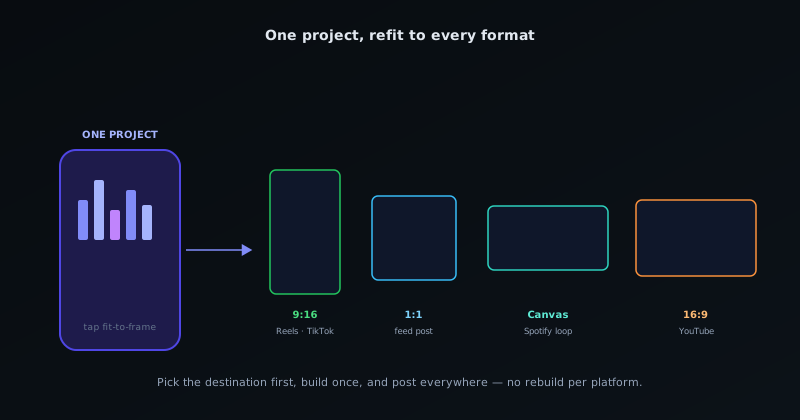
Before you touch the visuals, decide the shape of the video, because the format determines how everything else is composed. This is one of the places the recent version genuinely changed the workflow: you can pick a target format up front and resize to it with a one-tap fit-to-frame, rather than designing in one aspect ratio and then fighting to retrofit another. The formats that matter on a phone are the vertical 9:16 frame for TikTok, Reels, and Shorts; the square frame for feed posts; the Spotify Canvas dimensions for the looping clip on a track's page; and the standard 16:9 if the destination is YouTube. Picking one now means the text, logo, and focal point all land where they should for that frame.
The strategic point is that one project can become several formats without starting over. If a clip is going to Reels and a Canvas and a square feed post, you can build it once and refit it to each shape, adjusting only what the new frame demands rather than rebuilding from scratch, the same one-source-many-outputs logic the ecosystem applies to images. On a phone, where you are likely posting to multiple vertical-first platforms anyway, this is the feature that turns "make a video for TikTok" into "make a video for everywhere I post" at almost no extra cost. Choose the primary destination first, build for it, and treat the other formats as quick refits at the end. The dedicated guide at Making a vertical music visualizer for TikTok & Reels goes deeper on the vertical case specifically.
Step 3: Pick an engine and make it react
With a track and a frame in place, the fun part is choosing how it looks, and the editor offers a large library of visualization engine families (abstract waveforms, particle systems, geometric and 3D scenes, retro and minimal styles), each with variants you can flip through. On a phone the easiest path is to browse the templates at visualizers.novusstreamsolutions.com/editor, which cycle through their visualization modes so you can see them moving before you commit, and tap into the one that fits the track. There is no blank canvas to fill; you start from something that already works and adjust, which is exactly the right default on a small screen where building from nothing is painful.
The thing that turns a generic animation into a music visualizer is that it reacts to the audio, and this is handled for you: the engines are beat-synced, so the motion lands on the track's rhythm rather than looping on a timer. The more capable styles support multi-band reactivity (bass, mids, and treble driving different elements), so a kick can pulse one thing while a hi-hat flickers another, which is what makes a visualizer feel locked to the song instead of merely playing over it. You do not have to configure any of this by hand to get a good result; the reaction is on by default and you tune its intensity to taste. Choosing an engine that suits the genre matters more than any single setting, which is why Best music-visualizer styles for each genre is worth a look while you browse.
Step 4: Add your text, logo, and lyrics
A visualizer for a release is not just motion; it carries information: at minimum the artist and track name, often a logo, and sometimes lyrics. The editor lets you add and position text and a logo over the animation, and on a phone the key is to place them with the vertical frame and the platform's interface in mind: keep the important elements clear of the bottom third where captions and UI buttons sit, and clear of the very edges that some players crop. Large, legible type that survives being viewed small and muted is the goal, because most of the audience meets the clip on a small screen with the sound off until something makes them turn it on.
If the clip is built around the vocal, the lyric tooling turns it into a lyric video (text timed to the words rather than static credits), which is one of the highest-performing formats for short-form music promotion because it gives a silent scroller something to read. Everything you add reacts within the same scene, so the text and logo can move with the music rather than sitting inertly on top of it. The discipline here is restraint: a phone-sized vertical frame has limited room, and a visualizer that is legible and uncluttered will outperform a busy one. Add what the viewer needs to know who this is and what the track is, make it survive a muted thumbnail, and stop there.
Step 5: Preview, then export on your device
Before exporting, preview the section the way it will actually be seen: on the phone, at the frame you chose, with the audio. This is where working on the device pays off: the preview is a faithful representation of the export because the same engine renders both, so what you tune is what you get. Watch specifically for the muted first second (does it stop a scroll?), the legibility of the text at phone size, and whether the motion is locked to the beat where it matters most. Small adjustments here (a brighter palette, bigger type, a tighter trim) are far cheaper than re-exporting after you have posted.
When it looks right, export. The rebuilt export engine renders the video locally and produces a seekable MP4 or WebM that matches the preview, with a WebM fallback if a particular MP4 export gives your device trouble. Because the rendering happens on the phone, export time depends on your hardware and the clip's length and complexity (a short vertical clip exports quickly, a long or heavy one takes longer), which is another reason trimming to the section you need pays off. There is no watermark, no quota, and the output is yours to use, including commercially, without attribution. The file lands in your phone's downloads, ready to post from the same device you made it on.
Save, revisit, and publish from the phone
A practical worry with doing creative work on a phone is losing it (a tab closes, a call comes in, the battery dies mid-edit), but the current version addresses this by saving your project so you can leave and come back rather than starting over. That persistence matters more on a phone than a desktop, because phone work happens in the gaps of a day, interrupted constantly, and a tool that forgets your progress the moment you switch apps is unusable for real work. Being able to start a visualizer on the bus, set it down, and finish it later is what makes the phone a genuine creation device rather than a toy.
The same release also lets you publish directly from the editor, which on a phone closes the loop entirely: you can go from a track to a finished, shared visualizer without ever touching a desktop or moving a file between devices. That end-to-end, on-the-phone path (create, save, refit to a format, export, and publish or share) is the real unlock, because it removes the export-and-transfer step that historically forced even mobile-first creators back to a computer to actually post. For sharing to the platforms where music is discovered, doing the whole thing on the device you will post from is not just convenient; it is what makes the habit stick.
Getting good results within mobile's limits
Working on a phone has real constraints, and a few habits keep them from getting in the way. The biggest is heat and battery: rendering video is demanding, so a long or complex export can warm the phone and drain it; keeping clips short, closing other heavy apps, and exporting while plugged in if you are doing several all help. Memory is the other limit (very long tracks or the heaviest 3D engines ask more of the device), so if a preview stutters or an export struggles, trimming the section, choosing a lighter engine, or dropping the resolution a notch usually resolves it without a visible quality cost on a phone-sized screen.
The general principle is to lean into what mobile is good at rather than fighting it. Phones excel at short, vertical, punchy clips meant for muted scrolling (which is exactly what short-form platforms reward), so a thirty-second vertical hook with a clear look and legible text plays to every strength at once. Where a phone struggles is the long, dense, desktop-class render, and the right response is usually not to force it but to scope the clip to what the phone does well, which also happens to be what the audience wants. Used this way, the mobile editor is not a compromised version of the desktop one; for the short-form, post-from-your-pocket workflow that most music promotion now lives in, it is the better fit. Open visualizers.novusstreamsolutions.com on your phone and the whole thing is a few taps away.
Frequently asked questions
Quick answers to common questions about this topic.
Can I really make a music visualizer entirely on my phone?
Yes. The Novus Visualizers mobile editor runs in your phone browser: upload a track, pick a format, choose a beat-synced engine, add text and a logo, preview, and export a finished MP4 or WebM, all on the device. No desktop, no app install, and no account is required to make and export a video.
Does my track get uploaded to a server?
No. The editor reads and renders everything locally in the browser using your device's hardware. Your audio never leaves the phone, there is no quota, and the exported video is yours to use, including commercially, with no watermark or attribution required.
What format should I export for TikTok, Reels, or Spotify Canvas?
Pick the format before you design. Use vertical 9:16 for TikTok, Reels, and Shorts; square for feed posts; the Canvas dimensions for a Spotify track page; and 16:9 for YouTube. One project can be refit to several formats with a one-tap fit-to-frame, so you can build once and post everywhere.
Will exporting drain my battery or overheat my phone?
Rendering video is demanding, so long or complex exports can warm the phone and use battery. Keep clips short, close other heavy apps, and plug in for batch exports. If a preview stutters, trim the section, choose a lighter engine, or lower the resolution; on a phone screen the quality difference is usually invisible.
Related workflow
A track to a release-ready visualizer, per platform
Render the visual once, then produce the platform masters from it, instead of re-rendering the whole video for every aspect ratio.
- Render the beat-synced videoNovus Visualizers: Pick the engine and mode against your actual track; the analysis is done on your audio, not on a preset preview.
- Trim or upscale the exportNSS Background Remover: The video utilities handle the tidy-up pass so the render does not have to be repeated to fix ten seconds of it.
- Produce the per-platform mastersNovus Convert: Each destination wants a different container and bitrate; converting the finished render is far cheaper than re-rendering it.
Related troubleshooting
Was this page helpful?
Your answer stays in this browser, it is not sent anywhere and no account or cookie is involved.