2026 · Novus VisualizersAbout 13 min readNovus Stream Solutions
How to make a music visualizer video
Turn a track into a beat-synced music visualizer video, free and in the browser, from uploading your audio to exporting an MP4 ready for YouTube, TikTok, or Spotify Canvas.
Reviewed and updated August 1, 2026. Re-checked against the Novus Visualizers V3 catalog on August 1, 2026. The app now ships ten engines with six modes each (sixty modes in total), so the counts, the engine list, and the mode arithmetic in this article have been corrected. The Logo engine landed after this piece was first published.
Contents
- 1.Overview
- 2.Step 1: upload your track
- 3.Step 2: pick an engine and mode
- 4.Step 3: customize and beat-sync
- 5.Step 4: export your video
- 6.What the analysis is reading from your track
- 7.Choosing the strongest part of your song
- 8.Matching the look to your genre
- 9.Using layers to add depth
- 10.Tuning reactivity so it accents, not overwhelms
- 11.Adding your titles and branding
- 12.Sizing the export for each platform
- 13.Why the export is fast and fully yours
- 14.Taking it further for a full release
- 15.Beginner mistakes that are easy to avoid
Overview
A music visualizer is a video where the visuals move with your track: the standard format for releasing a song on YouTube, looping it on social, or filling a Spotify Canvas. You do not need motion-graphics software to make one. This guide does it free, in the browser, with Novus Visualizers.
Open visualizers.novusstreamsolutions.com/editor. The whole flow (audio analysis, rendering, and export) runs on your device. If you would rather follow a fully guided version, the walkthrough at How to make a music visualizer video with Novus Visualizers covers every option in order.
Step 1: upload your track
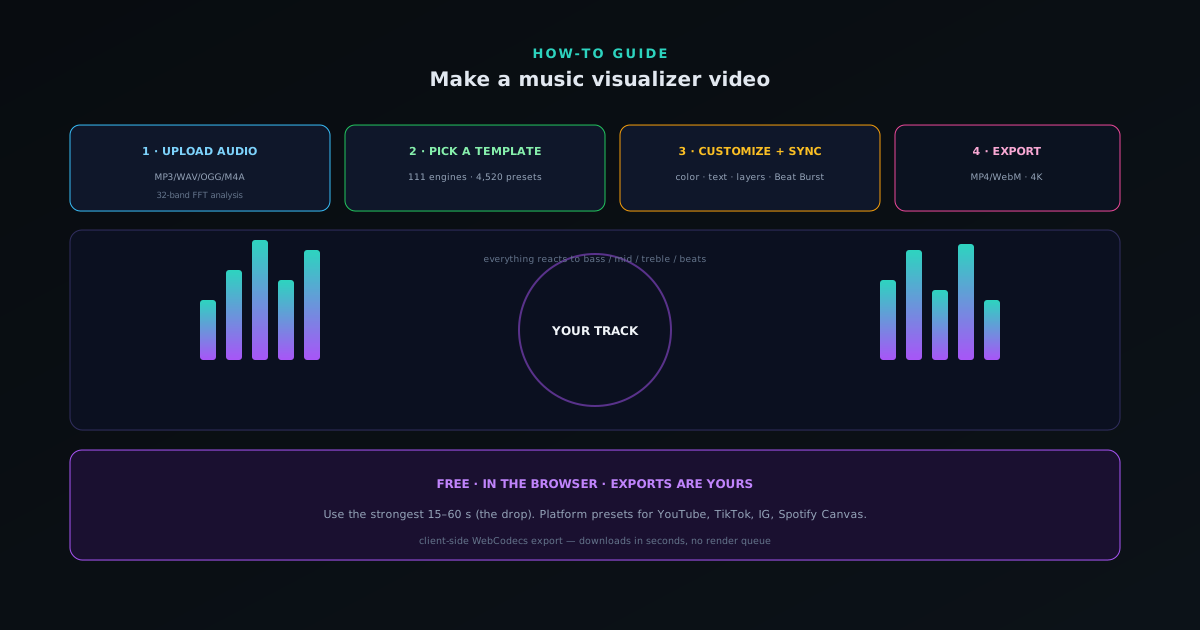
Add your audio (MP3, WAV, OGG, or M4A). As it loads, the tool analyzes it in real time with a 32-band FFT, detecting the beat and splitting the sound into bass, mid, and treble. That analysis is what every visual reacts to, so the more dynamic and beat-driven your track, the better the result.
You do not need the whole song: for most videos, the strongest 15–60 seconds (the drop or hook) makes the best visualizer.
Step 2: pick an engine and mode
Open the editor at visualizers.novusstreamsolutions.com/editor and browse the ten engines (Particles, Trails, Bloom, Character Motion, Radial, Spectrum, Bars, Tunnel, Waveform, and Logo) each with six modes, then choose a starting look or start blank. Matching the style to your genre (bold and punchy for EDM, calm and flowing for lo-fi) gets you most of the way in one click. Picking an engine and mode gives you that look already reacting to your track. For a fuller map of which looks suit which genres, Matching visualizer styles to music genres: a working guide walks through them one by one.
You are now tuning something live rather than guessing from a thumbnail.
Step 3: customize and beat-sync
Make it yours: recolor with one of nine themes or match your cover art, add your title and artist text, and stack ordered reactive layers for depth. Beat Burst drives the main motion on the detected beats, and you can layer reactive properties (pulse, glow, shake, tilt) so the drops land. Tune the intensity so the beat feels like an accent, not a constant strobe.
If you want lyrics or captions, the on-device AI captions transcribe your audio with per-word timing, covered in its own guide.
Step 4: export your video
Export when the look is right. Encoding happens client-side with WebCodecs, so a finished video downloads in seconds rather than waiting on a render queue. Choose your resolution up to 4K, a frame rate (24/30/60 fps), and a format (MP4 or WebM), then use a platform preset to size it for YouTube, TikTok/Reels, Instagram, or Spotify Canvas.
Your exports are copyright-free and yours to publish. For a full release, the companion tools add matching album art, lyric videos, and stream overlays.
- Audio in: MP3, WAV, OGG, M4A.
- Export: MP4/WebM, up to 4K, 24/30/60 fps, platform presets.
- Free, ad-supported, exports are yours.
What the analysis is reading from your track
It helps a beginner to know that the visuals are not moving randomly or on a fixed timer: they are driven by a genuine analysis of your audio, and understanding that shapes how you tune the result. As your track loads, the tool examines it in real time, identifying where the beats fall and separating the sound into low, middle, and high frequency content. Everything you see reacting is responding to that analysis: a pulse on a detected beat, a flare driven by the bass, a shimmer following the highs. The visualizer is, in a real sense, listening to your song and translating what it hears into motion.
This is why the character of your track has such a large effect on the result, often more than which template you pick. A song with clear, punchy beats and dynamic range gives the analysis strong, distinct events to react to, producing lively, well-defined motion; a track that is quiet, flat, or lacking obvious rhythm gives it less to work with, and the visuals will feel correspondingly subdued. Knowing that the music is the raw material the visuals are built from helps you set expectations and, where you have the choice, lean on the most dynamic, beat-driven part of your song to give the visualizer the richest signal to animate.
Choosing the strongest part of your song
A common beginner instinct is to visualize the entire track from the first second, but for most videos the stronger move is to choose the most compelling section rather than the whole thing. A visualizer is at its best when the music gives it energy to work with, so the drop, the hook, or the most rhythmically intense passage of your song typically makes a far better video than a slow intro or a quiet bridge. For social clips especially, where attention is short, leading with the most reactive fifteen to sixty seconds of your track is what makes someone stop scrolling.
Selecting the section deliberately also makes everything downstream easier. A focused segment loops and clips more cleanly, exports faster, and gives you a tighter piece to tune rather than a long stretch where the energy rises and falls unevenly. If you are making a full-length release video you may want the whole song, but for the many uses where a shorter, punchier clip serves better (short-form platforms, loops, teasers), picking the standout moment of the track is one of the highest-impact decisions you can make, and it costs nothing but a moment of judgment about which part of your song hits hardest.
Matching the look to your genre
With a large library of templates and engines to choose from, the fastest way to a result that feels right is to match the visual style to the character of your music rather than browsing endlessly. Bold, punchy, high-energy looks suit genres built on strong beats and drops; calmer, flowing, atmospheric styles suit mellow, ambient, or acoustic material. This is not a rigid rule but a strong starting heuristic: a visual whose energy mirrors the song's energy reads as intentional, while a mismatch, like a frantic visualizer on a gentle track, immediately feels off even to a viewer who could not explain why.
Starting from a template that fits your genre also drops you straight into the editor with a coherent look already reacting to your track, which is far more productive than building from a blank canvas. From there you are refining something live rather than guessing from a static thumbnail, adjusting a look you can already see responding to your music. The template is a starting point, not a commitment, so you can audition a few against your actual track and keep the one that feels most like your song. Letting the genre guide the initial choice gets you most of the way to a good result in a single click, leaving the rest as fine-tuning.
Using layers to add depth
A single visual element can carry a simple video, but stacking a few independent layers is what gives a visualizer depth and makes it look produced rather than basic. The editor lets you build up to several layers, each running its own visual, so you can place a calm field in the background, a more active element in the middle, and a fine accent on top, all reacting to the same track. The result reads as a composition with foreground and background rather than a flat, single-effect animation, and that sense of depth is a large part of what separates a polished visualizer from a default one.
The key with layering is restraint and contrast: the layers should complement each other, not all compete for attention. A common effective pattern is a quieter background that sets the mood, a primary layer that carries the main motion, and a subtle top layer that adds sparkle or detail: three elements doing distinct jobs rather than three busy effects fighting. Used this way, layers turn a good single-engine look into a richer scene without much extra effort, and because each layer reacts to the music, the depth is not static decoration but part of the visualizer's response to the track. Start with one layer, get it right, and add a second only if the video wants more dimension.
Tuning reactivity so it accents, not overwhelms
The most common mistake beginners make is cranking the reactivity until the whole frame strobes on every beat, which feels exciting for a few seconds and exhausting for the length of a video. The motion driven by the beat should feel like an accent, a punctuation on the strong moments, rather than a constant, frantic pulse. Tuning the intensity so the visuals breathe with the music, hitting harder on the drops and settling in the quieter parts, produces something far more watchable than a relentless flashing that flattens the song's dynamics into one continuous twitch.
The goal is for the visual to express the shape of the music, which means it should be calmer where the track is calm and more active where it builds. Reactivity set too high erases that shape, because everything is at maximum all the time; set thoughtfully, it follows the song's rises and falls and makes the drops actually land. A good test is to watch a section with a clear build and release: the visual should visibly intensify into the drop and ease after it. If it looks the same throughout regardless of what the music is doing, the reactivity is too high and dialing it back will make the video feel more musical, not less exciting.
Adding your titles and branding
A visualizer that will represent a release usually needs more than motion: it needs your name and the track's, and possibly your visual identity, so viewers know whose song they are watching. The editor lets you add title and artist text, which is the minimum for a release video, and you can recolor the whole look to match your cover art using the theme options. These small touches are what turn a generic reactive animation into a branded asset that belongs to your specific release rather than looking like a stock template anyone could have made.
Consistency in this branding is what builds recognition over time. If your visualizers, across releases, share a palette drawn from your artwork and a consistent way of presenting your name, your videos start to feel like a coherent body of work rather than a series of unrelated clips. Matching the colors to your cover art is the easiest high-impact move; it ties the video to the rest of the release's visual identity instantly. The text and color choices take seconds but do real work, both labeling the video so it can travel and tying it into a visual brand that makes you look established across everything you put out.
Sizing the export for each platform
Where your visualizer is going determines how it should be exported, and the platform presets exist so you do not have to memorize dimensions for each destination. A landscape format suits a release video on a large-screen platform; a vertical format suits short-form feeds watched full-screen on phones; a square suits certain feed posts; and there are presets for the looping vertical format some music platforms show behind a track. Choosing the preset that matches your destination sizes the video correctly in one step, so the same look can be exported appropriately for wherever you plan to post it.
It is worth thinking about the destination before you finalize the composition, because a look framed for landscape may need its focal motion recentered to work well in a tall vertical crop. A few seconds of attention to how the visual sits in each frame shape is what makes a multi-platform set look purpose-made rather than mechanically resized. The export itself also lets you choose resolution up to a high ceiling and a frame rate, which you can match to the platform and the smoothness you want. Getting the format right at export is the last step that ensures your video arrives looking native to wherever it lands rather than awkwardly cropped or sized.
Why the export is fast and fully yours
A pleasant surprise for anyone used to online video tools is that exporting here does not mean waiting in a server render queue: the encoding happens on your own device, so a finished video downloads in seconds rather than minutes or hours. This is the same on-device principle the analysis and rendering follow, applied to the final encode: the work happens locally, which means no upload of your track, no queue, and no dependence on a server's availability or speed. For anyone iterating on a look, that fast turnaround makes the difference between a tool you can refine freely and one where every export is a commitment.
Just as importantly, the videos you make are yours outright. The exports are copyright-free, with no watermark and no attribution required, so you can publish them commercially or personally without restriction. For an independent artist, that combination (fast local export plus full ownership) removes the usual friction and strings that free online tools attach, and it means the visualizer you spent a few minutes perfecting is a finished, unencumbered asset the moment it finishes downloading. The tool is ad-supported rather than taking a cut of your work, which is why the output belongs entirely to you.
Taking it further for a full release
A single visualizer is often just one piece of what a release needs, and the same platform includes companion tools that share its look and feel so the whole set stays coherent. There is a dedicated way to make matching album art, a purpose-built creator at visualizers.novusstreamsolutions.com/lyric-videos that takes the captioning further than the main editor, and a stream-overlays system at visualizers.novusstreamsolutions.com/overlays for anyone who broadcasts. Producing these alongside the visualizer, from one place and one visual identity, is what lets a solo artist ship a complete, unified release rather than a single video surrounded by mismatched assets made elsewhere.
The practical advantage of keeping them together is that decisions carry across. The palette you pull from your cover art, the title treatment, the overall mood: established once for the visualizer, these can flow into the album art and lyric video so a viewer recognizes them all as belonging to the same release. For someone making a first visualizer, this is reassuring rather than overwhelming: you do not have to build the rest now, but knowing the companion tools exist means the visualizer you are making can be the anchor of a larger, consistent set whenever you are ready to expand it. The release kit grows from the visualizer rather than being assembled from unrelated parts.
Beginner mistakes that are easy to avoid
A few specific missteps account for most disappointing first visualizers, and naming them makes them easy to sidestep. The biggest is over-cranking reactivity into a constant strobe, which a calmer setting fixes immediately. The second is visualizing a weak or quiet section of the track instead of its strongest part, which leaves the visuals with little to react to. The third is leaving the look generic (skipping the title text and the color match) so the video does not feel like yours. The fourth is exporting at the wrong shape for the destination, so a great landscape video looks cropped as a vertical clip.
Each of these has a direct fix that costs almost nothing: dial reactivity to an accent, choose the song's most dynamic section, add your branding, and use the right platform preset. None require skill, only awareness, which is why a beginner who knows to avoid them produces a markedly better first video than one who does not. The tool makes a good result easy, but these small judgments are what take it from a default-looking animation to a video that feels intentionally made for your specific song and your specific audience. Knowing the common traps in advance is most of the work of avoiding them.
Frequently asked questions
Quick answers to common questions about this topic.
How do I make a music visualizer video?
Upload your track at https://visualizers.novusstreamsolutions.com, choose a visual style from the engine library, customize the color, layers, and beat reactivity, then export a finished video. The whole flow runs in your browser.
Is there a free music visualizer with no watermark?
Yes. Novus Visualizers is free and ad-supported, exports are copyright-free with no watermark, and there is no export quota, so export as many videos as you like, free and unmetered.
What audio formats can I use?
MP3, WAV, OGG, and M4A. The track is analyzed on your device, so the audio never leaves your browser.
Can I export vertical visualizers for TikTok or Reels?
Yes. Platform presets include 9:16 for TikTok and Reels, 1:1 square, and 16:9 for YouTube, up to 4K. See the full walkthrough at How to make a music visualizer video with Novus Visualizers.
Related workflow
A track to a release-ready visualizer, per platform
Render the visual once, then produce the platform masters from it, instead of re-rendering the whole video for every aspect ratio.
- Render the beat-synced videoNovus Visualizers: Pick the engine and mode against your actual track; the analysis is done on your audio, not on a preset preview.
- Trim or upscale the exportNSS Background Remover: The video utilities handle the tidy-up pass so the render does not have to be repeated to fix ten seconds of it.
- Produce the per-platform mastersNovus Convert: Each destination wants a different container and bitrate; converting the finished render is far cheaper than re-rendering it.
Related troubleshooting
Was this page helpful?
Your answer stays in this browser, it is not sent anywhere and no account or cookie is involved.