2026 · Novus VisualizersAbout 13 min readNovus Stream Solutions
How to add captions to a video for free
Add captions or lyrics to a video automatically, transcribed on your device with AI and per-word timing: free and private, with nothing uploaded.
Contents
- 1.Overview
- 2.Step 1: load your audio
- 3.Step 2: generate the transcript
- 4.Step 3: fix the per-word timing
- 5.Step 4: export, or go full lyric video
- 6.Why captions matter more than they used to
- 7.How the transcription works on your device
- 8.Why on-device is the right choice for audio
- 9.Fixing the words the model mishears
- 10.Getting the timing to land with the audio
- 11.Styling captions so they are actually readable
- 12.Captions versus a full lyric video
- 13.Being realistic about accuracy over music
- 14.Reaching audiences in other languages
- 15.Captioning a whole batch of content efficiently
Overview
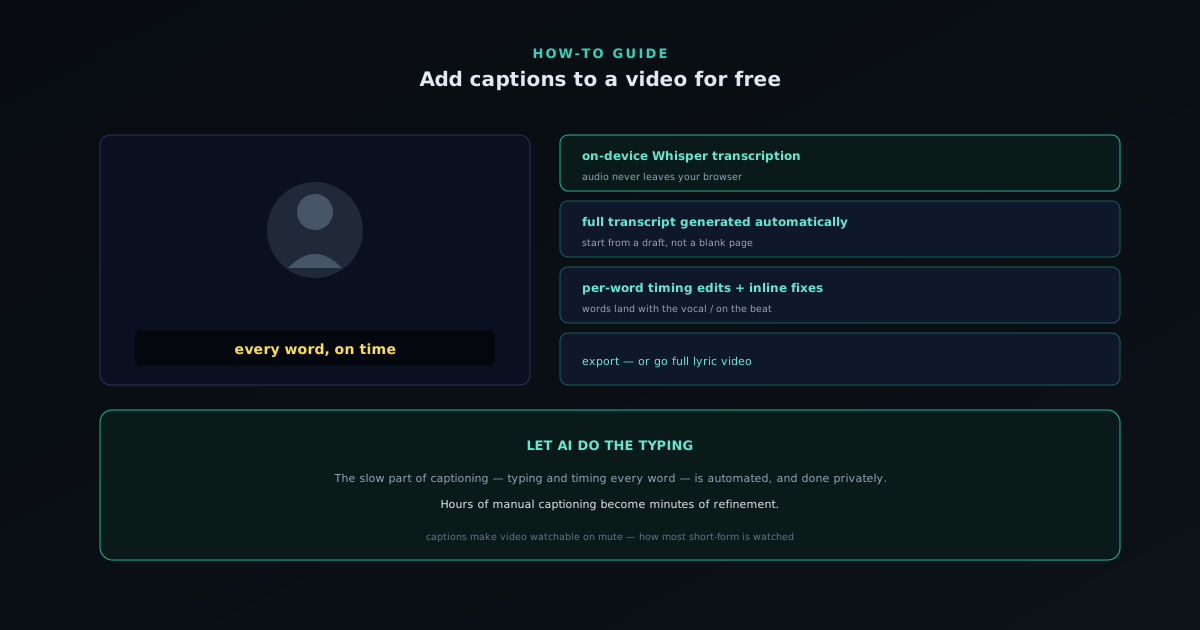
Captions make a video watchable on mute (which is how most short-form video is watched) and lyric captions are the backbone of a lyric video. The slow part of captioning has always been typing and timing every word. AI transcription removes that, and Novus Visualizers does it on your device, so the audio never leaves your browser.
This guide adds captions free, privately, with the AI captions feature at visualizers.novusstreamsolutions.com/editor, and goes lyric-first with the dedicated creator at visualizers.novusstreamsolutions.com/lyric-videos. The full captioning walkthrough lives at Text, titles, and on-device AI captions in Novus Visualizers.
Step 1: load your audio
Add the track or the audio from your video. The captions feature uses Whisper running on-device through the browser to transcribe speech or vocals, and nothing is uploaded. This is the same on-device approach the rest of the Novus apps take: the AI comes to your data instead of your data going to a server.
For a lyric video, this is your song; for a talking-head clip, it is the spoken audio.
Step 2: generate the transcript
Run AI captions and the tool produces a full caption track automatically: the entire lyric or spoken transcript, with timing, generated for you. Instead of typing from scratch, you start from a draft that is most of the way there.
This is the step that turns hours of manual captioning into minutes of refinement.
Step 3: fix the per-word timing
Automatic timing is close; per-word timing edits make it exact. Nudge words so each line appears with the vocal and emphasized words land on the beat, and correct any mis-heard word inline. This is what makes captions feel authored rather than auto-generated, and it is essential for karaoke-style and lyric videos.
Style the captions to match your look: a clear font, strong contrast against the visuals, and placement clear of the busiest part of the frame (and of platform UI on short-form).
- On-device Whisper transcription: no upload.
- Per-word timing edits + inline corrections.
- Style to match your brand and keep them readable.
Step 4: export, or go full lyric video
Export with your captions baked in at the resolution and platform preset you need. If the project is lyric-first (a full song with heavy text choreography), the dedicated Lyric Video Creator companion is purpose-built for it and may be faster than doing everything in the main editor.
Either way, you get captioned video for free, with the transcription done privately on your own device.
Why captions matter more than they used to
It is worth understanding why captioning has gone from a nice-to-have to something close to essential, because it explains why making it free and easy is so valuable. The dominant way short-form video is consumed is on mute (scrolled past in a feed, watched in public, played without sound by default), which means a video that relies on its audio to communicate loses most of its audience in the first second. Captions are what make a muted video legible, carrying the spoken or sung content visually so the message lands whether or not anyone turns the sound on. In a muted-first environment, uncaptioned video is effectively talking to an empty room.
Beyond muted viewing, captions serve accessibility, making content usable by viewers who are deaf or hard of hearing, and they help non-native speakers follow along. These are not separate concerns from reach; they are the same feature improving both inclusion and performance at once. A creator who captions everything reaches more people, holds more attention, and excludes fewer viewers, which is why the friction of captioning (historically the tedium of typing and timing every word) was a real barrier worth removing. Automatic, on-device transcription removes it, which is what turns captioning from a chore most people skip into something easy enough to do by default on every video.
How the transcription works on your device
The capability that makes fast captioning possible is automatic speech recognition (a model that turns spoken or sung audio into text with timing) and the notable thing here is that it runs on your own device rather than a server. The model executes in your browser, transcribing the audio locally, which is why nothing is uploaded. This is the same on-device principle the rest of the apps follow: the model comes to your audio instead of your audio going to a remote service. For captioning, that architectural choice has direct consequences for privacy, cost, and how the feature fits into your workflow.
Running locally means the transcription happens against the audio in the same browser tab you are working in, with no round-trip to a server that would otherwise hold a copy of your audio. The model downloads once and then works from that cached copy, so after the initial load the captioning is available without any per-use network cost. Understanding that a real speech-recognition model is doing this work, on your machine, helps set the right expectation: the output is a strong automatic draft of the words and their timing, generated quickly and privately, which you then refine: not a perfect final transcript, but a head start that turns hours of manual work into minutes of correction.
Why on-device is the right choice for audio
The privacy argument for captioning locally is stronger than it first appears, because audio is often more sensitive than people assume. An unreleased track is exactly the kind of thing an artist would not want sitting on a third-party server before launch; a voice memo, an interview, or a personal video's audio can contain private content; and client work may be confidential. Uploading audio to a cloud transcription service means a copy of it exists on a machine you do not control, governed by a retention policy you cannot audit. On-device transcription removes that entirely: the audio is never transmitted, so there is no server-side copy to worry about.
There is a cost dimension too. Cloud transcription services meter usage, charging per minute of audio, which is fine for a one-off but becomes a recurring expense for anyone captioning regularly. Running the model locally inverts that: the marginal cost of transcribing another minute is borne by your own hardware, not an API bill, which is exactly why the captioning here is free and unlimited rather than a credit you spend down. For a creator who captions every video as a matter of habit, which the muted-first reality rewards, that difference between a per-minute meter and a one-time model download adds up quickly in favor of doing it on the device.
Fixing the words the model mishears
No automatic transcription is perfect, and the cases it struggles with are predictable: proper names, unusual spellings, and vocals competing with instrumentation in music. This is why the workflow is built around correction rather than blind acceptance: the transcript is exposed for inline editing, so when the model mishears a word you simply fix it in place. Expecting to make a handful of corrections, rather than expecting flawless output, is the right mindset; the value is that you start from a near-complete draft and clean it up, instead of typing the whole thing from scratch.
The corrections are usually quick because they are localized (a name here, a homophone there) against a transcript that is mostly right. For music especially, where a lyric might be sung in a way the model interprets loosely, a pass to align the words with what is actually being sung is worth the minute it takes, because a lyric video with wrong words is worse than no lyrics at all. The point of the editable transcript is that this correction happens right where you are working, immediately, without re-submitting anything to a service and waiting. Draft, correct, done: the model handles the volume, you handle the accuracy.
Getting the timing to land with the audio
Accurate words are only half of good captions; the other half is timing, and this is where per-word control turns a serviceable caption track into a polished one. Automatic timing gets each line roughly in the right place, but nudging individual words so they appear precisely with the vocal, and so emphasized words land on the beat, is what makes captions feel authored rather than mechanically generated. For karaoke-style and lyric videos this is essential, because the entire effect depends on the words hitting in sync with the singing; loose timing breaks the illusion immediately.
The per-word timing edits exist precisely to give you that exactness without a tedious manual process. You are adjusting a draft that is already close, fine-tuning the moments that matter (the start of a line, the punch of a key word, the landing of a hook) rather than placing every word by hand from zero. This is the same draft-then-refine pattern as the transcription itself: the tool does the bulk-timing automatically, and your attention goes only to perfecting the moments where precise sync carries the most weight. Captions that are both accurate in their words and tight in their timing read as deliberate craft, and that perceived care is a meaningful part of how professional a finished video feels.
Styling captions so they are actually readable
Captions that are correct and well-timed can still fail if they are hard to read, so styling them for legibility is a real part of the job, not an afterthought. The basics matter most: a clear font, strong contrast against the visuals behind them so the text never gets lost, and placement clear of the busiest part of the frame. On short-form platforms there is an additional constraint (the platform's own interface overlays the edges of the video) so keeping captions away from the very top and bottom ensures they are not hidden behind buttons and usernames on the actual feed.
Beyond legibility, the caption styling is a chance to reinforce your visual identity, since a consistent caption look across your videos becomes part of how your content is recognized. Matching the caption style to the rest of your branding (colors and a font that fit your overall look) ties the captions into the video rather than leaving them as a generic overlay. The goal is captions that are effortless to read at a glance, positioned where neither the visuals nor the platform UI obscures them, and styled to belong to your video. Getting this right is what separates captions that enhance a video from ones that clutter it, and it costs only a little attention once you know what to aim for.
Captions versus a full lyric video
There are two related but distinct destinations for a transcript, and choosing the right one keeps your workflow efficient. Straightforward captions (a clean text track laid over a video for accessibility and muted viewing) are handled well in the main editor: transcribe, correct, time, style, export. This is the right path for talking-head clips, tutorials, and any video where the captions support the content rather than being the main event. The transcript becomes a readable overlay, and the video is otherwise whatever it already was.
A lyric video is the other case, where the words themselves are the centerpiece and the visual is built around their choreography. For that, the dedicated creator at visualizers.novusstreamsolutions.com/lyric-videos is purpose-built and often faster than assembling heavy text animation in the general editor, because it is designed specifically for taking timed lyrics and turning them into the visual itself. The deciding question is simple: are the captions supporting the video, or are they the video? If supporting, the main editor is the efficient route; if the words are the show, the lyric-focused tool is built for exactly that. Knowing which you are making points you to the right tool and saves you from forcing one to do the other's job.
Being realistic about accuracy over music
Honesty about where transcription is hardest helps you use it well, and the hardest case for a music-focused tool is exactly the one it is often used for: vocals over a full instrumental mix. A model transcribing clear speech in a quiet recording has a far easier task than one separating a sung lyric from competing instruments, and both on-device and cloud models face that difficulty, because it is a property of the audio rather than of where the model runs. So for lyric work especially, the right expectation is a strong first draft that you correct, not a flawless transcript that needs no attention.
Setting that expectation honestly produces a smoother experience than hoping for magic. A creator who knows to budget a short correction pass for a dense mix will find the workflow fast and pleasant; one who expects perfect lyrics from a wall of sound will be frustrated by the first misheard line. The tool is designed around this reality (the whole point of the editable transcript and per-word timing is that refinement is expected and easy), so the difficulty over music is not a flaw to be surprised by but a known characteristic the workflow already accommodates. Plan for a few fixes on musical material, and the result is excellent; expect zero, and any model will disappoint you.
Reaching audiences in other languages
Captions open a door beyond your own language, because a transcript is the starting point for reaching viewers who do not speak it. Once you have an accurate, well-timed caption track, translating it into other languages extends the video's reach to audiences it could not otherwise serve, and the on-device approach keeps even that step private, with the translation handled locally rather than by sending your transcript to an outside service. For a creator with any international audience, captions in a second language can meaningfully widen who can engage with the content.
The practical value is that the hard part (getting an accurate, timed transcript in the original language) is already done, so producing a translated version is an extension of work you have completed rather than a separate project. A video captioned in its native language and then offered with translated captions is dramatically more accessible globally than one with no captions at all, and it costs far less effort than re-creating the content for each audience. For anyone whose reach is not confined to a single language market, treating the caption track as a translatable asset, rather than a single-language overlay, is a low-cost way to multiply the audience a finished video can reach.
Captioning a whole batch of content efficiently
For a creator producing video regularly, captioning is not a one-time task but a recurring step on every clip, which makes the speed and cost of the process matter cumulatively. Because the transcription is automatic and the corrections are quick, captioning a piece of content drops from the old hours-long manual chore to a few minutes of refining a draft, and because it is free and unlimited on-device, there is no per-video cost discouraging you from captioning everything. That combination is what makes captioning-by-default practical for someone shipping a steady stream of videos rather than an occasional one.
Establishing captioning as a standard step in your process, rather than an optional extra, is what compounds the benefit. When every video gets captions as a matter of routine, your whole catalog becomes more accessible, more muted-friendly, and more likely to hold attention, and the marginal effort per video stays small because the workflow is fast and the tooling is free. The barrier that historically made creators caption selectively (the time and sometimes the cost) is exactly what on-device automatic transcription removes, so the efficient path and the high-reach path become the same path. Captioning everything stops being an aspiration and becomes simply how you finish a video.
Frequently asked questions
Quick answers to common questions about this topic.
How do I add captions to a video for free?
Use the on-device AI captioning in Novus Visualizers (or the Lyric Video Creator): it transcribes your audio automatically with per-word timing, then lets you edit and style the captions before export, all free.
Are AI captions accurate, and can I edit them?
The transcription is generated by an on-device Whisper model and can be corrected word by word, so you can fix names or terms before rendering. You also control the caption styling.
Do my video and audio get uploaded for captioning?
No. The Whisper model runs locally in your browser through Transformers.js, so your audio never leaves your device; the captions are generated privately.
Can I make a full lyric video with captions?
Yes. The Lyric Video Creator pairs the on-device transcription with caption styling in a guided wizard. See Theming stream overlays for a live premiere and https://visualizers.novusstreamsolutions.com/lyric-videos.
Related workflow
A track to a release-ready visualizer, per platform
Render the visual once, then produce the platform masters from it, instead of re-rendering the whole video for every aspect ratio.
- Render the beat-synced videoNovus Visualizers: Pick the engine and mode against your actual track; the analysis is done on your audio, not on a preset preview.
- Trim or upscale the exportNSS Background Remover: The video utilities handle the tidy-up pass so the render does not have to be repeated to fix ten seconds of it.
- Produce the per-platform mastersNovus Convert: Each destination wants a different container and bitrate; converting the finished render is far cheaper than re-rendering it.
Related troubleshooting
Was this page helpful?
Your answer stays in this browser, it is not sent anywhere and no account or cookie is involved.