2026 · Novus VisualizersAbout 13 min readNovus Stream Solutions
How to make a Spotify Canvas video (free, in-browser)
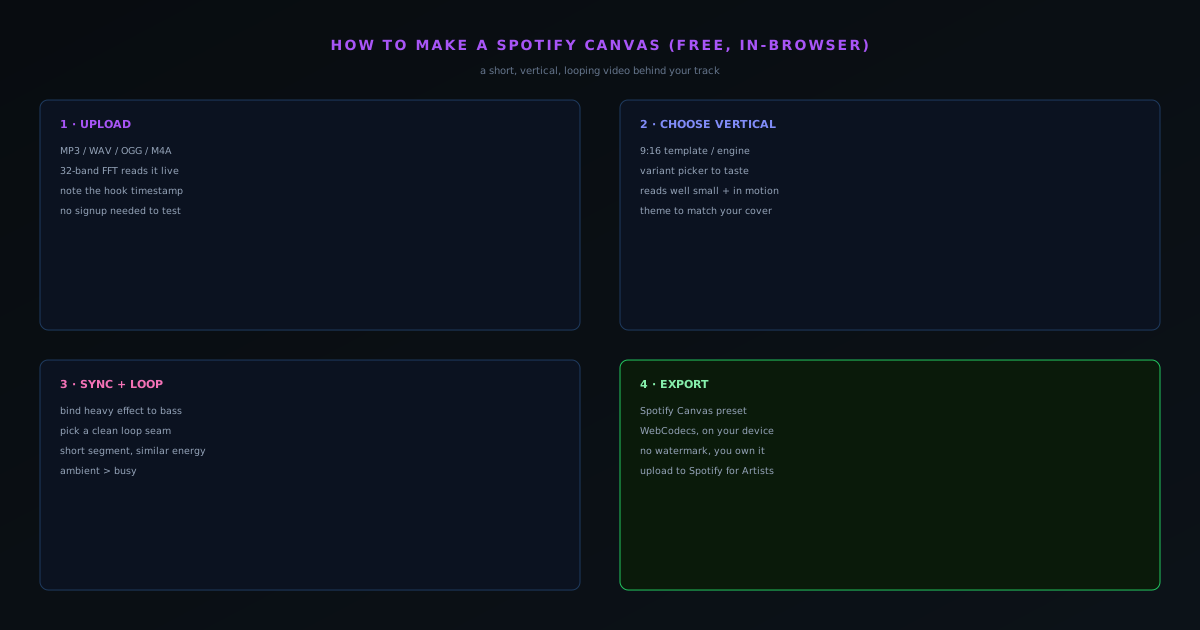
A Spotify Canvas is the short looping vertical video behind a track on mobile. Here is how to make one for free with Novus Visualizers: upload your track, pick a vertical engine, sync it to the beat, and export with the Spotify Canvas preset, all in your browser.
Reviewed and updated August 1, 2026. Re-checked against the Novus Visualizers V3 catalog on August 1, 2026. The app now ships ten engines with six modes each, sixty modes in total, so the counts, the engine list, and the mode arithmetic in this article have been corrected. The Logo engine landed after this piece was first published.
Contents
- 1.Overview
- 2.Step 1: Upload your track
- 3.Step 2: Choose a vertical engine and mode
- 4.Step 3: Sync it to the beat and keep it loopable
- 5.Step 4: Export with the Spotify Canvas preset
- 6.Why a Canvas is worth the effort
- 7.Designing for a silent, looping frame
- 8.Picking the right few seconds of the track
- 9.Making the loop genuinely seamless
- 10.Tying the Canvas to your visual brand
- 11.Why it stays free and fully yours
- 12.Reusing the vertical beyond Spotify
- 13.The mistakes that make a Canvas look amateur
- 14.How the motion actually follows your track
- 15.A quick checklist before you upload it
Overview
A Spotify Canvas is the three-to-eight-second vertical video that loops behind a track in the Spotify mobile app. It is one of the highest-leverage pieces of visual content an artist can make, because it plays automatically to anyone who opens the song, and yet most artists skip it because the tooling feels like it requires a motion designer. It does not. You can make a beat-synced, looping, vertical Canvas for free, entirely in your browser, with Novus Visualizers. This is the step-by-step.
Everything here runs client-side: your track is read and the video is encoded on your own device, nothing is uploaded to a server, and the export is copyright-clean and yours to use. That is what makes it free and unlimited rather than a trial that watermarks your result.
Step 1: Upload your track
Open the visualizers.novusstreamsolutions.com/editor and upload the audio you want to visualize: MP3, WAV, OGG, or M4A all work. The app reads the file in real time through the Web Audio API, running a 32-band FFT with beat and onset detection, so within a moment the visuals already have a real signal to respond to. For a Canvas you only need a short, strong segment of the song (usually the hook) so note the timestamp of the part you want to loop.
You do not need an account to try this. Signup is optional, and the point of the free-to-test flow is that you can have something on screen reacting to your track before deciding to do anything else.
Step 2: Choose a vertical engine and mode
A Canvas is vertical (9:16), so start from an engine and mode that suit a tall frame. Open the editor at visualizers.novusstreamsolutions.com/editor and pick from the ten engines (Spectrum, Particles, Trails, Bloom, Radial, Bars, Tunnel, Waveform, Character Motion, and Logo) then cycle the six modes inside your choice to find a look that fits the song. Pick something that reads well small and in motion, since a Canvas is watched on a phone, often glanced at rather than studied.
Apply one of the one-click color themes to match your cover art, then refine. The goal at this stage is a look you would be happy to see loop a few hundred times, because that is exactly what a Canvas does.
Step 3: Sync it to the beat and keep it loopable
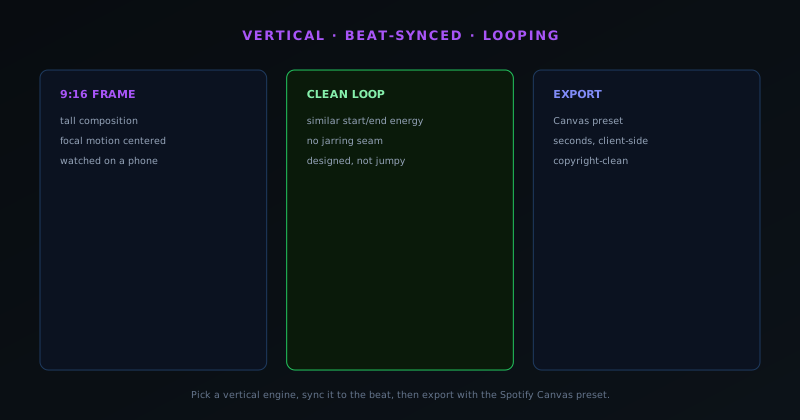
Lean on the beat sync so the motion tracks the part of the song you chose. If you want the movement to feel deliberate, bind your heaviest effect to the bass so it pulses with the rhythm rather than twitching on everything at once. Keep the segment short and choose a start and end where the visual energy is similar, so that when the clip loops the seam is not jarring: a Canvas that loops cleanly feels designed; one that jumps feels broken.
Resist the urge to cram in motion. A Canvas is ambient by nature; it should support the track, not compete with it. One or two strong, beat-locked movements read better on a small autoplaying loop than a busy frame.
Step 4: Export with the Spotify Canvas preset
When you are happy, export. Novus Visualizers includes a Spotify Canvas (vertical) export preset, so you do not have to guess the dimensions: it targets the right vertical format directly. The encode runs through WebCodecs on your device, producing the video in seconds rather than queueing on a server, and because it is fully client-side the result is yours with no attribution required and no watermark.
From there you can upload it to Spotify for Artists as your track's Canvas. If you are making a Canvas, you are probably also making a YouTube visualizer and platform clips for the same release: the release-day workflow post walks through producing the whole set from one session, and the export deep-dive explains exactly how the in-browser encode works.
Why a Canvas is worth the effort
It is worth understanding what a Canvas actually does for a release, because that is what justifies spending twenty minutes making one. A Canvas is the short looping video that plays behind a track in the Spotify mobile app, and it plays automatically to anyone who opens the song: there is no click required, no thumbnail to win, it simply starts moving the moment a listener lands on your track. That makes it one of the few pieces of visual content with guaranteed impressions among exactly the people already choosing to listen, which is a far warmer audience than a cold social feed.
Most independent artists skip the Canvas, which is precisely why making one is a cheap edge. The reason they skip it is the perceived production cost (it feels like something that needs a motion designer) and when that cost drops to a free, twenty-minute, in-browser job, the calculus flips. A Canvas signals care; a bare static cover signals a release that was rushed out. For a small artist trying to look as professional as the budget acts on the same platform, the looping Canvas is a disproportionately visible place to spend a little effort.
Designing for a silent, looping frame
The Canvas format has two constraints that should shape every decision: it is vertical, and it loops in near-silence, since the listener is hearing the track itself rather than any audio from the video. That means the visual cannot rely on a sound cue or a big climactic moment: it has to be satisfying as an ambient, repeating loop that someone might see for three seconds or three minutes depending on how long they sit on the track. Designing for that is different from designing a standalone video; you are making visual wallpaper that breathes with the song, not a short film.
In practice this argues for restraint. A loop that is calm and hypnotic rewards repeated viewing, while a loop crammed with motion becomes grating by the third cycle. The goal is a frame a listener could glance at repeatedly without it ever feeling busy or demanding, which usually means one or two clear movements tied to the music rather than a constant churn. Treating the Canvas as ambient rather than attention-grabbing is the single biggest aesthetic decision, and getting it right is what separates a Canvas that feels designed from one that feels like a screensaver.
Picking the right few seconds of the track
Because a Canvas is short, you are choosing a small slice of the song to represent it, and the choice matters more than it seems. The hook is usually the safe pick (it is the most recognizable part, and a listener landing on the track is likely hearing it) but the more important property is rhythmic consistency across the slice you choose. A segment where the energy stays roughly even loops far more gracefully than one that spans a big dynamic change, because the loop point will sit in similar musical territory at both ends.
It also helps to pick a segment whose character matches the visual you have in mind. A driving, four-on-the-floor section suits a Canvas with strong, pulsing motion; a sparse, atmospheric passage suits a calmer, drifting loop. Since the visual is tied to the audio through the beat analysis, choosing a segment whose rhythm and energy fit the look you want means the motion will feel intentional rather than fighting the music. The few seconds you pick are doing a lot of work, so pick them deliberately rather than grabbing the first part of the file.
Making the loop genuinely seamless
A Canvas that visibly jumps at the loop point reads as broken, so getting a clean seam is the technical detail most worth your attention. The trick is to choose start and end points where the visual energy is similar, so that when the clip wraps from its last frame back to its first, the transition is not jarring. If your loop ends on a bright flare and begins on a dark calm, the jump will be obvious every few seconds; if both ends sit at a similar level of motion and brightness, the wrap becomes nearly invisible and the loop feels endless.
Because you can preview the motion against your chosen segment before exporting, you can audition the loop point and adjust until the seam disappears. It is worth spending a few minutes on this specifically, watching the clip cycle several times to catch any hitch, because the loop is the one thing a Canvas does that a normal video does not, and a bad seam undoes all the other work. A seamless loop is what makes the Canvas feel like a polished, designed object rather than a short clip that happens to repeat.
Tying the Canvas to your visual brand
A Canvas does not exist in isolation; it sits next to your cover art, your profile, and the rest of your release, so it should look like it belongs to the same world. The one-click color themes are the fastest way to achieve that: picking a palette that echoes your cover art instantly ties the Canvas to the release's visual identity, so a listener who saw your cover recognizes the Canvas as part of the same project. Coherence across these surfaces is a quiet professionalism signal that makes a small release feel considered.
This is where the Canvas connects to the larger idea of a consistent visual brand across a body of work. If every release uses a recognizable palette and a related visual language in its Canvas, your catalog starts to feel like a coherent identity rather than a series of unrelated singles. The Canvas is a small surface, but it is a frequently-seen one, and using it to reinforce a consistent look is a low-effort way to build the kind of recognizability that makes an artist feel established. Matching it to the cover is the minimum; matching it to your whole catalog is the opportunity.
Why it stays free and fully yours
It is worth being explicit about what you are not giving up to make a Canvas this way, because free tools often extract a hidden price. The export runs entirely in your browser through WebCodecs, so your track is never uploaded to a server, the render is not queued behind anyone else's, and the finished video carries no watermark. The result is copyright-clean and yours to use without attribution, which for a Canvas matters because it is going on a commercial platform attached to your release: the last thing you want is a tool's logo in the corner or a licensing question hanging over it.
That combination of free, private, and unencumbered is what makes the twenty-minute investment genuinely worth it rather than a trial that traps you. You are not building an asset inside a tool that will watermark it unless you pay, or uploading an unreleased track to a service before its release date; you are producing a finished, owned video on your own machine. For an independent artist, removing both the cost and the strings is what turns the Canvas from a nice-to-have someone else gates into a standard part of every release you ship.
Reusing the vertical beyond Spotify
The vertical frame you build for a Canvas is not single-use, and recognizing that improves the return on the effort. The same 9:16 composition, exported a little longer, is the basis of a TikTok or Instagram Reels clip, and the same look adapted is the seed of the rest of your release's short-form visuals. Rather than treating the Canvas as a one-off, treat it as the first vertical asset of a set, and you get several pieces of platform content out of a single design session instead of starting from scratch for each surface.
This is the logic of building a release kit rather than individual assets, and the Canvas is a natural entry point because the vertical format it requires is the same one short-form platforms want. Once you have a vertical look you like, harvesting it across Spotify, TikTok, and Reels is mostly reframing and re-exporting rather than redesigning. The release-day workflow post covers producing that whole set from one session; the Canvas is simply the piece that pins down the vertical look the rest of the short-form content can inherit.
The mistakes that make a Canvas look amateur
A few specific missteps account for most weak Canvases, and they are easy to avoid once named. The first is overloading the frame with motion, which feels lively for a second and exhausting on a loop; restraint almost always reads as more professional. The second is ignoring the loop seam, leaving a visible jump that betrays the short clip underneath. The third is a visual that has nothing to do with the cover art or the mood of the song, so the Canvas feels bolted on rather than part of the release. Each of these is a choice, and each is avoidable with a little attention.
The fourth, subtler mistake is forgetting that the Canvas plays without its own audio and designing it as though a sound cue will carry a moment: it will not, because the listener is hearing the track, not the video. Designing for a silent, repeating, vertical frame, tied to the cover's palette, with a clean loop and restrained motion, avoids all four at once. None of this requires skill so much as awareness of the format's constraints, and a Canvas that simply respects those constraints already looks more considered than the bare static covers most independent tracks ship with.
How the motion actually follows your track
The reason a Canvas made this way feels connected to the music rather than slapped on top of it is that the motion is driven by the audio itself. When you upload the track, the app reads it through the Web Audio API with a real-time analysis that detects beats and energy across the frequency spectrum, and that signal drives the visualizer frame by frame. So the pulses, swells, and flickers in your Canvas are responding to the actual rhythm of the segment you chose, not running on an arbitrary timer that merely happens to play alongside the song.
For a Canvas specifically, the most effective move is to bind your strongest visual movement to the low end, so the loop pulses with the bass and the kick rather than twitching on everything at once. That gives the short loop a clear, musical heartbeat that reads well even in a few seconds of viewing. Because the analysis is happening on your real audio, a calmer track produces a calmer Canvas and a driving track produces a more energetic one from the same setup, which is exactly the connection between sound and image that makes the format feel intentional.
A quick checklist before you upload it
Before you push the Canvas to Spotify for Artists, a short pass catches the issues that are easy to miss in the moment. Confirm the frame is vertical and the focal motion sits comfortably in a tall composition rather than getting cropped awkwardly. Watch the loop cycle several times and check that the seam is invisible. Make sure the palette echoes your cover art so the Canvas reads as part of the release. And glance at it the way a listener will (small, on a phone, glanced at) to confirm it reads at that size and does not feel busy on repeat.
It also helps to view the exported file once at full quality before uploading, simply to confirm the encode looks the way the preview did, since the export is the artifact that actually ships. Because the whole thing was produced for free on your own device, there is no cost to re-exporting if something is off: you can adjust the loop point, swap the theme, or calm the motion and render again in seconds. That cheap iteration is the advantage of an in-browser tool: the checklist is not a high-stakes final review but a quick, repeatable pass you can run as many times as it takes to get a Canvas you are happy to attach to your release.
Frequently asked questions
Quick answers to common questions about this topic.
What are the Spotify Canvas requirements?
Canvas is a short, vertical 9:16 looping video (roughly 3–8 seconds) that plays behind your track in the app. Make it loop cleanly and keep key visuals centered for the small player.
How do I make a Spotify Canvas for free?
Create a 9:16 visualizer of your track in Novus Visualizers, keep it short and loopable, and export with the vertical preset at https://visualizers.novusstreamsolutions.com: no subscription needed.
How long should a Spotify Canvas be?
A few seconds that loop seamlessly: Spotify repeats it, so a clean loop matters more than length. Aim for a short, hypnotic motion rather than a full music video.
Related workflow
A track to a release-ready visualizer, per platform
Render the visual once, then produce the platform masters from it, instead of re-rendering the whole video for every aspect ratio.
- Render the beat-synced videoNovus Visualizers: Pick the engine and mode against your actual track; the analysis is done on your audio, not on a preset preview.
- Trim or upscale the exportNSS Background Remover: The video utilities handle the tidy-up pass so the render does not have to be repeated to fix ten seconds of it.
- Produce the per-platform mastersNovus Convert: Each destination wants a different container and bitrate; converting the finished render is far cheaper than re-rendering it.
Related troubleshooting
Was this page helpful?
Your answer stays in this browser, it is not sent anywhere and no account or cookie is involved.