2026 · Novus VisualizersAbout 12 min readNovus Stream Solutions
How to make a lyric video for free (auto-synced captions, in your browser)
Turn a song into a lyric video for free, in your browser: upload the track, let on-device Whisper transcribe the words with per-word timing, style the captions, and export vertical or widescreen, with no upload and no watermark.
Contents
- 1.Overview
- 2.What you need before you start
- 3.Step 1: upload your track
- 4.Step 2: open the Lyric Video Creator
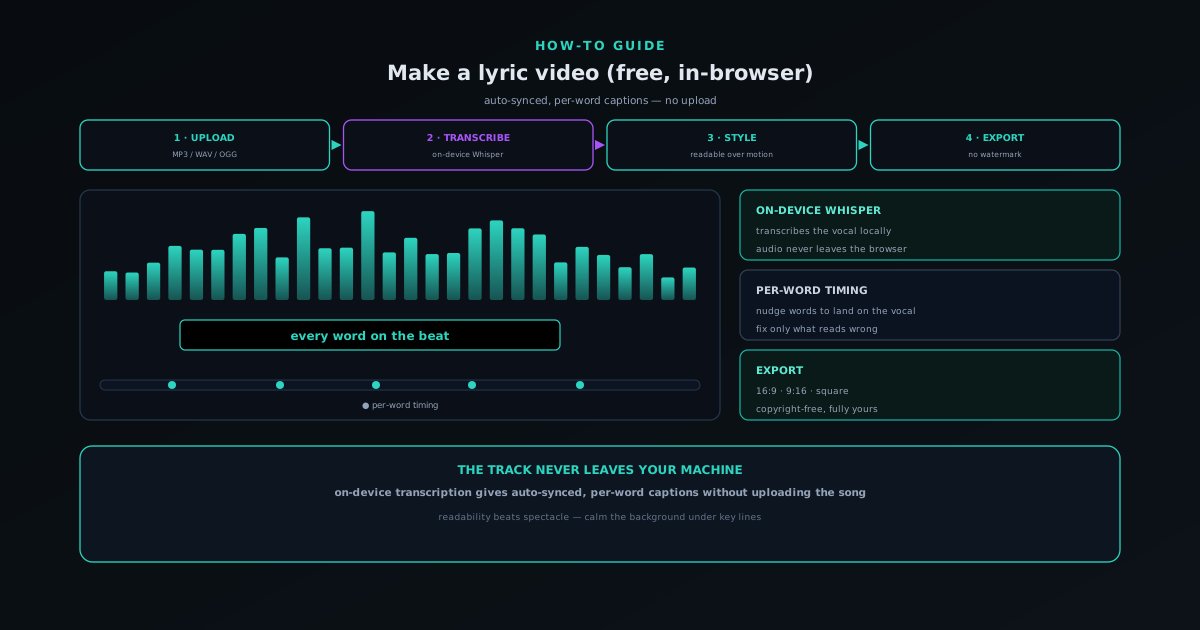
- 5.Step 3: let Whisper transcribe the lyrics on your device
- 6.Step 4: fix the words and the timing
- 7.Step 5: style the captions and pick a background
- 8.Step 6: choose your format and export
- 9.Tips for lyric videos that actually read
- 10.Common problems and how to fix them
- 11.Why this is free, private, and yours
Overview
A lyric video is one of the highest-return assets a musician can make. It gives a song something to watch on YouTube, it travels well as a vertical clip on short-form platforms where people scroll with the sound off, and it gives fans the words to sing along to. The catch has always been that making one looked like work for an editor: line up every lyric to the beat by hand, design a readable type treatment, and render it out. Novus Visualizers collapses that into a guided flow you can run for free in your browser, with the timing done for you by an on-device transcription model. This guide walks the whole process, from uploading the track to exporting the format you need.
The thing that makes it both fast and private is where the transcription happens. Instead of uploading your audio to a cloud service to get the lyrics and timings back, Novus Visualizers runs a Whisper speech-to-text model directly in your browser, on your device, producing per-word timing without the track ever leaving your machine. For an unreleased single that matters a great deal: you get auto-synced captions without handing a copy of the song to a server. Everything below assumes you are starting from a finished or near-finished audio file and want a lyric video out the other end.
What you need before you start
You need three things: the audio, a browser, and a few minutes. The audio can be an MP3, WAV, OGG, or M4A file: a mixed-down version of the song you want captioned. A current desktop browser gives the smoothest experience because transcription and rendering use your device's hardware, and a machine with a reasonable GPU will transcribe and export faster, though it is not required. You do not need an account to try the whole flow; signing up free only matters when you want to save the project and come back to it, which is worth doing for a release you will revisit.
It also helps to have the correct lyrics on hand as text, even though the app will transcribe them for you. Automatic transcription is excellent on clear vocals but imperfect on dense mixes, ad-libs, slang, or proper nouns, so having the real words next to you makes the correction step quick. If your song has sections with no vocals (an intro, a beat-only bridge) that is fine; the captions will simply be sparse there, and you can let the reactive background carry those moments. With the audio and the lyrics ready, the rest is mostly choosing how it should look.
Step 1: upload your track
Open visualizers.novusstreamsolutions.com and upload your audio file. As soon as the track loads, the app reads it with a real-time analysis that drives the visuals (a 32-band frequency analysis plus beat and loudness detection) so the background can react to the music. Take a second to note where the hook or the first vocal line lands; you will want the captions and the visual energy to feel aligned at those moments. Nothing about this step sends your file anywhere: the analysis runs locally, the same way the rest of the app does.
If you only want a lyric video and not a fully designed visualizer, you can keep the visual side simple and let the words be the focus. But it is worth picking a starting visual direction now rather than later, because the background sets the mood the lyrics sit on. A calm ambient engine reads very differently under a ballad than a busy particle system would, and choosing early means you are styling captions against something close to the final look rather than a placeholder.
Step 2: open the Lyric Video Creator
Novus Visualizers includes a dedicated Lyric Video Creator at visualizers.novusstreamsolutions.com/lyric-videos: a guided wizard built specifically for this job, rather than a generic caption box bolted onto the editor. It pairs the on-device transcription with caption styling so the two steps that make a lyric video, getting the words timed and making them look right, happen in one place. You can reach it from the Tools area of the app. Using the purpose-built wizard is worth it because it understands the shape of the task: it expects a song, it expects lyrics, and it lays the controls out in the order you actually need them.
The wizard is also where the lyric video stays connected to the rest of your release. Because it lives inside the same app and account as your visualizers, albums, and the companion Cover Art Studio, a lyric video is not a one-off export from an unrelated tool; it is part of the same body of work. If you are signed in, you can save it as a project and group it into the album for the release, which matters when you are making several format cuts of the same song and want them organized together.
Step 3: let Whisper transcribe the lyrics on your device
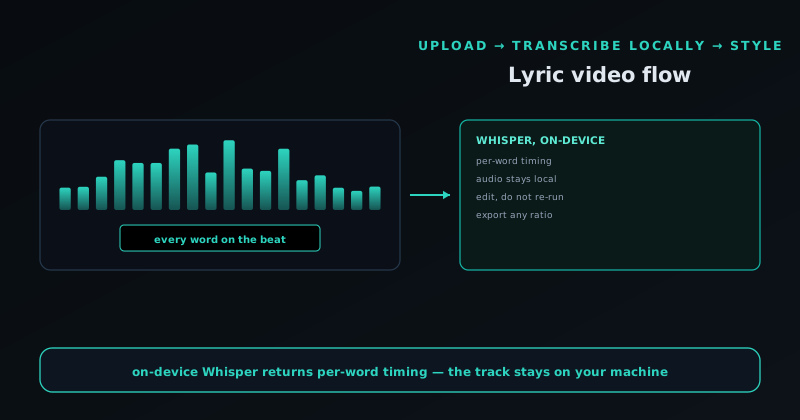
With the track loaded, run the transcription. The app's Whisper model processes the audio locally and returns the lyrics with per-word timing: not just a block of text, but each word anchored to a moment in the song. This is the step that would normally be tedious hand-work, and it is the step the app most directly removes. Depending on your device and the length of the track, it takes anywhere from a few seconds to a couple of minutes, and because it runs in your browser, the audio is never uploaded to a transcription service.
Per-word timing is what makes the result feel like a real lyric video rather than subtitles. It means words can appear in sync with the vocal, lines can be revealed as they are sung, and emphasis can land on the beat. The model gives you a strong first pass to work from; it is not meant to be the final word, which is exactly why the next step exists. Think of the transcription as a draft that is ninety percent right and instantly editable, rather than a black box you have to accept or reject wholesale.
Step 4: fix the words and the timing
Now bring out your real lyrics and clean up the transcription. Fix any misheard words, correct names and slang the model could not know, and adjust line breaks so each caption is a natural phrase rather than an awkward fragment. Because the timing is per-word, you can nudge moments that drifted: pull a line slightly earlier so it lands with the vocal, or hold a word a beat longer for emphasis. The goal is not robotic precision; it is that a viewer reading along never feels ahead of or behind the singer.
A good habit here is to watch the song through once at this stage, reading the captions as a fan would, and only fix what actually feels off. Over-editing the timing can make captions feel mechanical; the human ear is forgiving of small offsets but notices when a line appears late on a punchy hook. Pay the most attention to the moments that matter most (the title line, the chorus, any lyric people will quote) and let the verses be merely good. This is the one step where a few minutes of care visibly raises the quality of the result.
Step 5: style the captions and pick a background
With the words right, make them look right. Choose a caption style that fits the song and, crucially, stays readable over motion: strong contrast against the background, a weight that holds up when the visuals get busy, and a size that works at the scale people will watch. The reactive background you chose earlier is doing emotional work, but it must never fight the legibility of the words; if a passage of the visualizer is too busy under a key lyric, calm that section or strengthen the caption treatment. Readability beats decoration every time in a lyric video, because the entire point is that people can read along.
This is also where you align the look with the rest of the release. Pull in your color palette so the lyric video matches the single's cover and your other visuals, and if you made cover art in the companion Cover Art Studio at visualizers.novusstreamsolutions.com/albums, echo its type and color so the assets feel like a set. Consistency across a release reads as intent and professionalism; a lyric video that shares a palette and type feel with the cover and the main visualizer signals a coherent campaign rather than a pile of one-offs. Spend a moment here matching, not just choosing.
Step 6: choose your format and export
Decide where the lyric video is going and export to fit. For YouTube, a 16:9 widescreen export is standard; for short-form platforms and Stories, a 9:16 vertical cut is what you want; square works for in-feed posts. Novus Visualizers exports client-side through the browser's encoder to MP4 or WebM, up to 4K, with platform presets that set sensible resolution and frame-rate targets per destination, so you are choosing a destination rather than wrestling with encoder settings. The export runs on your device, with no watermark, and you own the result outright.
If you are cutting the song into several formats, build the look once and then export each aspect ratio rather than rebuilding from scratch, and reframe the composition so the captions and focal motion stay centered in each shape, instead of squashing a widescreen layout into vertical. Exports are free and unmetered, so you can produce as many cuts in one sitting as the release needs. Save the project to your account first so a re-export later does not mean rebuilding the whole thing.
Tips for lyric videos that actually read
A few small choices separate a lyric video people watch from one they scroll past. Keep each caption to a readable phrase (two lines at most) so the eye can take it in at a glance while the song moves. Favor a calmer background under dense lyrical sections and let the visuals breathe during instrumental passages where there are no words to read. Make the chorus visually distinct from the verses so the song's structure is legible at a glance, which helps a casual viewer feel oriented even with the sound off. And test your export on a phone, because that is where most short-form lyric videos are actually watched, and a caption that reads fine on a laptop can be too small in someone's hand.
The most common mistake is letting the design overwhelm the words. It is tempting to crank the visualizer to its most spectacular setting, but a lyric video has one job above all others, which is that the lyrics are readable in time with the music. When in doubt, dial the background back and strengthen the captions; a slightly less flashy video that you can actually read along to will outperform a gorgeous one where the words get lost. Everything else (the engine, the palette, the effects) is in service of that single requirement.
Common problems and how to fix them
A few issues come up often enough to be worth heading off. If the transcription mangles a stretch of lyrics, the usual cause is a dense mix where the vocal is buried, ad-libs and overlapping harmonies, or unusual words and names the model could not be expected to know. The fix is the correction step: do not fight the transcription by re-running it and hoping, just edit the words directly against your real lyrics. If whole sections come back empty, check whether those are genuinely instrumental: sparse captions over a beat-only bridge are correct, not a bug, and you can let the background carry those moments rather than inventing text to fill them.
Timing drift is the other common complaint, where captions feel slightly ahead of or behind the vocal. Because the timing is per-word, you can nudge it rather than accepting it, and the trick is to fix only the moments that actually read wrong (usually the start of a line or a punchy hook) instead of obsessing over every word. The human ear forgives small offsets and notices large ones, so spend your attention where a late caption would be glaring. If a caption is hard to read against the visuals, the answer is almost always to calm the background under that passage or strengthen the caption treatment, not to shrink the type, because smaller text loses the very legibility a lyric video depends on.
Export problems are rarer but have simple causes. If an export is taking a long time, remember the encode runs on your own hardware, so a heavier scene or a higher resolution will take longer on a modest machine, and choosing a sensible platform preset rather than maxing out resolution usually solves it. If you are planning several format cuts, save the project to your account first so you are not rebuilding between exports, and keep the ten-exports-per-month free budget in mind so you spend it on final renders rather than test passes. None of these are dead ends; they are the ordinary friction of producing video, and the app gives you a direct lever for each one.
- Garbled lyrics: correct the words directly against your real lyrics, and do not re-run and hope.
- Empty sections: usually correct for instrumental passages; let the background carry them.
- Timing drift: nudge the per-word timing only where it reads wrong, especially line starts and hooks.
- Hard-to-read captions: calm the background or strengthen the caption, rather than shrinking the type.
- Slow export: pick a platform preset instead of maxing resolution; the encode runs on your device.
Why this is free, private, and yours
The whole flow above costs nothing and asks nothing of your privacy that you would not want. Transcription runs on your device, so an unreleased song is never uploaded to a captioning service; rendering and export run on your device too, so the finished video is produced locally without a server render farm; and the output is copyright-free and fully owned by you, watermark and all-rights-reserved nonsense absent. An account is optional and only adds the ability to save and revisit the project, which is genuinely useful for a release but never required to make the video.
That combination (free, private, and owned) is the point of building the lyric video tool inside Novus Visualizers rather than as a cloud upload service. You get the convenience of automatic, per-word-timed captions without the usual trade of handing your audio to someone else's server, and you get a result you can post anywhere without restriction. Open visualizers.novusstreamsolutions.com, bring a song, and you can have a lyric video in the time it takes to read these steps, and if it is for a real release, sign up free and save it so the next format cut is a quick export rather than a rebuild.
Frequently asked questions
Quick answers to common questions about this topic.
How do I make a lyric video for free?
Use the Lyric Video Creator in Novus Visualizers: it transcribes your track on-device with per-word timing, lets you correct and style the captions over a visualizer, and exports, all free at https://visualizers.novusstreamsolutions.com/lyric-videos.
Are the lyrics synced automatically?
Yes. An on-device Whisper model transcribes the audio with per-word timing, so the captions align to the vocals; you can fine-tune any word before exporting.
Is my audio uploaded for the lyric transcription?
No. Transcription runs locally in your browser, so your audio never leaves your device. See Theming stream overlays for a live premiere for the companion caption tools.
Related workflow
A track to a release-ready visualizer, per platform
Render the visual once, then produce the platform masters from it, instead of re-rendering the whole video for every aspect ratio.
- Render the beat-synced videoNovus Visualizers: Pick the engine and mode against your actual track; the analysis is done on your audio, not on a preset preview.
- Trim or upscale the exportNSS Background Remover: The video utilities handle the tidy-up pass so the render does not have to be repeated to fix ten seconds of it.
- Produce the per-platform mastersNovus Convert: Each destination wants a different container and bitrate; converting the finished render is far cheaper than re-rendering it.
Related troubleshooting
Was this page helpful?
Your answer stays in this browser, it is not sent anywhere and no account or cookie is involved.