2026 · Novus Stream SolutionsAbout 11 min readNovus Stream Solutions
How to prep a full content drop for free: images, video, and PDFs
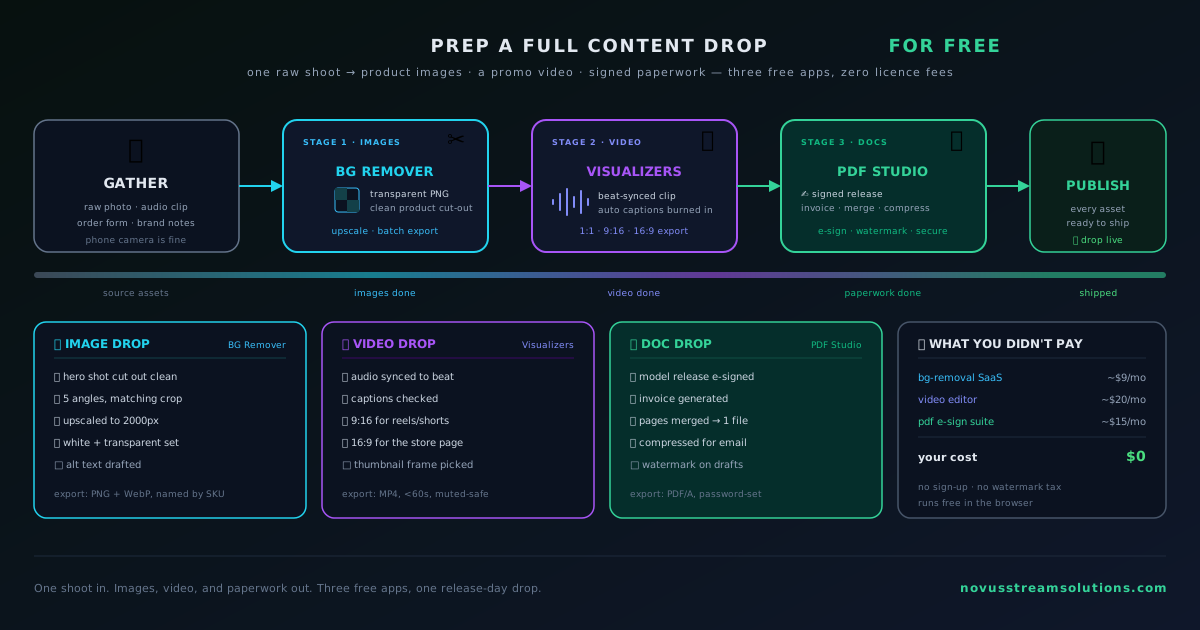
A release day goes smoothly when the assets are ready the day before. Here is a repeatable, browser-only workflow that preps your images, your video, and your paperwork for free.
Contents
- 1.Overview
- 2.List what the drop needs before you open a single tool
- 3.Prep the images with the Background Remover
- 4.Turn the track or footage into a video with Novus Visualizers
- 5.Finish the paperwork in Novus PDF Studio
- 6.Keep the whole drop looking like one release
- 7.Sequence the work so nothing waits on anything
- 8.A checklist you can reuse for the next drop
- 9.Why free and on-device is the whole point
Overview
A content drop is any release where several pieces have to go out together and land as one thing: a single with its cover, its visualizer, and its social cuts; a product launch with its listing shots, a demo clip, and a signed licensing form; a client deliverable with retouched images, a walkthrough video, and an invoice. The parts are different kinds of files, but the deadline is shared, and the day it is due is the worst possible time to discover you are missing a 9:16 crop or a countersigned release. The fix is not another subscription. It is prepping the whole set in one sitting, the day before, with tools that do not charge you to export the work you just made.
This guide runs that session with three free browser apps from the Novus portfolio, each covering one surface a drop touches. The Background Remover handles the pictures, Novus Visualizers handles the motion, and Novus PDF Studio handles the documents. You can see all three side by side at Portfolio. What they share matters more than what they do individually: every one of them runs on your own device, so your files are never uploaded to someone else’s server, and none of them puts a watermark on the result or hides the download button behind a paywall. That combination is what makes prepping an entire drop in an afternoon realistic instead of expensive.
List what the drop needs before you open a single tool
The mistake that turns a two-hour job into a frantic morning is opening an editor before you know what you are making. Start on paper instead. Write a manifest: one line per file the drop actually requires, with its purpose, its dimensions, and the name it will ship under. This takes ten minutes, and it is the single highest-leverage thing you can do, because it converts a vague sense of needing to make some stuff into a finite, checkable list you can burn through without stopping to think.
A typical manifest is shorter than it feels. A music single might need a square cover, a vertical and a landscape visualizer, a fifteen-second teaser cut, and a signed split sheet. A product launch might need a white-background hero, three transparent cutouts for the listing, a short demo clip, and a countersigned supplier form. A client handoff might need a set of retouched images, a captioned walkthrough video, and an invoice. Write yours down before you decide which tool touches which file.
The list does more than keep you organized. It exposes the dependencies: the cover art has to exist before the visualizer can borrow its colors, the product has to be cut out before it can go on a white background, the invoice numbers have to be final before the PDF is signed. Seeing those connections up front is what lets you order the session so nothing sits half-finished, waiting on something you have not made yet.
- Every image: cover, thumbnails, cutouts, listing shots, each with a target size.
- Every video: the main piece plus each platform crop and any teaser.
- Every document: releases, invoices, licensing, or intake forms to fill and sign.
- The final file name and destination for each, so export is mechanical.
Prep the images with the Background Remover
Images are usually the widest part of a drop and the right place to start, because so much else borrows from them. Open the Background Remover at bgremover.novusstreamsolutions.com and work through the picture list. The core job is the cutout: drop a photo in, let the on-device model separate the subject, and export a transparent PNG that will sit cleanly on any background. Because the model runs in your browser, an unreleased product shot or a client’s photo never leaves your machine, which matters far more on a real deliverable than it does on a stock image.
The suite covers the rest of the image surface without sending you elsewhere. Drop a finished cutout onto a solid color or gradient to build a uniform white-background hero for a listing. Resize a single master into the square, vertical, and landscape crops each platform expects, so the set stays consistent instead of being trimmed by hand three different ways. If a shot is too small for a hero slot, run the 2× or 4× upscaler to add real resolution rather than stretching it soft. There is even a favicon maker for a drop that includes a page or a small brand mark. The full breakdown of modes and export formats lives at NSS Background Remover.
One habit saves rework later: before you move on, drop each cutout onto both a dark and a light background and look at the edge. A fringe that hides against white often shows against black, and the export here writes straight alpha specifically so your cutouts place without that dark halo. Catching a bad edge now, while the tool is already open, is trivial; discovering it after it is already in the listing is not.
Turn the track or footage into a video with Novus Visualizers
Almost every drop wants motion now: a feed rewards video, and a static image scrolls past. Novus Visualizers at visualizers.novusstreamsolutions.com turns audio into a reactive video without any motion-graphics software. Load your track and the tool analyzes it on your device with a multi-band FFT, finding the beat and splitting the sound into bass, mid, and treble; everything on screen then moves in response to that analysis rather than on a dumb timer. You do not need the whole song: for a social cut, the strongest fifteen to sixty seconds usually makes the better video.
From there it is customization, not construction. Pick a template that matches the genre to get most of the way in one click, recolor it to your cover art, add your title and artist text, and stack a few reactive layers for depth instead of a single flat effect. When the look is right, export: encoding runs client-side with WebCodecs, so a finished file downloads in seconds rather than waiting in a render queue, and platform presets size the same project for a landscape release video, a vertical Reel, a square post, or a looping Canvas. If you have footage rather than a track, the on-device captioning transcribes speech with per-word timing you can correct before rendering.
The efficient move is to build the main piece once and export every crop from that one project, so all your video assets share a look. The full option-by-option walkthrough is at How to make a music visualizer video with Novus Visualizers, and it is worth reading the first time so the export settings (resolution, frame rate, and format) stop being guesswork. Your exports are copyright-free and carry no watermark, so the clip you finish is a publishable asset the moment it lands in your downloads folder.
Finish the paperwork in Novus PDF Studio
The part of a drop that quietly blocks everything is rarely the creative work: it is the form nobody wanted to fill out. A licensing agreement, a photo release, a supplier form, a split sheet, an invoice, a tax form: the drop cannot actually ship until these are done, and a plain viewer that will not let you type in the boxes is where momentum dies. Novus PDF Studio at pdf.novusstreamsolutions.com is a focused fill-and-sign editor for exactly this. Upload the PDF and the page stays visible while you add fields, values, and a signature on top of it.
The flow is quick. Run the AI scan to place likely fields (blanks, amounts, dates, signature targets) as editable layers, then treat those suggestions as a first draft and correct them by hand: move a box that sits too high, resize a tight field, duplicate a repeated one, delete a bad guess, add anything the scan missed. Fill the values once the boxes are stable, draw the signature into its area, review every layer, and export by download or print. The step-by-step version, with the field types and the PDF-safe fonts that keep the export predictable, is at How to fill and sign a PDF form with Novus PDF Studio, and the reference is at Novus PDF Studio.
Be honest about what this tool is. It fills and signs; it is not a redaction engine, a metadata cleaner, or a secure vault, so a sensitive form still deserves a careful read before it goes out. Keep the original untouched, export a finished copy, and open that copy locally before you send it: the recipient only ever sees the exported file, so it is the one that has to be right.
Keep the whole drop looking like one release
A drop reads as professional when its pieces obviously belong together, and the cheapest way to get there is to let one asset set the palette for the rest. Make or choose the cover art first, then pull its two or three dominant colors through everything else: use them as the gradient behind a product cutout, recolor the visualizer to match, and carry them into the header of a branded document if the drop includes one. A viewer will not consciously notice the shared colors, but they will feel that the single, the video, and the post are one thing rather than three unrelated files.
Text deserves the same consistency. Present your name and the title the same way across the video, the images, and any cover, so the assets label themselves as yours no matter where they travel. This is not busywork: it is what turns a first drop into the start of a recognizable body of work, so that by the third or fourth release people know your look before they read the caption. Establishing the palette and the type treatment once, at the top of the session, means every asset you make afterward inherits it instead of drifting.
Sequence the work so nothing waits on anything
With the manifest written and the palette set, the session runs fastest when you follow the dependencies rather than jumping between tools at random. Images come first, because the cover art feeds the video’s colors and the cutouts feed the listing. Video comes second, once there is a cover to borrow from and a final track to analyze. Documents can be done any time their numbers are final, which often makes them a good task to slot in while a video is exporting. Working in that order means no step ever stalls waiting for an input you have not produced yet.
Within each tool, batch the like work. Cut out every image that needs cutting before you switch to building white-background heroes; export all the video crops from the single project in one pass; fill the two forms back to back while the editor is already open. Switching tools has a cost (reloading a mental model, hunting for the file), so grouping similar tasks minimizes it. The point of the whole approach is that by the time you close the last tab, every line on the manifest has a finished file next to it.
- 1. Images: cutouts, then white-background heroes, then platform crops and any upscales.
- 2. Video: build the main piece, then export each platform crop from that one project.
- 3. Documents: fill and sign whenever the amounts and names are final, a good task while a video exports.
- 4. Cross-check: every manifest line has a named, correctly sized file before you stop.
A checklist you can reuse for the next drop
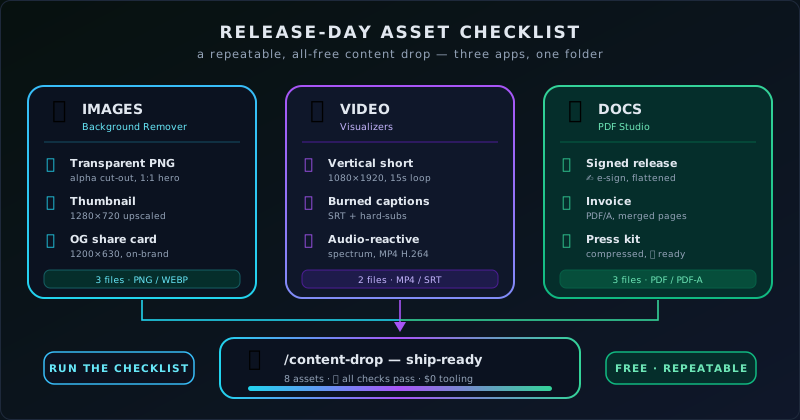
The real payoff of running a drop this way is that the second one is faster than the first. Once the routine is in your hands (inventory, images, video, documents, one palette, dependency order), it stops being a project and becomes a checklist you run. Save your manifest as a template and edit it per release instead of rebuilding it; keep a note of your standard export sizes so you are not looking them up each time; and reuse the palette-from-the-cover trick every release so consistency is automatic rather than something you have to remember.
That repeatability is the difference between a launch that consumes a stressful day and one that is a calm hour of publishing already-finished files. Every guide for the individual steps lives under Tutorials, so when a particular part of the drop is new to you (your first visualizer, your first signed PDF), there is a focused walkthrough for exactly that piece. Build the checklist once against your own kind of release, and each future drop is mostly a matter of swapping in this month’s files.
- Manifest written: every file, size, and name listed before any tool opens.
- Images done: cutouts checked on dark and light, heroes and crops exported.
- Video done: main piece plus every platform crop, captions corrected.
- Documents done: forms filled, signed, reviewed, and saved as finished copies.
- One brand: shared palette and consistent name and title across all assets.
Why free and on-device is the whole point
It is worth being clear about why this workflow can be genuinely free rather than free-until-you-try-to-export. All three tools run their heavy work on your own device, which removes the per-file server cost that pushes other free tools to meter usage, stamp watermarks, or gate the good output behind a subscription. There is nothing to recover, so there is no cap on how many images you cut out, no limit on the crops you export, and no paywall between you and the finished file. The apps are ad-supported, which is what keeps the work itself yours.
On-device also means private, and for a real content drop that is not a footnote. The images are often unreleased product photography or client deliverables; the track is unpublished; the documents are contracts and forms carrying names, amounts, and signatures. Every one of those is something you would rather not hand to an opaque third-party server, and because the computation happens in your browser, none of it has to be. The privacy and the price are the same fact: the work running on your machine is what keeps the toolkit both confidential and free. Start the next drop from Portfolio and prep the whole set in one sitting.
Frequently asked questions
Quick answers to common questions about this topic.
What do I actually need to prep a content drop?
At minimum, the images, the video, and any documents the release depends on: covers and cutouts, a main clip plus its platform crops, and any releases, invoices, or forms that must be signed. Listing them first makes the session mechanical instead of frantic.
Can I really do all of this for free?
Yes. The Background Remover, Novus Visualizers, and Novus PDF Studio are all free and ad-supported, with no watermark on exports and no paywall on the download button. You can see all three at Portfolio.
Are my files uploaded anywhere?
No. All three tools do their processing on your own device in the browser, so unreleased images, unpublished audio, and signed documents stay on your machine rather than going to a server.
In what order should I make everything?
Images first, since the cover art feeds the video’s colors and the cutouts feed your listing; video second; and documents whenever their numbers are final, often a good task to run while a video exports.
Related troubleshooting
Was this page helpful?
Your answer stays in this browser, it is not sent anywhere and no account or cookie is involved.