2026 · NSS Background RemoverAbout 12 min readNovus Stream Solutions
How to remove the background from a GIF (free, keeps the animation)
Removing a GIF's background means removing it from every frame while keeping the animation intact. Here is how to do it free, in your browser, and export a clean transparent loop.
Contents
- 1.Overview
- 2.Why a GIF is harder than a photo
- 3.Step by step: removing a GIF background
- 4.The GIF transparency limitation, and what to do about it
- 5.Replacing the background instead of removing it
- 6.Keeping file size reasonable
- 7.Common uses for a transparent GIF
- 8.Frame rate, loop length, and keeping motion smooth
- 9.From GIF to animated sticker: the handoff
- 10.When a short video beats a GIF entirely
- 11.Why on-device matters for GIFs too
Overview
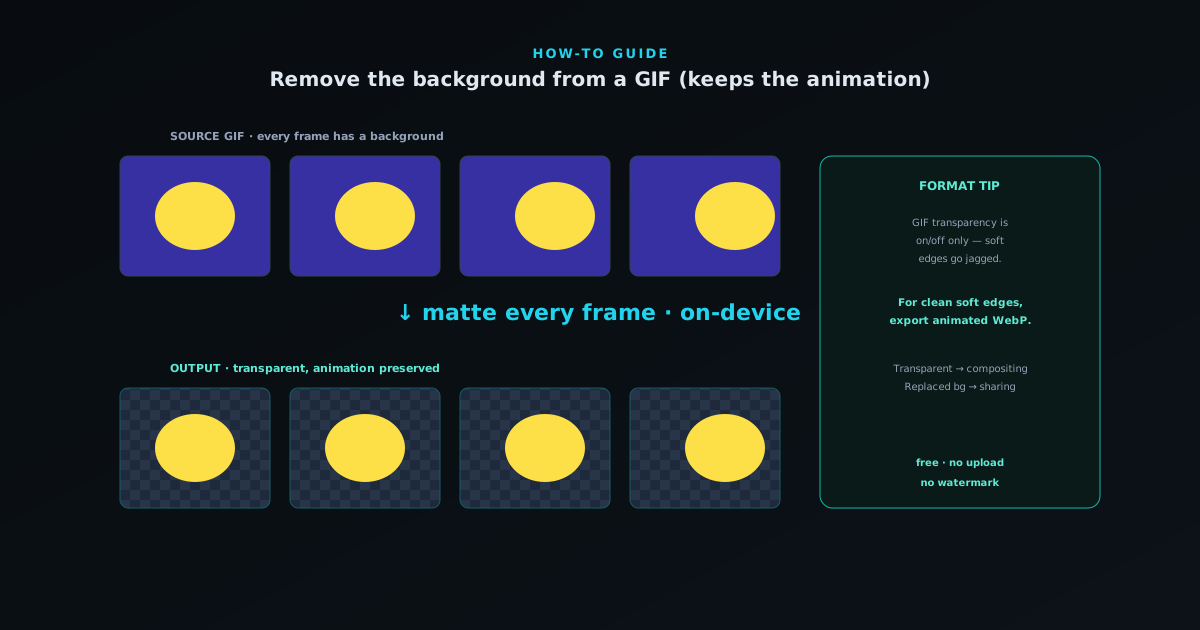
Removing the background from a GIF is conceptually the same as removing it from a photo, with one complication: a GIF is not one image but a sequence of frames, so the background has to be removed from every frame and the timing has to be preserved so the animation still plays. Do it right and you get a transparent animated loop — a subject that moves while the background stays clear, perfect for animated stickers, reaction GIFs, and overlays. Do it wrong, by treating the GIF as a single image, and you either lose the animation or end up with a flickering, inconsistent matte. This guide covers doing it right, for free, entirely in your browser.
There is also a format wrinkle worth knowing up front: the GIF format itself has very limited transparency — each pixel is either fully opaque or fully transparent, with no partial opacity, which means soft edges cannot be represented and tend to look hard or jagged. For a genuinely clean animated cutout with smooth edges, exporting to a modern animated format (like an animated WebP or a video with an alpha channel) often looks far better than a transparent GIF. The workflow below produces the per-frame matte; the format you export to determines how cleanly that matte's edges survive, and we cover both.
Why a GIF is harder than a photo
A still photo has one background to remove; a GIF has as many backgrounds as it has frames, and the subject is usually moving, which means the matte has to be recomputed for each frame as the subject changes position and shape. This is why you cannot simply remove the background once and apply it to the whole GIF — the cutout has to track the subject through the animation. The challenge is doing this consistently, so the edge does not jitter or flicker as it changes frame to frame, which is the most common way an amateur animated cutout gives itself away.
The right approach is to process each frame through the same background-removal model, so every frame gets a consistent matte, and then reassemble the frames with their original timing so the animation is preserved. Doing this by hand would be painful — dozens of frames, each needing a cutout — which is exactly why an automated per-frame workflow matters. The tool handles the frame extraction, the per-frame matting, and the reassembly, so what would be an hours-long manual job becomes an upload-and-export. The consistency of an automated per-frame pass is also what keeps the edge stable across the animation, avoiding the flicker that manual frame-by-frame work tends to introduce.
Step by step: removing a GIF background
Open the NSS Background Remover at bgremover.novusstreamsolutions.com and choose the GIF background-removal surface, then drop in your animated GIF. The tool extracts the frames, runs each through the AI to remove its background, and reassembles them into an animated result with a transparent (or replaced) background, preserving the original timing so the animation plays as before. Because everything runs on your device, the GIF — which is often a personal reaction clip or a meme — is never uploaded to a server.
Once processed, you can preview the animated cutout to check the edge quality across the motion, and choose whether to export a transparent animation or composite the subject onto a new background or colour. If the subject has soft or detailed edges, this is where the GIF format's binary transparency limitation shows up most, and where exporting to a better animated format pays off. For a simple, high-contrast subject, a transparent GIF can look fine; for anything with fine edges, preview both and pick the export that holds the edge best. The whole process is a few clicks rather than a manual frame-by-frame slog.
- Open the GIF background-removal tool and drop in your animated GIF.
- The tool mattes each frame and reassembles them with the original timing.
- Preview the animation to check edge consistency across the motion.
- Export a transparent animation, or composite onto a new background.
The GIF transparency limitation, and what to do about it
The GIF format stores transparency as a single bit per pixel: a pixel is either fully visible or fully invisible, with nothing in between. This works fine for hard-edged graphics but poorly for the soft, anti-aliased edges that real subjects have — hair, fur, motion blur, the gentle transition at the edge of any photographed object. Forced into binary transparency, those soft edges become hard and can look jagged or develop a rough fringe, because the format cannot represent the partial opacity that makes an edge look smooth. This is a limitation of the GIF format itself, not of the background removal.
The fix, when edge quality matters, is to export to a format that supports partial transparency. An animated WebP supports a full alpha channel, so soft edges stay soft, and the file is usually smaller than a GIF too. Some platforms also accept short videos with alpha or other modern animated formats that handle transparency properly. The practical rule: if your subject has clean, hard edges, a transparent GIF is fine; if it has soft or detailed edges, export to an animated format with real alpha so the edge survives. Knowing this up front saves the frustration of a perfectly good per-frame matte being ruined by the format's transparency limit at the final step.
Replacing the background instead of removing it
Sometimes the goal is not a transparent GIF but a new background — swapping a distracting background for a clean colour, a brand backdrop, or a different scene while keeping the animated subject. The workflow is the same up to the export: each frame is matted to separate subject from background, but instead of exporting transparency, you composite the subject onto the new background and export the result as a standard GIF or video. Because the new background is opaque, the GIF format's transparency limitation does not apply, so a replaced-background GIF can look clean even with a subject that would have fringed on transparency.
Replacing the background is often the more practical choice for sharing, since a GIF with a solid replaced background plays correctly everywhere without depending on the viewing surface's background, whereas a transparent GIF only looks right where the surface behind it cooperates. For a reaction GIF you want to post widely, a clean replaced background is reliable; for an overlay or sticker that needs to sit on whatever is behind it, transparency is necessary. Deciding which you need — transparent for compositing, replaced for standalone sharing — before you export is what gets you the right output the first time.
Keeping file size reasonable
Animated files get large quickly because they store many frames, and a background-removed GIF can be heavier than the original if you are not careful, which matters because most platforms cap the size of GIFs and stickers. The biggest levers on file size are the dimensions (smaller is lighter), the number of frames (a shorter loop or a lower frame rate is lighter), and the format (animated WebP is usually much smaller than GIF at the same quality). If your output is too large, reducing the dimensions to what the destination actually displays and trimming the loop to its essential motion are the first moves.
The format choice is the biggest single lever for animated transparency: an animated WebP frequently delivers the same animation at a fraction of a GIF's size while also handling soft edges better, so it solves the size and the quality problem at once where it is supported. For destinations that require GIF specifically, keeping the dimensions modest and the loop short is the way to stay under the cap. The same size-versus-quality-versus-compatibility tradeoff that governs still images applies to animated ones, just amplified by the frame count, which is why the format comparison at novusstreamsolutions.com/product-blog/png-vs-webp-vs-avif-for-transparency is worth reading for animated work too.
Common uses for a transparent GIF
The most common reason to remove a GIF's background is to make an animated sticker — a moving subject that sits cleanly on a chat background rather than dragging a box behind it. Discord and Telegram both support animated stickers, and a background-removed loop is the raw material for one, which is why this workflow pairs directly with the emoji-and-sticker guide. Animated overlays for streams and videos are another common use, where a transparent animated element needs to sit on top of other footage without a visible background.
Reaction GIFs, animated logos, and looping motion graphics for the web round out the typical uses, and each has a slightly different format preference: stickers and overlays usually need real transparency (favouring animated WebP), while reaction GIFs for broad sharing often work better with a clean replaced background as a standard GIF. Matching the export to the use — transparent animated format for compositing, replaced-background GIF for standalone sharing — is the same destination-driven thinking that governs the rest of transparent-image work. The per-frame matte is the same in every case; the export decision is what tailors it to where the animation is going.
Frame rate, loop length, and keeping motion smooth
Two settings quietly determine how a background-removed GIF looks and how large it is: the frame rate and the loop length. Frame rate is how many frames play per second — higher is smoother but heavier, lower is lighter but can look choppy — and for short stickers and reactions a moderate frame rate is usually the sweet spot, smooth enough to read well without bloating the file. Loop length is how many frames the animation contains; a tight, well-chosen loop of the essential motion is both smaller and more watchable than a long clip that overstays, since the animation plays on repeat and a shorter loop is less likely to feel tedious.
The interaction between these and the per-frame matting matters, because every frame is processed, so fewer frames means faster processing and a smaller file as well as a cleaner loop. Trimming a clip to the few seconds of motion that actually matter before removing the background is therefore doubly worthwhile: it speeds up the work and produces a better result. A common mistake is keeping a long, high-frame-rate clip and then wondering why the output is huge and slow to make; the fix is to cut it down to the essential motion first. Choosing a sensible frame rate and the shortest loop that captures the motion is what makes a background-removed GIF feel polished and stay within the size caps that platforms impose.
From GIF to animated sticker: the handoff
The most common destination for a background-removed GIF is an animated sticker, so it is worth understanding the handoff from one to the other. Once you have the transparent animated cutout, turning it into a sticker is a matter of meeting the target platform's sticker spec — the dimensions, the format, the frame-rate and size limits — which differ from a plain GIF and from each other. Discord and Telegram both support animated stickers with their own requirements, often favouring a modern animated format over a raw GIF precisely because of the transparency and size advantages discussed earlier. The transparent loop is the raw material; the sticker is that loop conformed to a specific platform's rules.
Because the sticker spec is stricter than a general GIF, it is worth checking the target before you finalize the export, so you produce the loop at the right size and in the right format the first time rather than reworking it. The companion emoji-and-sticker guide covers the platform sizes in detail, and the pattern is the same as for static stickers: a clean cutout, sized and formatted to the platform, exported with transparency intact. Treating the background-removed GIF as the source and the platform sticker as a conformed output of it — rather than as the same thing — is what makes the handoff smooth and keeps the animated sticker looking as clean as the transparent loop it came from.
When a short video beats a GIF entirely
It is worth questioning the GIF format itself, because for a lot of uses a short video is simply better than a GIF — smaller, higher quality, and smoother — and the only reason to use a GIF at all is when a destination specifically requires that format. A GIF is an old format that compresses poorly and limits colour and transparency; a short modern video at the same dimensions and length is typically a fraction of the size at much higher visual quality. Many platforms that historically used GIFs now actually convert them to video behind the scenes for exactly this reason, which is a hint that the GIF is often the wrong container even when it is the familiar one.
The decision comes down to transparency and destination. If you need a transparent animated element to composite onto something else, you need a format that supports alpha — an animated WebP or a video with an alpha channel — not a flat video. If you need a standalone animated clip with a solid or replaced background and the destination accepts video, a short video is usually the better choice than a GIF. The GIF remains the right answer only where a platform demands it specifically, which is a shrinking set of cases. Knowing that the GIF is frequently the legacy choice rather than the best one — and reaching for a short video or an animated WebP when the destination allows — is what keeps animated content small and sharp rather than large and degraded by an aging format.
Why on-device matters for GIFs too
GIFs are frequently personal or informal — a reaction clip of a friend, a pet doing something funny, a meme you are customizing — and like emoji, they are exactly the kind of content there is no good reason to upload to an unknown server. Doing the per-frame background removal on-device means the GIF is processed in your browser and never leaves your machine, which is the right default for casual, personal content. It also means no watermark stamped across your animation and no usage limits turning a quick edit into an upsell, both of which are common with online GIF tools.
The on-device approach has a practical performance dimension for GIFs specifically: because a GIF is many frames, processing it is more work than a single photo, and doing it locally means the speed depends on your device — a capable machine processes a short GIF quickly, while a long, high-resolution GIF on a modest device takes longer. This is the honest tradeoff of local processing, and it is worth it for the privacy and the absence of watermarks and limits. For the short loops that make good stickers and reactions, on-device per-frame removal is fast enough to feel routine, while keeping the often-personal content entirely on your own machine.
Frequently asked questions
Quick answers to common questions about this topic.
Can I remove the background from a GIF and keep it animated?
Yes. The background is removed from every frame and the frames are reassembled with their original timing, so the animation is preserved. Use the GIF background-removal tool at https://bgremover.novusstreamsolutions.com — it runs in your browser, free and with no upload.
Why do the edges of my transparent GIF look jagged?
The GIF format only supports on/off transparency with no partial opacity, so soft edges become hard. For clean soft edges, export to an animated format with a real alpha channel, such as animated WebP, instead of a transparent GIF.
Can I replace a GIF's background instead of removing it?
Yes. Each frame is matted, then the subject is composited onto a new colour or background and exported as a standard GIF or video. A replaced background avoids the GIF transparency limitation and plays cleanly everywhere.
Is removing a GIF background free?
Yes — free, no watermark, and processed on your device so the GIF is never uploaded. Because a GIF has many frames, processing time depends on its length and your device, but short loops are quick.