2026 · NSS Background RemoverAbout 13 min readNovus Stream Solutions
How to make a custom emoji or sticker for Discord, Slack & Telegram (free)
A good custom emoji is a clean cutout at the right size with a transparent background. Here is how to make one for Discord, Slack, or Telegram for free, with the exact sizes each platform wants.
Contents
- 1.Overview
- 2.Step 1: pick an image that will read at small size
- 3.Step 2: remove the background for transparency
- 4.Step 3: size it to the platform
- 5.Step 4: export the right transparent format
- 6.Making an animated sticker
- 7.A pack, not a one-off: think in sets
- 8.Why on-device matters for personal images
- 9.Padding, centering, and the square-canvas habit
- 10.Colour, contrast, and making a sticker pop in chat
- 11.Where emoji and stickers differ across platforms
- 12.Troubleshooting: common emoji problems
Overview
A custom emoji or sticker is, underneath the fun, a simple technical object: a small image with a transparent background, sized to the platform's spec, so it sits cleanly in a chat without a white box around it. The two things that make one look professional rather than slapped-together are a clean cutout — no leftover background, no jagged edge — and the correct dimensions for where it is going. Get those two right and a photo of your dog, your logo, or a friend's reaction face becomes an emoji that looks like it belongs. This guide walks the whole process for Discord, Slack, and Telegram, free and entirely in your browser.
The reason to do this on-device rather than through a random emoji website is the same reason it matters for any image work: the picture is often personal — a face, a pet, an inside joke — and there is no reason to upload it to an unknown server when your browser can do the cutout locally. The NSS Background Remover handles the transparency and sizing without uploading anything and without stamping a watermark on the result, which would defeat the purpose of a clean emoji. The workflow below is the same regardless of platform; only the target size and a couple of format details change.
Step 1: pick an image that will read at small size
Emoji and stickers are displayed tiny — often around 32 to 128 pixels in chat — so the single most important creative decision is choosing an image that stays legible when shrunk. A close-up with one clear subject works; a busy scene with lots of small detail turns into mush at emoji size. Strong, simple shapes and high contrast survive the shrink; fine detail and subtle tones do not. Before you do anything technical, ask whether the image would still be recognizable as a thumbnail, because that is exactly how it will appear.
Faces and single objects are the reliable choices: a pet's head, a person's expression, a logo, a distinct object. If the subject is small within the original photo, crop in tight before cutting it out, so the subject fills the frame and therefore the final emoji. A common mistake is cutting out a subject that occupies a third of the image and then wondering why the emoji looks like a speck — the fix is to crop close so the subject dominates. The cutout and sizing steps that follow assume the subject already fills most of the frame, which is the foundation of an emoji that reads.
Step 2: remove the background for transparency
The defining feature of an emoji or sticker is the transparent background — it is what lets the subject sit on top of any chat background without an ugly box around it. Open the NSS Background Remover at bgremover.novusstreamsolutions.com, drop in your cropped image, and the AI removes the background automatically, leaving the subject on a transparent (checkerboard) field. For a clean result around hair, fur, or irregular edges — which most emoji subjects have — the higher-quality model is worth using, since the edge is exactly what makes the difference between a crisp sticker and a rough one.
Because the tool exports true straight-alpha transparency, the edge stays clean against any background the chat app uses — light mode or dark mode, white or black. This matters more for emoji than for almost anything else, because the same sticker will be seen on many different background colours, and a cutout with a faint halo that was invisible on white will suddenly show as a fringe on a dark theme. A genuinely clean transparent cutout looks right everywhere, which is the whole point. If the AI leaves a stray edge, the brush refinement tools clean it up in a couple of strokes before you export.
Step 3: size it to the platform
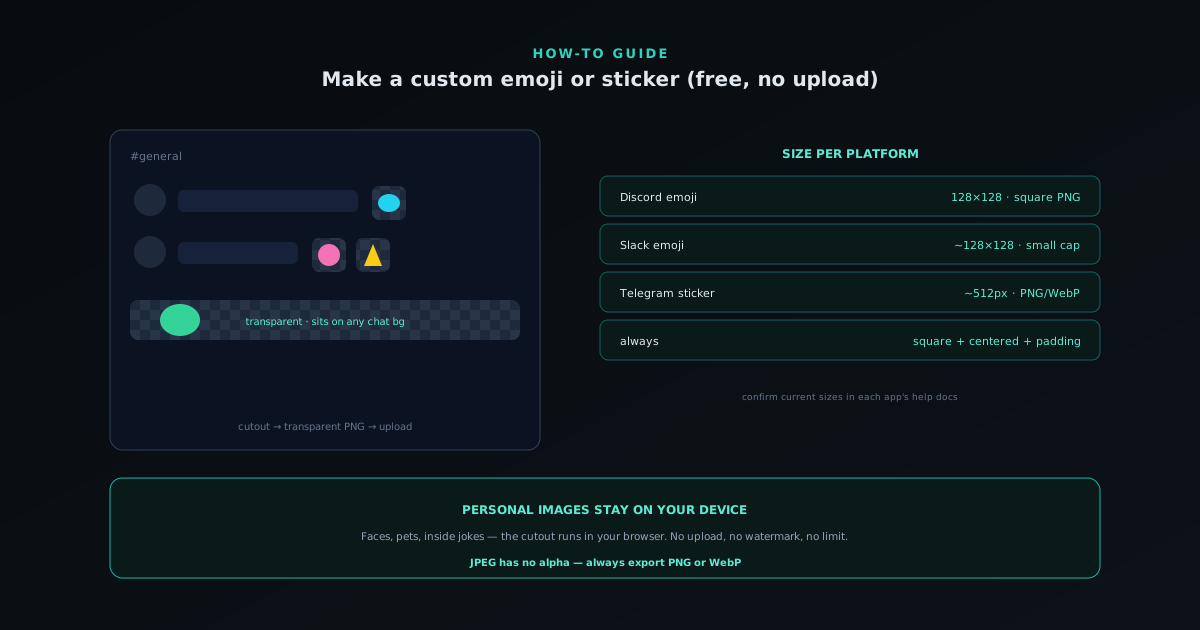
Each platform expects a specific size, and matching it is what makes the emoji look sharp rather than blurry or cropped. Discord custom emoji are small square images — keep them square and compact, with 128×128 pixels a safe upload size that the app scales down cleanly, and a file size within Discord's limit. Discord stickers are larger than emoji and have their own size and format rules, so treat stickers and emoji as two different targets. Slack custom emoji are also small squares, around 128×128, with a modest file-size cap. Telegram stickers are larger — historically a 512-pixel dimension on the long side with a transparent PNG (or WebP) — and sit in sticker packs rather than inline emoji slots.
The reliable approach is to export your transparent cutout on a square canvas sized to the platform's target, with the subject centered and a little padding so it is not jammed against the edges. Exporting square avoids the platform stretching or letterboxing a non-square image, which is a common cause of distorted-looking emoji. If you are making the same sticker for several platforms, export the largest needed size once and let each platform downscale, rather than upscaling a small version, since downscaling stays sharp while upscaling goes soft. Because platform rules change over time, confirm the current dimensions and file-size caps in each app's help docs before a big batch.
- Discord emoji: small square, 128×128 px is a safe source; stickers are larger with separate rules.
- Slack emoji: small square, around 128×128 px, modest file-size cap.
- Telegram stickers: larger, around 512 px on the long side, transparent PNG or WebP, in packs.
- Always export square with the subject centered and a little padding.
Step 4: export the right transparent format
Transparent PNG is the universal safe choice and works for emoji and stickers across all three platforms — it preserves the alpha channel, is widely supported, and keeps edges clean. Export as PNG unless a platform specifically prefers WebP, in which case WebP can produce a smaller file at similar quality while still supporting transparency. Avoid JPEG entirely for emoji and stickers, because JPEG has no alpha channel and will replace your transparency with a solid background, reintroducing exactly the box you removed.
File size matters because each platform caps it, and an emoji is small enough that staying under the cap is rarely a problem if you export at the right dimensions. If a file is too large, the usual causes are excessive resolution (export at the platform's target size, not larger) or an inefficient format (try WebP). The relationship between format, transparency, and file size is worth understanding once, since it applies to all your transparent-image work — the companion comparison at novusstreamsolutions.com/product-blog/png-vs-webp-vs-avif-for-transparency covers exactly when each format wins.
Making an animated sticker
Animated stickers add motion, and the principle is the same as a static one applied across every frame: a transparent background maintained consistently through the animation. The simplest animated stickers start from a short clip or an animated GIF of your subject, with the background removed from each frame so the motion sits cleanly on the chat background rather than dragging a box behind it. Discord and Telegram both support animated formats, with their own size and format requirements that are stricter than static stickers, so check the current spec before investing time.
The hard part of an animated sticker is keeping the cutout consistent frame to frame so the subject does not flicker or wobble at the edges, which is why removing the background from an animated source frame-by-frame — rather than trying to composite by hand — produces the cleanest result. The companion guide at novusstreamsolutions.com/product-blog/how-to-remove-a-background-from-a-gif covers removing a background from an animated GIF specifically, which is the most common starting point for an animated sticker. Keep animated stickers short and looping, since they play on repeat in chat, and simple motion reads better at sticker size than busy animation that turns to noise when small.
A pack, not a one-off: think in sets
A single custom emoji is fun, but the real value shows up when you make a coherent set — a sticker pack, a server's emoji collection, a brand's reaction set — because a consistent group reads as intentional and gets used far more than scattered one-offs. The way to get consistency is the same as for product photos: fix your approach once and apply it across the set. Same framing, same padding, same export size and format, same visual treatment. A pack where every sticker is cut and sized the same way looks designed; a pack of mismatched cutouts looks like a folder of random images.
Thinking in sets also makes the work more efficient, because you batch the cutouts rather than doing them one at a time. Process all your source images together, apply the same sizing, and export the whole set at once. For a server admin building an emoji collection or a creator making a branded sticker pack, this turns what feels like a tedious per-image chore into a single batched pass. The consistency that makes the pack look professional is a byproduct of the standardized process, not extra effort per sticker, which is the same principle that makes any repeated image work scale.
Why on-device matters for personal images
Emoji and stickers are unusually personal as image work goes — they are often faces of friends, pets, inside jokes, or a brand's identity, exactly the kind of image you would rather not hand to an unknown server. Many free "emoji maker" sites upload your image to process it, which means a photo of someone's face passes through a server you know nothing about, governed by a privacy policy you did not read. Doing the cutout on-device sidesteps that entirely: the image is processed in your browser and never leaves your machine, which is the right default for anything personal.
The on-device approach also removes the two other annoyances of random emoji sites: watermarks and limits. A watermark stamped on your sticker defeats the purpose, and usage limits turn a quick task into an upsell. Because the NSS Background Remover runs locally and is free with no watermark, you can make as many emoji and stickers as you like from images that stay on your device. For personal, often-private images that you will share in chats with friends and colleagues, keeping the whole process local is not a technicality — it is the difference between a tool you can trust with a photo of your face and one you cannot.
Padding, centering, and the square-canvas habit
A small detail that separates a polished emoji from an awkward one is padding — the small margin of transparent space around the subject. With no padding, the subject is jammed against the edges of the frame and can look cramped or get clipped when the platform applies its own rounding or masking; with a little breathing room, it sits comfortably and reads as intentional. The habit to build is to place the cutout on a square canvas a bit larger than the subject, centered, with a consistent margin, so every emoji in a set has the same comfortable spacing. This is the same instinct as framing a product shot, scaled down to emoji size.
Exporting square is the other half of the habit, because nearly every platform expects a square emoji and will stretch or letterbox a non-square one, distorting the subject. By always working on a square canvas with the subject centered and padded, you sidestep the distortion entirely and guarantee the emoji displays as drawn. For a set, fixing the canvas size and padding once and applying it to every sticker is what produces the visual consistency that makes a pack look designed rather than assembled. The square-canvas-with-padding habit is a thirty-second discipline that quietly fixes the two most common reasons a custom emoji looks slightly off — cramping and distortion.
Colour, contrast, and making a sticker pop in chat
Because an emoji is tiny and sits against an unpredictable chat background, contrast and colour do a lot of the work of making it readable and appealing. A subject with strong internal contrast and a clear silhouette pops at small size; a low-contrast, muddy subject disappears. If the source image is flat or dim, a quick brightness and contrast lift before or after the cutout makes the subject read more clearly at emoji scale, the same way brightening a room makes a listing photo work. The aim is a subject that is instantly recognizable in the half-second a viewer spends registering an emoji.
The silhouette matters as much as the internal detail, because at emoji size the outline is often the first thing a viewer parses. A subject with a clear, distinctive outline — a recognizable head shape, a bold object — reads faster than one with a fuzzy or ambiguous edge, which is another reason the cutout quality matters so much. Some creators add a subtle outline or slight glow around the subject to help it separate from busy backgrounds, which can work for stickers though it should be done lightly. The general principle is that an emoji has a fraction of a second and a few dozen pixels to communicate, so maximizing contrast, clarity, and a clean silhouette is what makes it actually land in conversation rather than getting lost.
Where emoji and stickers differ across platforms
It is worth being precise that emoji and stickers are not the same object, and the platforms treat them differently, which affects how you make each. Emoji are the small inline images that sit in a line of text or as reactions — tiny, square, and used like punctuation. Stickers are larger standalone images sent as their own message, with more room for detail and often supporting animation. Discord, Slack, and Telegram all draw this line somewhat differently: Discord has both custom emoji and separate stickers with distinct size and format rules, Slack centres on custom emoji, and Telegram is built heavily around sticker packs.
The practical consequence is to decide which object you are making before you size and export, because a 128-pixel emoji and a 512-pixel sticker are different targets from the same source. A reaction face used inline wants the small emoji treatment; a detailed character or a branded graphic sent as its own message wants the larger sticker treatment. Making the same subject at both sizes from one clean cutout is straightforward — export the largest needed size and downscale for the smaller — but conflating the two leads to an emoji that is too detailed to read or a sticker that is too small to appreciate. Knowing the distinction, and which one each platform slot expects, is what gets the size and detail right for where the image will actually be used. Because these specs shift over time, the current dimensions for each are worth confirming in each app's own help docs.
Troubleshooting: common emoji problems
If your emoji looks blurry, the usual cause is upscaling a small source image to the platform size — start from a higher-resolution crop instead, or export at the source's native size and let the platform downscale. If it looks cropped or squished, the source was not square and the platform stretched it; re-export on a square canvas with the subject centered. If a faint outline appears around the subject on a dark chat theme, the cutout has a slight halo from the old background; redo the removal with the higher-quality model and refine the edge, since a true straight-alpha cutout should be clean on any background.
If the transparent background shows as a solid colour after upload, you almost certainly exported as JPEG, which cannot store transparency — re-export as PNG or WebP. If the file is rejected for size, you are over the platform's cap; reduce the export dimensions to the platform target or switch to WebP for a smaller file at the same quality. Nearly every emoji problem traces back to one of these — resolution, aspect ratio, edge quality, or format — and each has a direct fix, which is why understanding the four basics up front prevents almost all of them.
Frequently asked questions
Quick answers to common questions about this topic.
How do I make a custom emoji for Discord for free?
Crop your image tight on the subject, remove the background for transparency at https://bgremover.novusstreamsolutions.com, and export a square transparent PNG around 128×128 pixels. Then upload it in your Discord server's emoji settings — it is free with no watermark.
What size should a custom sticker or emoji be?
Discord and Slack emoji are small squares (around 128×128 px); Telegram stickers are larger (around 512 px on the long side). Always export square with the subject centered, and confirm the current size and file-size caps in each app's help docs.
Why does my emoji have a white box around it?
It was exported as JPEG, which has no transparency, or the background was not fully removed. Re-export as a transparent PNG with the background cleanly removed so the subject sits on any chat background without a box.
Can I make an animated sticker?
Yes. Start from a short clip or animated GIF, remove the background from each frame so the motion stays transparent, and export in the platform's animated format. See /product-blog/how-to-remove-a-background-from-a-gif for the frame-by-frame removal.