2026 · NSS Background RemoverAbout 13 min readNovus Stream Solutions
How to make a favicon (ICO) from any image
A favicon is the tiny icon in the browser tab: small, but it is part of every site's identity. Here is how to make one from any image or logo, free, with the right sizes and transparency.
Contents
- 1.Overview
- 2.What a favicon is and where it appears
- 3.The sizes that matter
- 4.Designing for tiny scale
- 5.Transparency and the favicon background
- 6.Making the favicon from an image
- 7.The ICO format and modern alternatives
- 8.Color and the brand at tiny scale
- 9.Common favicon mistakes to avoid
- 10.Updating a favicon as a brand evolves
- 11.Installing and testing the favicon
Overview
A favicon is the tiny icon that appears in the browser tab next to a page's title, in bookmarks, in browser history, and on mobile home screens: small, easily overlooked, but a real part of every website's identity. A site without a favicon shows a generic blank icon that looks unfinished and unprofessional; a site with a crisp, recognizable favicon looks polished and is easier to find among a row of open tabs. Making one from a logo or any image is straightforward once you understand the few things that matter: the sizes a favicon needs, how to design something that reads at tiny scale, the role of transparency, and the multi-size ICO format. This guide covers all of it, free and on your own device.
The reason a favicon is worth getting right despite its size is that it appears everywhere a site is referenced in the browser, so it does a surprising amount of brand work for such a small image. Every open tab, every bookmark, every history entry shows it, which means a good favicon quietly reinforces a site's identity across all the places a user encounters it. The challenge is that the favicon is tiny (often displayed at 16 or 32 pixels), so it has to be legible and recognizable at a scale where detail disappears, which is a real design constraint. Understanding how to design for that constraint, and how to produce the right file, is what separates a crisp, professional favicon from a muddy, unrecognizable one.
What a favicon is and where it appears
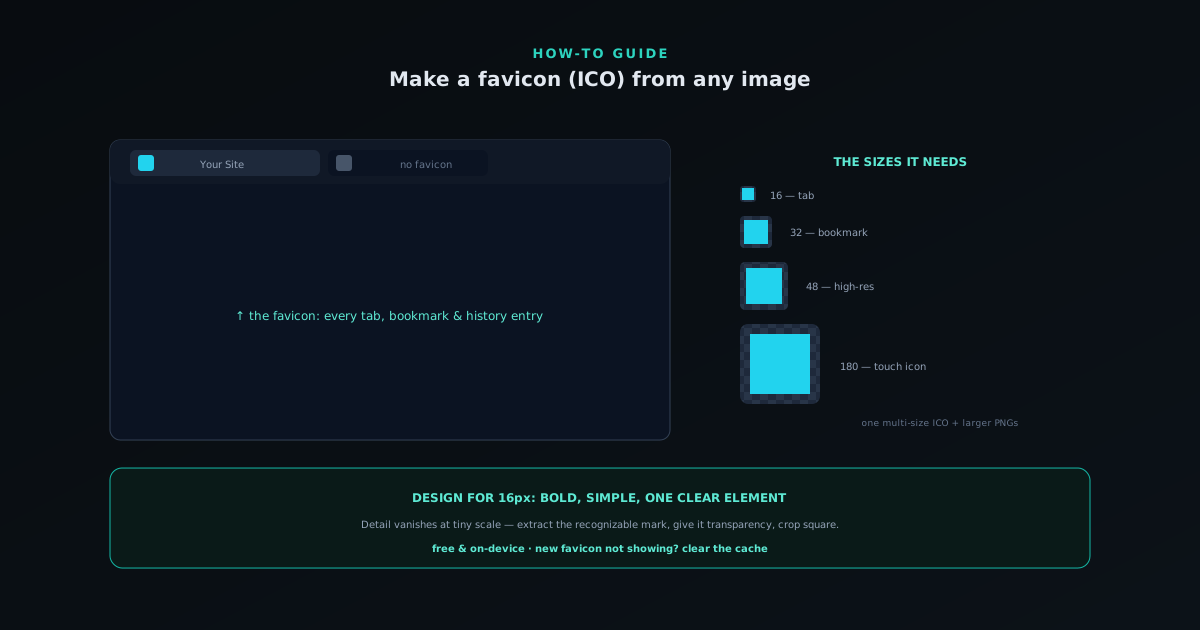
A favicon (short for "favorite icon") is the small image a browser displays to represent a site in several places: the browser tab, bookmarks, the history list, and, in expanded forms, on mobile home screens when a site is saved. It is part of how users visually identify a site at a glance, especially when many tabs are open and the tab titles are truncated to almost nothing, leaving the favicon as the main way to tell tabs apart. This ubiquity across the browsing experience is why the favicon, despite its size, is a meaningful part of a site's presence rather than a trivial decoration.
The favicon has evolved over time from a single small icon into a small family of icons at different sizes for different contexts: the tiny tab icon, larger versions for bookmarks and high-resolution displays, and still larger ones for mobile home-screen shortcuts. Modern sites typically provide several sizes so the browser can use the appropriate one for each context, which is why making a favicon is partly about producing the right set of sizes rather than a single image. Understanding that the favicon is a multi-context, multi-size element (not just one tiny picture) is the foundation for making one that looks crisp everywhere it appears, from the tab to the home screen.
The sizes that matter
A favicon needs to exist at several sizes because different contexts display it at different scales, and providing the right sizes is what makes it look crisp rather than blurry everywhere. The classic favicon sizes are 16×16 and 32×32 pixels (the small sizes used in browser tabs and bookmarks) and a 48×48 is also commonly included. Beyond these, larger sizes (such as 180×180 for Apple touch icons on iOS home screens, and 192×192 or 512×512 for Android and progressive web apps) cover the higher-resolution and mobile contexts where the icon is shown larger. A complete modern favicon set spans from the tiny tab icon up to the larger home-screen icons.
The reason providing multiple sizes matters rather than just scaling one is that a tiny icon and a large icon often need to look different to read well: an icon designed with fine detail looks great at 192 pixels but turns to mush at 16 pixels, while one simplified for 16 pixels looks sparse at 192. Providing purpose-made sizes (or at least ensuring the icon reads at both the smallest and largest scales) is what keeps it crisp across contexts. At minimum, a favicon should look good at the small tab sizes (16 and 32 pixels) since those are the most common, and provide a larger version for high-resolution and mobile use. Getting the sizes right is half of making a favicon that looks professional everywhere it appears.
Designing for tiny scale
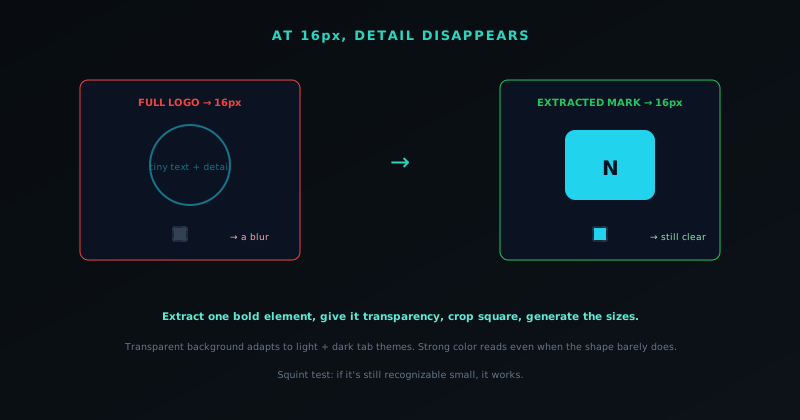
The defining design constraint of a favicon is that it is displayed tiny (often just 16 or 32 pixels), so the single most important principle is that it must read clearly at that scale, which means simplicity. Fine detail, small text, intricate elements, and subtle color differences all disappear at favicon size, turning into an indistinct blur. What survives the shrink is bold, simple shapes, strong contrast, and a single clear element. A complex logo that works on a sign or a webpage header often has to be simplified (reduced to its most recognizable element or a bold symbol) to work as a favicon, because the full logo becomes unreadable when shrunk to a tab icon.
This is why making a favicon from a detailed logo is often a matter of extraction rather than reduction: pulling out the single most distinctive element (a symbol, a letter, a bold mark) that can stand alone and read at tiny size, rather than cramming the whole logo into a tiny square. A favicon does not need to be the complete logo; it needs to be a recognizable stand-in that evokes the brand at a glance. The test is whether the design is still identifiable at 16 pixels: squint at it small, and if you can still tell what it is, it works; if it becomes an indistinct blob, it needs simplifying. Designing for the tiny scale (bold, simple, high-contrast, one clear element) is what makes a favicon legible where a detailed design would fail.
Transparency and the favicon background
Transparency matters for a favicon because it determines how the icon sits against the browser's tab background, which varies between light and dark themes. A favicon with a transparent background shows just the icon shape against whatever the tab color is, adapting to light and dark browser themes, while a favicon with a solid background shows a colored square that may clash with the theme. For most favicons (especially icon-style marks rather than full square images) a transparent background is the cleaner choice, letting the icon shape stand on its own against any tab color. This is why favicons usually start from a transparent cutout of the logo or symbol.
The exception is when the favicon is deliberately a solid shape (a colored square or circle with a mark inside) which some brands choose for a bold, consistent presence regardless of the tab theme. In that case the background is intentional and opaque. But for the common case of an icon or logo mark, transparency lets the favicon adapt and look clean across browser themes, which is why making a favicon often begins with removing the background from the source logo at bgremover.novusstreamsolutions.com/background-remover to get a transparent version. The companion guide at How to make a transparent PNG (free, no upload) covers producing the transparent cutout, which is frequently the first step before converting it into the favicon sizes and format. Getting the transparency right (present for icon marks, intentionally opaque for solid-shape favicons) is what makes the favicon sit cleanly in the tab.
Making the favicon from an image
The process of making a favicon from an image is: start with a source image (a logo, a symbol, or any image that will read at tiny size), simplify or extract the element that works small if needed, give it a transparent background where appropriate, and then produce the favicon at the required sizes and in the right format. The NSS Background Remover's ICO creator at bgremover.novusstreamsolutions.com/tools/ico-creator handles this in the browser: remove the background to get a clean transparent mark, then generate the favicon, all on your device with no upload. Because the whole process is local and free, you can iterate on a favicon (trying different crops or simplifications) without per-use limits or uploading your logo.
Starting from a square or square-croppable source helps, since favicons are square, so an image where the key element fits a square crop translates most cleanly. If the source is a wide logo, extracting the symbol or a square portion of it usually works better than squashing the whole wide logo into a square, which distorts it. The practical sequence (clean transparent cutout of the right element, cropped square, generated at the favicon sizes) produces a favicon that reads well and sits cleanly in the tab. Doing it on-device keeps the source logo private (relevant for an unreleased brand) and free, which makes it easy to create or update a favicon as part of building a site's identity rather than a task requiring a separate paid tool.
The ICO format and modern alternatives
Favicons have traditionally used the ICO format, which has a useful property: a single ICO file can contain multiple sizes of the icon, so the browser can pick the right size for each context from one file. This is why "favicon.ico" has long been the standard: one file holding the 16, 32, and 48 pixel versions, placed where browsers look for it. The ICO format remains widely supported and is a safe, classic choice, which is why generating a multi-size ICO is the traditional way to make a favicon and still works everywhere.
Modern web practice has expanded beyond the single ICO file to also include PNG icons at various sizes referenced in the page's HTML, plus the larger Apple touch icons and Android/PWA icons for mobile home screens, since these contexts want larger, higher-resolution images than the classic favicon sizes. So a complete modern favicon setup often includes both a traditional multi-size ICO for broad compatibility and a set of PNG icons at the larger sizes for mobile and high-resolution use. For a simple site, a good multi-size ICO covers the essential browser-tab and bookmark cases; for a site that wants a polished mobile home-screen presence, adding the larger PNG icons completes the set. Knowing both the classic ICO approach and the modern multi-format expansion lets you make a favicon that is as complete as the site needs, from a simple tab icon to a full set spanning every context.
Color and the brand at tiny scale
Color does a lot of work in a favicon precisely because detail does so little: at 16 pixels, the color is often more recognizable than the shape, so a favicon that uses the brand's distinctive color reads as that brand even when the form is barely legible. This is why many effective favicons lean on a strong, brand-associated color: a user scanning a row of tabs recognizes the colored icon before they can make out its shape. Choosing a favicon color that matches the brand's identity, and ensuring it has enough contrast to stand out against both light and dark tab backgrounds, is therefore a meaningful part of making the favicon do its identity job.
The contrast point matters because tabs appear on different backgrounds across light and dark browser themes, and a favicon whose color blends into one theme becomes hard to see in that context. A favicon with a transparent background and a strong, contrasting color for the mark stays visible across themes, while one that is, say, dark on a transparent background can vanish against a dark tab. Picking a color that is both on-brand and sufficiently contrasting against the range of tab backgrounds is what keeps the favicon recognizable everywhere it appears. Because the favicon is a small but ever-present piece of the brand, treating its color as a deliberate brand decision (distinctive, consistent with the identity, and contrast-tested) is part of making it pull its weight as an identity element rather than a forgettable default.
Common favicon mistakes to avoid
A few recurring mistakes account for most bad favicons, and knowing them is a quick way to avoid producing one. The most common is too much detail: cramming a full, intricate logo into the tiny square so it turns to mush at 16 pixels, when the fix is to simplify or extract a bold element. Another is the wrong aspect ratio: forcing a wide logo into a square favicon stretches or distorts it, where the right move is to use a square-croppable element. A third is missing transparency, producing a favicon with an unwanted solid background that clashes with tab themes, when an icon mark usually wants a transparent background.
Other frequent mistakes include providing only one tiny size so the favicon looks blurry in larger contexts like bookmarks and mobile home screens, and low contrast so the icon is hard to see against some tab backgrounds. Each of these is avoidable with the principles already covered (simplify for scale, crop square, use transparency for marks, provide multiple sizes, and ensure contrast), which is why running a quick check against this list before finalizing a favicon catches the typical failures. The throughline of all the mistakes is treating the favicon like a normal-sized image rather than respecting the tiny-scale, multi-context constraints it actually operates under. A favicon designed with those constraints in mind (simple, square, transparent where appropriate, multi-size, and high-contrast) avoids all the common failures and looks crisp everywhere, which is the whole goal.
Updating a favicon as a brand evolves
A favicon is not necessarily permanent: brands evolve, logos get refreshed, and the favicon should keep pace, so it is worth knowing how to update one cleanly. When a brand updates its logo or visual identity, refreshing the favicon to match keeps the brand consistent across the browser presence, since a stale favicon showing an old logo undercuts a rebrand. Because making a favicon from an updated logo follows the same process as making the original (simplify or extract the mark, transparency, square crop, generate the sizes), updating is straightforward, and doing it free and on-device means a brand refresh can include a new favicon without extra cost or a separate tool.
The one wrinkle in updating a favicon is the caching behavior covered below: browsers hold onto the old favicon aggressively, so after updating, users (and you) may keep seeing the previous icon until the cache clears, which can make an update seem not to have worked. Knowing this prevents the confusion of thinking the new favicon failed when it is simply the old one cached, and there are techniques to encourage browsers to fetch the new version. The broader point is that the favicon, as a living part of the brand's identity, should be maintained alongside the rest of the visual brand (updated when the brand updates, kept consistent with the current logo) rather than set once and forgotten. Treating it as a maintained brand asset, easy to refresh through the same free on-device process, is what keeps a site's smallest identity element accurate as the brand grows and changes.
Installing and testing the favicon
Once made, a favicon has to be installed correctly to appear, which means placing the icon files and referencing them in the site's HTML so the browser knows where to find them. The classic approach is placing a favicon.ico at the site's root, where browsers automatically look for it, supplemented by link tags in the page head pointing to the various icon sizes for modern browsers and mobile. The exact installation depends on the site's setup, but the principle is that the icon files exist and the HTML tells the browser about them, after which the favicon appears in the tab.
Testing the favicon is worth doing because of a common frustration: browsers cache favicons aggressively, so after adding or changing a favicon, you may not see it immediately: the browser keeps showing the old one (or none) from its cache. Confirming the favicon appears may require a hard refresh, clearing the cache, or checking in a fresh browser context, and it is the most common reason a correctly-installed favicon seems not to work. Testing across the contexts where the favicon appears (the tab, a bookmark, a mobile home-screen save) confirms the different sizes are working. The caching quirk is the usual culprit when a new favicon does not show up, so knowing to force a cache refresh saves the confusion of thinking the favicon failed when it is simply the old one cached. Once it appears, the favicon quietly does its identity work everywhere the site is referenced in the browser.
Frequently asked questions
Quick answers to common questions about this topic.
What size should a favicon be?
A favicon needs several sizes: 16×16 and 32×32 pixels for browser tabs and bookmarks (and often 48×48), plus larger sizes like 180×180 for Apple touch icons and 192×192 or 512×512 for Android and PWA home-screen icons. A multi-size ICO covers the classic browser cases.
How do I make a favicon from my logo?
Extract or simplify the logo to a bold element that reads at tiny size, give it a transparent background, crop it square, and generate the favicon sizes. The NSS Background Remover's ICO creator at https://bgremover.novusstreamsolutions.com does this in your browser for free.
Why does my favicon look blurry or unrecognizable?
It probably has too much detail for the tiny scale: fine detail and small text disappear at 16 pixels. Simplify the design to bold, high-contrast shapes or extract the single most recognizable element so it stays legible when shrunk.
Why is my new favicon not showing up?
Browsers cache favicons aggressively, so the old one (or none) often persists after a change. Force a hard refresh, clear the cache, or check in a fresh browser context: caching is the most common reason a correctly-installed favicon does not appear right away.
Related workflow
Product photo to a transparent image every channel accepts
One photograph, cut out once, then re-encoded for a storefront, a marketplace listing and a social post without redoing the cutout each time.
- Cut the background out and check the edgesNSS Background Remover: Hair, glass and drop shadows are where automatic cutouts fail. Fix them once, on the master, before anything downstream copies the mistake.
- Re-encode and resize per destinationNovus Convert: Transparency survives PNG and WebP and dies in JPEG. Convert validates the file it hands back, so a listing never rejects a silently broken upload.
Related troubleshooting
Was this page helpful?
Your answer stays in this browser, it is not sent anywhere and no account or cookie is involved.