2026 · Novus Stream SolutionsAbout 11 min readNovus Stream Solutions
Accessibility that pays for itself: a practical pass for small sites
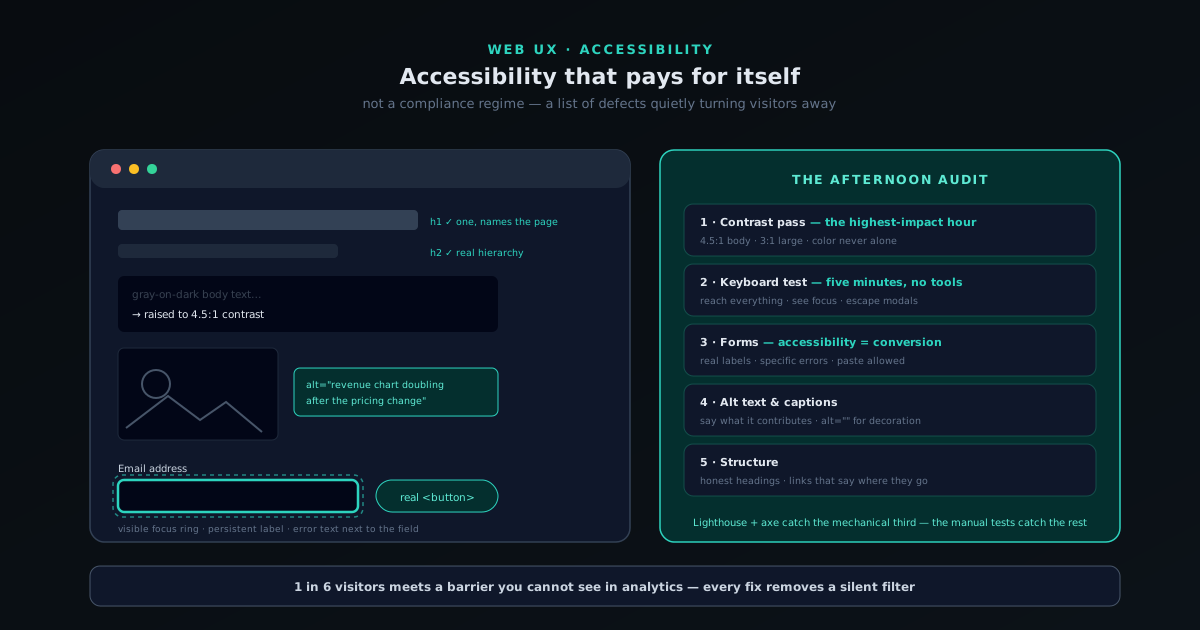
Accessibility on a small site is not a compliance project: it is an afternoon of fixes that enlarge your audience, improve your SEO, and make the site better for every user. Here is the pass, in priority order, with the business case attached.
Contents
- 1.Overview
- 2.The core insight: accessible and good are mostly the same thing
- 3.Contrast and color: the highest-impact hour
- 4.Keyboard and focus: the five-minute test that fails most sites
- 5.Forms: where accessibility and conversion are the same number
- 6.Alt text, media, and motion
- 7.Structure: headings, links, and names that mean something
- 8.The afternoon audit, with free tools
Overview
Accessibility has an image problem among small-site owners: it sounds like a compliance regime designed for governments and enterprises (audits, certifications, a standards document the size of a novel) and so it gets mentally filed under "someday, if we get big." That framing misses what accessibility actually is at small scale: a short list of concrete defects that lock real people out of your site, most of which take minutes to fix, all of which make the site better for everyone, including the search crawlers and the users on cheap phones in bright sunlight. You do not need to read the standards to fix the defects. You need one honest pass, in priority order, which is what this guide is.
The business case deserves to be stated plainly rather than piously. Somewhere between one in six and one in four of your potential visitors has some condition that affects how they use the web (low vision, color blindness, motor limitations, hearing loss, cognitive and attention differences) before counting everyone temporarily impaired by a broken arm, a screaming toddler, or a cracked screen. A site with accessibility defects is running a quiet filter that turns away a measurable slice of its audience at the door, invisibly, with no error message and no analytics event. Fixing the defects removes the filter. That the same fixes also improve SEO (structure and alt text), conversion (usable forms), and legal exposure (accessibility lawsuits against ordinary commercial sites are no longer rare) is why this is one of the few projects that genuinely pays for itself several ways at once.
The core insight: accessible and good are mostly the same thing
The reason an afternoon can move the needle is that web accessibility, at the level that matters most, is not a parallel set of special accommodations bolted onto a site: it is mostly the same properties that define a well-built site, enforced honestly. Text you can read is text with sufficient contrast. Buttons you can hit are buttons with adequate size and spacing. Forms you can complete are forms that say what they want and explain what went wrong. Pages you can navigate are pages with a real heading structure and links that say where they go. Every one of those sentences is simultaneously an accessibility requirement and a description of basic quality; the user with perfect vision on a flagship phone also benefits from every single one.
This overlap is why the right mental model is subtraction, not addition. You are not adding an accessibility layer; you are removing the defects that a subset of users cannot route around. The user with full sight squints at your gray-on-white text and stays; the user with low vision leaves. The user with a mouse ignores your broken keyboard navigation; the user with a tremor, or a power user on a laptop, cannot. Framing it as defect-removal also fixes the prioritization problem that makes the standards feel overwhelming: you do not work through guidelines alphabetically, you fix the things that lock the most people out of the most important paths first: reading the content, navigating the site, and completing the form or checkout that is the site's entire point.
Contrast and color: the highest-impact hour
If the pass only gets one hour, spend it on contrast, because low-contrast text is the single most widespread accessibility defect on the web and one of the easiest to fix. The fashionable gray-on-white aesthetic that crept into design systems over the past decade is, functionally, a decision to make body text harder to read for everyone and impossible for some, and it is fixed by changing a color value. The working standard is a contrast ratio of at least 4.5:1 for body text and 3:1 for large text; free checkers (any contrast checker, the inspector built into every browser's dev tools) measure it instantly. Check body text, secondary text, link colors, button labels, and text over images, the last being the classic offender, fixed with an overlay or a repositioned text block. Getting these ratios to hold across an entire dark interface, where the intuitions from light backgrounds quietly fail, is its own exercise; Accessible color systems for dark UIs works through it token by token.
The second half of the hour goes to color independence: making sure color is never the only carrier of meaning. The red-green distinction invisible to roughly one in twelve men is the canonical case: error states marked only by a red border, required fields marked only in color, the chart where the two lines differ only by hue. The fix is always the same: pair the color with a second signal: an icon, a label, a text message, a pattern. "Error: enter a valid email" next to the red border costs nothing and serves everyone, including the user who simply did not register the border as significant. None of this constrains the design palette; it constrains what the palette is allowed to do alone, which is a much smaller ask than designers fear.
Keyboard and focus: the five-minute test that fails most sites
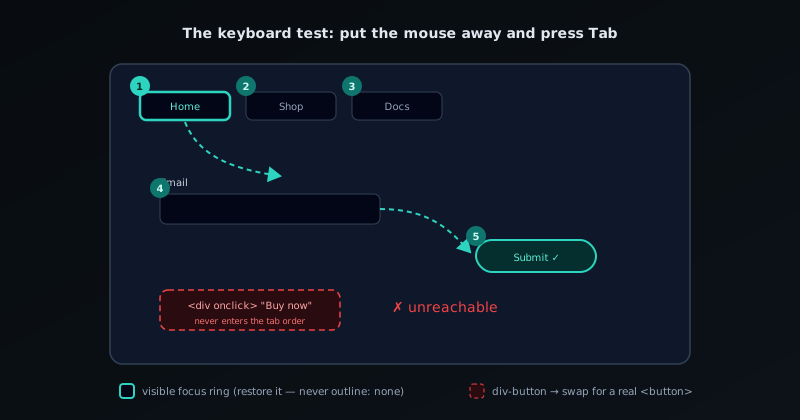
Here is the test: put the mouse away and use your site with only the keyboard: Tab to move between interactive elements, Enter to activate, arrows within menus. Can you reach everything? Can you see, at every moment, where you are? Can you open the menu, close the modal, complete the checkout? A substantial fraction of sites fail within the first five tabs, and every failure is a hard lock-out for users with motor impairments, screen reader users (whose tools are keyboard-driven), and a daily annoyance for the power users who tab through forms by habit. This test costs five minutes and requires no tooling, which makes it the best effort-to-insight ratio in the entire field.
The fixes cluster around three patterns. First, the invisible focus: somewhere, a stylesheet has set outline: none because the focus ring looked untidy, leaving keyboard users navigating blind; restore a visible focus style (a clear ring or high-contrast outline) and the site becomes navigable again in one CSS change. Second, the unreachable control: elements made clickable with a click handler on a div instead of a real button or link never enter the tab order at all; swap them for real interactive elements (button, a) and the browser does the rest for free, which is the deep reason semantic HTML keeps being the answer to accessibility questions. Third, the trap: the modal you can tab into but not out of, the menu that opens on hover only. Each is a known pattern with a known fix, and on a small site there are rarely more than a handful of each.
Forms: where accessibility and conversion are the same number
Forms are where accessibility defects cost you directly and measurably, because the form is where visitors become customers, subscribers, or leads, and an inaccessible form is a conversion leak with a moral dimension. The defects are unglamorous. Inputs without real labels (a placeholder that vanishes the moment you type is not a label; the user who got distracted mid-field returns to a row of anonymous boxes). Error messages that announce "something went wrong" without saying what or where. Required fields revealed as required only after submission. Touch targets sized for stylus precision. Each defect generates abandonment across the entire population, and total exclusion at the margins.
The accessible form is, not coincidentally, the form that converts: every input has a visible, persistent label properly associated with it (the label element, doing the job it has had since the nineties); errors appear next to the field they describe, in text, saying specifically what to fix; requirements are stated before submission, not as a punishment after; and the whole thing works with the keyboard test from the previous section. One more habit pays disproportionately: stop disabling paste and autofill. Password fields that block paste defeat password managers (punishing exactly the users with the best security hygiene) and broken autofill adds friction to every checkout. Forms are also where the overlap argument is easiest to sell to a skeptical stakeholder, because the accessibility fix list and the conversion-optimization fix list are, line for line, nearly the same document.
Alt text, media, and motion
Alternative text is the accessibility task everyone has heard of, and the one most often done to no one's benefit. The purpose is simple: a screen reader user encountering your image hears the alt text, so it should say what the image contributes to the page. "Chart showing revenue doubling after the pricing change" works; "image," "photo123.jpg," or a keyword-stuffed paragraph aimed at search engines does not. The standard's subtlety worth knowing: decorative images (ornaments contributing nothing the text does not already say) should carry empty alt text (alt=""), which tells the screen reader to skip them silently rather than announce filename garbage. The test for any image: if it disappeared, what would a reader need to be told? That sentence is the alt text; if the answer is nothing, it is decorative. When you have a backlog of images to caption, an on-device draft tool gets you a first pass to edit down to that sentence, rather than starting every one from a blank field.
Media and motion extend the same logic. Video with speech needs captions, which by now is barely an accessibility feature, given that most short-form video is watched muted and captioned content measurably outperforms uncaptioned; auto-generated captions reviewed for errors are an acceptable floor, and a tool that transcribes on-device (the captions feature at visualizers.novusstreamsolutions.com/editor does this with per-word timing) gets you that floor without uploading the audio. Audio content needs a transcript, which doubles as indexable text for search. And animation needs restraint plus an exit: respect the reduced-motion preference users set at the OS level (one CSS media query, prefers-reduced-motion, and your animations politely stand down for the users whose vestibular systems punish them for parallax), and never let anything flash rapidly. For a typical small site this whole section is an hour: a sweep through existing images writing honest alt text, captions on whatever video matters, and one media query.
Structure: headings, links, and names that mean something
Screen reader users do not read pages top to bottom; they navigate them: jumping between headings, pulling up the list of links, skipping to landmarks. That workflow turns your page structure from invisible scaffolding into the primary interface, and it is why structural honesty matters: one h1 that names the page, h2s that genuinely divide the content, h3s nested inside them, chosen by hierarchy, not by which size looked right (that is what CSS is for). A page whose headings are styled paragraphs offers the screen reader user a featureless wall; a page with real heading structure offers them a table of contents. Search crawlers, it happens, read the page the same way, which is why this section of the accessibility pass is indistinguishable from on-page SEO work.
The same navigate-by-list behavior is why link text has to carry meaning out of context: a links list that reads "click here, click here, learn more, here" is unusable, while "read the refund policy" and "download the press kit" navigate themselves, and, again, descriptive anchor text is simultaneously an old SEO fundamental. Round out the structure pass with the page title (the tab text: it is the first thing announced and should name the page, not just the brand), the language attribute on the document (one line; it determines pronunciation), and a skip-to-content link as the first focusable element so keyboard users are not forced through the full navigation on every page. Every item in this paragraph is a one-line fix, and together they take less time than choosing a hero image.
The afternoon audit, with free tools
Everything above compresses into a repeatable audit that costs an afternoon the first time and an hour as a recurring habit. Run the automated layer first, because it is free and instant: Lighthouse (built into Chrome dev tools) and the axe or WAVE browser extensions will catch the mechanical defects (contrast failures, missing labels, missing alt attributes, broken heading order) on each of your key page templates. Know what the automation is for, though: it catches roughly a third of real-world accessibility problems, the mechanically detectable third. A perfect automated score on an unusable site is entirely achievable, which is why the manual layer is not optional.
The manual layer is three tests you already know: the keyboard test (five minutes, every key page, including the full checkout or signup), the squint test (zoom the page to 200 percent and back, look at it with eyes half-closed: does the text survive, does anything overlap or vanish), and, if you can spare fifteen minutes, the screen reader test using what your machine already ships with (VoiceOver on a Mac, Narrator on Windows: navigate your homepage by headings, then try the form; the experience will be educational in ways no checklist can convey). Log what fails, fix in the priority order of this guide (contrast, keyboard, forms, alt text, structure) and re-run the audit when templates change, which is the same trigger and roughly the same calendar slot as your structured-data re-validation. Accessibility on a small site is not a standard you achieve; it is a filter you keep removing, one defect at a time, and the afternoon version removes most of it.
- Automated: Lighthouse + axe/WAVE on each template: catches the mechanical third.
- Manual: keyboard test, 200% zoom test, fifteen minutes with the built-in screen reader.
- Fix order: contrast → keyboard/focus → forms → alt text and captions → headings and links.
- Re-audit when templates change; defects re-enter through redesigns.
Frequently asked questions
Quick answers to common questions about this topic.
What accessibility fixes give the biggest return?
Sufficient color contrast, descriptive alt text, keyboard navigability, real form labels, and semantic headings. They are quick to implement and help every user, plus they overlap with what search engines reward.
Does accessibility help SEO?
Yes, indirectly and directly: alt text, semantic structure, and clear labels improve how crawlers understand a page, and better usability lowers bounce. Accessible and crawlable largely point the same way.
Do small sites really need to care about accessibility?
Yes. It widens your audience, reduces legal risk, and improves overall quality. A practical pass on the basics is achievable for any small site without a full audit.
Related troubleshooting
Was this page helpful?
Your answer stays in this browser, it is not sent anywhere and no account or cookie is involved.