Novus Visualizers
Using the Audio Library when you do not have your own track
Use the companion Audio Library to grab tracks and audio assets to build a visualizer with when you do not have your own music ready.
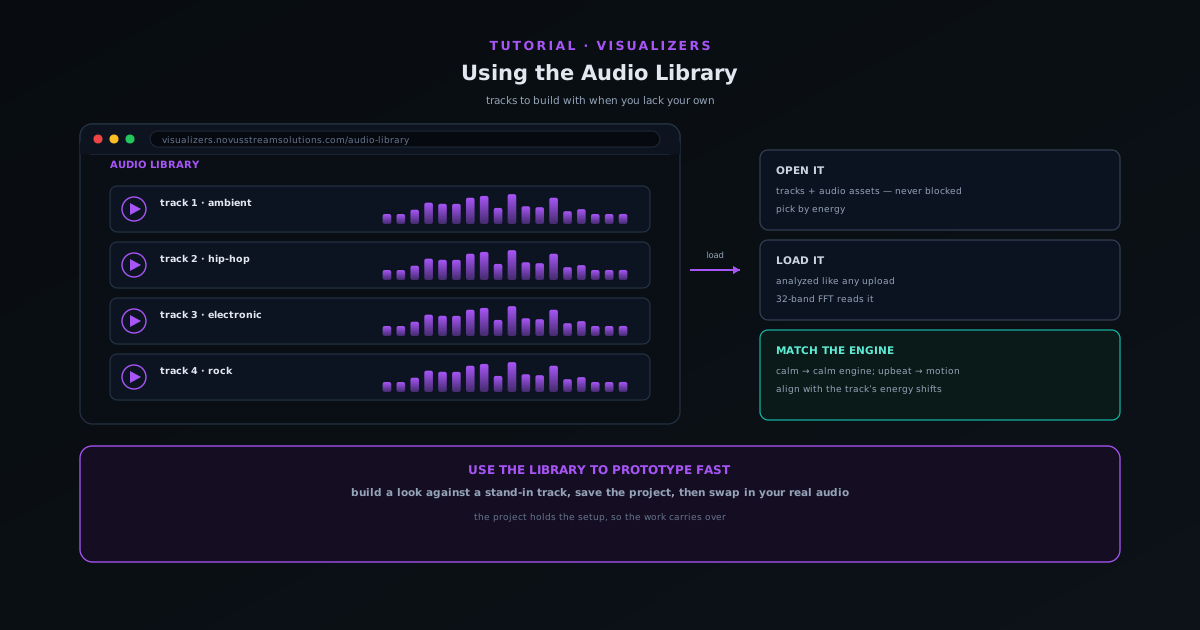
Not every visualizer starts with a finished song. Sometimes you want to test an engine, build a demo, or make a visual asset and you do not have your own audio ready; that is what the companion Audio Library is for.
This tutorial covers using the Audio Library to source a track, loading it into the editor, and the things to keep in mind so the visualizer you build reacts well to it.
Contents
- 1
1. Open the Audio Library
From the Tools area, open the Audio Library. It offers tracks and audio assets you can work with when you do not have your own, so you are never blocked from making a visualizer just because you lack a song on hand.
Browse for something whose energy fits the visual you have in mind; the track drives the motion, so the right choice of audio shapes the whole result.
- The Audio Library provides tracks and audio assets to build with.
- Pick audio whose energy matches the visual you want.
- 2
2. Load a track into the editor
Take a track into the editor the same way you would your own upload. The app reads it with the real-time 32-band FFT plus beat, onset, and loudness detection, so the visuals respond to its actual rhythm and energy.
From here the workflow is identical to building with your own audio: choose an engine, customize, and export.
- Library audio is analyzed like any upload.
- The rest of the build is the standard upload-to-export flow.
The built-in library is the no-paperwork path: license-safe tracks, one click to load. - 3
3. Match the engine to the track
Because the audio drives the motion, choose an engine and theme that suit the track's energy: a calm field for something mellow, more motion for something upbeat. The reactivity will look right when the engine and the music agree.
If the track has clear sections, note where the energy shifts so the visual emphasis lines up with them.
- Calm track → calm engine; energetic track → more motion.
- Align visual emphasis with the track's energy shifts.
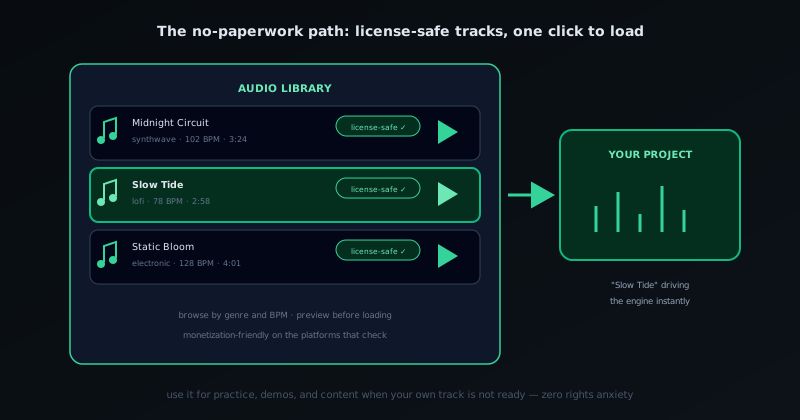
Use the library to prototype fast
The Audio Library is great for prototyping a look before your own track is final: build the visual against a library track with similar energy, save it as a project, then swap in your real audio when it is ready. The engine and theme work you did carries over because the project holds the setup, not just the song.
Frequently asked questions
Quick answers to common questions about this topic.
What is the Audio Library?
A built-in collection of tracks and audio assets you can build a visualizer from when you do not have your own music, useful for testing styles or making content quickly.
Can I use Audio Library tracks in my videos?
Yes, within the library's terms; it exists so you always have audio to work with. For releases, you will usually bring your own track.
Related workflow
A track to a release-ready visualizer, per platform
Render the visual once, then produce the platform masters from it, instead of re-rendering the whole video for every aspect ratio.
- Render the beat-synced videoNovus Visualizers: Pick the engine and mode against your actual track; the analysis is done on your audio, not on a preset preview.
- Trim or upscale the exportNSS Background Remover: The video utilities handle the tidy-up pass so the render does not have to be repeated to fix ten seconds of it.
- Produce the per-platform mastersNovus Convert: Each destination wants a different container and bitrate; converting the finished render is far cheaper than re-rendering it.
Related troubleshooting
Was this page helpful?
Your answer stays in this browser, it is not sent anywhere and no account or cookie is involved.