Novus PDF Studio
A pre-export checklist for clean, share-ready PDFs
A repeatable final pass for every form you finish in Novus PDF Studio: audit fields and values, make checks and dates agree, unify the typography, understand what flattening means for the recipient, name the file deliberately, and prove the export opens everywhere it will travel.
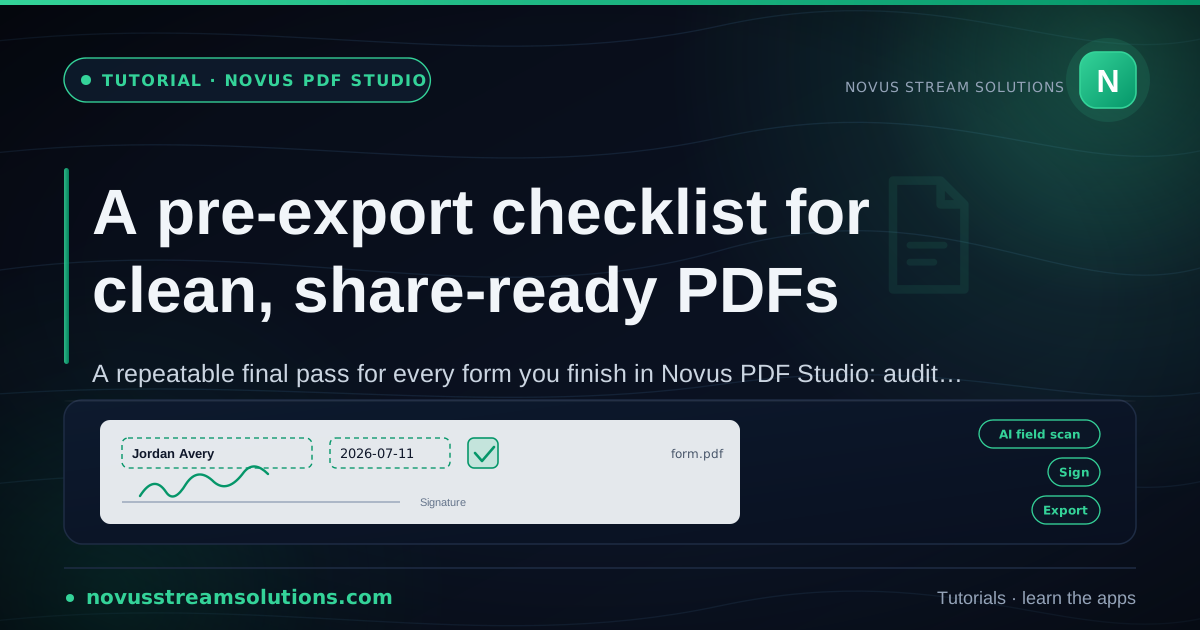
The difference between a form that gets accepted and one that comes back with questions is rarely the filling; it is the last five minutes before export. A blank that slipped through, a date written two different ways, a check mark drifting off its box, a file named "document (3).pdf": each is trivial alone, and together they are why documents bounce. The fix is not more care in general; it is a specific, ordered checklist you run the same way every time.
This tutorial is that checklist, tuned to Novus PDF Studio's fill-and-sign workflow. It assumes the work is done (fields placed, values typed, signature drawn) and walks the final pass: consistency sweeps that catch what a casual glance misses, the flattening and naming decisions at export, and the verification habit that ends with a file you would stake your name on. Run it once slowly and it becomes a two-minute routine; run it on every form, especially when you finish several in one sitting, and re-sends stop happening.
Contents
- 1.1. Sweep the pages as a reader, then as an editor
- 2.2. Re-verify the values that carry consequences
- 3.3. Make the checks and dates agree with each other
- 4.4. Unify the typography in one look
- 5.5. Give the signature block its own inspection
- 6.6. Understand the flatten before you rely on it
- 7.7. Name the file like someone will search for it
- 8.8. Prove the export opens everywhere it will travel
Two ways to finish
Single important form
Run the full list top to bottom on the one document that has to be right.
A sitting of several forms
Finish each form through the checklist and its named export before opening the next.
- 1
1. Sweep the pages as a reader, then as an editor
Make two distinct passes, because they catch different mistakes. First read the document the way its recipient will: top to bottom, at normal zoom, without touching anything. You are looking for meaning: an answer in the wrong blank, a section you skipped because it continued overleaf, a question you misread the first time. Fresh reading catches what hours of close editing has made invisible.
Then switch to the editor's pass and inspect the field layers themselves. Walk them and hunt for the structural defects: an empty field waiting to export a blank, an accidental duplicate hiding behind a filled twin, a stray box left over from an abandoned attempt, a field nudged so it straddles two printed lines. Delete what should not exist; a stray field is a stray answer waiting to happen.
- Reader pass at normal zoom: catch meaning errors.
- Editor pass through the layers: catch empties, duplicates, and strays.
- Delete leftover fields; do not just empty them.
- 2
2. Re-verify the values that carry consequences
A handful of fields on any form carry all the risk: totals and amounts, dates that start or end obligations, account and reference numbers, legal names, anything with a decimal point. Give these a deliberate second verification against the source (the invoice, the ID, the bank statement) rather than against your memory of typing them. Reading a number back from the form to the source catches transpositions that reading source-to-form does not.
Watch the long values too. A number that outgrew its box and shrank or clipped, an address crowding the printed label beside it: legibility failures on high-stakes fields cause the same phone calls as wrong values. Widen the field or drop the size a point now, while it costs nothing.
- Check amounts, dates, and reference numbers against the source document.
- Read form-to-source to catch transposed digits.
- Fix clipped or crowded values before they become support calls.
- 3
3. Make the checks and dates agree with each other
Inconsistency reads as carelessness even when every individual entry is correct. Marks first: choose check or cross once and use it for the whole document, size every mark to fill its box the same way, and confirm each one sits centered where a reader could never wonder which option it belongs to. A form with three styles of tick looks like it was filled by three different people.
Dates are the other repeat offender, because most forms ask for the same date in several places. Pick the format the form itself implies and repeat it identically everywhere: if one field says 14/07/2026 and another says July 14, 2026, one of them looks wrong to whoever processes it. And confirm repeated fields hold the same actual date, since a form filled across two sittings can quietly disagree with itself.
- One mark style, one mark size, centered, document-wide.
- One date format everywhere, matching the form's own convention.
- Confirm repeated dates actually agree; multi-sitting fills drift.
- 4
4. Unify the typography in one look
Zoom out until the whole page fits on screen and look at your entries as a set. They should read as one hand: a single PDF-safe font (Helvetica, Times Roman, or Courier) at a consistent size for equivalent fields, in one consistent color. Any field that was added later or styled in a hurry announces itself at this zoom level as a different weight or tone, faster than you could find it by reading.
Fix the outliers to match the majority rather than restyling everything. The standard is coherence, not beauty: matching entries in a boring font look professional, while a page that mixes sizes and colors reads as assembled from scraps. This is a thirty-second glance that quietly upgrades the entire document.
- Zoom to full page: inconsistencies show as texture, not text.
- One font, one size per field class, one color.
- Restyle the outliers to match the majority.
- 5
5. Give the signature block its own inspection
The signature area gets separate treatment because it is the region recipients examine first and reject fastest. At full zoom, confirm the mark itself reads cleanly (redraw it now if it is shaky, since after export it is permanent) and that it sits on its line without touching the printed name, title, or the date beside it. An overlapping signature is the single most common visual defect on finished forms.
Then confirm completeness: every signature line the form asks for is signed, every initial box on every page is initialed, and each date-beside-signature matches the date format you standardized two steps ago. Multi-signature forms fail most often not on quality but on the one witness line or page-four initial nobody noticed was theirs.
- Redraw a shaky signature before export, not after.
- No collisions with printed names, titles, or your date field.
- Count the signature and initial lines the form demands, then match them.
- 6
6. Understand the flatten before you rely on it
Exporting from PDF Studio produces a finished, flattened result: your fields, marks, and signature become part of the page itself rather than remaining live, clickable form elements. That is the right property for a share-ready document: what the recipient sees is fixed, nothing shifts in their reader, and the form reads as completed rather than in-progress. It also means changes after export require returning to the editor and exporting again, which is exactly why this checklist runs before the download, not after.
Be equally clear about what flattening does not do. It does not erase anything: content sitting under a field is covered in appearance only, and flattening is not redaction. It does not strip metadata, because the editor is a fill-and-sign workspace and does not claim that job. If a document needs genuine redaction or metadata cleanup, that happens in a dedicated tool after export, and deciding that now is part of the checklist.
- Flattened export: fixed appearance, no live fields, no reflow surprises.
- Changes after export mean re-editing and re-exporting, so check first.
- Flattening is not redaction or metadata cleanup.
- 7
7. Name the file like someone will search for it
The export dialog is the last chance to avoid "document (3).pdf." Name the file so that both you and the recipient can identify it in a crowded folder six months from now: what the form is, whose it is, and when, something like lease-addendum-fisher-2026-07-16.pdf. Dates in year-month-day order sort correctly in every file browser, which future-you will appreciate more than present-you expects.
When a sitting produces several forms, the naming discipline is what keeps them apart: export each document with its full name before opening the next, and never let two finished forms share a name pattern vague enough to swap. If the same form goes to multiple parties, put the distinguishing party in the name, because the fastest way to send the wrong signed copy is to have two files called final.pdf.
- Name = form + party + date, with the date as YYYY-MM-DD.
- Export and name each form before starting the next.
- Distinguish per-recipient copies in the filename itself.
- 8
8. Prove the export opens everywhere it will travel
The exported file, not the editor view, is the document, so end every form by opening the download and inspecting it outside the tool that made it. Your default PDF reader is the minimum. If the form matters, add the two other places PDFs actually get read: a phone screen, where a recipient will most likely see it first, and the print preview, where margin and scale problems reveal themselves before paper does.
You are confirming that everything survived the trip: signature present and positioned, every value rendered in the font you chose, marks in their boxes, nothing clipped at an edge. If anything is off, the loop is cheap: return to the editor, fix the field, export under the same deliberate name, and check again. Once the downloaded copy passes on the devices that matter, the form is genuinely done; hit send without a second thought.
- Open the download in a real reader: the editor view is not the deliverable.
- Phone screen and print preview catch what desktop readers forgive.
- Fix, re-export, re-check: the loop is cheaper than a bounced form.
Same list, same order, every form
Checklists work because they are boring: pages, values, consistency, typography, signature, flatten, name, verify, in that order, every time, even on forms that feel too simple to need it. The simple forms are where blanks slip through, because attention is already gone. Two minutes of routine at the end beats a re-send with an apology attached, and after a few forms the whole pass runs on habit.
Frequently asked questions
Quick answers to common questions about this topic.
What should I check before exporting a filled PDF?
Run an ordered pass: read the pages as the recipient, audit the field layers for blanks and duplicates, re-verify high-stakes values against their source, standardize marks and date formats, unify fonts and colors, inspect the signature block, then name the file deliberately and open the export in a real reader.
What does the flattened export mean for the person receiving it?
Your entries, marks, and signature are part of the page rather than live form fields, so the document looks identical in every reader and nothing can shift or be casually edited. It also means your own changes after export require re-editing and exporting again, which is why the checklist runs first.
How should I name finished PDF forms?
Encode what, who, and when: form name, the relevant party, and the date in YYYY-MM-DD order so files sort chronologically everywhere. When one form goes to several parties, put the distinguishing party in each filename, because duplicate vague names are how the wrong signed copy gets sent.
Why open the exported PDF on a phone or in print preview?
Because that is where forms are actually read and where problems hide. A phone screen reveals legibility issues at small sizes, and print preview exposes margin clipping and scale problems before paper does. The desktop reader you already trust is the minimum check, not the complete one.
Related workflow
Any document to a signed, sendable PDF
A form that arrived as a scan, a DOCX or an image becomes a filled, signed PDF small enough to email, without a single upload to someone else’s server.
- Bring the source into PDFNovus Convert: Images, documents and ebooks all land as PDF here, so the editor downstream only ever sees one format.
- Fill the fields and signNovus PDF Studio: The AI field scan proposes the boxes; every one stays editable, because a form editor that cannot be corrected is worse than no editor.
- Compress before sendingNovus Convert: Adjustable quality with the measured output size shown before download, so there is no guessing whether it cleared the limit.
Related troubleshooting
Was this page helpful?
Your answer stays in this browser, it is not sent anywhere and no account or cookie is involved.