Novus Learn
Start from Featured: a curated way into Novus Learn
When you do not have a specific query in mind, Featured is the browse-first door into Novus Learn: a curated set of real, source-grounded topics you can open directly, read with citations attached, and branch from into your own search.
Search is the right door when you already know what you are looking for. But reading often starts the other way, with curiosity rather than a query, when you want somewhere interesting to begin and do not yet have the exact term to type. Featured, at /featured, is Novus Learn's answer to that: a curated way in, where a set of source-grounded topics is laid out for you to open directly instead of summoned by a search.
What matters is that Featured does not change the nature of what you get. Every item is a real Wikipedia page with its source identity and claim-level citations intact, exactly like a topic you searched for by name; it is simply chosen for you as a starting point rather than typed by you. This guide covers when to reach for Featured, how to read it, and how to branch from a featured topic into the deliberate search-select-inspect flow once something catches your interest.
Contents
Two ways to finish
Browse in
Open a curated, source-grounded topic without needing a query first.
Branch out
Follow a featured topic into your own search when curiosity turns specific.
- 1
1. Know when to reach for Featured
Reach for Featured when you have the impulse to read but not the query to search. Maybe you want to learn something and have no particular subject in mind, or you are between topics and want a good next one, or you simply distrust starting from a blank search box that assumes you already know the exact term. Featured exists for exactly those moments; it turns "I want to read something worthwhile" into a concrete place to begin.
It is a complement to search, not a replacement for it. When you know the subject, typing it and selecting the right page is faster and more precise. When you do not, browsing a curated set beats staring at an empty field trying to invent a query. Knowing which door to use is part of using Novus Learn well: search when you have a target, Featured when you want one.
- Use Featured for discovery; use search when you already know the subject.
- It answers "I want to read something" without forcing you to guess a query first.
- 2
2. Open Featured and read it as curated entry points
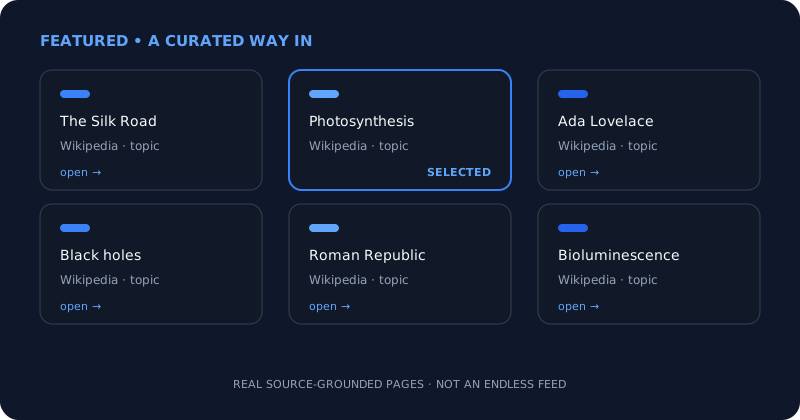
Open /featured and you get a curated set of topics rather than an infinite, algorithmically ranked feed tuned to keep you scrolling. Each card is a genuine source-grounded page you can open, not a generated teaser or a blended digest of several articles. Reading the selection is itself a low-stakes way to browse: you are skimming real encyclopedia topics that were chosen as worthwhile starting points, not headlines competing for a click.
Treat the surface as a shelf of good beginnings. Nothing here commits you; opening a featured topic is the same lightweight act as opening any other page in Novus Learn, and you can return to the selection and pick a different one whenever you like. The point of the step is only to let a subject catch your interest, which is where the real reading begins.
Featured is a curated shelf of real source-grounded topics, a starting point, not an endless feed. - 3
3. Open a topic and land in the reading surface
Pick a featured topic and it opens into the same Inspect view you would reach by searching: the page laid out for reading, with its source identity shown and citations attached to the claims within it. Nothing about arriving via Featured makes the reading any less grounded: you know which Wikipedia edition and page you are on, and every claim keeps the reference behind it, just as it would if you had typed the subject yourself.
This is the moment Featured pays off. You began without a query and now you are reading a real, cited encyclopedia topic, with the full follow-the-source discipline available to you. Read it the way you would any topic in Novus Learn: keep the source identity in view, and follow any claim that matters to the reference it stands on.
- 4
4. Branch into your own search
Curiosity rarely stops at the first page. A featured topic will often raise a more specific question (a person mentioned in passing, a related event, a term you want to understand on its own) and that is the cue to branch into search. Move from browsing to the deliberate flow: type the new subject on Explore, read the candidates, and select the exact page and edition you mean, the same disciplined selection that keeps everything downstream accurate.
This is how Featured and search work together. Featured gives you a strong place to start when you have none; search lets you chase the specific threads that starting point uncovers. A single reading session can move fluidly between the two (browse in, read, follow a thread out into a precise search, then come back and browse again) without ever leaving the source-grounded surface.
- 5
5. Save what is worth keeping
When a featured topic turns out to be worth returning to, save it to your local library so it is one click away next time instead of a browse you have to reconstruct. Because the saved topic keeps its source identity and citations, a good starting point you found through Featured becomes a permanent, private part of your own shelf, reopening as the same cited page, stored in your browser with no account and nothing synced to a server.
This closes the loop between discovery and real work. Featured is where a session begins; the local library is where the pieces worth keeping accumulate. A subject you stumbled onto by browsing can become one you study over several sittings, and the deliberate follow-the-source reading you did the first time is preserved rather than repeated, because the topic reopens exactly as you left it.
- 6
6. Know what Featured is, and where to get help
Be clear about what Featured is and is not. It is a curated selection of real, source-grounded topics offered as starting points; it is not a personalized feed that profiles you, and it is not a set of generated summaries standing in for the encyclopedia pages. In keeping with the rest of Novus Learn, browsing Featured does not build a record of your reading on a server; the private default runs through here as it does everywhere else in the app.
For orientation, the guides at Help centre cover getting-started and searching-topics, which pair naturally with browsing: Featured hands you a subject, and searching-topics helps you chase it precisely once it has your attention. The tool map at Tool maps lists Featured alongside the other current routes (explore, visuals, and help) so you can see exactly where it sits among what is live today.
Browse in, then follow the thread out
Featured is the door to use when you want to read but have no query yet: a curated shelf of real, source-grounded topics rather than an endless feed. Open one, read it with its source identity and citations intact, and branch into a precise search the moment it raises a specific question. Save the topics worth keeping to your local library, and let a single session move freely between browsing in and searching out.
Frequently asked questions
Quick answers to common questions about this topic.
What is the Featured surface in Novus Learn?
Featured, at /featured, is a curated way into the app: a selection of real, source-grounded Wikipedia topics you can open directly when you want to read but do not have a specific query in mind. Each one opens with its source identity and claim-level citations intact.
Is Featured a personalized feed?
No. Featured is a curated set of starting points, not an algorithmic feed that profiles you to keep you scrolling. In keeping with the rest of Novus Learn, browsing it does not build a server-side record of your reading.
Are featured topics different from searched ones?
No; only how you arrive differs. A featured topic opens into the same Inspect reading surface, with the same source identity and citations, as a page you reach by searching. Featured simply chooses a good starting point for you instead of asking you to type one.
Where does Featured fit among the other routes?
The tool map at Tool maps lists Featured alongside explore, visuals, and help as the current routes. Use Explore to search when you know the subject, and Featured to browse in when you want to discover one.
Related workflow
From a source you can cite to a study pack you can hand out
Read from the source rather than a summary of it, then turn what you verified into a document someone else can use.
- Find the source and check the claim against itNovus Learn: The study material is extractive, not generative: what you get back is what the source says, which is the only kind you can safely cite.
- Assemble and finish the packNovus PDF Studio: Merge the pieces, add the fields a learner fills in, and sign it locally, so unpublished material stays unpublished.
Related troubleshooting
Was this page helpful?
Your answer stays in this browser, it is not sent anywhere and no account or cookie is involved.