NSS Background Remover
Install NSS Background Remover as an app and use it offline
NSS Background Remover is a progressive web app: install it from the browser in two clicks, pre-download the AI models you use, and keep removing backgrounds with no internet connection at all.
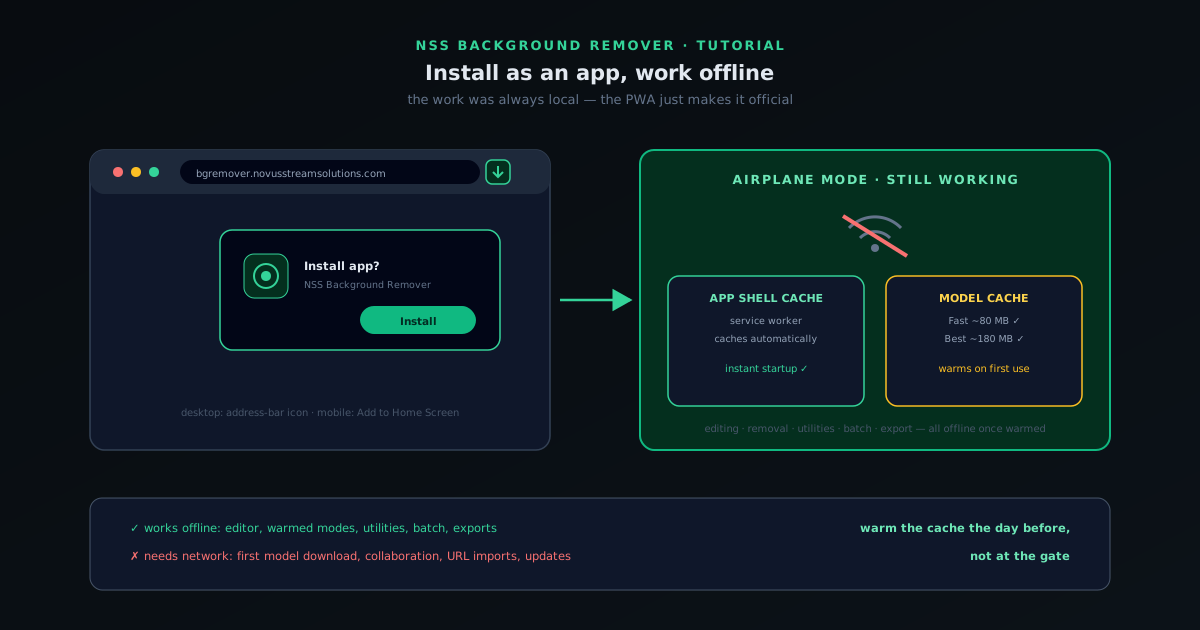
Because NSS Background Remover does all of its processing on your device (the AI models run in your browser, and images never upload) there is no technical reason it needs an internet connection after the first load. The app leans into that: it is a progressive web app (PWA) with a service worker, which means you can install it like a native application and keep using it with no connection at all.
Installation is genuinely two clicks, but the offline story has one subtlety worth understanding: the app shell and the AI models are cached separately, so a model you have never used is a model that is not yet on your machine. This tutorial covers installing on desktop and mobile, warming the model cache before you go offline, and what does and does not work without a connection.
Contents
- 1
1. Why installation works at all
Most web tools cannot work offline because the work happens on a server. NSS Background Remover inverted that: the models download to your browser, inference runs on your hardware via WebAssembly and WebGPU, and the site is delivered with a service worker that caches the app itself. Installing the PWA just gives that already-local app a window of its own, an icon, and independence from the browser's tabs.
Nothing about the privacy model changes when you install; it was already true that images never leave the device. Installation makes it official.
- All processing is already local; the service worker caches the app shell.
- Installing adds an icon, its own window, and offline startup.
- 2
2. Install on desktop
Open bgremover.novusstreamsolutions.com in a Chromium-based browser (Chrome, Edge, Brave) and look for the install icon in the address bar (a small monitor-with-arrow glyph) or use the browser menu's "Install app" entry. Confirm, and the app opens in its own window and appears in your launcher/taskbar like any installed program.
Launch it from the icon from then on. It starts instantly from cache, connection or not.
- Address-bar install icon, or menu → Install app.
- Appears in launcher/taskbar; starts from cache.
- 3
3. Install on mobile
On Android, the browser offers "Add to Home screen" (or an install banner) from the menu; the app installs with an icon and runs full-screen without browser chrome. On iOS, use Safari's Share button → "Add to Home Screen", same result.
Mobile installs are most useful for quick single-image cutouts on the go; heavy editing work is still more comfortable on a desktop with more memory.
- Android: menu → Add to Home screen (or install banner).
- iOS: Safari Share → Add to Home Screen.
- 4
4. Warm the model cache before going offline
The app shell caches automatically, but AI models download on first use: the Fast model (~80 MB) and the Best Quality model (~180 MB) each arrive the first time you run them, then live in the browser cache. The practical rule: before a flight or a connectivity-free workday, run one image through each mode you plan to use. That first run is the download; every run after it is local.
The same applies to any other model you rely on: the upscaler and Glass mode also cache on first use. One warm-up pass through your usual workflow is enough to make the whole workflow offline-ready.
- Models cache on first use: Fast ~80 MB, Best Quality ~180 MB.
- Run each mode/tool once online to warm the cache.
- After that, every run is fully local.
App shell and models cache separately: warm each model with one online run, and the whole workflow goes offline. - 5
5. Know what works offline (almost everything)
Offline, the editor, the removal modes you have warmed, the image utilities, and exports all work; the work was always local. What needs a connection: the first download of any model you have never used, collaborative sessions (peer-to-peer still needs a network), and loading anything from a URL.
If a tool refuses offline, the diagnosis is almost always an unwarmed model: reconnect once, run the tool once, and it joins the offline set. App updates also arrive when online; the service worker fetches new versions in the background and applies them on the next launch.
- Works offline: editing, warmed removal modes, utilities, export.
- Needs a connection: first model download, collaboration, URL imports, updates.
- Tool fails offline → its model was never warmed; one online run fixes it.
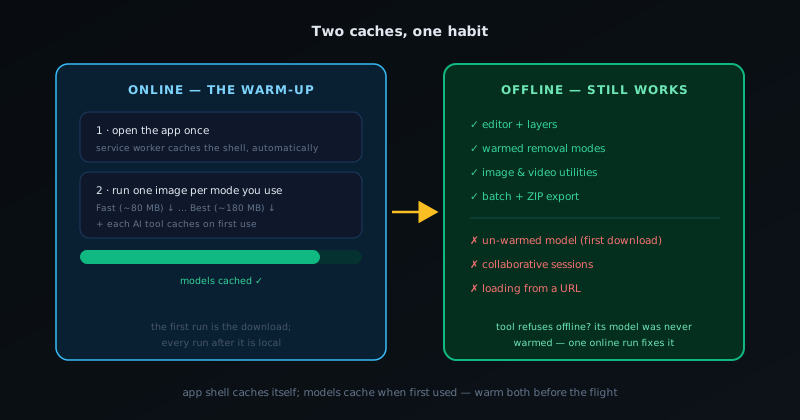
Warm the cache the day before, not at the gate
The whole offline experience comes down to one habit: run your usual workflow once, online, before you need it offline. Model downloads are the only step that needs the network, and they are also the step you least want to start on airport wifi. Install the app, warm the two removal models plus whatever AI tools you actually use, and the tool becomes genuinely connection-independent, which, for an image editor handling private material, is exactly how it should be.
Frequently asked questions
Quick answers to common questions about this topic.
How do I install NSS Background Remover as an app?
It is a progressive web app, so you can install it from your browser's install prompt or menu. Once installed, it opens like a native app from your desktop or home screen.
Does it work offline after installing?
Yes. After the first visit caches the app and models, it keeps working without an internet connection, since the processing runs on your device.
Related workflow
Product photo to a transparent image every channel accepts
One photograph, cut out once, then re-encoded for a storefront, a marketplace listing and a social post without redoing the cutout each time.
- Cut the background out and check the edgesNSS Background Remover: Hair, glass and drop shadows are where automatic cutouts fail. Fix them once, on the master, before anything downstream copies the mistake.
- Re-encode and resize per destinationNovus Convert: Transparency survives PNG and WebP and dies in JPEG. Convert validates the file it hands back, so a listing never rejects a silently broken upload.
Related troubleshooting
Was this page helpful?
Your answer stays in this browser, it is not sent anywhere and no account or cookie is involved.