2026 · Novus Stream Solutions (hub)About 13 min readNovus Stream Solutions
SVG vs PNG vs WebP: choosing the right format for site & UI graphics
Pick the wrong format for a logo, icon, or illustration and your site is slower and blurrier than it needs to be, for no reason. This guide compares SVG, PNG, and WebP for site and UI graphics specifically (not photos), with a clear decision rule for each kind of graphic.
Contents
- 1.Overview
- 2.Vector versus raster: the distinction that decides it
- 3.Where SVG wins decisively
- 4.When raster is the right call, PNG or WebP
- 5.AVIF: the newest contender, and why support matters
- 6.Why file size is not a vanity metric
- 7.How vector actually ships: inline SVG vs an image tag
- 8.Icons: the one place to be opinionated
- 9.Exporting from design tools without bloat
- 10.Why getting this right compounds
- 11.The traps, and a decision rule
Overview
A surprising amount of slowness and blurriness on the web comes down to one small, repeated decision made wrong: saving a graphic in the wrong format. A logo exported as a fixed-size PNG that goes fuzzy on a high-resolution screen; an icon shipped as a heavy raster file when it could have been a fraction of the size; a simple illustration saved as a photo format and bloated for no reason. None of these is a disaster on its own, but they accumulate across a site into pages that load slower and look worse than they should, and the fix costs nothing once you know the rule. This guide is specifically about site and UI graphics (logos, icons, illustrations, diagrams, charts) rather than photographs, because the right answer for graphics is often different from the right answer for photos.
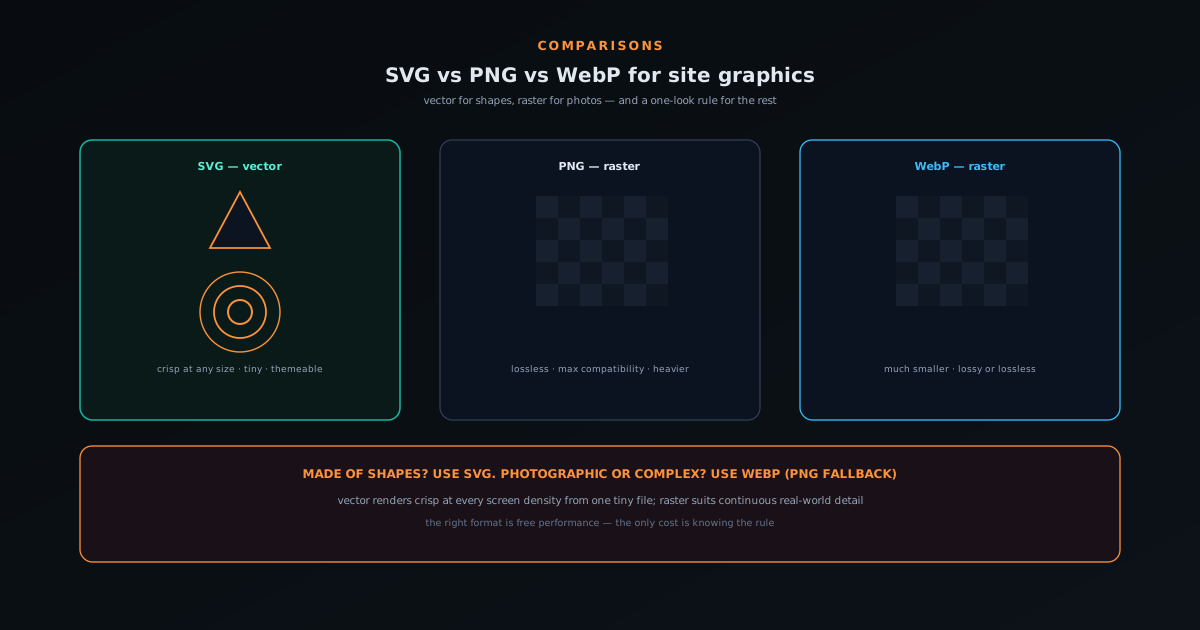
The three formats worth comparing for this job are SVG, PNG, and WebP, and they fall into two fundamentally different camps that explain almost everything about when to use which. SVG is a vector format; PNG and WebP are raster formats. Understanding that single distinction resolves the majority of format decisions instantly, because it tells you which graphics belong in which camp before you even think about file size. This guide explains the vector-versus-raster split, shows where each format genuinely wins and where it falls apart, covers the transparency and crispness traps that catch people out, and ends with a simple decision rule you can apply to any graphic on your site without having to think it through from scratch each time.
Vector versus raster: the distinction that decides it
A raster image (PNG, WebP, JPG) is a grid of pixels. It has a fixed resolution baked in at the moment you save it, and that fixed grid is the source of both its strengths and its limitations. Raster is perfect for anything with the smooth, continuous, unpredictable detail of the real world, which is why every photograph is raster: you genuinely need to record a value for every pixel because there is no simpler description of a photo. But because the resolution is fixed, a raster image goes blurry when displayed larger than its native size (the browser has to invent pixels it does not have), and it gets heavier the larger and more detailed it is.
A vector image (SVG) is not a grid of pixels at all; it is a set of instructions: draw a circle here, a line there, fill this shape with that colour. Because it describes shapes mathematically rather than recording pixels, it can be rendered at any size with perfect crispness: the same file is razor-sharp on a phone, a laptop, and a giant display, because the browser draws it fresh at whatever size it needs. And for graphics made of a manageable number of shapes (a logo, an icon, a simple illustration), that set of instructions is tiny, often far smaller than the equivalent raster file. The catch is the flip side: vector is hopeless for photographs, because describing every blade of grass and skin pore as a shape would be astronomically large and complex. So the distinction is not "which is better" but "which suits this graphic", and that depends entirely on whether the graphic is made of shapes or made of continuous detail.
Where SVG wins decisively
For the bulk of site and UI graphics, SVG is not just a good choice but the clearly correct one, and the reasons compound. Logos, icons, simple illustrations, diagrams, and charts are all made of a limited set of shapes, which means SVG renders them perfectly crisp at every size and on every screen density without you having to export multiple resolutions. That resolution-independence is a real maintenance win: one SVG icon serves every context, where a raster icon needs multiple sizes exported and the right one chosen per use, and still goes soft on the next generation of higher-density screens. For anything that must look sharp at arbitrary sizes (which is most interface graphics), vector eliminates a whole category of problem.
SVG has further advantages that matter for graphics specifically. Because it is text (literally markup describing shapes), it compresses extremely well, can be styled and animated with the same tools as the rest of a page, can change colour to match a theme without a new file, and can be made accessible with proper labelling. The Novus ecosystem leans on exactly these properties: the hero and inline graphics across this blog are SVGs generated from a coded house style, which is only practical because SVG is code you can compose, as described in Automating SVG hero art for a 150-post blog. For a logo or icon set, the decision is essentially made before you start: use SVG unless something specific stops you, because every property of vector lines up with what interface graphics need.
When raster is the right call, PNG or WebP
SVG stops being the answer the moment a graphic is photographic or too visually complex to describe as shapes: a screenshot, a photo-based hero, a richly textured illustration, anything with the continuous gradient detail of a real image. Forced into SVG, those become enormous and slow; they belong in a raster format, and the choice there is between PNG and WebP. PNG is the older, universally supported lossless format: it preserves every pixel exactly, supports transparency cleanly, and is the safe default when you need maximum compatibility or a graphic with sharp edges and flat colours (like a screenshot with text) where lossy compression would introduce artifacts.
WebP is the modern format that, for most raster graphics on the web today, is simply the better default: it produces substantially smaller files than PNG at equivalent quality, supports transparency, and offers both lossless and lossy modes so you can choose exactness or smallness per image. For a photographic graphic, lossy WebP is dramatically lighter than PNG with no visible difference; for a flat graphic where you want it lossless, WebP still usually beats PNG on size. Support is now broad enough that WebP is a reasonable primary choice with PNG as a fallback only where you specifically need it, and converting between the two takes seconds with a local tool like bgremover.novusstreamsolutions.com/tools/format-converter, with bgremover.novusstreamsolutions.com/tools/compare-formats to see the size-versus-quality tradeoff before you commit. The deeper comparison for transparent, photographic images (including AVIF, the newer contender) is in PNG vs WebP vs AVIF for transparency: which should you export?, and the broader photo-versus-graphic decision is in JPG vs PNG: when to use which.
AVIF: the newest contender, and why support matters
Any format comparison is a moving target, and the newest raster contender worth knowing about is AVIF, which pushes file sizes even smaller than WebP at comparable quality, particularly for photographic images. For a photo-heavy page where every kilobyte counts, AVIF can be the lightest option of all, and it supports transparency too, so in principle it competes directly with WebP and PNG for the raster jobs. The catch, as with any newer format, is support and tooling: the newer the format, the more you have to check that the browsers, platforms, and tools in your pipeline all handle it.
The practical way to use a cutting-edge format without getting burned is to treat it as a progressive enhancement rather than a sole format: serve the newest format to clients that support it and fall back to a widely-supported one for the rest, so you get the size win where possible without breaking anything where it is not. This is why the raster decision is rarely just pick one; it is often serve AVIF or WebP with a PNG fallback, letting each visitor get the best format their setup can handle. The deeper transparency-specific comparison including AVIF is in PNG vs WebP vs AVIF for transparency: which should you export?.
Why file size is not a vanity metric
It is easy to treat file size as a detail, but on the web the weight of your images is one of the largest levers on how fast a page loads, and speed is not cosmetic: it affects whether people stay and whether the page ranks. Images are typically the heaviest thing on a page, so choosing a format that is several times smaller for the same visual result is one of the cheapest performance wins available. A page that ships oversized PNGs where SVG or WebP would do is slower for every visitor, and the cost lands hardest on the people on slow connections and modest phones.
This is where the format decision connects to the broader performance picture and the Core Web Vitals that search engines score, covered in Page speed and Core Web Vitals for a small site. The right format choice is essentially free performance: it requires no new infrastructure, just picking the appropriate format and an appropriate size for each graphic. The wrong choices accumulate quietly (a heavy hero here, an uncompressed screenshot there) until the page is sluggish for reasons that never show up as a single obvious problem, only as a site that feels slower than it should.
How vector actually ships: inline SVG vs an image tag
One practical wrinkle with SVG is that, because it is code rather than a flat image, you have a choice in how it ships, and the choice has real consequences. You can reference an SVG file the same way you would any image, which is simple and cacheable and right for most decorative graphics. Or you can place the SVG markup directly into the page, which unlocks the things that make vector special: styling it with the page styles, changing its colours to match a theme, animating it, and making it properly accessible with labels, none of which are available when it is locked inside an external image reference.
The trade is that inlining adds the markup to the page weight and loses separate caching, so the rule of thumb is to inline the SVGs that need to be interactive, themeable, or accessible (icons that change colour with state, a logo that adapts to dark mode) and to reference the rest as files. This is exactly how the Novus ecosystem uses SVG: the blog graphics are referenced as files for simplicity, while interface icons that need to respond to theme and state are handled as inline vector. Knowing both options exist is what lets you get the full value out of choosing vector in the first place.
Icons: the one place to be opinionated
Icons deserve their own mention because they are the most common UI graphic and the place where the wrong format choice is most visibly punished. An icon shipped as a small raster image looks acceptable at its native size and then turns soft on a high-density screen or at any other size, which is why icon sets that ship as raster age badly. SVG is the natural fit: one icon file renders crisply at every size and density, scales with the text around it, and can take on the current colour so it matches whatever context it sits in without a separate file per colour.
There are older approaches (icon fonts, raster sprite sheets) that solved the multiple-icons problem before SVG was universally practical, but for new work SVG icons are the straightforward choice, either referenced individually or combined into a single sprite for efficiency. The key property is the one that recurs throughout this comparison: an icon is made of shapes, so it belongs in a vector format, and forcing it into raster reintroduces exactly the blurriness and the multiple-size maintenance that vector exists to eliminate. For interface graphics, SVG is less a preference than the default that everything else has to argue against.
Exporting from design tools without bloat
A final practical point is that even when you correctly choose SVG, a careless export from a design tool can produce a bloated, messy file that undercuts the format advantages. Design tools often export SVG with redundant metadata, unnecessary precision, hidden elements, and bloated path data, so a logo that should be a couple of kilobytes can come out many times larger and harder to style. The fix is to export cleanly: flatten unnecessary groups, drop the editor metadata, and run the file through an optimiser that strips the cruft without changing the appearance.
For raster exports the analogous discipline is to export at the right dimensions and compression rather than dumping a huge original onto the page and letting the browser scale it down. Exporting a four-thousand-pixel image to display at four hundred wastes the difference on every load, so size the export to the display size (with an allowance for high-density screens) and choose a sensible compression level, and where you do ship PNG, run it through bgremover.novusstreamsolutions.com/tools/png-optimizer to strip the waste losslessly. Whether vector or raster, the format choice is only half the win; exporting it cleanly and at the right size is what actually delivers the lighter, sharper page the right format makes possible.
Why getting this right compounds
The format decision feels small in isolation (one graphic, one choice) but it is made over and over across a site, which is exactly why getting the rule into muscle memory pays off. Each correct choice is a little faster and a little sharper than the wrong one, and across hundreds of graphics the difference between a site where every format is chosen well and one where they are chosen by habit is substantial: lighter pages, crisper visuals, less maintenance. The compounding is quiet but real.
There is also a maintenance dividend that is easy to overlook. Choosing SVG for the things that should be vector means you never have to re-export a logo at a new size for a new screen, never ship a blurry icon to a higher-density display, and never juggle multiple raster sizes of the same graphic. The right format is not just faster today; it is less work forever, because vector graphics simply keep working at any size the future throws at them. A rule that takes a second to apply saves effort indefinitely, which is the best kind of small decision to get right.
The traps, and a decision rule
A few traps catch people repeatedly, and knowing them saves the most common mistakes. The first is shipping a logo or icon as a fixed-size raster and watching it blur on high-density screens, almost always avoidable by using SVG. The second is the opposite over-correction: trying to force a photograph or a richly detailed image into SVG, which produces a gigantic, slow file; complex continuous imagery is raster, full stop. The third is reaching for PNG out of habit on photographic graphics where WebP would be a fraction of the size for no visible loss. And the fourth is forgetting transparency requirements: all three formats support it, but JPG does not, so a transparent graphic saved as JPG gains an ugly background.
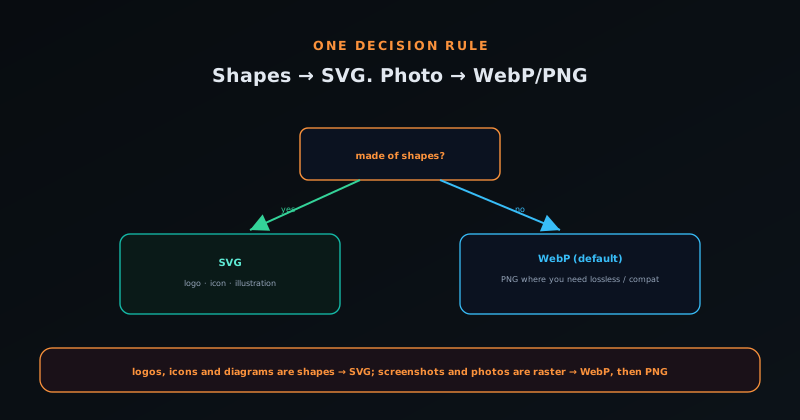
The decision rule that resolves nearly every case is short enough to remember. First ask: is this graphic made of a manageable set of shapes (a logo, icon, simple illustration, diagram, or chart)? If yes, use SVG and stop; you get crispness at every size and a tiny file. If no (if it is photographic or too complex for vector) then it is raster: reach for WebP as the default for its size advantage, and fall back to PNG only where you need maximum compatibility, guaranteed lossless exactness, or a flat graphic with crisp text. Apply that rule consistently and your site is automatically sharper and lighter than one where the format is chosen by habit, which feeds directly into the page-speed and Core Web Vitals scores covered in Page speed and Core Web Vitals for a small site. The right format is free performance; the only cost is knowing the rule.
Frequently asked questions
Quick answers to common questions about this topic.
What is the difference between SVG and PNG/WebP?
SVG is a vector format (a set of instructions for drawing shapes) so it renders crisply at any size and is tiny for graphics made of shapes. PNG and WebP are raster formats (grids of pixels with a fixed resolution), which suit photographs and complex continuous imagery but blur when scaled larger than their native size.
Which format should I use for a logo or icon?
SVG, almost always. Logos and icons are made of a limited set of shapes, so SVG renders them perfectly crisp at every size and screen density from a single tiny file, can change colour to match a theme, and avoids exporting multiple raster sizes. Use SVG unless something specific stops you.
When should I not use SVG?
When the graphic is photographic or too visually complex to describe as shapes: screenshots, photo-based heroes, richly textured illustrations. Forced into SVG these become enormous and slow; they belong in a raster format (WebP or PNG) instead.
Is WebP better than PNG?
For most raster graphics on the web today, yes: WebP produces substantially smaller files than PNG at equivalent quality, supports transparency, and offers both lossless and lossy modes. Use WebP as the default and fall back to PNG where you need maximum compatibility, guaranteed lossless exactness, or a flat graphic with crisp text.
Do all three formats support transparency?
Yes: SVG, PNG, and WebP all support transparency. JPG does not, which is why a transparent graphic saved as JPG gains an ugly background. If you need transparency, choose among SVG, PNG, and WebP based on whether the graphic is vector or raster.
What is the simplest decision rule?
Ask whether the graphic is made of a manageable set of shapes (logo, icon, simple illustration, diagram, chart). If yes, use SVG. If no (photographic or too complex) use WebP by default, falling back to PNG where you need maximum compatibility or lossless exactness. That single rule resolves nearly every case.
Related troubleshooting
Was this page helpful?
Your answer stays in this browser, it is not sent anywhere and no account or cookie is involved.