2026 · NSS Background RemoverAbout 15 min readNovus Stream Solutions
Inside the NSS Background Remover AI Suite: what 90+ on-device tools actually do
NSS Background Remover is no longer just a cutout tool — it is a 90+ tool AI Suite that runs entirely on your device. This is a practical tour grouped by the job each tool does, from cutouts to generative backgrounds to motion, all private and free.
Overview
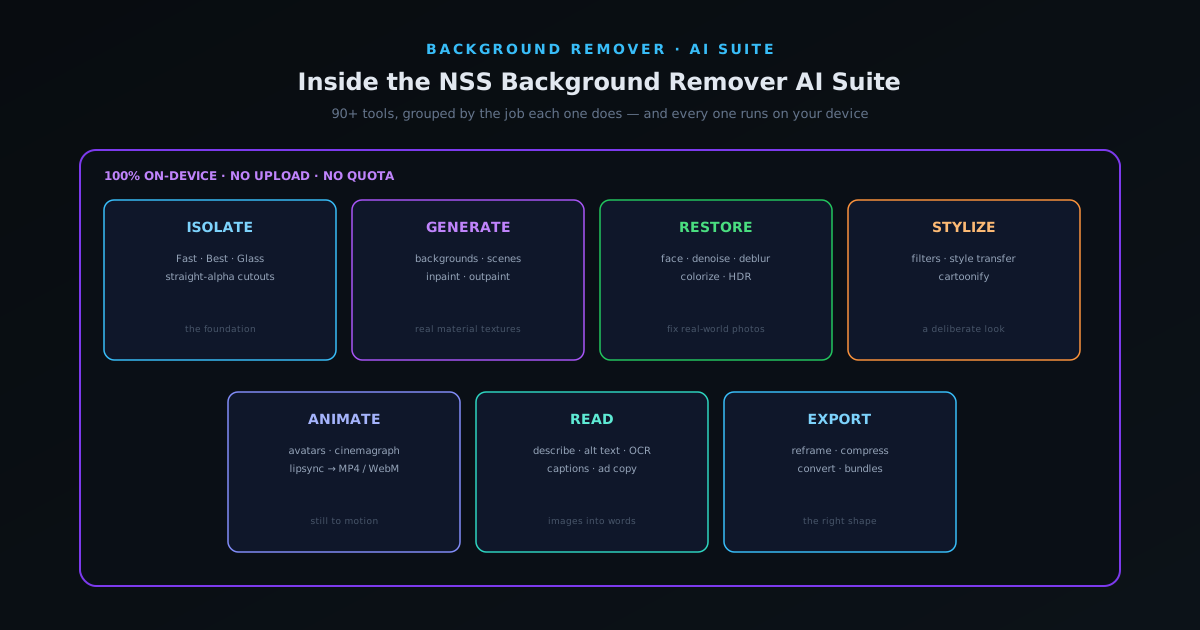
NSS Background Remover started as a single-purpose tool with a single-purpose name: it removed the background from an image. That is still the first thing it does and still the thing most people arrive for, but it is now a small fraction of what the tool can do. Over a series of releases the app has grown into an AI Suite of more than ninety tools — generating backgrounds, restoring damaged photos, turning stills into short motion clips, transcribing audio into captions, reading text out of images, and a long list of other jobs — all sharing one editor, one set of layers, and one defining constraint: everything runs in your browser, on your device, with nothing uploaded to a server. This article is a tour of that suite, not as a feature dump but grouped by the job each tool actually does, so that the ninety-plus tools become a map you can navigate rather than a wall of names.
The reason to organize the tour by job rather than by menu is that nobody opens an AI editor wanting "ninety tools." They arrive wanting to do one concrete thing — put a product on a clean background, fix a blurry old photo, get captions onto a clip, write a marketplace listing — and the suite is far easier to understand as a set of answers to those wants. So the sections below walk through the families in roughly the order a real project moves: isolate the subject, replace or generate what is behind it, repair and enhance, restyle, add motion, pull words out of the image, and export in the right shape. Throughout, the throughline is the same one that the original tool was built on — on-device and private by design — which is what makes running this many AI models in a free browser tab a genuinely different proposition from the cloud editors it resembles on the surface.
One workspace, ninety-plus tools
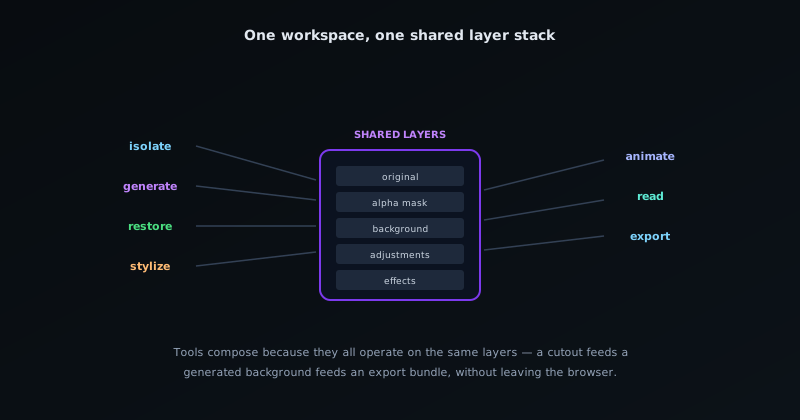
The first thing to understand about the suite is that it is not ninety separate apps bolted together; it is one editor with a shared architecture, and the tools are surfaces inside it. An image you bring in becomes a set of layers — the original, the alpha mask, any backgrounds, adjustments, and effects — and the AI tools operate on those layers rather than on disconnected uploads. That shared-layer design is why the tools compose: a cutout from one tool becomes the input to a generative background from another, which becomes the input to an export bundle from a third, without ever leaving the workspace or round-tripping through a file you have to manage by hand. The same architecture spans both the image editor and the video editor, so the AI tools can run inside either surface.
Practically, this means the right mental model is families, not a flat list. There is a family for isolating the subject, a family for what goes behind it, a family for repairing and enhancing, a family for restyling, a family for motion, a family for turning images into words, and a family for getting the result out in the right format. Once you see the suite as those seven or so families, the ninety-plus individual tools stop being intimidating: each is a specific variation within a family you already understand. The rest of this tour takes the families in turn. None of it requires an account, a quota, or an upload — the tools download their models to your browser the first time you use them and then run locally, which is what the section on privacy at the end returns to.
The cutout core: Fast, Best, and Glass
The original job is still the foundation, and it has matured into a small set of modes rather than a single button, because "remove the background" means different things for different images. A Fast mode handles the common case — a reasonably clear subject on a distinguishable background — quickly and with a smaller model, which is the right default for product shots and most everyday photos. A Best mode runs a heavier, higher-fidelity model for the hard cases: wispy hair, fur, fine edges, and complex boundaries where the Fast model would leave artifacts. A Glass mode exists for the genuinely difficult class of transparent and semi-transparent objects — glassware, plastic, anything with specular highlights — where a naive cutout either deletes the object or keeps an ugly halo.
What makes the cutout core worth understanding before the rest of the suite is that its output is what everything downstream builds on. A clean, correct alpha mask is the difference between a generative background that looks composited and one that looks photographed, between a sticker with a crisp edge and one with a grey fringe. The suite puts real effort into that edge — decontaminating the colors at the boundary so the result exports as true straight-alpha rather than a mask with a dark halo baked in — because the quality of the cutout sets the ceiling for the quality of everything else you do to the image. If you only ever use the cutout core, the tool is still the thing it was named for; the families below are what it became once that core was solid.
Generate: backgrounds and scene replacement
Once a subject is isolated, the question becomes what goes behind it, and this is where the suite has grown the most. Beyond solid colors and uploaded images, it can generate a background — and recent work has made those generated backgrounds far more convincing by giving them real material textures rather than flat fills. Asking for marble, wood, brick, or concrete now produces a surface with the grain, variation, and subtle lighting those materials actually have, which is the difference between a product that looks placed on a backdrop and one that looks set on a real surface. For e-commerce and marketplace photography, that material realism is the whole game: a believable surface under a product reads as a real photo, and a flat one reads as a cutout.
Alongside fully generated backgrounds, the suite includes curated lifestyle scenes — pre-built environments a product can be dropped into — with a blending engine that matches color temperature, feathers the edge, and adds contact shadow and ambient occlusion so the composite sits in the scene instead of floating above it. The practical upshot is that the cost and friction of "shoot the product in ten settings" collapses to "shoot it once, cleanly, and place it into any setting you need," which is the same economic argument the ecosystem makes elsewhere about /product-blog/the-real-cost-of-product-photography. The generative and scene tools are not a gimmick layered on top of the cutout; they are the natural second half of the original job — having removed the background, the suite can now build a better one.
Inpaint and outpaint without breaking transparency
Two of the most useful generative tools are the ones that change the image content itself rather than just the background. Inpaint regenerates a masked region — to remove an unwanted object, clean up a blemish, or fill a gap — by painting plausible content into the area you mark. Outpaint does the reverse, extending the image beyond its original frame so a too-tight crop can be widened or a square photo can become a banner without stretching. Both are genuinely hard to do well, because the regenerated pixels have to match the surrounding image in lighting, texture, and perspective, and a naive implementation produces the telltale smear or duplicated subject that marks an AI fill.
The detail worth calling out is that these tools were rebuilt to respect transparency, which sounds like a footnote and is actually the difference between usable and not. Earlier generative fills had a habit of dropping a black blob into a large masked area or duplicating the subject when extending a frame; the current behavior preserves the alpha channel through the operation, fills large regions without the black-blob failure, and extends frames without cloning whatever was in them. That matters because in this suite inpaint and outpaint are usually run on images that already have a cutout — the whole point is to keep the subject isolated while changing what is around it — so a fill that ignored transparency would undo the cutout it was supposed to build on. The tools that change image content and the tools that isolate the subject have to cooperate, and the recent work was largely about making them do so.
Restore and enhance: the repair family
A large group of tools exists not to transform an image but to repair and improve it, and this family is where the suite earns its keep for anyone working with imperfect source material. Face restoration reconstructs detail in soft or low-resolution portraits; denoise removes the grain that creeps into low-light and high-ISO shots while preserving edges rather than smearing them; deblur recovers sharpness from mild motion or focus blur; colorize brings plausible color to black-and-white photos with palette guidance so the result is not a uniform sepia wash. Each of these targets a specific, common defect, and together they turn the suite into a repair shop for the photos most people actually have rather than the studio-perfect ones the marketing of most tools assumes.
A subtler member of this family is the HDR and tone-mapping tool, which applies local tone-mapping to bring out detail in shadows and highlights — and which was tuned to leave already well-exposed photos alone rather than crushing them into an over-processed look. That restraint is characteristic of how the repair family is meant to work: the goal is a photo that looks like a better version of itself, not a photo that announces it has been run through an AI. Used together, the repair tools handle the unglamorous but high-value work of making real-world images presentable — the old scan, the dim phone photo, the slightly soft product shot — which is exactly the work that stops most people from using their own images and pushes them toward stock. The repair family is the suite quietly removing that obstacle.
Stylize: filters, style transfer, and cartoonify
Where the repair family makes an image look more like itself, the stylize family deliberately makes it look like something else. This includes a deep bank of filters and adjustments — the ordinary brightness, contrast, saturation, and temperature controls plus a couple of dozen curated looks — and the more transformative style-transfer tools that re-render an image in the manner of watercolor, oil, anime, cyberpunk, and similar styles. A cartoonify tool produces clean cel-shaded versions with flat, deliberate colors rather than the muddy edge-detection that cheaper versions produce. These are the tools you reach for when the goal is a distinct visual identity rather than a faithful photo: thumbnails, social graphics, avatars, and branded assets that need to look made rather than shot.
The stylize family is also where the suite supports a creator's consistency rather than one-off novelty. Because the looks are repeatable and the editor remembers your layers, applying the same treatment across a set of images is straightforward, which is what turns a fun filter into a usable brand tool — a row of product images or a series of post graphics that share a deliberate style read as a brand, where a mismatched set reads as noise. The line between stylize and gimmick is whether the result is repeatable and intentional, and the suite is built to keep these tools on the useful side of that line. For the broader case on why a consistent visual treatment is worth the discipline, the ecosystem covers it in /product-blog/building-a-consistent-visual-brand; the stylize family is the part of the suite that makes executing that consistency cheap.
From still to motion: avatars, cinemagraphs, and lipsync
One of the more striking expansions is the family that turns a still image into motion, because it pushes the tool past "image editor" into short-form video without leaving the browser. The avatar tools animate a portrait, the cinemagraph tools bring a single element of an otherwise-still photo to life, and the lipsync tools drive a face to match an audio track. The important and recent change is that these tools now export real, playable MP4 and WebM files rather than the placeholder output that an earlier version produced — meaning the motion you preview is the motion you can actually post, with a proper video container that platforms and players accept.
This family matters less for everyday photo work and more for the creators the broader ecosystem is built around: a musician who wants a moving avatar for a release, a seller who wants a subtly animated hero image, a maker who wants a talking-head clip without a camera setup. It overlaps in spirit with what the sibling product does for music — the ecosystem's music visualizer turns audio into exportable video — and the two together cover a lot of the "I need a short video and I do not have a studio" territory from opposite ends. The still-to-motion family is the clearest example of the suite outgrowing its name: a background remover that can hand you a finished MP4 is doing something the original tool never promised, and doing it on-device is what keeps it from being just another cloud novelty.
Read: describe, alt text, OCR, captions, and ad copy
A whole family of tools does the inverse of generating images — it turns images and audio into words. Vision-language tools describe what is in a photo, generate alt text for accessibility and image SEO, and perform OCR to pull text out of a picture so it can be copied or searched. Speech tools transcribe audio into captions and subtitles using on-device speech recognition, which is what lets the video side of the editor add captions without sending the audio anywhere. And a copy tool will draft a structured marketing post — at platform-appropriate lengths — from an image and a few inputs, which closes the loop from "I have a product photo" to "I have a listing or a post written."
The read family is easy to overlook because it does not change how an image looks, but it removes a surprising amount of manual labor from real workflows. Alt text written for every image is one of the highest-leverage and most-skipped jobs in both accessibility and search, and a tool that drafts it from the image makes the right thing the easy thing — the ecosystem makes the broader case in /product-blog/image-seo-alt-text-and-indexing. Captions are increasingly mandatory for short-form video and a chore to type by hand. Ad and listing copy is the step where many creators stall. The read family is the suite acknowledging that finishing a piece of content is rarely just the picture — it is the picture plus the words around it — and putting both on the same device, in the same workspace, with no upload between them.
Reframe, compress, convert, and export
The last family is the unglamorous but essential set of tools that get a finished result into the right shape for where it is going. Smart reframe and smart crop re-compose an image to a target aspect ratio while keeping the subject in frame, which is what makes one source image usable as a landscape hero, a square post, and a vertical story without three manual crops. A compressor reduces file size — including a target-size mode that uses a quality search to hit a specific kilobyte budget, which is exactly what you need when a marketplace or a page-speed budget caps your image weight. Format conversion moves between PNG, JPEG, WebP, and AVIF, picking the right container for the job rather than defaulting to whatever the camera produced.
Tying the export family together are the curated bundles — pre-defined sets like a marketplace pack or a post-everywhere pack that produce all the sizes and formats a particular destination needs in one action, with sensible names and embedded metadata. This is the step where the suite respects that the deliverable is rarely a single file; it is a set of files in specific shapes, and assembling that set by hand is tedious and error-prone. The reframe-compress-convert-export family turns "now make twelve versions of this" into one operation, which is the kind of friction removal that decides whether a tool actually gets used for real work or just admired in a demo. For the format choices underneath these tools, the ecosystem has a dedicated comparison at /product-blog/png-vs-webp-vs-avif-for-transparency.
The thread that ties it together: on-device and private
For all the breadth, the single most important fact about the suite is the one that does not show up in any individual tool: it runs entirely on your device. Every model — the cutout networks, the generative backgrounds, the restoration tools, the speech recognizer, the vision-language describer — downloads to your browser the first time you use it and then runs locally, with no image, audio, or text ever sent to a server. That is an architectural choice with real consequences. It means there is no upload to wait on, no quota to hit, no account to create, and, most importantly, no copy of your work sitting on someone else's infrastructure. For anyone editing photos of clients, products, documents, or family, that privacy posture is not a nice-to-have; it is the difference between a tool you can use on sensitive material and one you cannot.
Running this many models in a browser tab is only possible because the suite is honest about hardware: it sizes models into tiers, lets you see and delete what you have downloaded, and picks a backend (WebGPU where available, falling back gracefully) based on what your device can actually do — the trade-offs of which the ecosystem details in /product-blog/honest-ai-model-tiers-lite-standard-pro. The result is a suite that scales from a modest laptop to a powerful workstation without forcing a one-size model on everyone. The tour through the families is really a tour of one idea taken seriously: that a genuinely capable AI image suite can run on the device in front of you, for free, without uploading your work — and that once that is true, there is no reason to stop at removing backgrounds. You can try the whole thing at bgremover.novusstreamsolutions.com, and the tools will download as you reach for them.
Frequently asked questions
Quick answers to common questions about this topic.
Does the NSS Background Remover AI Suite upload my images to a server?
No. Every tool runs entirely in your browser on your device. Models download to your browser the first time you use them and then run locally — no image, audio, or text is sent to a server, there is no quota, and no account is required.
What can the AI Suite do besides removing backgrounds?
It groups into families: isolating subjects (Fast/Best/Glass cutouts), generating backgrounds and scenes with real material textures, transparency-safe inpaint and outpaint, restoration (face restore, denoise, deblur, colorize, HDR), stylization (filters, style transfer, cartoonify), still-to-motion (avatars, cinemagraphs, lipsync exporting real MP4/WebM), turning images into words (describe, alt text, OCR, captions, ad copy), and reframe/compress/convert/export.
Can it really make video?
Yes — the still-to-motion tools (animate, cinemagraph, lipsync) now export real, playable MP4 and WebM files, not placeholders, and the video editor can add on-device captions via speech recognition. The motion you preview is the motion you can post.
Will 90+ AI tools run on a normal laptop?
Yes, within reason. The suite sizes models into tiers, runs on WebGPU where available and falls back to WASM otherwise, and lets you see and delete downloaded models to manage memory. Heavier tools (Best cutout, generative, video) ask more of your hardware, but the everyday tools run comfortably on modest machines.