2026 · Novus Stream Solutions (hub)About 12 min readNovus Stream Solutions
How to make a YouTube thumbnail (free, in your browser)
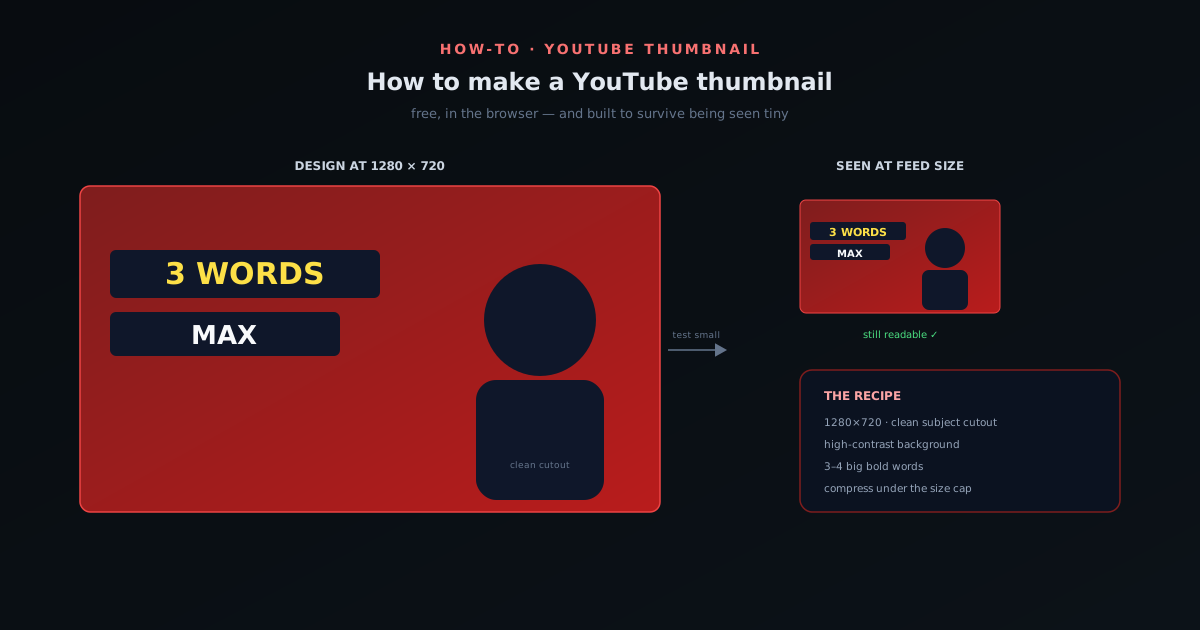
The thumbnail decides whether your video gets clicked, and you can make a strong one for free in a browser. Here is the whole process: the correct size, a clean subject cutout, text that reads at a glance, and a style that holds up at thumbnail scale.
Contents
- 1.Overview
- 2.Start with the right size and ratio
- 3.Cut out your subject for a clean focal point
- 4.Choose a background that creates contrast
- 5.Add text that survives being tiny
- 6.Keep a consistent look across your channel
- 7.Faces and expression are click magnets
- 8.One focal point, ruthlessly enforced
- 9.Design for the feed, not for your screen
- 10.Test, measure, and iterate
- 11.Export and compress without going soft
Overview
Of everything attached to a YouTube video (the title, the description, the tags, the content itself), the thumbnail is the single element that most determines whether anyone clicks. It is the first and often only thing a potential viewer evaluates as they scroll a wall of competing videos, and a video with a weak thumbnail can have great content that almost nobody sees, while a strong thumbnail gives good content the chance it deserves. The encouraging part is that making a strong thumbnail is a learnable, repeatable craft, not a matter of design talent or paid software, and you can do the whole thing for free in a browser. This guide walks the entire process, from the technical basics most people get wrong to the design choices that actually move the click-through rate.
The mental model to start with is that a thumbnail is not a screenshot and not a poster; it is a tiny billboard seen for a fraction of a second at a fraction of its real size. Almost every mistake in thumbnail design comes from forgetting that: designing something that looks great at full size on the editing screen and turns into an unreadable smudge in the feed where it actually lives. So the steps below keep returning to one test (does this still work shrunk to the size a phone shows it?) because that is the only size that matters. Get the size right, isolate your subject cleanly, keep the background and text simple and high-contrast, and build a consistent look across your channel, and you will have thumbnails that earn clicks without spending a cent.
Start with the right size and ratio
Before any design, get the dimensions right, because a thumbnail at the wrong size or ratio will be cropped, letterboxed, or blurred by YouTube and undo your work before anyone sees it. The standard is 1280×720 pixels (a 16:9 ratio), which is what YouTube expects and displays cleanly everywhere from a phone feed to a TV. Designing at that exact size means what you see is what gets shown, with no surprise cropping eating your text or your subject. There is also a file-size ceiling: YouTube caps thumbnail uploads, so a finished image needs to come in under that limit, which is a compression step at the end rather than a design constraint up front.
Working at the correct ratio from the start also disciplines the composition. A 16:9 frame is wide, and the natural instinct to center everything wastes that width; instead, the ratio invites a layout where the subject sits on one side and the text on the other, which reads more clearly at small sizes than a centered pile. If you are building in a browser tool, set the canvas to 1280×720 before you place anything, so every element is positioned in the frame it will actually occupy. Getting this foundational step right is unglamorous but decisive: it is the difference between a thumbnail that displays as designed and one that YouTube mangles on the way to the feed.
Cut out your subject for a clean focal point
The strongest thumbnails almost always have a clear focal subject (a face, a product, an object) that stands out crisply from the background, and the way to achieve that is to cut the subject out of its original photo and place it deliberately, rather than using a busy full-frame shot where the subject competes with everything around it. Removing the background isolates the subject so you can put it on a high-contrast backdrop, scale it, and position it where you want, which is what gives a thumbnail that punchy, designed look instead of a snapshot look. This is a free, in-browser job: bgremover.novusstreamsolutions.com/background-remover removes the background on your device and gives you a clean cutout to work with, with no upload and no cost.
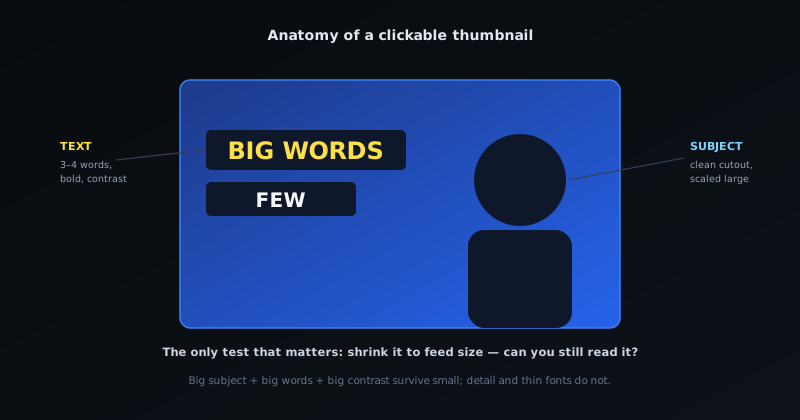
A clean cutout matters more at thumbnail scale than at full size because edges that look fine large turn to mush small, and a subject with a crisp, decontaminated edge holds its shape when the image is shrunk to a feed. Once you have the cutout, the moves that make it pop are simple: scale the subject large enough to be unmistakable, give it a little separation from the background with a subtle outline or shadow if needed, and crop in on the most expressive part: for a face, that usually means the face fills a good chunk of the frame, because expression reads even when detail does not. The cutout is the move that separates amateur thumbnails from professional-looking ones, and it costs nothing but a minute.
Choose a background that creates contrast
With the subject isolated, the background's job is to make it stand out, which means contrast above all: in brightness, in color, or in both. A common and effective approach is a bold, relatively simple background: a saturated solid color, a strong gradient, or a blurred and darkened scene that pushes the subject forward without competing for attention. The mistake to avoid is a busy, detailed background that fights the subject; at thumbnail size, detail becomes noise, and a clean high-contrast field reads instantly where a cluttered one reads as mush. You can generate or place a background, scale the subject, and add the text in the same browser editor at bgremover.novusstreamsolutions.com/editor, so the whole composition comes together in one place.
Color contrast is also a competitive tool, because your thumbnail does not appear alone; it appears in a feed surrounded by other thumbnails, most of which lean on similar palettes. Choosing colors that differ from the typical look of your niche helps your video stand out in that lineup, and a consistent, distinctive palette across your own thumbnails additionally builds recognition over time. The principle underneath all of this is separation: the viewer's eye should land on your subject in the first instant, and the background exists to make that happen. A background that draws attention to itself has failed at its only job, which is to be the contrasting field that makes the subject unmissable.
Add text that survives being tiny
Most thumbnails carry a few words, and the rule that governs them is brutal simplicity: the text must be readable at the size the thumbnail is actually displayed, which is small. That means very few words (three or four at most, not a sentence) in a large, bold, high-contrast typeface. The text is not the title repeated; the title is right next to the thumbnail, so the thumbnail text should add or amplify rather than duplicate, hitting the hook, the payoff, or the curiosity gap in a couple of punchy words. Long text, thin fonts, and low contrast are the three reliable ways to make thumbnail text useless, because all three vanish when the image shrinks.
Legibility tricks earn their keep here. A heavy weight, a contrasting outline or drop shadow, or a solid color block behind the words keeps them readable against a varied background, and placing the text where it does not collide with the subject keeps both clear. The single best habit is to constantly check the small version: shrink the thumbnail down to roughly the size it appears in a feed and ask whether you can still read the words and recognize the subject at a glance. If you cannot, neither can the viewer, and no amount of detail that only appears at full size will save it. Designing for the small view from the start (big subject, big words, big contrast) is the whole discipline of thumbnail text.
Keep a consistent look across your channel
A single good thumbnail earns a click; a consistent set of thumbnails builds a channel. When your videos share a recognizable visual style (a consistent font, a recurring color, a layout pattern, a signature treatment of your face or subject), a viewer scrolling their feed recognizes your content before they read a word, and that recognition compounds into the kind of channel identity that turns one-time viewers into subscribers. This is the same brand logic that applies to any visual content, covered more broadly in Building a consistent visual brand (without a designer): a deliberate, repeated style reads as a brand, where a different look every time reads as a stranger each time.
Consistency does not mean every thumbnail is identical; it means they share a system. The easiest way to maintain that system for free is to keep a working file or a simple template (a canvas with your fonts, colors, and layout already set) and start each new thumbnail from it rather than from scratch, swapping in the new subject and text. That habit both speeds up production and enforces the consistency automatically, which matters because the channels that win on thumbnails are not the ones that make one brilliant image but the ones that make a strong, recognizable image every single time. A template turns "design a thumbnail" into "fill in a thumbnail," which is what makes consistency sustainable when you are publishing regularly.
Faces and expression are click magnets
One of the most reliable thumbnail patterns is a human face showing clear emotion, because people are wired to notice and read faces, and an expressive one stops a scroll in a way an object rarely does. A face mid-reaction (surprise, delight, concentration, dismay) signals that something is happening in the video and invites the viewer to find out what. The expression has to be genuine and legible at a glance; a flat, neutral face does little, while an exaggerated but believable one communicates instantly, before the viewer reads a single word of text.
The cutout tools matter here because a face works best when it is cleanly separated from a busy background and given room to read, which usually means removing the original background and placing the subject against something that makes the expression pop. A crisp cutout of a face, scaled large enough to be legible at thumbnail size and positioned where it does not collide with text, is one of the highest-performing thumbnail structures there is. If your video has a person in it, a strong expression is often the single most valuable element you can put on the thumbnail.
One focal point, ruthlessly enforced
The most common thumbnail mistake is cramming in too much (several images, multiple ideas, competing text), which at the small size a thumbnail is actually viewed reads as noise and communicates nothing. A thumbnail has roughly a heartbeat to land one idea, so the discipline is to choose a single focal point and subordinate everything else to it. One subject, one supporting idea, and enough empty space that the eye knows where to go beats a collage of everything the video contains every time.
Enforcing one focal point is as much about removing as adding. Once you have your subject and a few words, resist the urge to fill the remaining space; negative space is not wasted space, it is what makes the focal point readable. A good test is to glance at the thumbnail for a single second and ask what you took away: if the answer is one clear thing, it works; if it is a jumble, something needs to come out. Ruthless subtraction is what separates a thumbnail that communicates from one that merely decorates.
Design for the feed, not for your screen
A thumbnail is never seen in isolation the way you see it while making it, full-size on your monitor; it is seen small, surrounded by competing thumbnails, often with a duration stamp overlaid in one corner and the platform interface around it. Designing without accounting for that context produces thumbnails that look great in your editor and disappear in the feed. The fixes are practical: keep important elements out of the lower-right corner where the timestamp sits, and make sure your thumbnail stands apart from the neighbours it will appear beside rather than blending into a sea of similar looks.
Standing out in the feed often means deliberately differing from the convention in your niche: if everyone uses dark, busy thumbnails, a clean bright one cuts through, and the reverse holds too. It also means testing against the actual backdrop: the platform interface is light or dark depending on the viewer setting, so a thumbnail with a near-white or near-black edge can vanish against it. Checking how your thumbnail looks small, beside other thumbnails, on both light and dark backgrounds, catches the problems that full-size editing hides until it is too late.
Test, measure, and iterate
Thumbnails are one of the few creative decisions you can genuinely measure, because the click-through rate tells you, in numbers, whether a thumbnail is working. Treating the thumbnail as something to test rather than set once turns guesswork into learning: when a video underperforms relative to how often it is shown, a weak thumbnail is often the cause, and swapping it can revive a video that was being skipped. Over time, paying attention to which thumbnails earned clicks teaches you what resonates with your specific audience, which is worth more than any generic rule.
The practical loop is to form a hypothesis about what makes your thumbnails work (a certain expression, a colour, a level of text) and to vary one thing at a time so you can attribute the difference. Keep the thumbnails that earn clicks as templates and evolve from them, rather than starting fresh each time. This measure-and-iterate habit is the same production-line thinking that makes everything else sustainable: a repeatable thumbnail approach refined with real data beats reinventing the design for every upload and hoping it lands.
Export and compress without going soft
The final step is getting the finished thumbnail out of the editor and onto YouTube in good shape. Export at the full 1280×720 resolution, then check the file size against YouTube's upload cap; a detailed thumbnail can exceed it, in which case you compress rather than shrink the dimensions. The goal is to get under the size limit while keeping the image sharp, which is a job for smart compression, reducing the file weight without visibly degrading the subject and text. You can do this for free at bgremover.novusstreamsolutions.com/tools/image-compressor, and the ecosystem's walkthrough at How to compress an image without losing quality covers the technique, including a target-size mode that hits a specific file budget while preserving quality.
Format matters a little here too: a photographic thumbnail with smooth gradients usually compresses best as a high-quality JPEG, while one with flat color areas and crisp text edges may hold up better in a modern format, the trade-offs of which are laid out in JPG vs PNG: when to use which. Whatever you choose, do the readability check one last time on the exported file at small size before uploading, because compression occasionally softens fine text in a way that only shows up after the fact. With the image sized right, the subject cut cleanly, the background and text doing their contrasting jobs, and the file compressed without going soft, you have a thumbnail that competes, made start to finish in a browser, for free.
Frequently asked questions
Quick answers to common questions about this topic.
What size should a YouTube thumbnail be?
1280×720 pixels, a 16:9 ratio: the size YouTube expects and displays cleanly everywhere. Design at that exact size so nothing gets cropped, and keep the finished file under YouTube's upload size cap by compressing rather than shrinking the dimensions.
Can I make a YouTube thumbnail for free?
Yes. You can do the whole job in a browser at no cost: cut out your subject with a free in-browser background remover, place it on a high-contrast background, add a few bold words, and compress the export under YouTube's file-size limit; no paid software required.
How much text should a thumbnail have?
Very little: three or four words at most, in a large, bold, high-contrast font. The text should add to the title rather than repeat it, and it must stay readable when the thumbnail is shrunk to feed size. Long text and thin fonts disappear at small scale.
How do I make my thumbnail stand out in the feed?
Isolate a clear subject with a clean cutout, put it on a simple high-contrast background, and use colors that differ from the typical look of your niche. Then test by shrinking the image to the size a phone shows it: if the subject and words still read at a glance, it will stand out.
Related troubleshooting
Was this page helpful?
Your answer stays in this browser, it is not sent anywhere and no account or cookie is involved.