2026 · Novus Stream Solutions (hub)About 12 min readNovus Stream Solutions
Mobile-first layout for content and tools
Mobile-first is not a smaller version of the desktop site; it is a different starting point. How to design content pages and interactive tools so they work on a phone first and scale up gracefully: fluid type, generous tap targets, columns that stack instead of cram, images and SVGs that never overflow, and sticky elements that help rather than trap.
Contents
- 1.Overview
- 2.Start at 360px and let it grow, not the reverse
- 3.Fluid type that reads without pinching
- 4.Tap targets: at least 44 pixels, with room to breathe
- 5.Stack the columns, do not cram them
- 6.Banishing the horizontal scroll
- 7.Images and SVGs that scale instead of overflow
- 8.Sticky elements that help, not traps that hijack
- 9.Test at the sizes real phones use
- 10.Why mobile-first makes the desktop better too
Overview
Most of the people who reach a free content page or a free browser tool arrive on a phone. They tap a link from search or a feed, the page opens in a narrow window held in one hand, and within a couple of seconds they decide whether this is worth their attention. If the text is too small to read without pinching, if a button is a hair-thin target their thumb keeps missing, if the page drifts sideways under a horizontal scrollbar, that decision goes against you before the content ever gets a chance. Mobile-first design is the discipline of treating that narrow, one-thumbed, distracted context as the primary case rather than an afterthought, and the surprising payoff is that designing for it well tends to produce a cleaner desktop experience too.
It is worth being precise about what mobile-first means, because it is often misread as "make the desktop site smaller." It is the opposite: you start from the constraints of the small screen (limited width, touch input, variable connection) and design a layout that works there first, then add space, columns, and richness as the viewport grows. Starting small forces you to decide what actually matters, because there is no room to hide everything on the page at once. That forced prioritization is why mobile-first layouts so often feel focused rather than cramped: the work of deciding what is essential was done at the hardest size, and the larger screens inherit that clarity instead of papering over a lack of it with whitespace.
Start at 360px and let it grow, not the reverse
The single most consequential choice is which viewport you design from first. If you start at a wide desktop canvas and shrink, every breakpoint becomes a negotiation about what to take away, and the small screen ends up as a compromised version of a layout that was never meant for it. If you start narrow (somewhere around 360 to 390 pixels, which covers the bulk of phones in use), every breakpoint above it becomes an opportunity to add, and the layout grows naturally from a solid base. Adding space is easier than rescuing a cramped design, because the hard decisions about hierarchy and priority were already made where space was scarce.
In practice this means writing your base styles for the small screen with no media query at all, then using min-width media queries (or modern container queries) to layer on the wider treatments. The mental model is additive: the phone gets the foundation, and each larger breakpoint earns extra columns, larger type, or more generous spacing. This is also why mobile-first tends to ship less CSS overall: the default styles are the simple ones, and the elaborations are scoped to the screens that can use them, rather than the reverse where you write a complex desktop layout and then spend more rules unwinding it for phones.
- Design and review the base layout at roughly 360 to 390px before touching wider breakpoints.
- Write default styles with no media query; add complexity with min-width queries as the viewport grows.
- Treat each breakpoint as a chance to add (columns, spacing, type scale), not to claw back what broke.
- Always include the viewport meta tag so the browser renders at device width instead of a faked desktop width.
Fluid type that reads without pinching
Typography is where a mobile layout is won or lost first, because reading is the primary action on almost every content page. Body text on a phone should sit comfortably around 16 pixels or more; anything smaller invites the pinch-to-zoom that signals the page was not built for the device. Rather than hard-coding a single size and adding breakpoints to bump it, fluid typography lets text scale smoothly between a sensible minimum and maximum as the viewport changes, so the page reads well at every width without a stair-step of media queries trying to catch each size.
The same logic applies to line length and spacing. A measure of roughly 60 to 75 characters per line is comfortable on any device, but on a phone you rarely have to engineer it; the narrow column delivers a good measure almost for free, which is one of the quiet advantages of the small screen. What you do have to mind is line height and the space between paragraphs and headings: generous vertical rhythm keeps dense text from feeling like a wall, and that matters more on a small screen where less of the page is visible at once. Readable type is not decoration; it is the difference between a page someone reads and a page someone leaves.
Tap targets: at least 44 pixels, with room to breathe
A mouse pointer is a single pixel; a fingertip is closer to a centimeter of imprecise contact. That difference is why touch targets need to be large and well-spaced, and why a layout that is perfectly usable with a cursor can be quietly miserable with a thumb. The widely cited floor is around 44 by 44 pixels for any interactive element (buttons, links, toggles, form controls), and that is a floor, not a goal. Just as important as the size of each target is the gap between targets: two correctly sized buttons jammed against each other still produce mis-taps, so spacing is part of the target.
This constraint is especially demanding for interactive tools, where the interface is mostly controls rather than text. A control panel that fits comfortably on a desktop can become a minefield of tiny adjacent buttons on a phone, so mobile-first tool design often means fewer controls visible at once, larger ones, and progressive disclosure that tucks advanced options behind a clear path rather than crowding them onto the first screen. The goal is that the primary action (remove the background, render the visualization, export the result) is an obvious, generous target the moment the tool loads, and that secondary controls never compete with it for the same crowded space.
- Make every interactive element at least 44px in both dimensions, including small icon buttons.
- Leave clear spacing between adjacent targets so a slightly-off tap does not hit the wrong one.
- For tools, surface the primary action prominently and defer secondary controls behind progressive disclosure.
- Do not rely on hover: there is no hover on touch; every important state must be reachable by tap.
Stack the columns, do not cram them
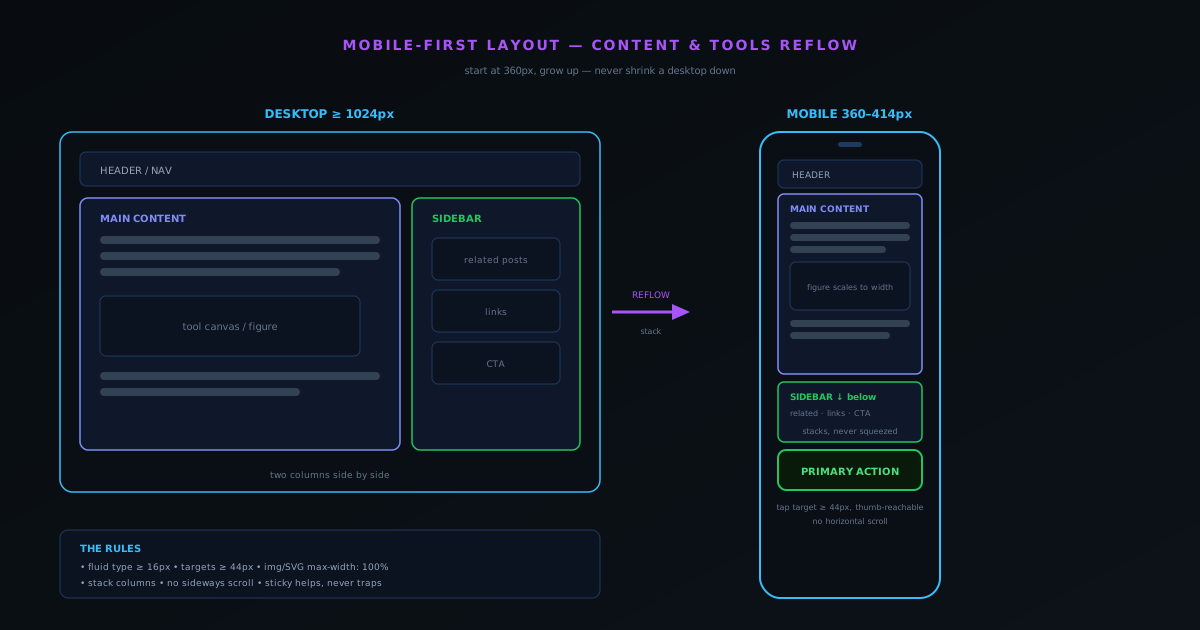
The defining move of a responsive layout is what happens to multi-column structures as the screen narrows. A page with a main content area and a sidebar, or a tool with a canvas and a control rail, has to decide: shrink both columns until each is too narrow to use, or stack them into a single column where each gets the full width in turn. Stacking is almost always the right answer on a phone. Two squeezed columns serve neither well; one full-width column after another serves each one properly, in a reading or working order you control.
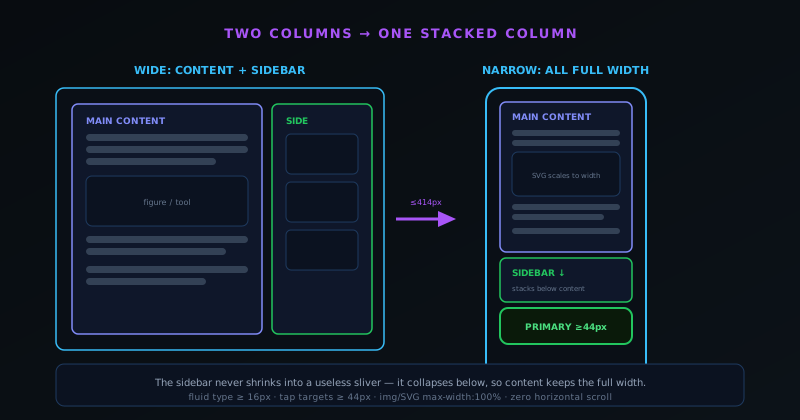
This is exactly the pattern behind the layout you are reading on right now. On a wide screen, the article sits beside a sidebar carrying related posts and curated links. On a phone, that sidebar does not shrink into a useless sliver next to the text; it collapses below the article, so the content gets the full width it needs and the supporting links are still there, in order, when the reader reaches them. The decision of what comes first when columns stack is a content decision, not just a CSS one: the thing the visitor came for should lead, and the supporting material should follow.
Banishing the horizontal scroll
Nothing signals a broken mobile layout faster than horizontal scrolling. When a page drifts sideways, it almost always means something inside it is wider than the viewport and is pushing the whole document out, and the culprit is usually a small, findable set of suspects rather than a deep structural problem. A fixed-width element that assumed a desktop, an image without a max-width, a long unbroken string like a URL or code token, a table that refuses to shrink, or padding that pushes a full-width box past the screen edge: these are the usual causes, and each has a clean fix.
The defensive baseline is to ensure that media and boxes never exceed their container, that long strings are allowed to wrap or break, and that wide content like tables or code blocks is given an intentional, contained scroll region rather than being allowed to widen the page. The test is simple and unforgiving: open the page at 360 pixels and try to scroll sideways. If you can, something is overflowing, and it is worth hunting down rather than hiding, because a horizontal scrollbar on a phone reads as carelessness and quietly undermines trust in everything else on the page.
Images and SVGs that scale instead of overflow
Images are the most common cause of both horizontal scroll and slow mobile loads, and both problems have the same root: an image sized for a desktop being served, untouched, to a phone. The baseline rule is that every image gets a maximum width of its container and an automatic height, so it can never push past the screen and always keeps its proportions. Beyond that baseline, responsive image techniques let the browser pick an appropriately sized file for the device, so a phone is not downloading a 2000-pixel-wide image to display it at 360, which wastes bandwidth and slows the very first impression on the connection most likely to be metered or weak.
Vector graphics deserve specific attention because they behave differently. An SVG with a sensible viewBox and no hard-coded pixel dimensions will scale to any size cleanly, staying sharp where a raster image would blur, which is why diagrams, icons, and illustrations in a mobile-first layout are so often vectors. The diagram in this very article is an SVG with a defined viewBox; it stays crisp whether it is rendered wide on a desktop or scaled down to fit a phone, and it weighs a fraction of an equivalent raster image. Letting graphics scale fluidly, rather than fixing them at one size, is part of the same additive discipline as the rest of mobile-first layout.
- Give every image a max-width of 100% and auto height so it can never overflow its container.
- Serve appropriately sized image files per device rather than shipping desktop-resolution images to phones.
- Prefer SVGs with a viewBox for diagrams and icons so they scale sharply at any width.
- Reserve space for media (set dimensions or aspect ratio) so the layout does not jump as images load.
Sticky elements that help, not traps that hijack
Sticky headers, floating action buttons, and pinned toolbars can be genuinely useful on a phone, keeping a key control within thumb reach as the user scrolls. But they turn hostile fast on a small screen, where vertical space is the scarcest resource. A sticky header that eats a third of the viewport leaves a cramped reading window; two or three sticky bars stacked together can leave almost nothing. The rule is that anything pinned to the screen has to earn its permanent occupation of that space, and most elements do not.
The worse failure is the sticky element that traps. A cookie banner or newsletter prompt that covers content with no obvious dismiss, an interstitial that is impossible to close with a thumb, a sticky bar that hides the very button beneath it: these do not just annoy, they block the task and send users straight back to the results page. If you use sticky elements, keep them slim, keep them few, and make sure they never cover content that the user needs to interact with or a dismiss control they need to find. Sticky should be a convenience the user can ignore, never a wall they have to fight.
Test at the sizes real phones use
A layout is mobile-first only if it has actually been seen at mobile sizes, and the band that matters most runs roughly from 360 to 414 pixels wide, the range that covers the large majority of phones in everyday use. Designing in a desktop browser and assuming it will be fine is how subtle overflow, mis-sized text, and crowded controls slip through, because none of them show up at a comfortable width. The discipline is to keep a narrow viewport open while you work, not to check it once at the end.
Resizing a desktop browser window down to those widths catches most issues for free, and the built-in device toolbars in browser developer tools let you emulate specific phones quickly. Emulation is not a perfect substitute for a real device (touch precision, system fonts, and real network conditions differ), so testing on an actual phone before shipping anything important remains worthwhile. But the habit that prevents the majority of mobile defects is simply never letting yourself forget the narrow case: review at 360px first, confirm there is no horizontal scroll, check that the primary action is an easy thumb target, and make sure the text reads without a single pinch.
Why mobile-first makes the desktop better too
The most underappreciated benefit of designing mobile-first is that it improves the wide-screen experience as a side effect. Starting from the small screen forces a ruthless prioritization of what matters, because there is no room to show everything at once and no whitespace to hide behind. That prioritization does not get discarded when the screen grows; it carries upward, so the desktop layout inherits a clear hierarchy and a focused set of choices rather than the everything-everywhere sprawl that desktop-first designs so easily become when space removes the pressure to decide.
There is a strategic dimension too. Search engines predominantly evaluate the mobile version of a page, so a layout that is genuinely good on a phone is also the version that gets judged for ranking, making mobile-first not only a usability stance but a discoverability one. The same instinct that puts the content first when columns stack, that keeps targets generous and type readable, that refuses to let the page scroll sideways, is the instinct that produces fast, focused, trustworthy pages at every size. Mobile-first is not a tax you pay to serve phone users; it is a discipline that pays back across every device the page will ever be seen on.
Frequently asked questions
Quick answers to common questions about this topic.
What does mobile-first actually mean?
It means designing the layout for a small screen first and adding complexity as the viewport grows, rather than building a desktop layout and shrinking it. You start from the hardest constraints (narrow width, touch input, variable connection), so the foundation is solid, then layer on columns, space, and richness for larger screens.
How big should tap targets be on mobile?
Aim for at least 44 by 44 pixels for any interactive element, and treat that as a floor rather than a goal. Spacing between targets matters as much as size, because two correctly sized buttons jammed together still cause mis-taps.
How do I stop a page from scrolling sideways on mobile?
Horizontal scroll almost always means one element is wider than the viewport. Give images and boxes a max-width so they cannot exceed their container, allow long strings like URLs to wrap, and put wide content such as tables in a contained scroll region. Then test at 360px and confirm you cannot scroll sideways.
What screen widths should I test at?
The most important band is roughly 360 to 414 pixels, which covers the large majority of phones. Review the base layout there first, use browser device emulation for specific models, and test on a real device before shipping anything important.
Does mobile-first hurt the desktop experience?
No. It usually improves it. Starting small forces you to decide what matters, and that clarity carries upward to the wide layout, which inherits a focused hierarchy instead of desktop sprawl. Search engines also evaluate the mobile version, so a good phone layout helps discoverability too.
Related troubleshooting
Was this page helpful?
Your answer stays in this browser, it is not sent anywhere and no account or cookie is involved.