2026 · NSS Background RemoverAbout 12 min readNovus Stream Solutions
Building a marketplace-ready product image pack
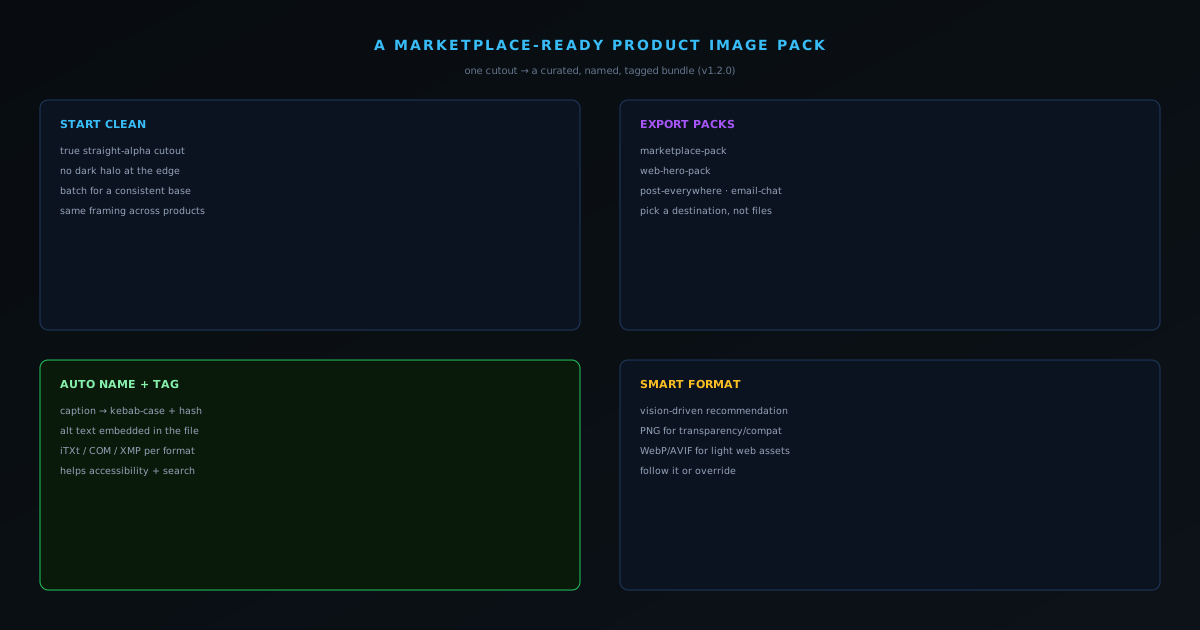
Marketplaces and storefronts each want product images a specific way. The NSS Background Remover's export packs turn one clean cutout into a curated bundle (auto-named, alt-text embedded, format-picked) ready to upload. Here is how to build a listing-ready pack.
Contents
- 1.Overview
- 2.Start from a clean, consistent cutout
- 3.Use export packs instead of exporting one by one
- 4.Let it name and tag the files for you
- 5.What "marketplace-ready" actually demands
- 6.The curated packs, and what each is for
- 7.Why auto-naming is more than a convenience
- 8.Embedded alt text, and why it travels with the file
- 9.How smart format picking decides
- 10.Consistency across a product line
- 11.From cutout to product in context
- 12.Why building packs locally protects your line
- 13.Fitting packs into a solo seller's day
- 14.Let the tool pick the format, and ship
Overview
A clean cutout is the start of product imagery, not the end. Every place you sell wants the image its own way: a marketplace expects certain framing and a clean background, your storefront wants fast-loading optimized files, your social posts want square crops, and increasingly everything wants descriptive alt text for accessibility and search. Doing all that by hand, per image, per destination, is exactly the kind of repetitive busywork that kills a solo seller's afternoon. The NSS Background Remover's v1.2.0 export pipeline was built to collapse it into a click.
This playbook is about turning a cutout into a marketplace-ready pack: a curated bundle of variants, correctly named, tagged, and formatted for where it is going.
Start from a clean, consistent cutout
The pack is only as good as the cutout it is built from, so start there. Run your product photo through bgremover.novusstreamsolutions.com/background-remover to get a true straight-alpha cutout with no dark halo at the edges: the export that places cleanly onto any background. If you are doing a whole catalog, run every product through bgremover.novusstreamsolutions.com/background-remover so each one starts from the same clean, consistent base, then build packs from those cutouts.
Consistency at this stage pays off everywhere downstream. A set of cutouts that share framing and edge quality will produce a set of listings that look like they belong to the same store, which is itself a quiet trust signal to a buyer.
Use export packs instead of exporting one by one
The export pipeline provides curated one-click bundles (including a marketplace pack, a web-hero pack, a post-everywhere pack, an email-and-chat pack, and a YouTube suite) so a single export produces the right set of variants for a destination instead of you assembling them manually. Choosing the marketplace pack gives you the listing-oriented set in one action; choosing the web-hero pack gives you the storefront-oriented set. You pick the destination, and the pack handles the permutations.
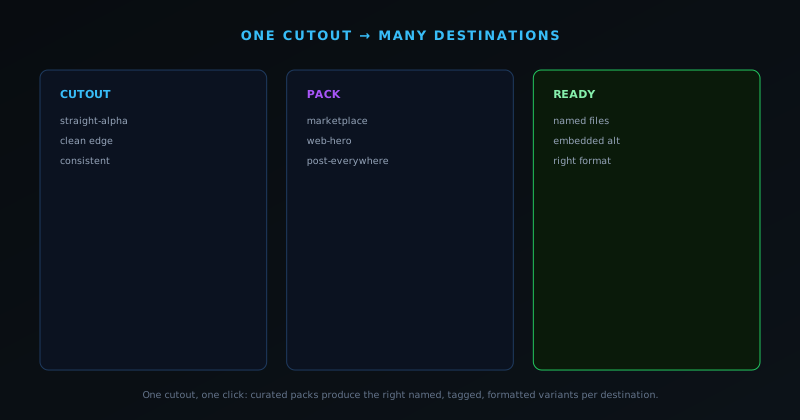
This is the difference between thinking in files and thinking in destinations. Instead of "now I need a 1:1, now a 16:9, now a compressed version," you say "this is going to the marketplace" and get what the marketplace needs.
Let it name and tag the files for you
Two of the most tedious parts of preparing product images are naming the files sensibly and writing alt text, and the pipeline automates both. AI auto-naming captions the image at export time and produces a clean, kebab-case filename with a short hash suffix, so you get descriptive, collision-free names instead of IMG_4821.png. Alt-text embedding writes format-specific metadata (iTXt for PNG, a comment field for JPEG, XMP for WebP) so the descriptive text travels inside the file itself.
Embedded alt text is quietly important. It serves accessibility, it helps image search, and it means the description is attached to the asset rather than something you have to remember to add in every upload form. For a seller managing many listings, having it baked in at export removes an entire category of forgettable manual steps.
What "marketplace-ready" actually demands
The phrase "marketplace-ready" hides a surprising number of specific requirements, and understanding them is what makes the export packs valuable rather than just convenient. Each place you sell expects images a particular way: a marketplace may want the product centered on a clean background at a certain framing, your own storefront wants fast-loading optimized files, social posts want square crops, and increasingly every destination wants descriptive alt text for accessibility and search. "Ready" is not one standard but a cluster of destination-specific expectations, and meeting them by hand for every image and every channel is exactly the repetitive work that drains a solo seller's time.
The reason this matters is that getting the requirements slightly wrong has real costs: an image rejected for the wrong framing, a listing that loads slowly because the file was not optimized, a missed accessibility or search opportunity because alt text was skipped. None of these are catastrophic individually, but across a catalog they add up to a store that underperforms in ways that are hard to diagnose. The export pipeline exists to encode these destination requirements into a one-click action, so "marketplace-ready" stops being a checklist you have to remember and becomes a property the export simply produces.
The curated packs, and what each is for
The export pipeline ships a set of curated one-click bundles, each tuned to a destination, and knowing what each is for lets you pick by intent rather than by fiddling with settings. There is a marketplace pack for listing-oriented imagery, a web-hero pack for storefront and landing-page use, a post-everywhere pack for social distribution, an email-and-chat pack for messaging contexts, and a youtube-suite for video thumbnails and channel art. Each produces the right set of variants for its destination in a single export, so instead of assembling formats one by one, you declare where the image is going and receive what that destination needs.
This reframes exporting from a per-file chore into a per-destination decision, which is a much smaller cognitive load. You are no longer thinking "now I need a 1:1, now a 16:9, now a compressed version": you are thinking "this is going to the marketplace" or "this is a storefront hero," and the pack handles the permutations. For a seller managing many products across several channels, that shift is the difference between exporting being a tax on every image and exporting being a single deliberate choice. The packs encode the tedious knowledge of what each destination wants so you do not have to carry it in your head.
Why auto-naming is more than a convenience
Filenames feel trivial until you have a thousand of them, at which point a folder full of IMG_4821.png becomes a genuine organizational liability. The pipeline's auto-naming captions the image at export time and produces a clean, descriptive, kebab-case filename with a short hash suffix to prevent collisions, so the files arrive already named in a way that says what they are. That descriptiveness is not just tidiness: meaningful filenames are easier to search, sort, and manage, and on the web they carry a small amount of signal about what the image depicts.
The hash suffix is a quiet bit of correctness that matters at volume. When you are exporting many variants of many products, name collisions are a real risk (two products that caption similarly could otherwise overwrite each other) and the short hash guarantees uniqueness without you having to think about it. The combination of a human-readable, descriptive name and a collision-proof suffix means a large export lands as an organized, uniquely-named set rather than a pile of files you have to rename or risk losing to overwrites. For a seller, that automatic organization is one less manual step multiplied across the entire catalog.
Embedded alt text, and why it travels with the file
Alt text (a short description of what an image shows) serves accessibility for screen-reader users and helps image search understand your pictures, and writing it for every product image is one of those tasks that is easy to skip and quietly costly to omit. The pipeline automates it by embedding format-specific metadata directly into the exported file: an iTXt chunk for PNG, a comment field for JPEG, XMP for WebP. The description is written into the image itself rather than living only in an upload form you have to fill out separately.
Embedding it in the file is the detail that makes it durable. Because the alt text travels inside the asset, it is attached to the image wherever the image goes, rather than being something you have to remember to re-enter on every platform and every re-upload. For a seller managing many listings across channels, that portability removes an entire category of forgettable manual steps: the description is baked in at export and comes along for free thereafter. Accessibility and searchability stop being chores you might skip under time pressure and become properties the export simply includes, which is exactly where they should sit.
How smart format picking decides
Format choice is genuinely consequential (transparency, compatibility, and file size all hinge on it) and the smart format recommendation removes the guesswork by reasoning about the image with a set of hard and soft rules. A hard rule is non-negotiable: an image that needs a transparent background must be a format that supports alpha, so PNG or WebP, never JPEG. A soft rule is a preference that can be weighed: where file size matters and transparency is not required, the recommendation leans toward the more efficient formats. The result is a default that fits the specific image rather than a blanket choice applied to everything.
Crucially, the recommendation is a default you can override, not a decision imposed on you. The tool steers you toward the sensible choice (PNG when you need transparency or maximum marketplace compatibility, WebP or AVIF when smaller files serve your own storefront) but leaves the final call with you for the cases where you know something the rules do not. That balance, a smart default plus an easy override, is the right shape for an automation: it removes the burden of deciding for every image while preserving your control over the exceptions, so your marketplace uploads stay compatible and your web assets stay light without you adjudicating format for each file by hand.
Consistency across a product line
A pack is built from a cutout, and the quality of a whole product line's imagery depends on those cutouts sharing a consistent base, which is why the workflow starts with consistent cutouts. When every product begins from a cutout produced by the same tool with the same settings, the resulting packs share framing and edge quality, so the listings look like they belong to the same store. That uniformity is itself a trust signal: a buyer browsing a coherent, consistent set of product images perceives a more legitimate seller than one whose images vary in style and quality from listing to listing.
Consistency at the pack level compounds the consistency at the cutout level. Because each destination pack applies the same treatment to every product it processes, a line run through the marketplace pack comes out uniformly marketplace-shaped, and a line run through the web-hero pack comes out uniformly storefront-shaped. The seller is not hand-tuning each image toward a vague notion of consistency; the packs enforce it automatically. For a small operation competing partly on looking professional, that automatic uniformity across a product line is a real advantage, achieved as a byproduct of using the packs rather than as a separate, effortful pass.
From cutout to product in context
A clean cutout on white is the baseline marketplace image, but products often sell better shown in a setting, and the same cutout that feeds a pack can also be placed onto a custom background. The bgremover.novusstreamsolutions.com/editor takes a cut-out product and lets you drop it onto a new backdrop, position it, and refine the edge so the product looks genuinely situated rather than pasted. That means one good cutout serves two purposes: the clean listing image and the in-context shot, both derived from the same source.
Thinking of the cutout as a reusable asset rather than a single-purpose file is what unlocks this. The work you do removing the background once pays off across the plain marketplace shot, the optimized storefront variant, and the in-context shot, because all three start from the same transparent cutout. For a solo seller, that reuse is leverage: a single clean cutout becomes a small library of presentations of the product, each suited to a different place a buyer might encounter it. The pack handles the listing-ready variants; the editor handles the in-context ones; the cutout is the common root of both.
Why building packs locally protects your line
Everything in this workflow (the cutout, the pack assembly, the naming, the metadata embedding, the format conversion) happens in your browser, on your device, with nothing uploaded, and for a seller that is not an abstract nicety. Product imagery is frequently sensitive before launch: an unreleased collection, a collaboration under embargo, a seasonal line you would rather competitors not preview. Assembling the image packs locally means even your pre-launch products never touch an outside server on their way to becoming listing-ready files, so there is no window in which an unreleased line is exposed to a third party.
This local-first property is what makes the pipeline usable for serious commercial preparation rather than only for already-public images. A seller can prepare the complete image set for an embargoed launch (cutouts, packs, names, alt text, formats) entirely on their own machine and have everything ready to publish the moment the embargo lifts, without that preparation having leaked through an upload anywhere. The same structural privacy that protects a single sensitive photo protects the whole pre-launch line, which for a seller whose calendar depends on controlled launches is exactly the guarantee that lets them prepare in advance with confidence.
Fitting packs into a solo seller's day
The ultimate test of this workflow is whether it fits the reality of a one-person operation, where time is the scarcest resource and every avoidable manual step competes with actually running the business. The pipeline is designed around that constraint: make the cutout, choose the destination pack, let the tool name, tag, and format, and ship. What used to be a per-image, per-channel chore (exporting variants, renaming files, writing alt text, picking formats one at a time) collapses into a short, repeatable routine that a single person can run without it eating an afternoon.
That collapse from many manual steps to a few deliberate choices is the whole point. A solo seller cannot afford to spend their limited hours on image busywork that automation can handle, and the value of the export packs is precisely that they remove that busywork without removing control. The seller still decides what to sell, how to shoot it, and where it goes; the tool handles the mechanical translation of a cutout into destination-ready, named, tagged, correctly-formatted files. Reserving human time for judgment and letting the pipeline handle the repetition is the right division of labor for an operation of one, and it is what makes preparing a professional catalog solo actually feasible.
Let the tool pick the format, and ship
Different destinations want different formats, and smart format picking makes a vision-driven recommendation using hard and soft rules, steering you toward PNG when you need transparency or maximum compatibility, and toward WebP or AVIF when smaller files matter, as on your own storefront. You can follow the recommendation or override it, but the default is sensible rather than one-size-fits-all, which means your marketplace uploads stay compatible while your web assets stay light.
Put together, the flow is: clean cutout, choose the destination pack, let it name, tag, and format, ship. What used to be an afternoon of per-image fiddling becomes a short, repeatable routine. The solo-catalog post covers the wider prep workflow, and the conversion-quality post explains why this image discipline is a sales lever rather than a nicety.
Frequently asked questions
Quick answers to common questions about this topic.
What images does a marketplace listing need?
Typically a clean white-background main image, several angle and detail shots, and a few lifestyle/context images. A consistent pack across products makes a store look professional and meets most marketplace rules.
How do I make a consistent image pack for free?
Shoot once, then standardize: remove backgrounds, apply the same framing and output format, and export white and lifestyle versions. The Background Remover handles the cutouts on-device for free.
What size should marketplace images be?
Most platforms want at least 1000–2000px on the long side for zoom, square framing, and a pure background for mains. See Amazon product photo requirements (2026): the complete spec, explained for specifics.
Related workflow
Product photo to a transparent image every channel accepts
One photograph, cut out once, then re-encoded for a storefront, a marketplace listing and a social post without redoing the cutout each time.
- Cut the background out and check the edgesNSS Background Remover: Hair, glass and drop shadows are where automatic cutouts fail. Fix them once, on the master, before anything downstream copies the mistake.
- Re-encode and resize per destinationNovus Convert: Transparency survives PNG and WebP and dies in JPEG. Convert validates the file it hands back, so a listing never rejects a silently broken upload.
Related troubleshooting
Was this page helpful?
Your answer stays in this browser, it is not sent anywhere and no account or cookie is involved.